
ReMarkable Paper Pro
An In-Depth Guide for reMarkable Paper Pro
A Comprehensive Manual for Harnessing the Power of Your ReMarkable Paper Pro
Introduction to reMarkable Paper Pro
The reMarkable Paper Pro is a cutting-edge digital paper tablet designed to enhance productivity and creativity. This device offers a unique paper-like writing experience, combining the tactile feel of traditional paper with the versatility of a digital platform. Its development focused on providing a distraction-free environment for note-taking, reading, and sketching, setting it apart from conventional tablets.
This manual serves as your comprehensive guide to understanding and utilizing all the features of your reMarkable Paper Pro, from initial setup to advanced functionalities.

Image: Front cover of the reMarkable Paper Pro user guide. The image displays the reMarkable Paper Pro device with a handwritten "Project Milestones" note on its screen, alongside a smaller, darker reMarkable device. The title "An In-Depth Guide for reMarkable Paper Pro" is prominently displayed at the top.
Sąranka ir pradinė konfigūracija
Before you begin using your reMarkable Paper Pro, it is essential to complete the initial setup process. This section guides you through connecting your device and configuring basic settings.
1. Device Activation and Account Creation
- Maitinimas: Press and hold the power button until the reMarkable logo appears.
- Kalbos pasirinkimas: Vykdykite ekrane pateikiamus nurodymus, kad pasirinktumėte pageidaujamą kalbą.
- „Wi-Fi“ ryšys: Connect your device to a stable Wi-Fi network. This is crucial for updates and cloud synchronization.
- Create reMarkable Account: You will be prompted to create or log in to your reMarkable account. This account is necessary for cloud services and device management.
2. Apsaugos priemonės
Protect your data by setting up a passcode for your device.
- Eikite į Nustatymai > Saugumas.
- Pasirinkite Nustatykite slaptažodį and follow the instructions to create a secure four-digit passcode.
3. Managing Connect Subscription
The Connect service enables seamless integration with cloud services, allowing for document synchronization across devices and unlimited cloud storage. You can manage your subscription directly from your reMarkable account online.
- Apsilankykite my.remarkable.com ant a web naršyklė.
- Log in with your reMarkable account credentials.
- Prisijunkite prie Prenumerata skyrių į view or modify your Connect plan.
Operating Your reMarkable Paper Pro
This section details the core functionalities and advanced features of your reMarkable Paper Pro, helping you maximize its potential for note-taking, reading, and organization.
Basic Navigation and Writing Tools
- Navigacija gestais:
- Swipe from left edge: Grįžti į ankstesnį ekraną.
- Bakstelėkite: Select items or open menus.
- Suspauskite, kad padidintumėte: Sureguliuoti view in documents.
- Rašymo priemonės:
The toolbar provides various writing instruments:
- Rašiklis: Standard writing tool with various tips (ballpoint, fine-liner, marker, pencil).
- Žymeklis: For emphasizing text.
- Trintukas: Remove strokes or areas.
- Selection Tool: Move, resize, or copy content.
- Nustatymų tinkinimas: Access device settings via the menu to adjust display, battery, storage, and more.
Notebooks and Organization
- Creating Notebooks: From the home screen, tap the 'New Notebook' icon to start a new blank notebook. Choose from various templates.
- Naudojant Tags: Organize your notes efficiently by adding tags. Bakstelėkite tag icon within a notebook or document to assign relevant keywords.
- Converting Handwritten Notes to Text: Select the desired handwritten text using the selection tool, then tap the 'Convert to Text' option. The device will process and convert your handwriting into editable text.
Advanced Features and Integrations
- Syncing with Mobile and Desktop Apps: Install the reMarkable app on your smartphone or computer to seamlessly sync documents and notes across all your devices.
- File Pervedimas: Easily transfer PDF, EPUB, and other supported files to your reMarkable Paper Pro via the desktop app or the web sąsaja (my.remarkable.com).
- Cloud Integrations: Utilize integrations with services like Google Drive, Dropbox, and Microsoft OneDrive to access and save documents directly from your reMarkable device.
- Customizing Ebook Settings: When reading EPUB files, adjust font size, line spacing, and margins for a personalized reading experience.
- Using Layers: For complex sketches or notes, utilize the layers feature to organize different elements of your work, allowing for easier editing and manipulation.
Priežiūra ir priežiūra
Proper maintenance ensures the longevity and optimal performance of your reMarkable Paper Pro.
- Ekrano valymas: Šiek tiek naudokite minkštą, be pūkelių šluostę damppraplauti vandeniu. Venkite stiprių cheminių medžiagų ar abrazyvinių medžiagų.
- Plunksnos antgaliai: The Marker's nibs wear down over time. Replace them when they become too short or feel rough to maintain the paper-like writing experience. Replacement nibs are available from reMarkable.
- Programinės įrangos atnaujinimai: Regularly check for and install software updates to ensure you have the latest features and security enhancements. Updates are typically downloaded automatically when connected to Wi-Fi.
- Saugykla: Store your device in a protective sleeve or cover to prevent scratches and damage. Avoid exposing it to extreme temperatures or direct sunlight.
Įprastų trikčių šalinimas
This section addresses common problems you might encounter with your reMarkable Paper Pro and provides solutions.
- Įrenginys nereaguoja: If the device is frozen, perform a hard reset by holding the power button for about 15 seconds until the device restarts.
- Sinchronizavimo problemos: Ensure your device is connected to Wi-Fi and your reMarkable Connect subscription is active. Check the reMarkable app on your other devices for sync status.
- Marker Not Writing: Check if the Marker nib is worn out and needs replacement. Ensure the Marker is properly charged if it's a reMarkable Marker Plus.
- Greitai išsikrauna baterija: Reduce screen brightness, disable Wi-Fi when not needed, and ensure no background processes are consuming excessive power.
- Software Recovery: In rare cases of software corruption, you may need to perform a factory reset. Įspėjimas: tai ištrins visus jūsų įrenginyje esančius duomenis. Back up your notes to the cloud before proceeding. Instructions for factory reset can be found in the device settings under "About" or "Storage".
Specifikacijos
Key technical specifications for the reMarkable Paper Pro.
| ASIN | B0DVGZ9TKT |
| Leidėjas | Nepriklausomai išleista |
| Paskelbimo data | 29 m. sausio 2025 d |
| Kalba | anglų kalba |
| Spausdinimo ilgis | 147 puslapių |
| ISBN-13 | 979-8308786634 |
| Prekės svoris | 9.9 uncijos |
| Matmenys | 6 x 0.34 x 9 colio |
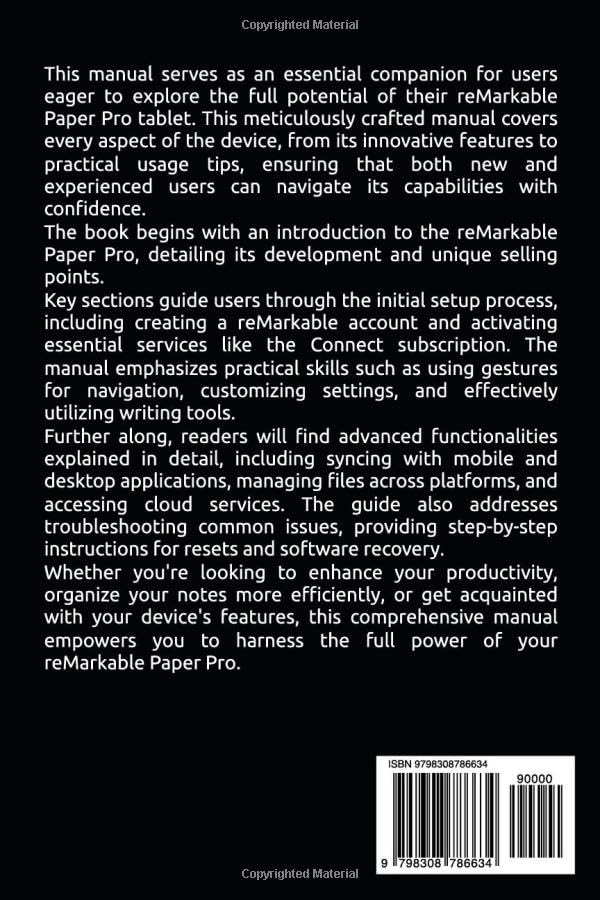
Image: Back cover of the reMarkable Paper Pro user guide. The image features a barcode with the ISBN 979-8308786634 and text indicating "Copyrighted Material".
Garantija ir palaikymas
Information regarding warranty coverage and customer support for the reMarkable Paper Pro is typically provided by the manufacturer, reMarkable. Please refer to the official reMarkable website or the documentation included with your device for the most current warranty terms and support contact details.
For direct support, visit the official reMarkable support page: support.remarkable.com
Ask a question about this manual
Ask about setup, troubleshooting, compatibility, parts, safety, or missing instructions. Manuals+ will review the question and use this page’s manual context to help answer it.