
VEIKK VK1600
„VEIKK Studio 16“ grafinės piešimo planšetės naudotojo vadovas
Modelis: VK1600
Įvadas
This user manual provides comprehensive instructions for setting up, operating, maintaining, and troubleshooting your VEIKK Studio 16 Graphics Drawing Tablet. Please read this manual carefully before using the device to ensure optimal performance and longevity.
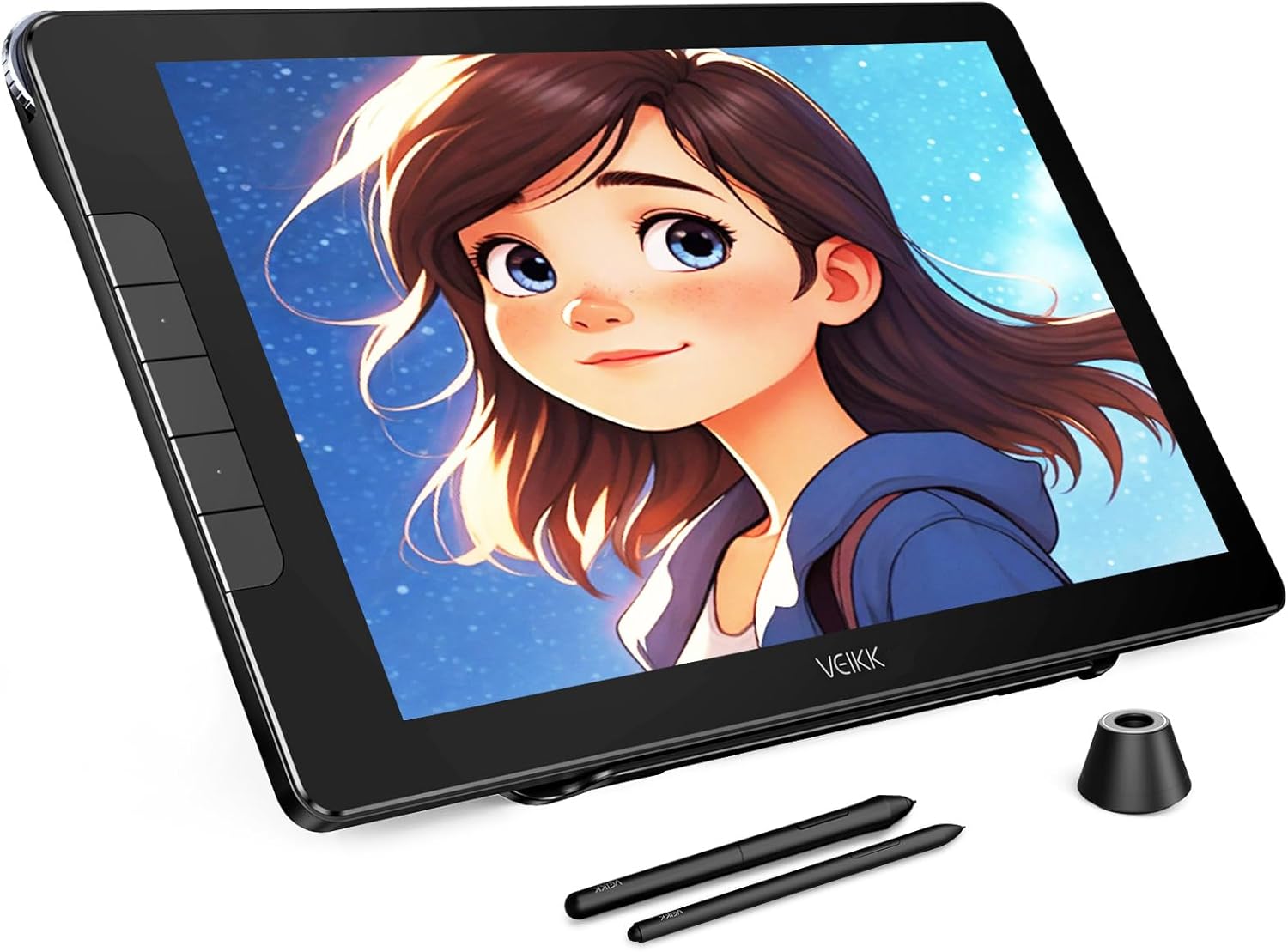
The VEIKK Studio 16 Graphics Drawing Tablet is designed for digital artists, offering a high-resolution display and precise pen input for creative work.
Pakuotės turinys
Prieš pradėdami, patikrinkite, ar pakuotėje yra visi toliau išvardyti daiktai:
- 1 IPS rašiklio ekranas
- S100 stovas x 1
- Pens x 2 (Battery-Free)
- Pen Box x 1
- Antgalio nuėmiklis x 1
- Rašiklio laikiklis x 1
- Menininko pirštinė x 1
- Valymo šluostė x 1
- Rašiklio antgaliai x 28
- USB ilgintuvas x 1
- 3-in-1 USB Cable x 1
- USB-C-USB-C kabelis x 1
- Greitas pradžios vadovas x 1

A visual representation of all components included in the VEIKK Studio 16 package.
Sąranka
Follow these steps to set up your VEIKK Studio 16 Graphics Drawing Tablet:
- Išpakuokite įrenginį: Atsargiai išimkite visus komponentus iš pakuotės.
- Prisijunkite prie kompiuterio:
- Using 3-in-1 Cable: Connect the HDMI, USB-A, and power (if needed) connectors to your computer and the corresponding port on the tablet.
- Using USB-C to USB-C Cable: For compatible devices, connect the tablet to your computer using a single USB-C to USB-C cable. Ensure your computer's USB-C port supports video output.
- Įdiegti tvarkykles: Download and install the latest drivers from the official VEIKK website. This is crucial for proper functionality and pressure sensitivity.
- Maitinimas: Press the power button on the tablet to turn it on.
- Konfigūruoti ekrano nustatymus: Adjust your computer's display settings to extend or duplicate your desktop to the tablet.
Watch this video for a detailed guide on unboxing, connecting, and setting up your VEIKK Studio 16 Drawing Tablet.

The tablet offers flexible connectivity options, including a single USB-C cable or a 3-in-1 cable for HDMI and USB connections.
Naudojimo instrukcijos
The VEIKK Studio 16 is designed for intuitive use with its battery-free pen and customizable features.
Using the Battery-Free Pen
The tablet comes with two battery-free pens (slim and standard sizes) that offer 16384 levels of pressure sensitivity and 60° tilt support. This allows for natural and precise drawing, mimicking traditional art tools.

The included battery-free pens provide high pressure sensitivity and tilt recognition for a natural drawing experience.

Utilize the adjustable S100 stand to find the most comfortable angle for your creative workflow.
Tinkinimas
Enhance your workflow by customizing the tablet's shortcut keys and quick dial.
Shortcut Keys and Quick Dial
The VEIKK Studio 16 features 5 customizable shortcut keys and a quick dial. These can be programmed through the driver software to perform frequently used functions, such as zooming, adjusting brush sizes, or undo/redo actions, streamlining your creative process.

The quick dial and shortcut keys can be customized to suit your individual drawing habits and preferences.
Priežiūra
Proper care and maintenance will ensure the longevity and optimal performance of your drawing tablet.
- Ekrano valymas: Use the provided cleaning cloth or a soft, lint-free cloth to gently wipe the screen. Avoid abrasive materials or harsh chemicals.
- Anti-Glare and Anti-Fingerprint Screen: The full-laminated AG glass minimizes reflections and reduces smudges, keeping your screen clear.
- Rašiklio antgaliai: Replace pen nibs when they show signs of wear to maintain drawing precision. Use the nib remover tool for easy replacement.
- Saugykla: When not in use, store the tablet in a cool, dry place away from direct sunlight and extreme temperatures.

The full-laminated anti-glare screen enhances visibility and reduces eye strain during long drawing sessions.
Trikčių šalinimas
If you encounter issues with your VEIKK Studio 16 tablet, refer to the common problems and solutions below:
| Problema | Sprendimas |
|---|---|
| No display on tablet screen. |
|
| Pen not responding or no pressure sensitivity. |
|
| Tablet not recognized by computer. |
|
For further assistance, please visit the official VEIKK support websvetainėje arba susisiekite su klientų aptarnavimo tarnyba.
Specifikacijos
Detailed technical specifications for the VEIKK Studio 16 Graphics Drawing Tablet:
| Funkcija | Detalė |
|---|---|
| Gaminio matmenys | 22.83 x 15.35 x 0.04 colio |
| Prekės svoris | 3.11 svaro |
| Modelio numeris | VK1600 |
| Ryšio technologija | HDMI, C tipas, USB |
| Jautrumas slėgiui | 16384 Levels (60 Degrees Tilt) |
| Operacinės sistemos suderinamumas | Linux, Mac OS x 10.12 and above, Windows 7 and above |
| Ypatingos savybės | 1 Quick Dial & 5 Shortcuts Keys, 16K Pressure Battery Free Pen, Anti-Glare Glass Full Lamination |
| Ekrano dydis | 15.6 colio |
| Ekrano raiška | 1920 x 1080 „Full HD“ raiška |
| Spalvų gama | 125% sRGB |

Detailed dimensions of the VEIKK Studio 16 tablet for reference.
Garantija ir palaikymas
VEIKK offers a one-year hardware service for the Studio 16 Graphics Drawing Tablet. All driver updates are provided free of charge.
For technical support, driver downloads, or warranty claims, please visit the official VEIKK website or contact their customer service team. Professional assistance is available to help resolve any issues you may encounter.
Oficialus Websvetainė: www.veikk.com
Ask a question about this manual
Ask about setup, troubleshooting, compatibility, parts, safety, or missing instructions. Manuals+ will review the question and use this page’s manual context to help answer it.