

Image: The COLORROOM K10 Android 14 Tablet, showcasing its design and included protective case.
Įvadas
This manual provides essential instructions for setting up, operating, maintaining, and troubleshooting your COLORROOM K10 Android 14 Tablet. Please read this guide thoroughly to ensure proper use and to maximize your tablet's performance and longevity. The K10 features an 11-inch IPS display, an octa-core processor, 12GB RAM, 128GB internal storage expandable up to 1TB, an 8000mAh battery with 18W PD fast charging, dual-band WiFi6, Bluetooth 5.0, GPS, and FM Radio.
Kas yra dėžutėje
Išpakuodami patikrinkite, ar yra visi toliau išvardyti daiktai:
- COLORROOM Android 14 Tablet
- USB kabelis
- Maitinimo adapteris
- Shock-proof Case
Sąranka
1. Planšetinio kompiuterio įkrovimas
Before first use, fully charge the tablet. Connect the provided USB cable to the tablet's charging port and the power adapter, then plug the adapter into a wall outlet. The tablet supports 18W PD fast charging. A full charge typically takes several hours.
2. Įjungimas/išjungimas
- Norėdami įjungti: Press and hold the Power button until the COLORROOM logo appears.
- Norėdami išjungti: Paspauskite ir palaikykite maitinimo mygtuką, tada iš parinkčių pasirinkite „Išjungti“.
- Norėdami paleisti iš naujo: Paspauskite ir palaikykite maitinimo mygtuką, tada iš parinkčių pasirinkite „Paleisti iš naujo“.
3. Pradinės sąrankos vedlys
Follow the on-screen instructions to complete the initial setup, which includes selecting your language, connecting to a Wi-Fi network, and signing in with your Google account.
4. Prisijungimas prie Wi-Fi
- Eikite į Nustatymai > Tinklas ir internetas > Wi-Fi.
- Perjungti „Wi-Fi“ On.
- Iš sąrašo pasirinkite norimą tinklą.
- Jei būsite paraginti, įveskite slaptažodį, tada palieskite Prisijunkite. The tablet supports dual-band WiFi (2.4/5GHz) for stable connections.
5. Saugyklos išplėtimas
The tablet supports up to 1TB expandable storage via a microSD card (not included). Locate the microSD card slot, insert the card gently until it clicks into place, and follow any on-screen prompts to format it if necessary.
6. Installing the Protective Case
Carefully align the tablet with the provided shock-proof case and gently press it into place, ensuring all ports and buttons are accessible and the tablet is securely fitted.
Naudojimo instrukcijos
1. Pagrindinė navigacija
- Palieskite: Palieskite piktogramą, kad atidarytumėte programėlę arba pasirinktumėte elementą.
- Perbraukimas: Norėdami slinkti arba naršyti tarp ekranų, braukite pirštu per ekraną.
- Žiupsnelis: Norėdami priartinti arba atitolinti vaizdus, naudokite du pirštus ir web puslapių.
- Namų mygtukas: Grįžta į pagrindinį ekraną.
- Atgal mygtukas: Grįžta į ankstesnį ekraną.
- Naujausių programų mygtukas: Rodo neseniai atidarytas programas.
2. Daugiafunkcinis darbas
The tablet's octa-core processor and 12GB RAM allow for efficient multitasking. You can run multiple applications simultaneously. Use the recent apps button to switch between open applications or use split-screen mode for two apps side-by-side.
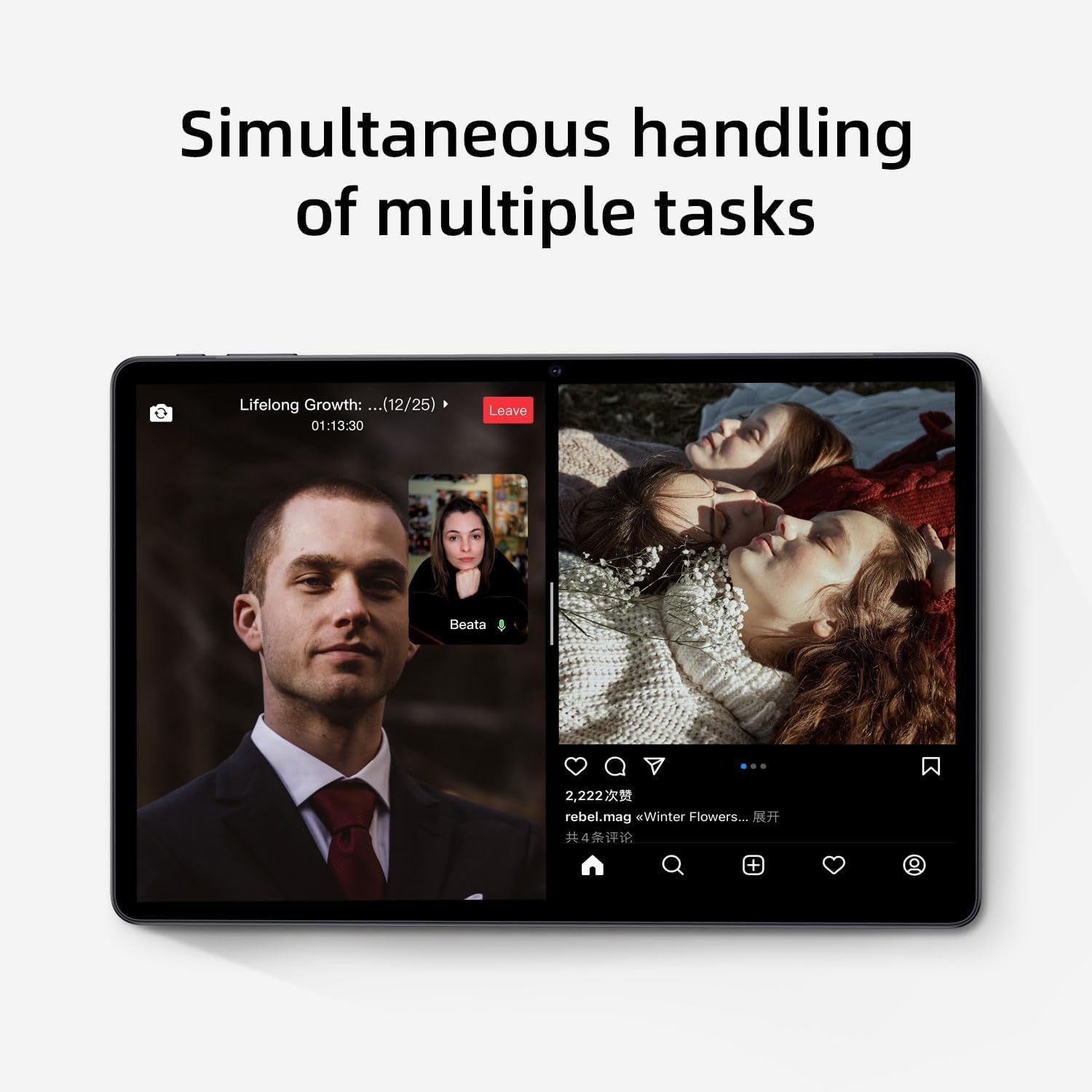
Image: The tablet screen showing two applications running simultaneously in split-screen mode, illustrating its multitasking feature.
3. Medijos atkūrimas
The 11-inch IPS display with 1920x1200 resolution provides clear and vibrant visuals for streaming videos, viewing photos, and playing games. Use pre-installed media players or download your preferred apps from the Google Play Store.
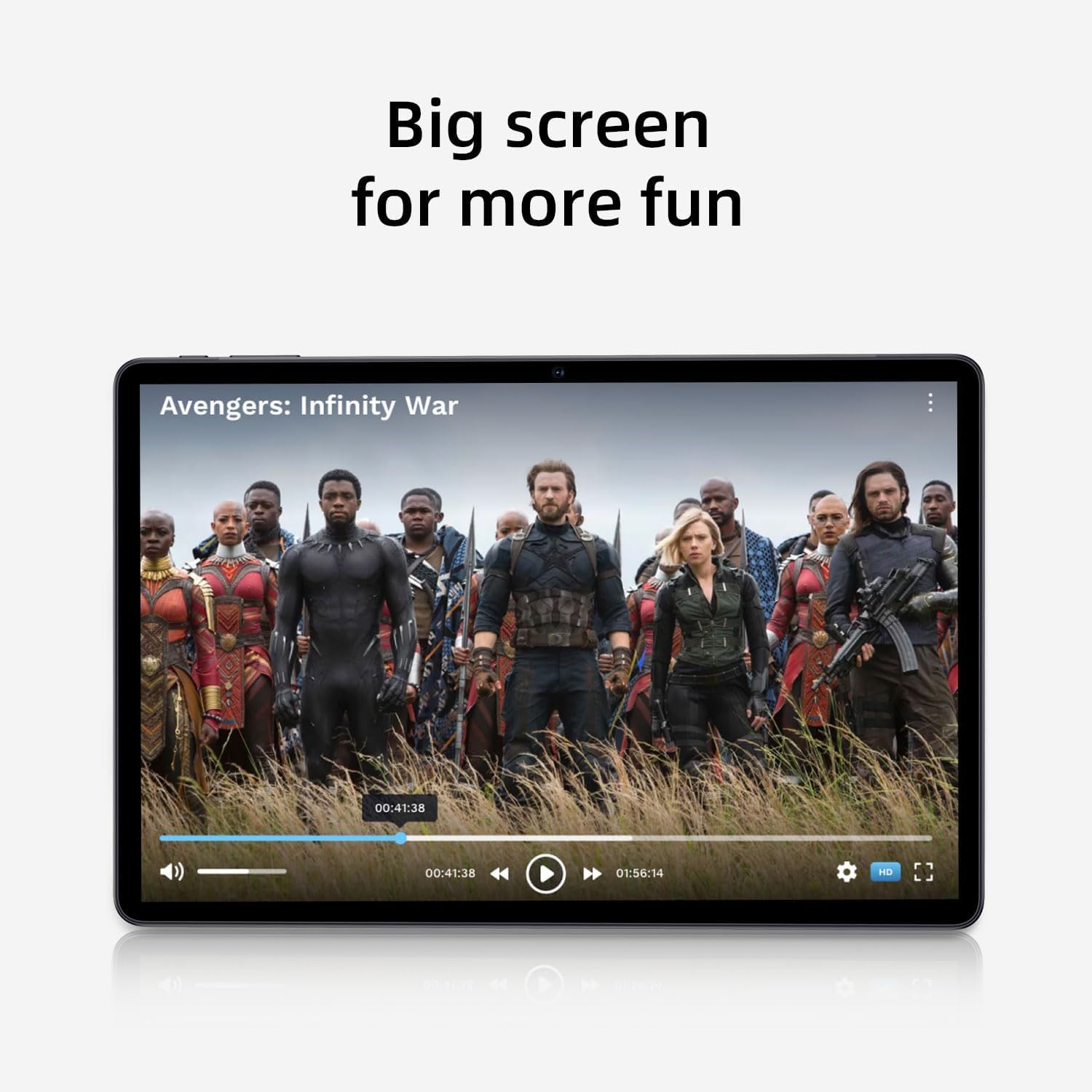
Image: The tablet screen showing a video playing, highlighting the display quality for entertainment.
4. GPS naudojimas
The tablet includes built-in GPS functionality. To use navigation apps, ensure location services are enabled in Nustatymai > Vieta. Download a navigation app from the Google Play Store for turn-by-turn directions.
5. Using FM Radio
To use the FM Radio, connect wired headphones (not included) to the tablet's audio jack. The headphones act as an antenna. Open the pre-installed FM Radio app and scan for available stations.
6. Bluetooth ryšys
To pair Bluetooth devices (e.g., headphones, speakers):
- Eikite į Nustatymai > Prijungti įrenginiai > Ryšio nuostatos > Bluetooth.
- Perjungti Bluetooth On.
- Įsitikinkite, kad jūsų „Bluetooth“ įrenginys veikia susiejimo režimu.
- Pasirinkite savo įrenginį iš galimų įrenginių sąrašo ir vykdykite visus ekrane pateikiamus nurodymus, kad užbaigtumėte susiejimą.
7. Kameros naudojimas
Open the Camera app from the home screen or app drawer. Tap the shutter button to take photos or switch to video mode to record videos. Adjust settings like flash, timer, and camera mode within the app interface.
Priežiūra
1. Planšetinio kompiuterio valymas
Planšetinio kompiuterio ekraną ir korpusą valykite minkštu, nepūkuotu audiniu. Įsisenėjusias dėmes šiek tiek nuvalykite.ampNuvalykite šluostę vandeniu arba ekrano valymo tirpalu. Venkite stiprių cheminių medžiagų ar abrazyvinių medžiagų.
2. Akumuliatoriaus priežiūra
- Venkite ekstremalių temperatūrų, nes jos gali pabloginti akumuliatoriaus veikimo laiką.
- Neleiskite baterijai dažnai visiškai išsikrauti.
- Optimaliam įkrovimui naudokite pridedamą įkroviklį.
- The 8000mAh battery provides extended usage; however, proper care ensures long-term performance.

Image: A visual representation of the tablet's 8000mAh battery capacity, emphasizing its long-lasting power.
3. Programinės įrangos atnaujinimai
Reguliariai tikrinkite, ar yra sistemos atnaujinimų, kad jūsų planšetiniame kompiuteryje būtų įdiegtos naujausios funkcijos ir saugos pataisymai. Eikite į Nustatymai > Sistema > Sistemos atnaujinimas.
4. Sandėliavimo valdymas
Periodiškai review jūsų įdiegtos programos ir files. Pašalinkite nenaudojamas programas ir ištrinkite nereikalingas files to free up the 128GB internal storage. Utilize the 1TB expandable storage for large media files.
Trikčių šalinimas
Planšetinis kompiuteris neįsijungia
- Įsitikinkite, kad planšetinis kompiuteris yra pakankamai įkrautas. Prijunkite jį prie maitinimo adapterio ir palaukite kelias minutes prieš bandydami įjungti.
- Norėdami atlikti priverstinį paleidimą iš naujo, paspauskite ir palaikykite maitinimo mygtuką bent 10–15 sekundžių.
„Wi-Fi“ ryšio problemos
- Iš naujo paleiskite „Wi-Fi“ maršrutizatorių ir planšetinį kompiuterį.
- Pamirškite tinklą „Wi-Fi“ nustatymuose ir prijunkite iš naujo.
- Įsitikinkite, kad esate „Wi-Fi“ signalo diapazone.
Lėtas našumas
- Uždarykite nenaudojamas programas, veikiančias fone.
- Išvalykite dažnai naudojamų programų talpyklos duomenis.
- Patikrinkite, ar yra sistemos naujinimų, ir įdiekite juos.
- Consider performing a factory reset as a last resort (back up your data first). Go to Nustatymai > Sistema > Iš naujo nustatyti parinktis > Ištrinti visus duomenis (atkurti gamyklinius).
Jutiklinis ekranas nereaguoja
- Iš naujo paleiskite planšetinį kompiuterį.
- Įsitikinkite, kad ekranas yra švarus ir be dulkių ar drėgmės.
Specifikacijos

Image: The tablet shown with its physical dimensions, including screen size and overall device measurements.
| Modelio pavadinimas | K10 |
| Operacinė sistema | Android 14 |
| Procesorius | Octa-core (Unisoc) |
| RAM | 12 GB |
| Vidinė saugykla | 128 GB |
| Išplečiama saugykla | Iki 1 TB (microSD) |
| Ekrano dydis | 11 colių |
| Ekrano raiška | 1920x1200 IPS |
| Baterijos talpa | 8000 mAh |
| Įkrovimas | 18 W PD greitasis įkrovimas |
| Wi-Fi | Dual-band (2.4/5GHz) 802.11ac |
| Bluetooth | Bluetooth 5.0 |
| GPS | Taip |
| FM radijas | Taip |
| Prekės svoris | 2.33 svaro |
| Gaminio matmenys | 10.1 x 3.5 x 0.35 colio |
Informacija apie garantiją
This COLORROOM K10 Tablet is covered by a standard manufacturer's warranty. The specific terms and duration of the warranty may vary by region. Please retain your proof of purchase for warranty claims. For detailed warranty information, including coverage and how to make a claim, please refer to the warranty card included with your product or visit the official COLORROOM websvetainę.
Palaikymas
For further assistance, technical support, or to inquire about service, please visit the COLORROOM official support websvetainėje arba susisiekite su jų klientų aptarnavimo skyriumi. Kontaktinę informaciją paprastai galite rasti gamintojo webvietoje arba ant pakavimo medžiagų.