
Headwolf FPad5-JW
Headwolf FPad5 Pro Android 14 Tablet
Vartotojo vadovas
Model: FPad5-JW | Brand: Headwolf
1. Įvadas
This user manual provides comprehensive instructions for the Headwolf FPad5 Pro Android 14 Tablet. It covers essential information regarding product features, setup, operation, maintenance, and troubleshooting. Please read this manual carefully before using your device to ensure optimal performance and longevity.

Vaizdas: Priekinė ir galinė dalys view of the Headwolf FPad5 Pro Tablet, showcasing savo elegantišku dizainu.
2. Produktas baigtasview
Pagrindinės funkcijos:
- Helio G99 CPU & Android 14: Equipped with an MTK G99 processor for enhanced performance and power efficiency, supporting smooth multitasking and graphic-intensive applications. Runs on Android 14 with improved privacy protection and GMS certification for full Google Play Store access.
- Widevine L1 & FHD IPS Display: Features an 8.4-inch FHD (1920x1200) IPS display with in-cell technology for clear, vibrant visuals from any angle. Widevine L1 certification enables 1080P HD video playback on major streaming platforms like Netflix, Amazon Prime Video, and Disney+.
- 16GB RAM (8+8GB Expansion) + 256GB ROM + UFS: Offers 8GB physical RAM expandable by up to 8GB from storage, boosting execution speed by 30%. Comes with 256GB internal storage, expandable up to 2TB via SD card. UFS 2.1 storage technology provides 40% faster transfer speeds and lower power consumption compared to EMMC.
- 5500mAh Battery + 8MP/16MP Camera + GPS: Long-lasting 5500mAh cobalt acid lithium battery with low self-discharge. Features an 8MP front camera and a 16MP rear camera for capturing moments. Integrated GPS, BDS, and Galileo support for accurate navigation.
- 4G LTE + 2.4G/5G WiFi + Face Recognition: Dual SIM card slots for 4G LTE communication, allowing calls and SMS without Wi-Fi. Supports strong 2.4GHz and high-speed 5GHz Wi-Fi bands. Face recognition feature enhances device security and convenience.

Image: Visual summary of the tablet's main features including CPU, memory, display, battery, and connectivity.
3. Sąranka
3.1 Paketo turinys:
Prieš pradėdami, įsitikinkite, kad pakuotėje yra visi reikalingi daiktai:
- Headwolf FPad5 Pro Tablet
- Japanese Instruction Manual
- SIM kortelės PIN kodas
- Įkrovimo adapteris
- C tipo kabelis

Image: Illustration of all items included in the Headwolf FPad5 Pro Tablet package.
3.2 Pradinis įkrovimas:
It is recommended to fully charge the tablet before first use. Connect the provided Type-C cable to the tablet's charging port and the charging adapter, then plug the adapter into a power outlet.

Image: The Headwolf FPad5 Pro Tablet connected to a Type-C charger, illustrating the charging process.
3.3 SIM Card and SD Card Installation:
Locate the card slot on the side of the tablet. Use the provided SIM card pin to eject the tray. Insert your SIM card(s) and/or microSD card into the designated slots. Ensure the cards are correctly oriented before reinserting the tray.
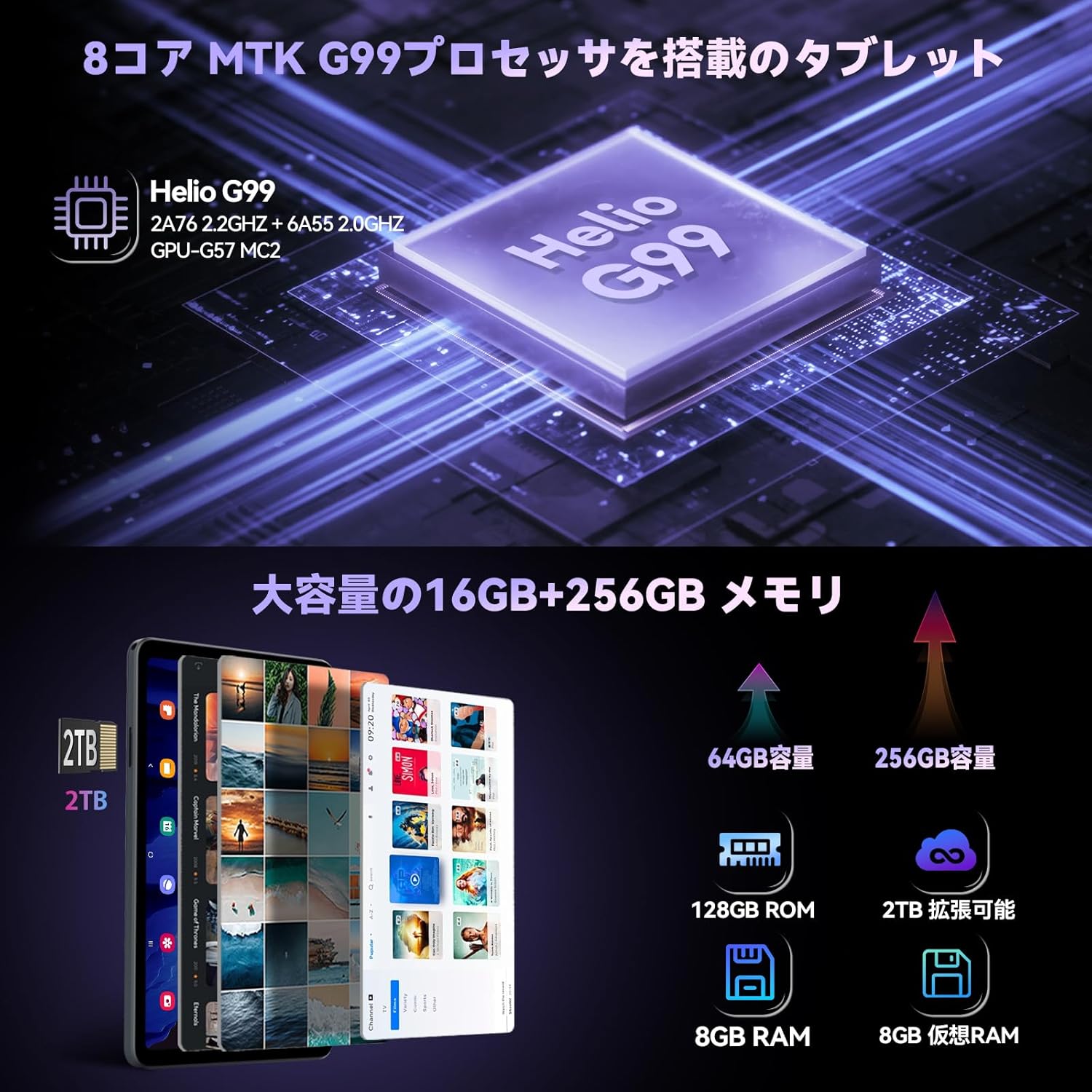
Image: Close-up of the Headwolf FPad5 Pro Tablet's SIM and SD card slot, showing how to insert cards.
3.4 Power On and Initial Setup:
Press and hold the power button until the Headwolf logo appears. Follow the on-screen prompts to select your language, connect to a Wi-Fi network, and complete the initial Android 14 setup process.
4. Naudojimo instrukcijos
4.1 Pagrindinė navigacija:
The tablet features a responsive touch screen. Use gestures such as tap, swipe, pinch-to-zoom, and long-press to navigate the interface and interact with applications.
4.2 Face Recognition:
To set up face recognition, go to Nustatymai > Saugumas ir privatumas > Veido atrakinimas. Follow the instructions to register your face. Once set up, you can unlock your device by simply looking at the front camera.

Image: Depicts the tablet's 4G LTE connectivity, dual-band Wi-Fi, and face recognition capabilities.
4.3 Connectivity (Wi-Fi, Bluetooth, 4G LTE):
- „Wi-Fi“: Access Wi-Fi settings from the quick settings panel or Nustatymai > Tinklas ir internetas > InternetasPasirinkite norimą tinklą ir įveskite slaptažodį.
- Bluetooth: Enable Bluetooth from quick settings or Nustatymai> Prijungti įrenginiai> Ryšio nuostatos> „Bluetooth“. Pair with compatible devices.
- 4G LTE: With a valid SIM card inserted, the tablet will automatically connect to 4G LTE networks for mobile data, calls, and SMS.
4.4 Camera Usage:
The tablet is equipped with an 8MP front camera and a 16MP rear camera. Open the Camera app to capture photos and videos. Various modes and settings are available for different shooting scenarios.

Image: Highlights the tablet's 8MP front and 16MP rear AI cameras, showing examppadaryta mažiau nuotraukų.
4.5 GPS navigacija:
The tablet supports GPS, BDS, and Galileo satellite positioning systems, providing accurate location services. Use navigation apps for directions, route planning, and location tracking.

Image: Demonstrates the tablet's GPS capabilities, showing it mounted in a car for navigation, and its GMS certification.
4.6 Split Screen and Screenshots:
- Padalintas ekranas: To use split screen, open a recent app, tap its icon at the top of the preview, and select "Split screen". Choose another app to open in the second pane.
- Ekrano nuotraukos: Take a screenshot by pressing the Power button and Volume Down button simultaneously. Alternatively, use the three-finger swipe gesture if enabled in settings.

Image: Shows the tablet's split-screen multitasking, Android 14 interface, lift-to-wake function, and the three-finger screenshot gesture.
5. Priežiūra
5.1 Baterijos priežiūra:
- Venkite ekstremalių temperatūrų (karštos ar šaltos), nes jos gali sutrumpinti akumuliatoriaus veikimo laiką.
- Neleiskite baterijai dažnai visiškai išsikrauti.
- Naudokite tik pateiktą įkroviklį arba sertifikuotą suderinamą įkroviklį.
5.2 Valymas:
Planšetinio kompiuterio ekraną ir korpusą valykite minkštu, nepūkuotu audiniu. Venkite naudoti stiprių cheminių medžiagų ar abrazyvinių medžiagų, kurios gali pažeisti paviršių.
5.3 Programinės įrangos naujiniai:
Reguliariai tikrinkite, ar yra sistemos atnaujinimų, kad įsitikintumėte, jog jūsų planšetiniame kompiuteryje yra naujausios funkcijos, saugos pataisymai ir našumo patobulinimai. Eikite į Nustatymai > Sistema > Sistemos naujinimas norėdami patikrinti, ar nėra atnaujinimų.
6. Problemų sprendimas
Dažnos problemos ir sprendimai:
| problema | Galimas sprendimas |
|---|---|
| Įrenginys neįsijungia | Ensure the battery is charged. Press and hold the power button for 10-15 seconds to force a restart. |
| Programėlės stringa arba užstringa | Clear the app's cache (Settings > Apps > [App Name] > Storage & cache > Clear cache). Restart the tablet. Ensure apps are updated. |
| Wi-Fi ryšio problemos | Restart your Wi-Fi router. Forget the network on your tablet and reconnect. Ensure Wi-Fi is enabled. |
| Lėtas veikimas | Uždarykite nenaudojamas programas. Išvalykite talpyklą ir laikinuosius files. Apsvarstykite gamyklinių parametrų atkūrimą kaip paskutinę išeitį (pirmiausia sukurkite atsarginę duomenų kopiją). |
| Ekranas nereaguoja | Paleiskite įrenginį iš naujo. Jei problema išlieka, susisiekite su klientų aptarnavimo tarnyba. |
If you encounter issues not listed here or if the suggested solutions do not resolve the problem, please contact Headwolf customer support.
7. Specifikacijos
| Funkcija | Detalė |
|---|---|
| Prekės ženklas | Galvos vilkas |
| Modelio pavadinimas | FPad5-JW |
| Produkto modelio numeris | F5A |
| Operacinė sistema | Android 14 |
| Ekrano dydis | 8.4 colių |
| Ekrano raiška | 1920x1200 pixels (FHD IPS) |
| Procesoriaus prekės ženklas | MediaTek |
| CPU greitis | 2.2 GHz |
| Grafikos greitintuvas | Mali-G57 MC2 |
| RAM | 16 GB (8 GB + 8 GB išplėtimo galimybė) |
| Atminties talpa | 256 GB (Expandable up to 2TB via SD card) |
| Belaidis tipas | 802.11ac (2.4G/5G WiFi), Bluetooth |
| Priekinės kameros skiriamoji geba | 8 MP |
| Galinės kameros skiriamoji geba | 16 MP |
| Baterijos talpa | 5500 mAh |
| Prekės svoris | 600 g |
| Matmenys | 21.5 x 13.9 x 4.6 cm |
8. Garantija ir palaikymas
8.1 Produkto garantija:
Your Headwolf FPad5 Pro Tablet comes with a 1 metų kokybės garantija from the date of purchase. In case of product defects, free repair or replacement services will be provided. Headwolf is committed to providing comprehensive support to ensure long-term customer satisfaction.
8.2 Dedicated Repair Center:
Headwolf operates a dedicated repair center in Tokyo, Japan, ensuring prompt and high-quality after-sales service. This center handles repairs and exchanges as needed to address customer issues and inquiries efficiently.
8.3 Susisiekimas su palaikymo tarnyba:
For any questions, issues, or support requests, please use one of the following methods:
- Through the Product Page: Go to the product page, click on the store name, then click "Ask a question".
- Per „Amazon“ paskyrą: Go to your Amazon account > Order history > Select the relevant order > Contact seller.
Our support team is ready to assist you with any concerns.
Ask a question about this manual
Ask about setup, troubleshooting, compatibility, parts, safety, or missing instructions. Manuals+ will review the question and use this page’s manual context to help answer it.