
Įvadas
This manual provides comprehensive instructions for the LogiLink ID0212 Wireless 28-Key Bluetooth 5.0 Scissor Mechanism Keyboard. It covers setup, operation, maintenance, and troubleshooting to ensure optimal performance and user experience. Please read this manual thoroughly before using the device.
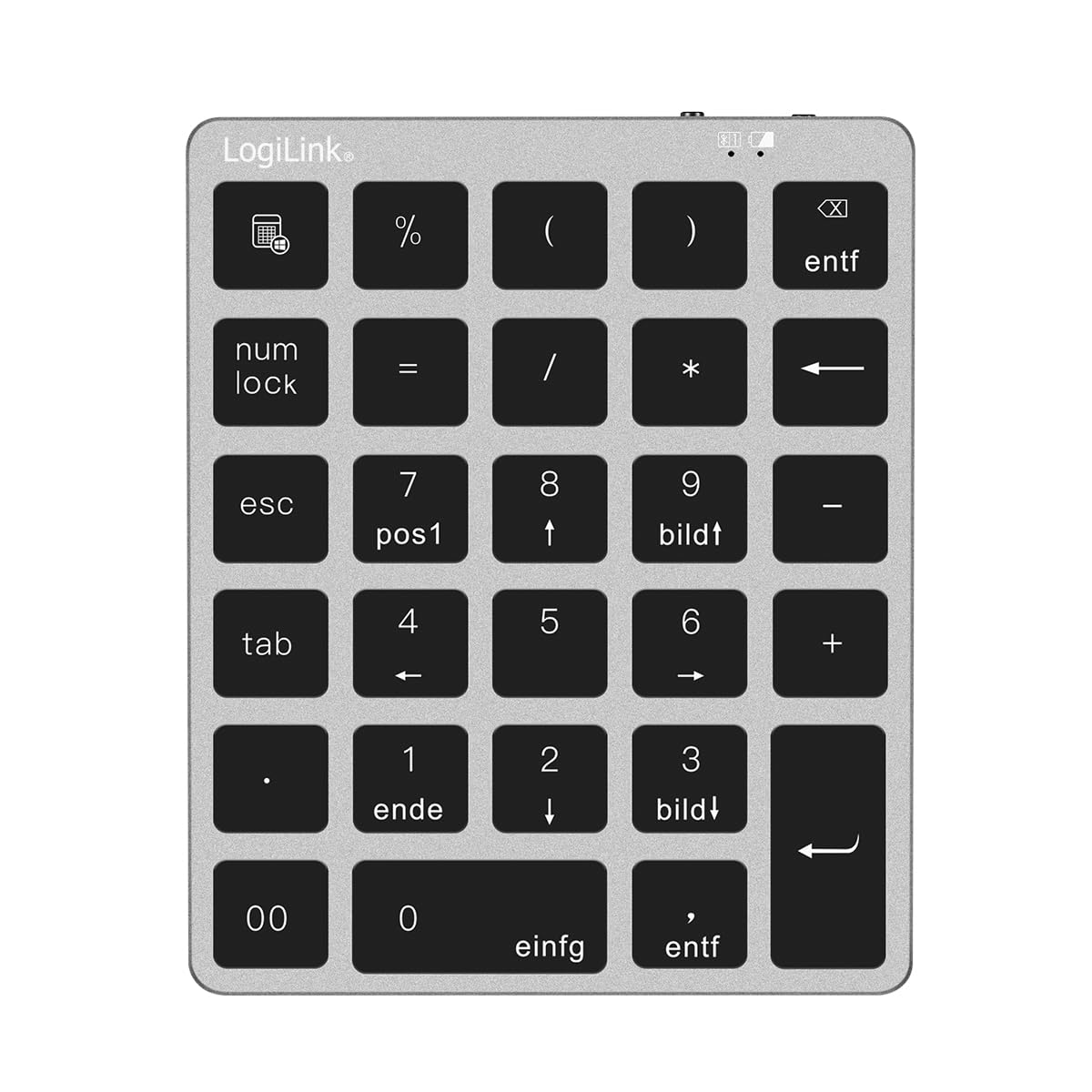
Figure 1: LogiLink ID0212 Wireless 28-Key Bluetooth 5.0 Scissor Mechanism Keyboard. This image shows the overall design of the numeric keypad.
Pakuotės turinys
Įsitikinkite, kad pakuotėje yra visi daiktai:
- LogiLink ID0212 Wireless 28-Key Bluetooth 5.0 Keyboard
- USB-C įkrovimo laidas
- Vartotojo vadovas (šis dokumentas)
Sąranka
1. Klaviatūros įkrovimas
Before initial use, fully charge the keyboard. Connect the supplied USB-C cable to the keyboard's charging port and the other end to a USB power source (e.g., computer USB port, USB wall adapter).
- The LED indicator will show raudona įkrovimo metu.
- The LED indicator will turn off or change color (depending on model) when fully charged.
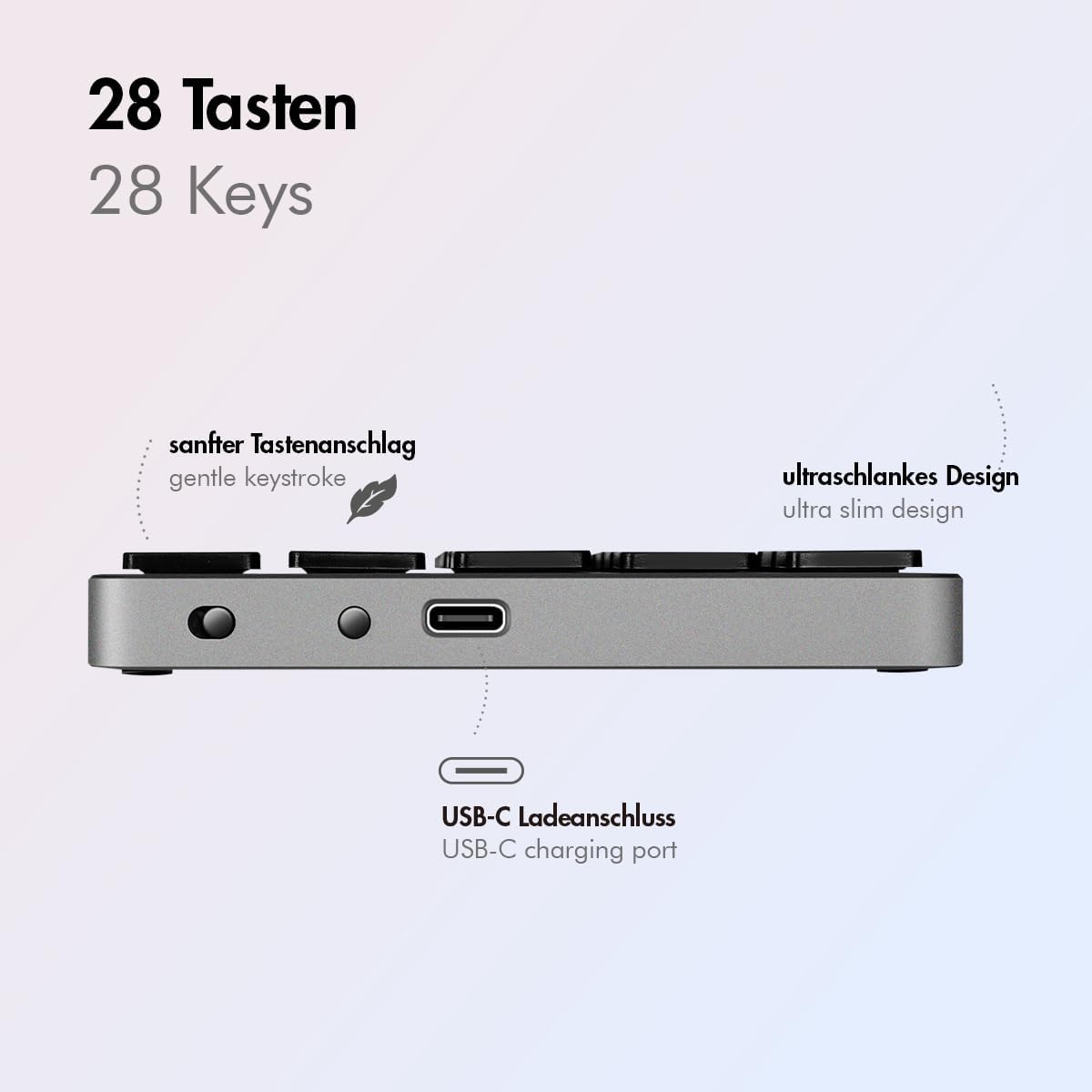
2 pav.: šonas view of the LogiLink ID0212 keyboard showing the USB-C charging port. This image highlights the location of the charging port and the ultra-slim design.

3 pav. Išsamus view of the LogiLink ID0212 keyboard's side profile, indicating the USB-C charging port, gentle keystroke mechanism, and ultra-slim design.
2. „Bluetooth“ poravimas
Follow these steps to connect your LogiLink ID0212 keyboard via Bluetooth 5.0:
- Įsitikinkite, kad klaviatūra yra įkrauta ir įjungta.
- Activate Bluetooth on your device (computer, tablet, smartphone).
- Put the keyboard into pairing mode. Look for a small button on the back or side, or a key combination like Fn + C (common for Bluetooth keyboards). The LED indicator will flash mėlyna when in pairing mode.
- Įrenginyje ieškokite galimų „Bluetooth“ įrenginių.
- Select "LogiLink ID0212" or a similar name from the list of found devices.
- If prompted, enter the pairing code displayed on your screen using the LogiLink ID0212 keyboard and press Įeikite.
- Once paired, the blue LED indicator will stop flashing and remain solid for a few seconds, then turn off. The keyboard is now ready for use.
The keyboard supports a stable connection up to 10 meters (33 feet) and is compatible with iOS, Android, Windows, MacOS, Chrome OS, and iPadOS.
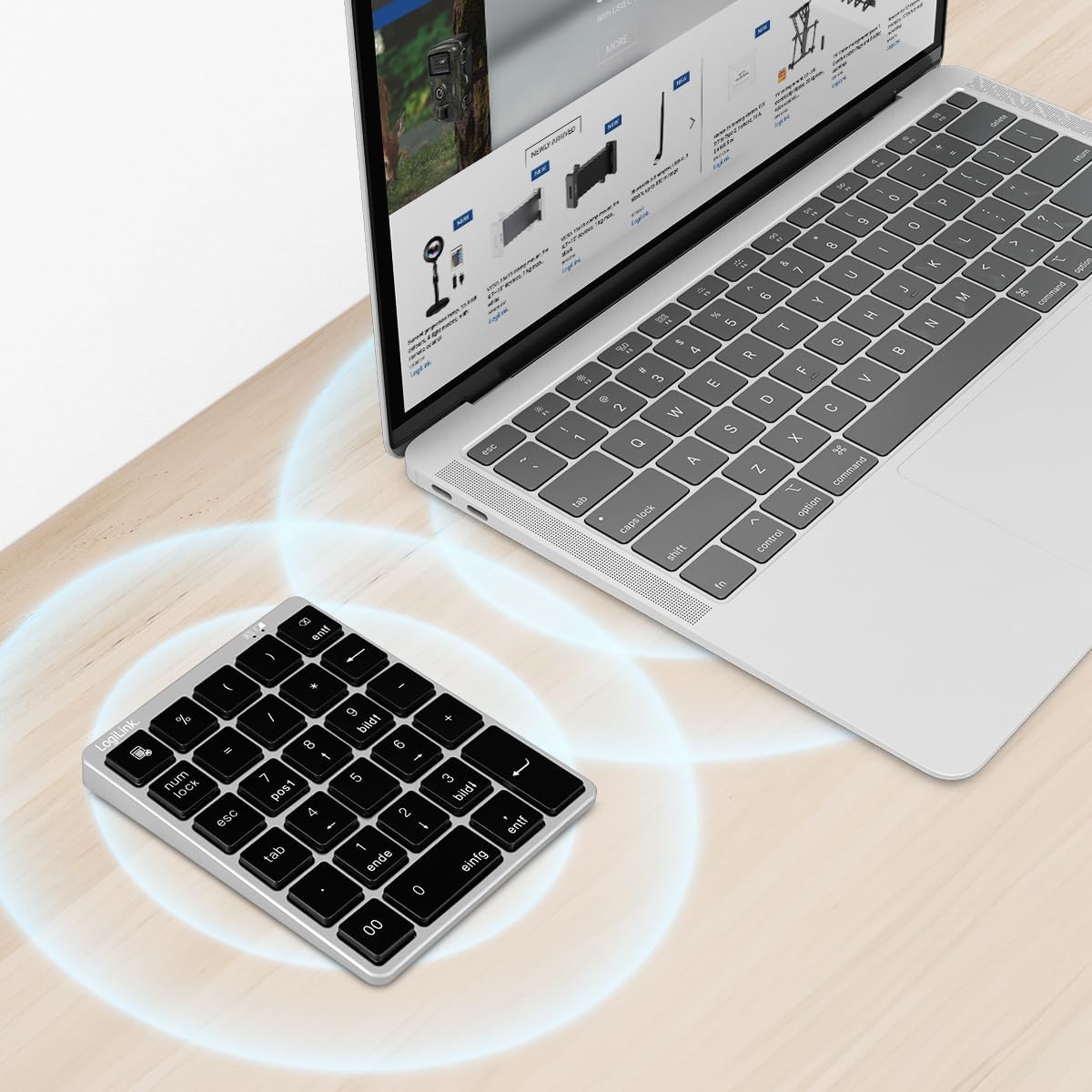
Figure 4: The LogiLink ID0212 keyboard positioned next to a laptop, illustrating its wireless connectivity. This image demonstrates the keyboard's use in a typical workspace setup.
Naudojimo instrukcijos
Pagrindinės klavišų funkcijos
The LogiLink ID0212 features 28 keys designed for efficient data entry and calculations. Key functions include:
- Skaičių klavišai (0–9): Standard number input.
- Arithmetic Operators (+, -, *, /): For calculations.
- Kablelio (.): For fractional numbers.
- NumLock: Toggles the numeric keypad function. When NumLock is active, the green LED indicator will be on.
- ESC: Escape key, typically used to cancel operations or close menus.
- Delete (DEL): Deletes characters.
- Skaičiuoklės mygtukas: Launches the calculator application on compatible operating systems.
- Skirtukas: Moves the cursor to the next tab stop or field.
- Home/End/PgUp/PgDn: These keys (often labeled as 'pos1', 'ende', 'bildt', 'bildl' or similar) provide navigation functions.
The scissor mechanism keys provide a gentle and quiet keystroke, enhancing typing comfort.

Figure 5: The LogiLink ID0212 keyboard in active use, demonstrating its compact layout and key functions alongside a laptop. This image provides a clear view of the keypad's design and key labels.
LED indikatoriai
The keyboard features LED indicators to provide status information:
- Raudonas LED: Indicates the keyboard is charging.
- Mėlynas LED: Flashes during Bluetooth pairing mode; solid when successfully paired (then turns off).
- Žalias šviesos diodas: Indicates that NumLock is active.
Priežiūra
Valymas
Norėdami išlaikyti klaviatūros išvaizdą ir funkcionalumą:
- Use a soft, dry, lint-free cloth to wipe the surface.
- Įsisenėjusiam purvui šiek tiek pamirkykiteampNuvalykite šluostę vandeniu arba švelniu valymo tirpalu. Venkite per didelės drėgmės.
- Do not use abrasive cleaners, solvents, or aerosol sprays directly on the keyboard.
Akumuliatoriaus priežiūra
The integrated 140 mAh lithium battery provides long-lasting power. To prolong battery life:
- Charge the keyboard using the provided USB-C cable.
- Venkite dažnai visiškai iškrauti akumuliatorių.
- Jei klaviatūrą ilgesnį laiką nenaudosite, įkraukite ją iki maždaug 50 % ir laikykite vėsioje, sausoje vietoje.
Trikčių šalinimas
Klaviatūra neprisijungia / nesusieja
- Patikrinkite akumuliatoriaus lygį: Ensure the keyboard is sufficiently charged. Charge it if the red LED indicates low battery.
- Iš naujo įjunkite poravimo režimą: Turn the keyboard off and on, then re-enter Bluetooth pairing mode (blue LED flashing).
- Device Bluetooth: Ensure Bluetooth is enabled on your computer/device and it's discoverable.
- Pamirškite įrenginį: On your device, remove or "forget" the keyboard from your Bluetooth device list, then attempt to pair again.
- Atstumas: Ensure the keyboard is within the 10-meter (33 feet) operating range of your device.
- Trukdymas: Move away from other wireless devices that might cause interference.
Raktai nereaguoja
- Ryšys: Verify the keyboard is still connected via Bluetooth (blue LED should not be flashing).
- NumLock: If numeric keys are not working as expected, check the green NumLock LED. Press the NumLock key to toggle its state.
- Perkraukite įrenginį: Sometimes, restarting your computer or device can resolve input issues.
- Suderinamumas: While compatible with many OS, specific key functions might behave differently on certain systems (e.g., some special characters on macOS, as noted in reviews).
Įkrovimo problemos
- Kabelio patikrinimas: Ensure the USB-C cable is securely connected to both the keyboard and the power source.
- Maitinimo šaltinis: Try a different USB port or power adapter.
- Raudonas LED: Confirm the red LED illuminates when charging. If not, the cable or port might be faulty.
Specifikacijos
| Funkcija | Detalė |
|---|---|
| Modelio numeris | ID0212 |
| Raktai | 28 keys (NumLock, ESC, Delete, Calculator button) |
| Pagrindinis mechanizmas | Žirklinis mechanizmas |
| Ryšys | Bluetooth 5.0 |
| Veikimo diapazonas | Iki 10 metrų (33 pėdų) |
| Baterija | 140 mAh ličio baterija |
| Įkrovimo prievadas | USB-C |
| LED indikatoriai | Red (Charging), Blue (Pairing/Connected), Green (NumLock) |
| Medžiaga | Aliuminis + ABS |
| Spalva | Erdvė pilka |
| Matmenys (I x P x A) | 12.1 x 10 x 1.3 cm (4.76 x 3.94 x 0.51 colio) |
| Svoris | 95 gramai (0.21 svaro) |
| Suderinamumas | iOS, Android, Windows, MacOS, Chrome OS, iPadOS |
| Įtraukti komponentai | USB-C kabelis |
| Kilmės šalis | Kinija |
Informacija apie garantiją
Specific warranty details for the LogiLink ID0212 keyboard are typically provided at the point of purchase or included with the product packaging. Please refer to your purchase documentation or the official LogiLink websvetainėje, kurioje rasite tiksliausias ir naujausias garantijos sąlygas.
Pagalba klientams
If you encounter issues not covered in this manual or require further assistance, please contact LogiLink customer support. You can usually find contact information, FAQs, and additional resources on the official LogiLink websvetainė:
When contacting support, please have your product model number (ID0212) and purchase information ready.