
osee GoStream Deck Kit
Osee GoStream Deck Kit User Manual
Model: GoStream Deck Kit
Brand: osee
1. Produktas baigtasview
The Osee GoStream Deck Kit is an all-in-one professional video switcher and audio mixer designed for multiple live streaming applications. It features 4 HDMI inputs, 2 HDMI outputs, and USB-C I/O, all integrated with a built-in 14-inch monitor. This comprehensive kit provides a streamlined solution for live video production.
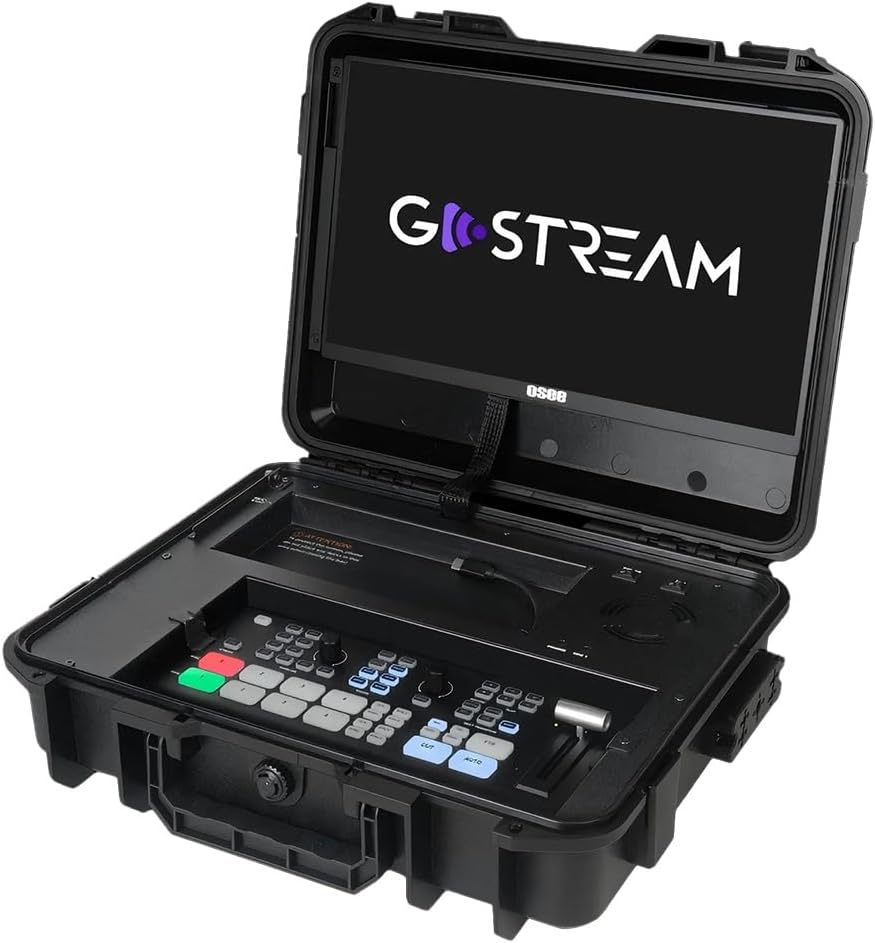
Figure 1.1: The GoStream Deck Kit with its integrated 14-inch monitor and control surface.
Pagrindinės funkcijos:
- „Viskas viename“ paketas: Includes GoStream Deck switcher, 14'' 1080*1920 screen, silent fan, and 3 Cheese Plates with 1/4'' & 3/8'' Thread.
- Rich Connection Ports: 4 HDMI inputs, 2 HDMI outputs, and 2 USB ports for flexible monitoring and streaming.
- Integruotas valdymo skydelis: Built-in operation menu eliminates the need for a separate computer.
- High-efficiency Macro Buttons: Up to 8 Macros, import/exportable via SD card for improved workflow.
- Unparalleled Super Source Feature: Advanced composition capabilities for enhanced live streaming.
- Garso maišytuvas: 2 Channel Analog Audio Inputs, 4 Channel HDMI Embedded Audio Inputs, 1 Channel AUX Embedded Audio Input, 1 Channel PGM Audio Monitoring with selectable On/Off/Audio-Follow-Video and gain control.
2. Sąranka ir ryšys
This section details the initial setup and various connectivity options for your GoStream Deck Kit.
2.1 Fizinė konfigūracija
Unpack all components from the GoStream Deck Kit. Ensure the 14-inch monitor is securely positioned. The silent fan is integrated for optimal performance during operation.

Figure 2.1: Components of the Mobile Live Studio All-in-One Kit.
2.2 Įvesties / išvesties jungtys
The GoStream Deck Kit offers a variety of ports for connecting cameras, monitors, and other devices.

Figure 2.2: Rear panel with all available input and output ports.
- HDMI Inputs (IN 1-4): Connect your cameras or other HDMI video sources here.
- HDMI Outputs (OUT 1-2): Use these for program output to external monitors or recorders. One output can be configured for multiview monitoring, while the other provides the program feed.
- USB Ports (USB 1-2): USB 1 is typically used for connecting to a computer for software control and streaming. USB 2 can accommodate a USB-C webcam for an additional input or other USB devices.
- Audio Inputs (MIC 1, MIC 2, AUX): Connect external microphones or audio mixers. The device also supports embedded audio from HDMI inputs.
- Ethernet: For network connectivity, including NDI sources if supported by the firmware.
- Power (DC IN): Prijunkite pridedamą maitinimo adapterį.
2.3 Expandable Cheese Plates
The kit includes 3 cheese plates with 1/4'' & 3/8'' threads, allowing for versatile mounting of accessories like cameras, lights, or additional monitors.

Figure 2.3: GoStream Deck Kit with expandable cheese plates for accessory mounting.
3. Naudojimo instrukcijos
Learn how to effectively operate your GoStream Deck Kit for live video production.
3.1 Valdymo skydelio išdėstymas
The integrated control panel provides intuitive access to all key functions.

3.1 pav. Išsamus view of the GoStream Deck control panel.
3.2 Switching and Transitions
Use the program and preview buttons to switch between video sources. The device supports various transition effects.
Video 3.1: Demonstrates the Osee GoStream Deck's switching and transition capabilities, including HDMI inputs, USB connectivity, and audio mixing. (Source: V-feast)
- Program (PGM) Buttons: Select the live output source.
- Preview (PVW) Buttons: Select the next source to go live.
- Transition Buttons (MIX, WIPE, DIP): Apply different visual effects between program and preview.
- T-baras: Manually control the speed and progression of transitions.
- AUTO mygtukas: Automatically execute the selected transition.
3.3 Garso maišymas
Control audio levels for each input source using the dedicated audio mixer section.
- Input Level Knobs: Adjust the volume for each microphone and HDMI input.
- Audio-Follow-Video (AFV): Enable or disable AFV per channel to automatically switch audio with video.
- Ausinių lizdas: Monitor the master audio output.
3.4 Įrašymas ir atkūrimas
Record your live stream directly to an SD card inserted into the dedicated slot. You can also load graphics and videos for playback during your stream.
- Įrašymo mygtukas: Start and stop recording the program output.
- SD kortelės lizdas: Insert an SD card for recording and media playback.
- Atkūrimo valdikliai: Manage loaded video clips and graphics.
4. Išplėstinės funkcijos
4.1 Super Source
The Super Source feature allows for advanced multi-layer compositions, enabling you to combine multiple video sources into a single output with customizable layouts.
4.2 Macro Buttons
Program up to 8 macros to automate complex sequences of actions, greatly improving efficiency for live streaming and video production. Macro files can be imported from or exported to an SD card for sharing.
4.3 Multi-Platform Streaming
The GoStream Deck Kit supports direct streaming to multiple platforms simultaneously via its built-in software and Ethernet port. This includes popular services like YouTube, Twitch, and Facebook.
4.4 Perkeliamumas
The compact design of the GoStream Deck Kit ensures ultimate portability and durability, making mobile live streaming accessible anywhere.

Figure 4.1: The GoStream Deck Kit is designed for easy transport.
5. Priežiūra
Regular maintenance ensures the longevity and optimal performance of your GoStream Deck Kit.
- Valymas: Use a soft, dry cloth to clean the exterior surfaces. For the screen, use a screen-specific cleaning solution and microfiber cloth. Avoid abrasive cleaners or solvents.
- Vėdinimas: Ensure the silent fan and ventilation openings are clear of dust and obstructions to prevent overheating.
- Firmware atnaujinimai: Periodically check the osee official website for firmware updates. Updates can improve performance, add new features, and resolve bugs. Follow the provided instructions carefully when updating firmware.
- Saugykla: When not in use, store the kit in a cool, dry place, preferably in its original case, to protect it from dust and physical damage.
6. Problemų sprendimas
Šiame skyriuje pateikiami dažniausiai pasitaikančių problemų, su kuriomis galite susidurti, sprendimai.
- Nėra vaizdo išvesties:
- Patikrinkite visas HDMI kabelio jungtis.
- Ensure the correct input source is selected on the GoStream Deck.
- Verify that the external monitor is powered on and set to the correct input.
- Confirm that the camera or video source is outputting a compatible signal.
- Nėra garso:
- Check microphone connections and ensure they are powered (if required).
- Verify audio levels on the GoStream Deck's audio mixer.
- Ensure Audio-Follow-Video (AFV) is correctly configured for embedded audio.
- Check audio output settings on your streaming software or recording device.
- Streaming Issues:
- Verify internet connection stability.
- Check streaming platform settings (stream key, server URL).
- Ensure sufficient upload bandwidth.
- Reduce video quality settings if experiencing buffering or dropped frames.
- Įrenginys nereaguoja:
- Perform a power cycle (turn off, unplug, wait 30 seconds, plug back in, turn on).
- If connected to a computer, try restarting the computer and the GoStream Deck.
7. Specifikacijos
| Funkcija | Detalė |
|---|---|
| Pakuotės matmenys | 14 x 11 x 5 colio |
| Prekės svoris | 11 svaro |
| Jungties tipas | HDMI |
| Prekės ženklas | osee |
| Suderinami įrenginiai | Laptop, Television, Digital Camera |
| Kabelio tipas | HDMI |
| Prievadų skaičius | 6 |
| Gamintojas | osee |
| Kilmės šalis | Kinija |
| Pasiekiama pirmoji data | 7 m. kovo 2025 d |
8. Garantija ir palaikymas
For warranty information and technical support, please refer to the official osee websvetainėje arba susisiekite tiesiogiai su jų klientų aptarnavimo tarnyba. Išsaugokite pirkimo kvitą kaip pirkimo įrodymą bet kokiems garantiniams prašymams.
Internetiniai ištekliai:
- Aplankykite osee Store on Amazon dėl produkto informacijos ir atnaujinimų.
Ask a question about this manual
Ask about setup, troubleshooting, compatibility, parts, safety, or missing instructions. Manuals+ will review the question and use this page’s manual context to help answer it.