
1. Įvadas
Welcome to the user manual for your new DigiLand 10.1 Inch HD Octa-Core Android Tablet. This device is designed to provide a versatile and powerful experience for both productivity and entertainment. Featuring an Octa-Core processor, ample RAM and storage, and a vibrant HD display, your tablet is equipped for a wide range of tasks, from browsing and streaming to gaming and office work.
This manual will guide you through the initial setup, operation, maintenance, and troubleshooting of your tablet to ensure you get the most out of its capabilities.
2. Kas yra dėžutėje
Patikrinkite, ar jūsų prekės pakuotėje yra visi šie daiktai:
- DigiLand 10.1 Inch Android Tablet
- Apsauginis dėklas
- C tipo USB įkrovimo laidas
- Maitinimo adapteris (5 V / 2 A)
- Greitos pradžios vadovas

2.1 pav. Pakuotės turinys
3. Produktas baigtasview
The DigiLand R10 Pro+ tablet combines powerful hardware with a user-friendly Android 14 operating system. Below are the key features and components of your device.
3.1 Pagrindinės savybės
- Procesorius: MediaTek Helio G80 Octa-Core CPU (2x A75 2.0GHz + 6x A55 1.8GHz) for robust performance.
- Ekranas: 10.1-inch HD (800x1280) In-cell touchscreen with IPS clarity and 350cd/m² brightness.
- Atmintis ir saugojimas: 12 GB RAM ir 128 GB ROM, galima išplėsti iki 256 GB per TF kortelę.
- Baterija: 6000mAh battery providing over 12 hours of runtime, with 10W fast-charging support.
- Kameros: 13MP rear camera and 8MP front camera for photography and video calls.
- Garsas: Dual 8Ω/1W speakers for clear sound.
- Ryšys: Bluetooth 5.0, 802.11n Wi-Fi, Type-C port, and headphone jack.
- Operacinė sistema: Android 14.
- „Widevine“ 1 lygio palaikymas: Enables high-definition streaming from platforms like Netflix, Hulu, and Amazon Prime Video.
3.2 Vizualinis viršusview
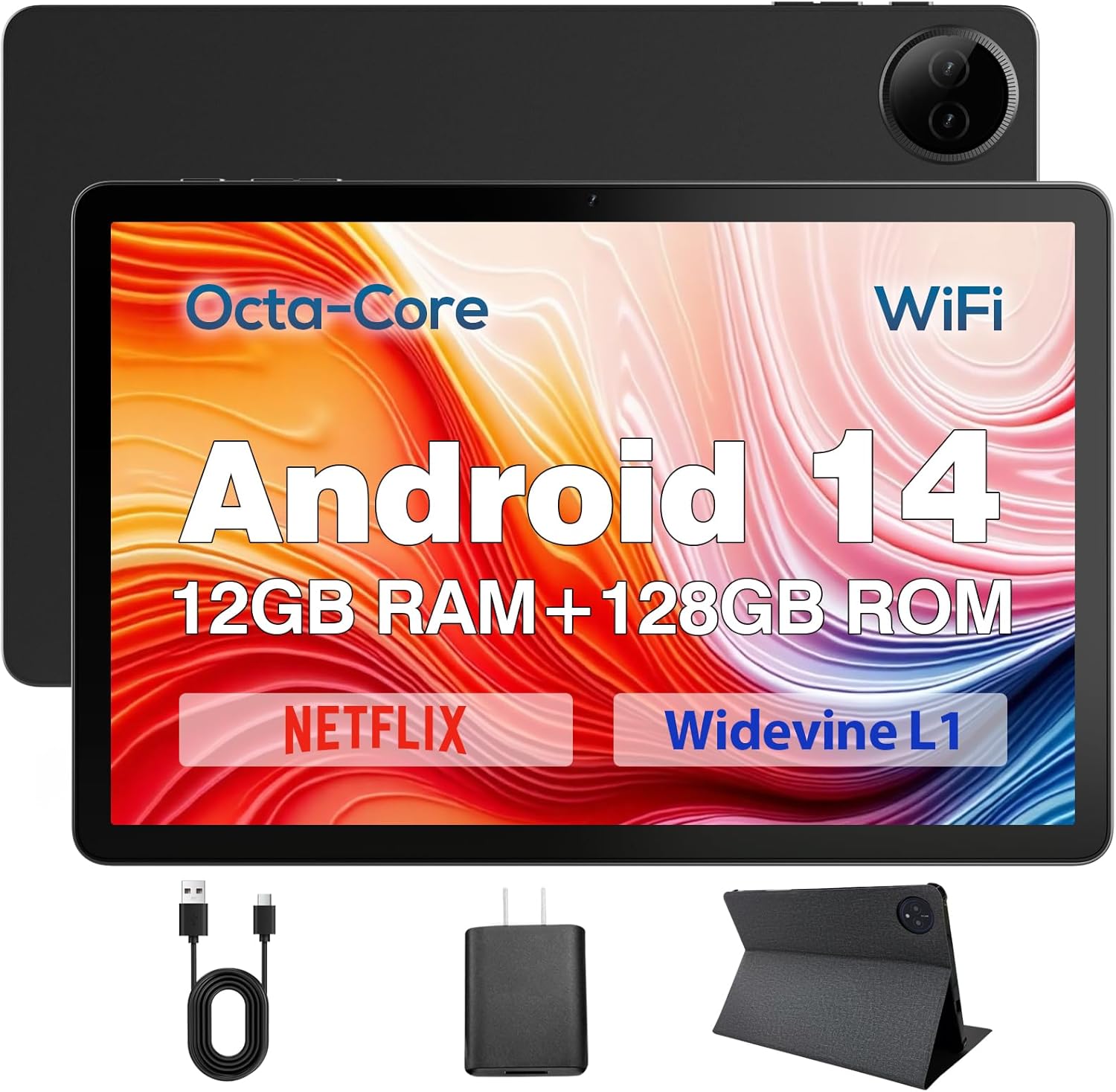
Figure 3.1: DigiLand Tablet Front and Rear View
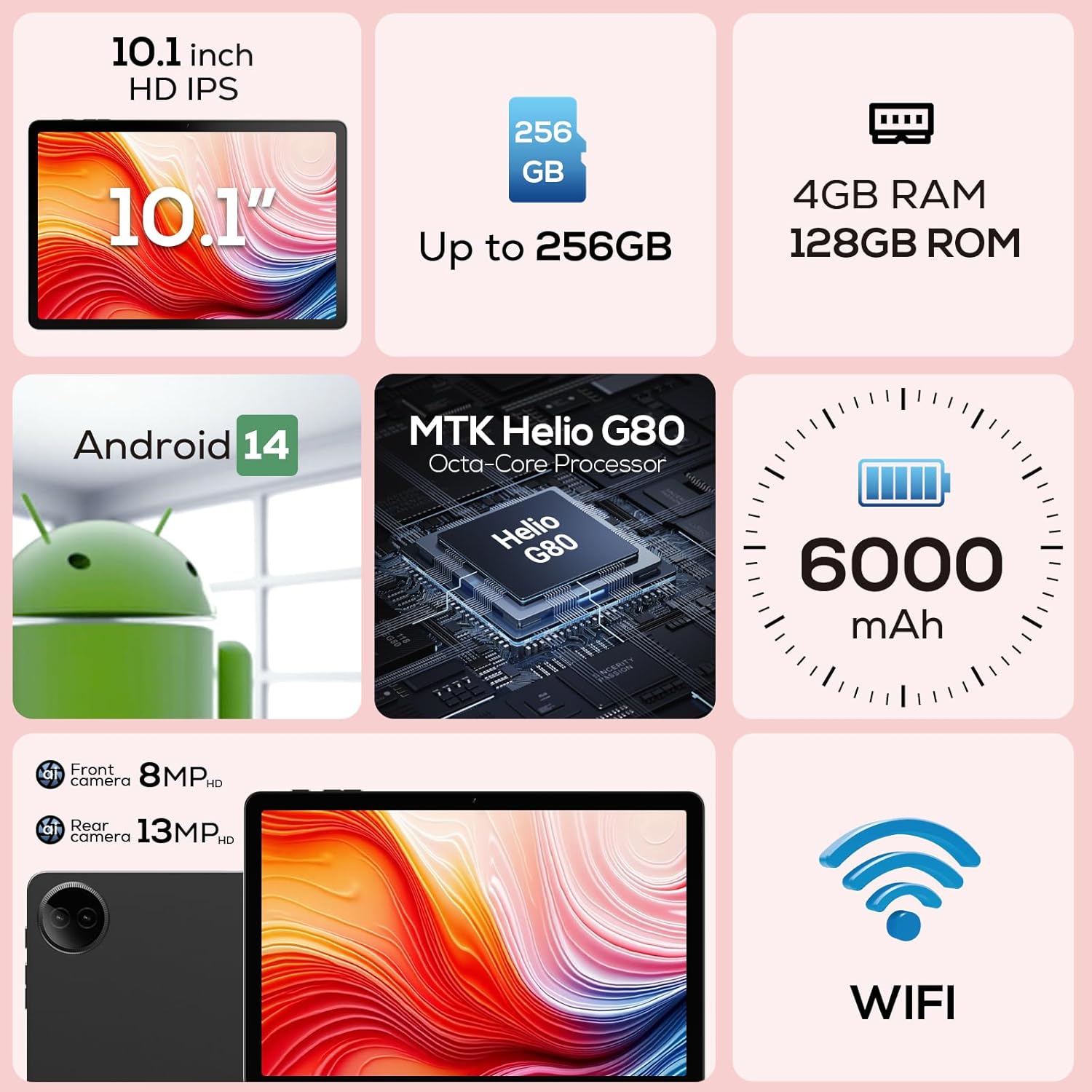
3.2 pav.: Pagrindinių funkcijų diagrama

Figure 3.3: Widevine L1 Support for HD Streaming

Figure 3.4: Ultra-thin and Lightweight Design
4. Sąranka
4.1 Pradinis įkrovimas
Before first use, fully charge your tablet. Connect the USB Type-C cable to the tablet's charging port and the power adapter to a wall outlet. The charging indicator will show the charging status. A full charge typically takes several hours.
4.2 Įjungimas / išjungimas
- Norėdami įjungti: Press and hold the Power button located on the side of the tablet until the DigiLand logo appears on the screen.
- Norėdami išjungti: Paspauskite ir palaikykite maitinimo mygtuką, kol pasirodys maitinimo parinkčių meniu. Pasirinkite „Išjungti“ ir patvirtinkite.
- Norėdami paleisti iš naujo: Maitinimo parinkčių meniu pasirinkite „Paleisti iš naujo“.
4.3 Pirmojo nustatymo vedlys
Pirmą kartą įjungus planšetinį kompiuterį, bus pateiktas sąrankos vedlys. Vykdykite ekrane pateikiamus nurodymus, kad:
- Pasirinkite savo kalbą.
- Prisijunkite prie „Wi-Fi“ tinklo.
- Prisijunkite naudodami „Google“ paskyrą arba sukurkite naują.
- Nustatykite ekrano užraktą (PIN kodą, šabloną, slaptažodį).
- Review ir sutikite su sąlygomis ir nuostatomis.
5. Naudojimo instrukcijos
5.1 Jutiklinio ekrano navigacija
Your tablet features a responsive multi-touch display. Common gestures include:
- Bakstelėkite: Norėdami pasirinkti elementą, atidarykite programėlę arba paspauskite mygtuką.
- Palieskite ir palaikykite: To open contextual menus or drag items.
- Perbraukimas: To scroll through lists, move between home screens, or dismiss notifications.
- Žiupsnelis, norint priartinti: To zoom in or out on images, maps, or web puslapių.
5.2 „Wi-Fi“ ryšys
Norėdami prisijungti prie „Wi-Fi“ tinklo:
- Eikite į Nustatymai > Tinklas ir internetas > Wi-Fi.
- Perjungti „Wi-Fi“ On.
- Iš sąrašo pasirinkite norimą tinklą.
- Jei būsite paraginti, įveskite slaptažodį ir palieskite Prisijunkite.

Figure 5.1: High-Speed Wi-Fi Connectivity
5.3 Bluetooth poravimas
Norėdami susieti su „Bluetooth“ įrenginiais (pvz., ausinėmis, garsiakalbiais):
- Eikite į Nustatymai > Prijungti įrenginiai > Ryšio nuostatos > Bluetooth.
- Perjungti Bluetooth On.
- Įsitikinkite, kad jūsų „Bluetooth“ įrenginys veikia susiejimo režimu.
- Select your device from the 'Available devices' list and follow any on-screen prompts to complete pairing.
5.4 Fotoaparatų naudojimas
Your tablet is equipped with a 13MP rear camera and an 8MP front camera.
- Atidarykite Fotoaparatas programėlę iš pagrindinio ekrano arba programėlių stalčiaus.
- Palieskite kameros perjungimo piktogramą, kad perjungtumėte priekinę ir galinę kameras.
- Tap the shutter button to take a photo or the video icon to record a video.
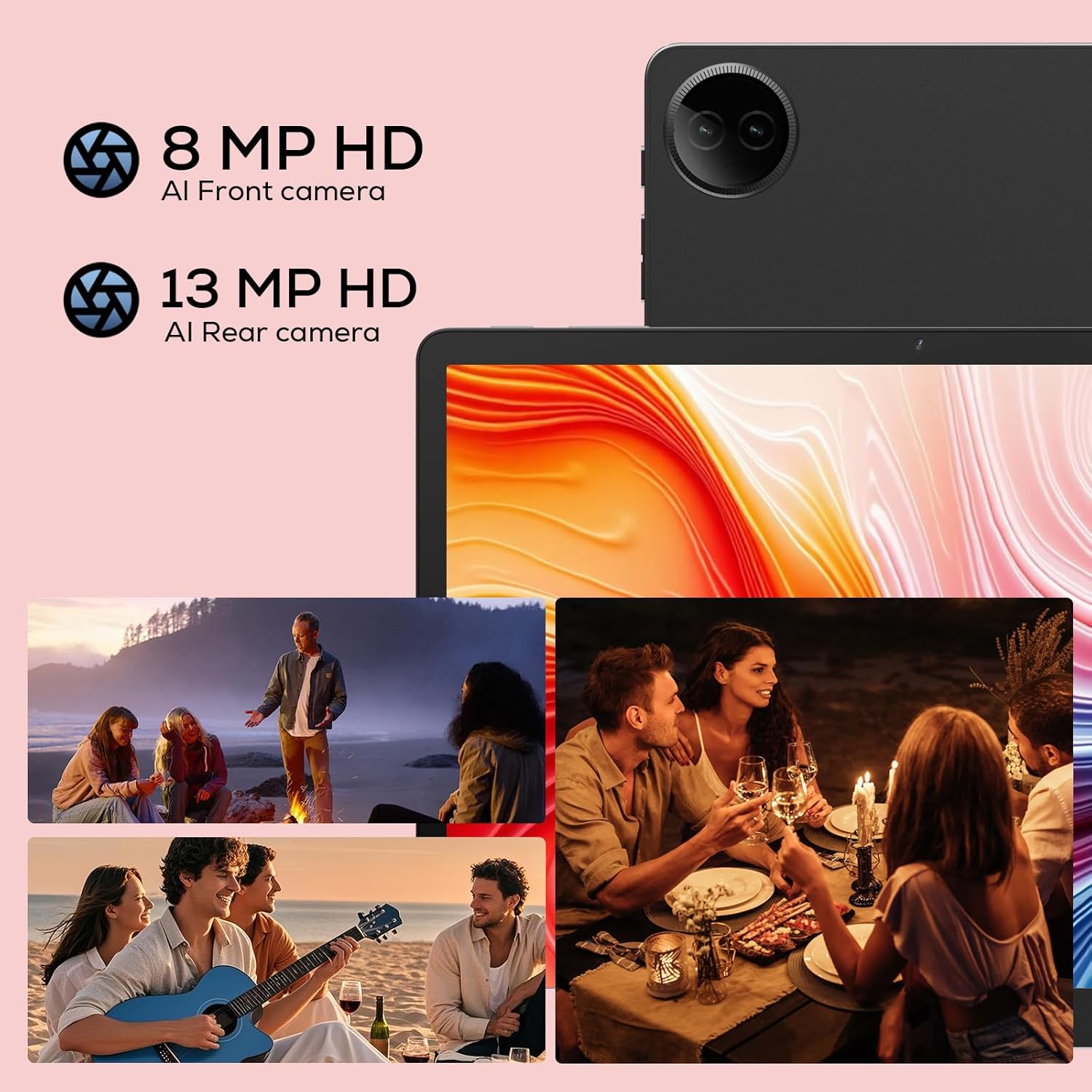
Figure 5.2: Tablet Cameras and Sample Nuotraukos
5.5 Programėlių valdymas
Programų diegimas: Download and install apps from the Google Play Store. Open the Play Store app, search for your desired app, and tap 'Install'.
Programėlių pašalinimas: Pradiniame ekrane arba programėlių stalčiuje palieskite ir palaikykite programėlės piktogramą, tada nuvilkite ją į „Pašalinti“ arba pasirinkite „Programėlės informacija“ ir palieskite „Pašalinti“. Arba eikite į Nustatymai > Programėlės > Žr. visas programas, pasirinkite programėlę ir palieskite „Pašalinti“.
6. Priežiūra
6.1 Planšetinio kompiuterio valymas
Planšetinio kompiuterio ekraną ir korpusą valykite minkštu, nepūkuotu audiniu. Įsisenėjusias dėmes šiek tiek nuvalykite.ampNuvalykite šluostę vandeniu arba elektronikos ekranams skirtu valikliu. Venkite naudoti stiprias chemines medžiagas ar abrazyvines medžiagas.
6.2 Akumuliatoriaus priežiūra
Norėdami pailginti baterijos veikimo laiką:
- Venkite ekstremalių temperatūrų.
- Neleiskite baterijai dažnai visiškai išsikrauti.
- Naudokite pateiktą įkroviklį ir laidą.
- Adjust screen brightness and disable unused features (Wi-Fi, Bluetooth) to conserve power.

Figure 6.1: Extended Battery Life Features
6.3 Programinės įrangos naujiniai
Reguliariai tikrinkite, ar yra programinės įrangos atnaujinimų, ir juos įdiekite, kad užtikrintumėte optimalų našumą, saugumą ir prieigą prie naujų funkcijų. Eikite į Nustatymai > Sistema > Sistemos atnaujinimas.
6.4 Saugojimo valdymas
To manage your tablet's storage:
- Eikite į Nustatymai > Sandėliavimas į view saugyklos naudojimas.
- Pašalinkite nenaudojamas programas.
- Išvalyti programų talpyklos duomenis.
- Didelis perkėlimas files (photos, videos) to cloud storage or an external TF card.
7. Problemų sprendimas
Jei kyla problemų dėl planšetinio kompiuterio, žr. toliau pateiktas dažniausiai pasitaikančias problemas ir sprendimus:
| Problema | Galimas sprendimas |
|---|---|
| Planšetinis kompiuteris neįsijungia | Įsitikinkite, kad akumuliatorius įkrautas. Prijunkite prie įkroviklio bent 30 minučių. Jei vis tiek nereaguoja, priverstinai paleiskite įrenginį iš naujo, 10–15 sekundžių palaikydami nuspaustą maitinimo mygtuką. |
| Wi-Fi ryšio problemos | Iš naujo paleiskite „Wi-Fi“ maršrutizatorių. Pamirškite tinklą planšetiniame kompiuteryje ir prijunkite jį iš naujo. Įsitikinkite, kad esate „Wi-Fi“ signalo diapazone. |
| Programėlės veikia lėtai arba stringa | Close background apps. Clear app cache (Settings > Apps > [App Name] > Storage & cache > Clear cache). Ensure sufficient storage space. Restart the tablet. |
| Baterija greitai išsikrauna | Reduce screen brightness. Disable Wi-Fi/Bluetooth when not in use. Close unused apps. Check battery usage in Settings to identify power-hungry apps. |
| Ekranas nereaguoja | Restart the tablet. Ensure the screen is clean and dry. Remove any screen protectors that might be interfering. |
Jei problema išlieka ir išbandžius šiuos sprendimus, susisiekite su klientų aptarnavimo tarnyba.
8. Specifikacijos
Detailed technical specifications for your DigiLand R10 Pro+ Tablet:
| Funkcija | Specifikacija |
|---|---|
| Prekės ženklas | DigiLand |
| Modelio pavadinimas | R10 Pro+ |
| Operacinė sistema | Android 14 |
| Stovinčio ekrano dydis | 10.1 colių |
| Ekrano raiška | 1280 x 800 pikselių |
| Procesoriaus prekės ženklas | MediaTek |
| Procesoriaus modelis | Helio G80 Octa-Core CPU |
| RAM | 12 GB |
| „Flash“ atminties dydis (ROM) | 128 GB |
| Išplečiama saugykla | Up to 256GB (TF card slot) |
| Belaidis tipas | 802.11n |
| Bluetooth | 5.0 |
| Vidutinis baterijos veikimo laikas | 12 valandų |
| Prekės svoris | 1.32 svaro (apie 600 g) |
| Gaminio matmenys | 10.17 x 6.41 x 0.31 colio |
| Spalva | Pilka |
9. Garantija ir palaikymas
9.1 Garantijos politika
Your DigiLand Tablet comes with a 1 metų garantijos politika nuo įsigijimo datos. Ši garantija taikoma gamybos defektams ir problemoms, kylančioms dėl įprasto naudojimo. Išsaugokite pirkimo įrodymą, jei galėtumėte pateikti pretenzijas dėl garantijos.
9.2 Pagalba klientams
For any questions regarding the use, setup, or troubleshooting of your DigiLand Tablet, our customer service team is available to assist you.
- Palaikymas internetu: We offer 24/7 online call support.
- Repair Support: 1-Year Repair Support is provided.
You can contact us directly through the channels provided on our official website or through your purchase platform. We are committed to providing prompt and helpful service.

9.1 pav.: Speciali klientų aptarnavimo tarnyba
For more information and product updates, visit the official DigiLand Store: DigiLand Store on Amazon