
1. Įvadas
This manual provides essential information for the safe and efficient operation of your ZDSSY ZD-L018AQ Smart Projector. This device offers 1080P native resolution with 4K support, 600 ANSI lumens brightness, electric focus, and auto keystone correction. It features integrated WiFi 6 and Bluetooth 5.2 for seamless connectivity and a built-in Smart TV OS with access to various applications.

Image 1.1: ZDSSY ZD-L018AQ Smart Projector, a compact device with a lens on the front and a stand for adjustable positioning.
2. Kas yra dėžutėje
Išpakuodami patikrinkite, ar yra visi daiktai:
- Mini projektorius
- Nuotolinio valdymo pultas
- Maitinimo laidas
- Vartotojo vadovas (šis dokumentas)
3. Produktas baigtasview
Susipažinkite su projektoriaus komponentais ir prievadais.
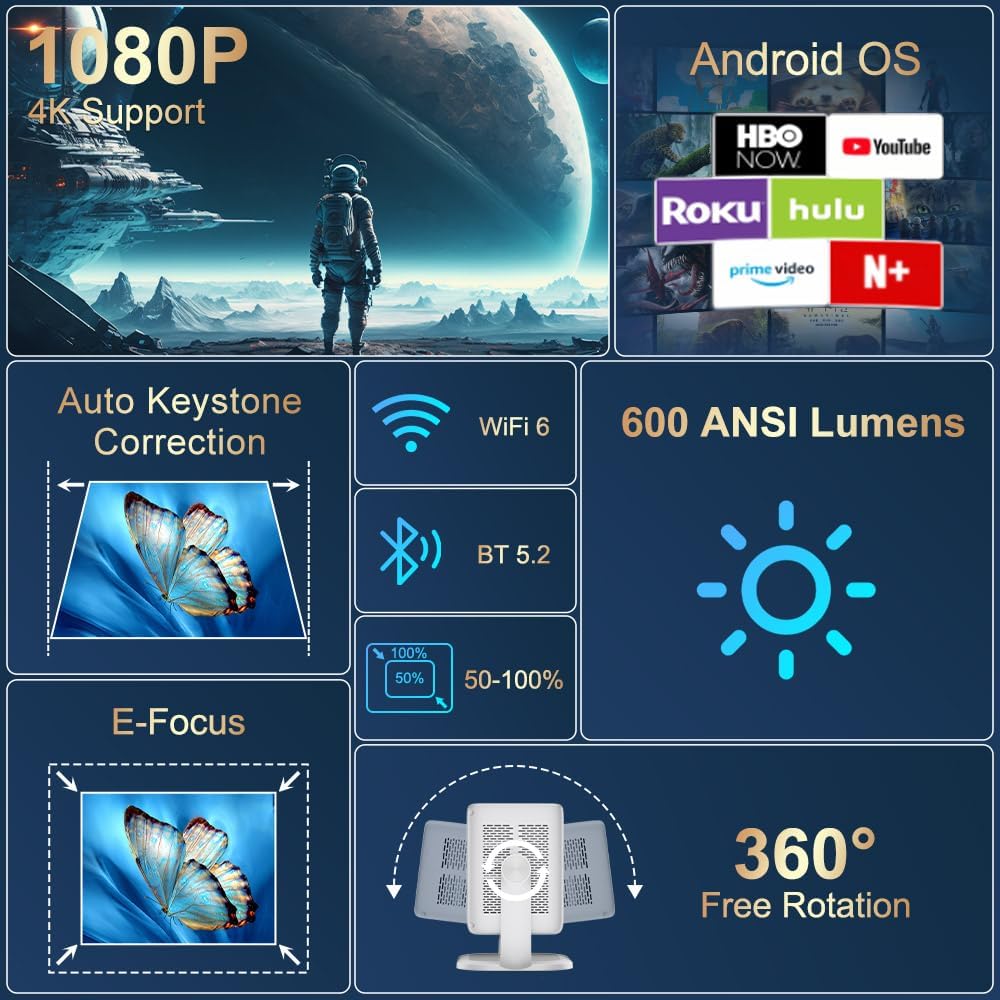
3.1 vaizdas: Baigtaview of the projector's key features including 1080P 4K support, Auto Keystone, WiFi 6, Bluetooth 5.2, E-Focus, 600 ANSI Lumens, and 360° Free Rotation.
3.1 Priekinis skydelis
- Projekcinis objektyvas: Emits the image onto the screen or surface.
- Fokusavimo žiedas: Manual adjustment for image sharpness (though electric focus is primary).
3.2 Galinis skydelis
- Maitinimo prievadas: Jungiamas prie pridedamo maitinimo laido.
- HDMI prievadas: Connects to external devices like laptops, gaming consoles, or DVD players.
- USB prievadas: Skirta USB atmintinėms ar kitiems periferiniams įrenginiams prijungti.
- Garso išvestis (3.5 mm lizdas): Skirta išorinėms ausinėms arba garsiakalbiams prijungti.
- Maitinimo mygtukas: Įjungia/išjungia projektorių.
4. Sąranka
4.1 Maitinimo jungtis
- Connect the included power cord to the projector's power port.
- Kitą maitinimo laido galą prijunkite prie standartinio elektros lizdo.
4.2 Padėtis ir reguliavimas
Position the projector on a stable, flat surface. The integrated 360° rotatable and adjustable stand allows for flexible projection angles, including ceilings and walls.
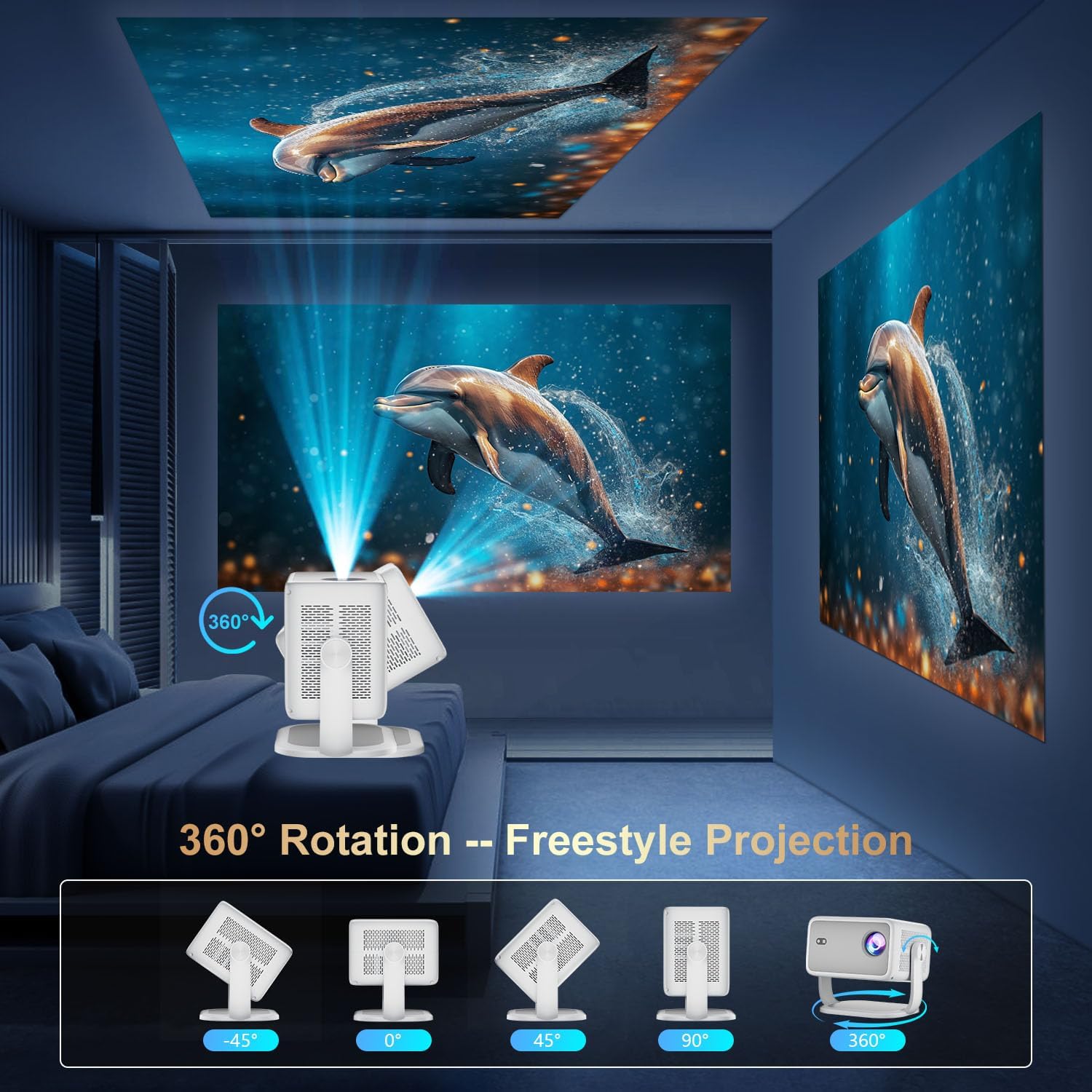
Image 4.1: The projector demonstrating its 360-degree rotation capability for versatile projection angles.
4.3 Fokusavimas ir trapecijos korekcija
The projector features automatic keystone correction and electric focus for quick image alignment and sharpness. Digital zoom (50%-100%) allows for image resizing without moving the unit.

Image 4.2: The projector automatically adjusting focus and keystone correction for a perfectly aligned and sharp image.
4.4 Pradinė tinklo sąranka
- Power on the projector using the power button on the rear panel or the remote control.
- Navigate to 'Networking Setting' on the home screen using the remote.
- Pasirinkite savo „Wi-Fi“ tinklą ir įveskite slaptažodį, kad prisijungtumėte.
5. Operacinis
5.1 Nuotolinio valdymo pulto naudojimas
The included remote control is the primary interface for navigating the projector's Smart TV OS. It requires two AAA batteries (not included).
- Maitinimo mygtukas: Įjungia/išjungia projektorių.
- Naršymo mygtukai: Use the directional arrows to move between menu options.
- Gerai mygtukas: Patvirtina pasirinkimus.
- Atgal mygtukas: Grįžta į ankstesnį ekraną.
- Garsumo mygtukai: Reguliuoja garso išvestį.
5.2 Smart TV OS and Applications
The projector runs on a Smart TV OS, providing access to various streaming applications.

Image 5.1: The projector's home screen displaying various built-in applications such as Netflix, YouTube, Prime Video, and Hulu.
- From the home screen, select the desired application (e.g., Netflix, YouTube, Hulu, Prime Video).
- Jei reikia, prisijunkite naudodami savo paskyros kredencialus.
- Browse and enjoy content.
- Additional apps can be downloaded from the App Store.
5.3 Išorinių įrenginių prijungimas
Connect external devices via HDMI or USB:
- HDMI: Connect an HDMI cable from your external device to the projector's HDMI port. Select 'HDMI' input from the projector's home screen.
- USB: Insert a USB drive into the USB port. Navigate to 'Files' on the home screen to access content.
5.4 Wireless Screen Mirroring (Miracast/AirPlay)
The projector supports Miracast and AirPlay for wireless screen mirroring from compatible devices (Windows, iOS, Android).

Image 5.2: A smartphone wirelessly mirroring its screen content to the ZDSSY ZD-L018AQ Smart Projector via WiFi.
- Įsitikinkite, kad jūsų įrenginys ir projektorius prijungti prie to paties „Wi-Fi“ tinklo.
- On the projector, select the 'AirPin' or 'ScreenCast' option (may vary by firmware version).
- On your mobile device, activate screen mirroring/casting and select the projector from the list of available devices.
5.5 „Bluetooth“ garsas
Prijunkite išorinius „Bluetooth“ garsiakalbius arba ausines, kad garsas būtų geresnis.

Image 5.3: The projector wirelessly connected to a soundbar via Bluetooth 5.2, enhancing the audio experience.
- Navigate to 'Bluetooth Setting' on the projector's home screen.
- Įjunkite Bluetooth ir ieškokite galimų įrenginių.
- Select your Bluetooth audio device to pair.
6. Priežiūra
Reguliarus projektoriaus remontas užtikrina optimalų veikimą ir ilgaamžiškumą.
- Objektyvo valymas: Use a soft, lint-free cloth specifically designed for optical lenses to gently wipe the projection lens. Avoid abrasive materials or harsh chemicals.
- Vėdinimas: Ensure the projector's ventilation openings are clear of dust and obstructions to prevent overheating. Do not block the vents during operation.
- Saugykla: Kai nenaudojate, laikykite projektorių vėsioje, sausoje vietoje, toliau nuo tiesioginių saulės spindulių ir ekstremalių temperatūrų. Naudokite originalią pakuotę arba apsauginį dėklą, jei yra.
- Išjungti: Prieš atjungdami projektorių nuo elektros tinklo, visada tinkamai jį išjunkite.
7. Problemų sprendimas
Dažniausiai pasitaikančių problemų sprendimus rasite šiame skyriuje.
| Problema | Galima priežastis | Sprendimas |
|---|---|---|
| Nėra galios | Neprijungtas maitinimo laidas; problema su maitinimo lizdu. | Patikrinkite maitinimo laido jungtį; pabandykite įjungti į kitą lizdą. |
| Nėra vaizdo | Input source not selected; external device not connected. | Select correct input source (HDMI, USB); ensure external device is on and connected. |
| Neryškus vaizdas | Focus not adjusted; projector too close/far. | Use electric focus or manual focus ring; adjust projector distance. |
| Nėra garso | Per mažas garsumas; išorinis garso įrenginys neprijungtas / nesuporuotas. | Padidinkite garsumą; patikrinkite „Bluetooth“ susiejimą arba 3.5 mm garso kabelio jungtį. |
| WiFi/Bluetooth Connectivity Issues | Incorrect password; device out of range; interference. | Re-enter password; move closer to router/device; reduce interference. |
8. Specifikacijos
| Funkcija | Detalė |
|---|---|
| Prekės ženklas | ZDSSY |
| Modelio numeris | ZD-L018AQ |
| Ekrano raiška | 1920 x 1080 (natyvioji) |
| 4K palaikymas | Taip |
| Ryškumas | 600 ANSI liumenai |
| Ryšio technologija | Bluetooth 5.2, HDMI, USB, Wi-Fi 6 |
| Ypatingos savybės | Auto Screen Alignment, Built-In Speaker, Built-In Wi-Fi, Portable, Electric Focus |
| Rekomenduojami naudojimo būdai | Viduje/lauke |
| Gaminio matmenys | 6.69 x 5.9 x 9.05 colio |
| Prekės svoris | 2.97 svaro |
9. Garantija ir palaikymas
ZDSSY is committed to providing high-quality products and customer satisfaction.
- Klientų aptarnavimas: 24/7 Professional Service is available for any inquiries or assistance.
- Grąžinimas / keitimas: A 30-day return or exchange policy is offered.
- Techninė pagalba: Jūsų produktui teikiama visą gyvenimą trunkanti techninė pagalba.
For further assistance, please refer to the contact information provided with your purchase or visit the official ZDSSY websvetainę.