
1. Sąranka ir pirmasis naudojimas
1.1 Išpakavimas ir pakuotės turinys
Carefully unpack your Bnegynng Android 15 Tablet. Verify that all components are present:
- Bnegynng Android 15 Tablet (BNCP10)
- Bluetooth klaviatūra
- Foldable Holster (Case)
- Belaidė pelė
- Stylus Pen
- C tipo įkrovimo laidas
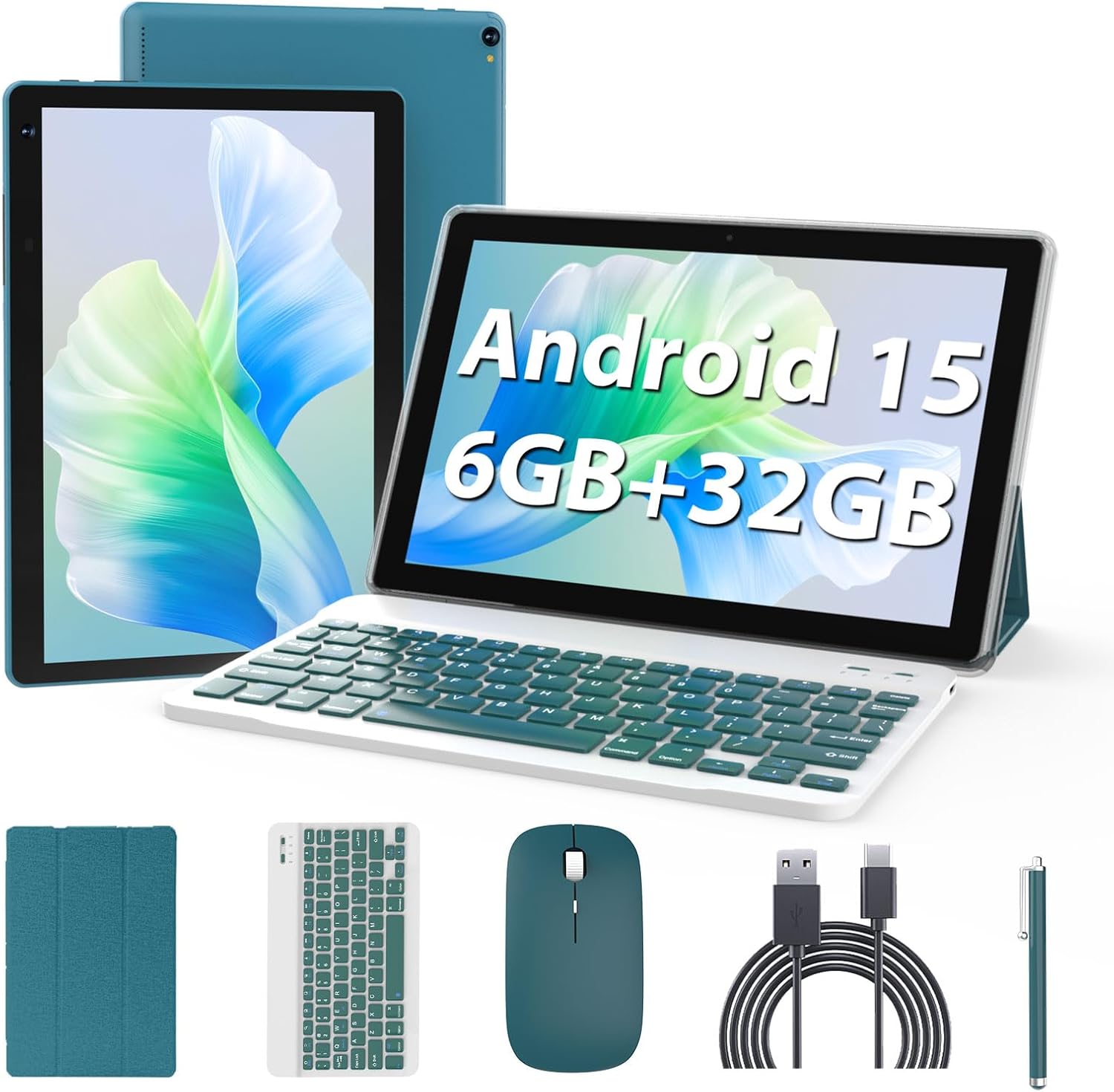
Image 1.1: The Bnegynng Android 15 Tablet with its full suite of accessories, including the keyboard, mouse, stylus, and case.
1.2 Pradinis įkrovimas
Before first use, fully charge the tablet. Connect the provided Type-C charging cable to the tablet's charging port and plug the other end into a compatible USB power adapter (not included). The battery indicator on the screen will show charging status.
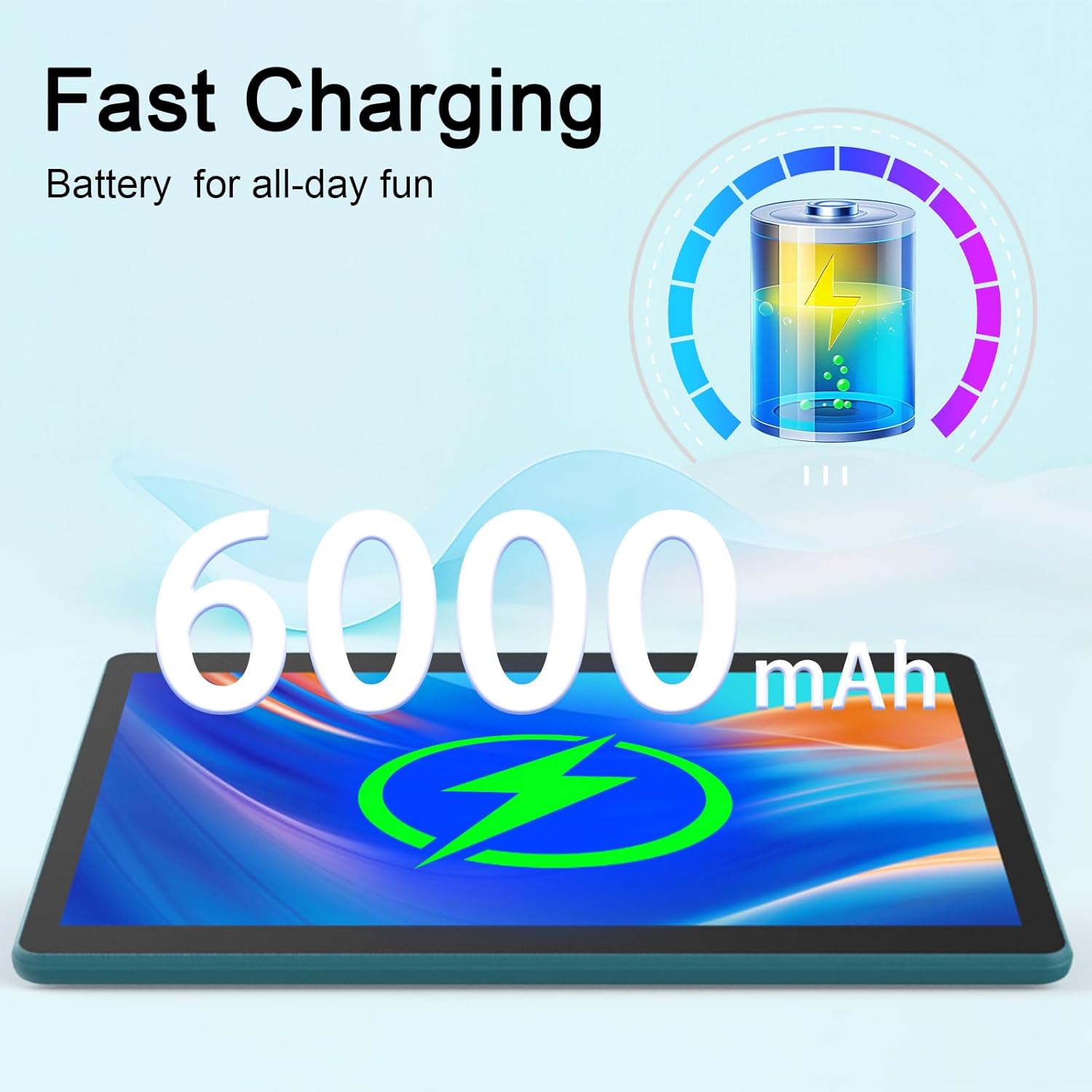
Image 1.2: The tablet features a 6000mAh battery, providing extended usage time.
1.3 Įjungimas / išjungimas
- Norėdami įjungti: Press and hold the Power button located on the side of the tablet until the Bnegynng logo appears.
- Norėdami išjungti: Paspauskite ir palaikykite maitinimo mygtuką, tada iš ekrane pasirodžiusių parinkčių pasirinkite „Išjungti“.
- Norėdami paleisti iš naujo: Paspauskite ir palaikykite maitinimo mygtuką, tada iš parinkčių pasirinkite „Paleisti iš naujo“.
1.4 Pradinė „Android 15“ sąranka
Pirmą kartą įjungus planšetinį kompiuterį, jis padės atlikti pradinį nustatymą. Vykdykite ekrane pateikiamus nurodymus, kad:
- Pasirinkite savo kalbą.
- Prisijunkite prie „Wi-Fi“ tinklo.
- Prisijunkite naudodami „Google“ paskyrą arba sukurkite naują. Tai būtina norint pasiekti „Google Play“ parduotuvę ir kitas „Google“ paslaugas.
- Nustatykite ekrano užraktą (PIN kodą, šabloną arba slaptažodį).
1.5 Priedų prijungimas
The tablet comes with a Bluetooth keyboard, mouse, and stylus for enhanced productivity.
- „Bluetooth“ klaviatūra / pelė: Turn on the keyboard/mouse. Go to Nustatymai > Prijungti įrenginiai > „Bluetooth“ on your tablet. Enable Bluetooth and search for available devices. Select the keyboard/mouse from the list and follow any pairing instructions.
- Rašiklis: The stylus is generally passive and does not require Bluetooth pairing. Simply use it directly on the screen.

Image 1.3: The tablet running Android 15, ready for use with Google Play Store access and privacy features.
2. Planšetinio kompiuterio valdymas
2.1 Pagrindinė navigacija
The Bnegynng tablet uses a touch-based interface. Common gestures include:
- Bakstelėkite: Norėdami pasirinkti elementą arba atidaryti programėlę.
- Perbraukimas: Norėdami slinkti per puslapius arba sąrašus.
- Žiupsnelis, norint priartinti: Norėdami priartinti arba atitolinti vaizdus ir web puslapių.
- Ilgas paspaudimas: Norėdami pasiekti kontekstinius meniu arba perkelti programų piktogramas.
2.2 Using the Keyboard, Mouse, and Stylus
Once connected, these accessories enhance your interaction with the tablet:
- Klaviatūra: Use for typing documents, emails, and navigating with keyboard shortcuts.
- Pelė: Provides precise cursor control, similar to a laptop.
- Rašiklis: Ideal for drawing, note-taking, and precise selections on the screen.

Image 2.1: A user interacting with the tablet using the external keyboard and mouse for productivity tasks.
2.3 Installing and Managing Applications
Your tablet is Google GMS certified, allowing full access to the Google Play Store.
- Įdiegti programas: Open the 'Play Store' app, search for desired applications, and tap 'Install'.
- Pašalinti programas: Long-press an app icon on the home screen or app drawer, then drag it to 'Uninstall', or go to Settings > Apps > See all apps, pasirinkite programėlę ir palieskite „Pašalinti“.

Image 2.2: The tablet supports a wide range of applications for study and entertainment.
2.4 Saugojimo valdymas
The tablet comes with 32GB of internal storage (ROM) and supports expansion up to 1TB via a microSD card (not included).
- Įdėkite „MicroSD“ kortelę: Locate the card slot on the side of the tablet and gently insert the microSD card until it clicks into place.
- Tvarkyti saugyklą: Eikite į Nustatymai > Saugykla į view saugyklos naudojimas ir valdymas files.
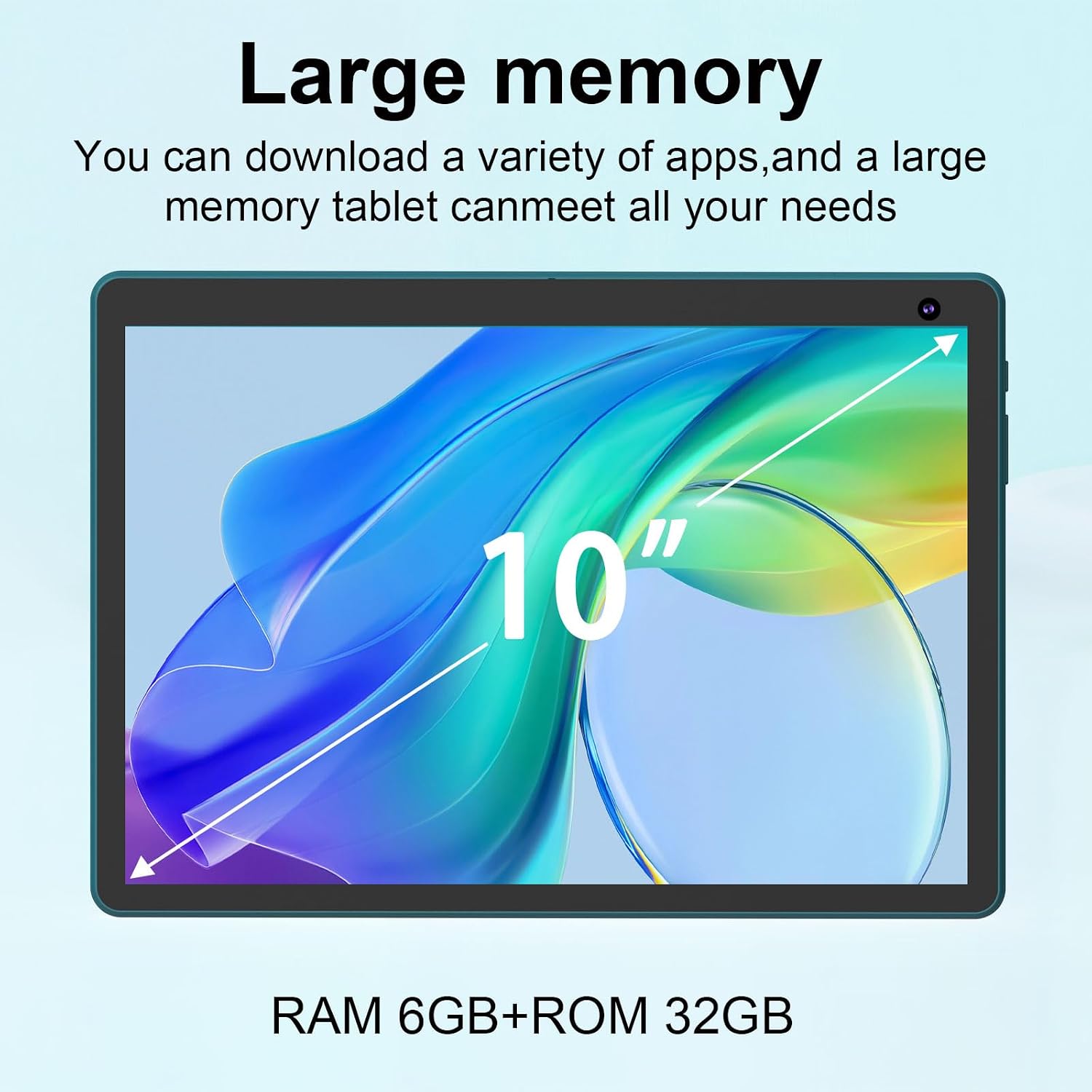
Image 2.3: The tablet offers 6GB RAM and 32GB ROM, expandable for extensive storage needs.
2.5 Kameros naudojimas
Planšetinis kompiuteris turi 2 MP priekinę kamerą ir 8 MP galinę kamerą.
- Open the 'Camera' app to take photos or record videos.
- Perjunkite priekinę ir galinę kameras naudodami ekrane esančią piktogramą.
2.6 Žiniasklaidos vartojimas
With a 10.1-inch HD IPS display (1280x800 resolution) and Widevine L1 certification, the tablet is suitable for viewing high-definition content.
- Use pre-installed media players or download others from the Play Store.
- Widevine L1 ensures secure playback of high-definition content from streaming services.

Image 2.4: Enjoy music and media on the tablet, enhanced by the optional keyboard and mouse.
3. Priežiūra
3.1 Cleaning the Tablet and Accessories
- Planšetinio kompiuterio ekraną ir korpusą valykite minkštu, nepūkuotu audiniu.
- Įsisenėjusioms dėmėms šiek tiek pamirkykiteampNuvalykite šluostę vandeniu arba ekrano valymo tirpalu. Venkite stiprių cheminių medžiagų.
- Clean the keyboard and mouse with a dry, soft cloth. Use compressed air to remove debris from keyboard crevices.
3.2 Programinės įrangos naujiniai
Reguliariai tikrinkite, ar yra sistemos naujinimų, ir juos įdiekite, kad užtikrintumėte optimalų našumą, saugumą ir prieigą prie naujų funkcijų.
- Eikite į Nustatymai > Sistema > Sistemos naujinimas , kad patikrintumėte, ar yra galimų atnaujinimų.
- Ensure your tablet is connected to Wi-Fi and has sufficient battery charge before starting an update.
3.3 Saugyklos optimizavimas
To maintain performance, periodically manage your tablet's storage.
- Ištrinkite nereikalingas programas, nuotraukas ir vaizdo įrašus.
- Išvalyti programų talpyklos duomenis Nustatymai > Programos > [Programos pavadinimas] > Saugykla ir talpykla.
- Perkelti didelį files to an external microSD card.
3.4 Akumuliatoriaus priežiūra
Norėdami pailginti baterijos veikimo laiką:
- Venkite ekstremalių temperatūrų.
- Nepalikite planšetinio kompiuterio ilgam laikui visiškai įkrauto arba visiškai išsikrovusio.
- Naudokite pateiktą įkrovimo laidą.
4. Problemų sprendimas
4.1 Bendrosios problemos ir sprendimai
| problema | Galimas sprendimas |
|---|---|
| Planšetinis kompiuteris neįsijungia | Ensure the battery is charged. Connect to charger for at least 30 minutes. Try holding the power button for 10-15 seconds. |
| Lėtas veikimas / Atsilikimas | Close unused apps. Clear app caches. Restart the tablet. Check for system updates. Free up storage space. |
| Wi-Fi ryšio problemos | Restart the tablet and your Wi-Fi router. Forget and reconnect to the Wi-Fi network. Ensure you are within range. |
| Bluetooth accessories not connecting | Ensure accessories are charged and in pairing mode. Turn Bluetooth off and on again on the tablet. Forget and re-pair the device. |
| Baterija greitai išsikrauna | Reduce screen brightness. Close background apps. Disable Wi-Fi/Bluetooth when not in use. Check for apps consuming excessive power in battery settings. |
4.2 Gamyklinių parametrų atkūrimas
Jei kyla nuolatinių problemų, gamyklinių parametrų atkūrimas gali išspręsti daugelį su programine įranga susijusių problemų. Įspėjimas: tai ištrins visus jūsų planšetiniame kompiuteryje esančius duomenis. Prieš tęsdami sukurkite svarbių duomenų atsarginę kopiją.
- Eikite į Nustatymai > Sistema > Atstatyti parinktys > Ištrinti visus duomenis (atkurti gamyklinius).
- Patvirtinkite savo sprendimą ir vykdykite ekrane pateikiamus nurodymus.
5. Specifikacijos
| Funkcija | Detalė |
|---|---|
| Modelio numeris | BNCP10 |
| Operacinė sistema | Android 15 |
| Procesorius | Keturių branduolių procesorius |
| RAM | 6GB (2GB + 4GB virtual memory) |
| Vidinė atmintis (ROM) | 32 GB |
| Išplečiama saugykla | Iki 1 TB per „MicroSD“ kortelę |
| Ekrano dydis | 10.1 colių |
| Ekrano raiška | 1280 x 800 pikselių (HD IPS) |
| Kameros | Priekinė: 2 MP, galinė: 8 MP |
| Baterijos talpa | 6000 mAh |
| Vidutinis baterijos veikimo laikas | Iki 8 valandų |
| Belaidis ryšys | „Wi-Fi“ (802.11b/g/n), „Bluetooth“ |
| Matmenys (IxPxH) | 10 x 7 x 1 colio |
| Svoris | 2.72 svaro |
| Sertifikatai | Google GMS, Widevine L1 |
6. Garantija ir palaikymas
6.1 Gaminio garantija
Please refer to the warranty card included with your product packaging for specific warranty terms and conditions. Typically, Bnegynng products come with a limited manufacturer's warranty covering defects in materials and workmanship under normal use.
6.2 Pagalba klientams
For technical assistance, troubleshooting beyond this manual, or warranty claims, please contact Bnegynng customer support through the retailer where the product was purchased or visit the official Bnegynng websvetainė kontaktinei informacijai.
When contacting support, please have your product model number (BNCP10) and purchase information readily available.