
1. Įvadas
Šiame vadove pateikiama esminė informacija apie jūsų įrenginio nustatymą, naudojimą, priežiūrą ir trikčių šalinimą. ViewSonic IFP55G1 55-inch 4K UHD ViewBoard Interactive Display. Please read this manual thoroughly before using the product to ensure proper and safe operation.
The ViewSonic IFP55G1 is a 55-inch 4K Ultra HD (3840x2160p) interactive display designed for educational and business environments. It features multi-point touch recognition, an OPS slot for external PCs, 10W dual speakers, and versatile connectivity options including HDMI, VGA, USB Hub, and USB-C inputs. Its OS-free design allows flexibility with various computing solutions.
Pagrindinės funkcijos:
- Ultra HD Resolution: 55 Inch 4K Ultra HD (3840x2160p) interactive display for crisp visuals.
- Advanced Multi-Touch: Allows multiple users to write and interact simultaneously with fingers and passive pens.
- Lankstus ryšys: Equipped with a powerful quad-core processor and versatile ports including HDMI, VGA, RJ45, and USB.
- OS-Free Design: Provides enhanced security and flexibility to integrate with your preferred operating system via external PC or OPS device.
- Write-Away Technology: Enables instant writing with the stylus without extended setup.
2. Kas yra dėžutėje
Verify that all items listed below are included in your package. If any items are missing or damaged, please contact your dealer immediately.
- ViewSonic IFP55G1 Interactive Display
- 3m USB 2.0 touch cable x 1
- Touch pen (Passive pen) x 2 (VB-PEN-002)
- 3m maitinimo kabelis
- HDMI 2.0 cable 3m x 1
- Greitos pradžios vadovas + Atitikties pareiškimas
- RS232 adapteris
- Screw (wall mount 4)
- Kameros plokštė
- Remote control with AAA battery (Optional)
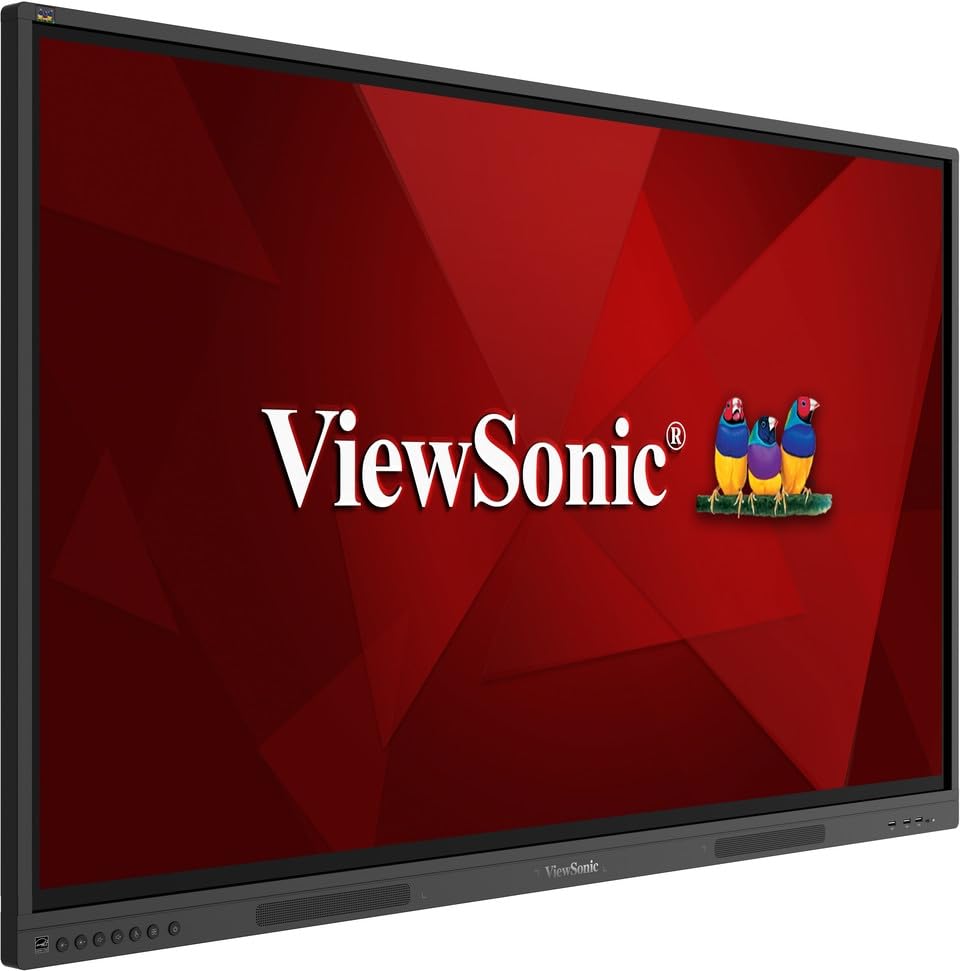
Vaizdas: ViewSonic IFP55G1 55-inch ViewBoard Interactive Display, front view.
3. Sąrankos instrukcijos
3.1 Ekrano montavimas
The IFP55G1 can be wall-mounted or installed on a compatible mobile cart (sold separately). Ensure the mounting solution supports the display's weight (approximately 59.3 lbs / 26.9 kg) and dimensions (3.37 x 49.7 x 30.3 inches).
- For wall mounting, use the provided wall mount screws and ensure the wall structure is robust enough.
- Follow the instructions provided with your specific wall mount or mobile cart.
3.2 Išorinių įrenginių prijungimas
The display offers various ports for connecting external devices. Refer to the image below for port locations.

Vaizdas: Šoninė view iš ViewSonic IFP55G1 interactive display showing various input ports including HDMI, VGA, and USB.
- Maitinimo jungtis: Connect the 3m power cable to the display and a grounded power outlet.
- Vaizdo įvestis: Connect your external PC or media player to the display using an HDMI 2.0 cable (provided), VGA cable, or USB-C cable. The display has 3 HDMI ports, 1 VGA port, and USB-C connectivity.
- Lietimo funkcija: For interactive touch features with an external PC, connect the 3m USB 2.0 touch cable from the display's USB-B (Touch) port to a USB-A port on your PC.
- OPS lizdas: If using an optional ViewSonic Slot-in PC (OPS device), insert it into the dedicated OPS slot on the rear of the display. This provides an integrated computing solution.
- Tinklas: Prijunkite Ethernet kabelį prie RJ45 prievado, kad galėtumėte prisijungti prie laidinio tinklo.
- USB įrenginiai: Use the available USB-A ports to connect USB drives, keyboards, mice, or other peripherals.

Paveikslėlis: The ViewSonic IFP55G1 display demonstrating connectivity with various external devices, including laptops and mini PCs, highlighting its 'Bring Your Own Devices' capability.
4. Naudojimo instrukcijos
4.1 Įjungimas / išjungimas
- Maitinimas: Press the power button located on the display's front or side panel, or use the remote control. The display will power on and show the input source.
- Išjungti: Press the power button again. A confirmation message may appear; select 'Power Off'. For complete power disconnection, unplug the power cable.
4.2 Įvesties šaltinio pasirinkimas
Use the 'Source' button on the display or remote control to cycle through available input sources (HDMI 1, HDMI 2, HDMI 3, VGA, USB-C, OPS).
4.3 Using Touch Functionality
Once the USB touch cable is connected to your external PC, the display will function as a multi-touch input device. You can use your fingers or the provided passive pens for interaction.
- Finger Touch: Use gestures similar to a tablet or smartphone for navigation, zooming, and drawing.
- Passive Pens: The two included passive pens (VB-PEN-002) allow for precise writing and drawing on the screen. The display's Write-Away technology enables instant use of the pens.

Image: A group of individuals collaborating around a ViewSonic IFP55G1 interactive display in a modern meeting room, demonstrating its multi-touch capabilities for instantaneous collaboration.
4.4 Garso valdymas
The display features integrated 10W dual speakers. Adjust volume using the remote control or the buttons on the display panel.
5. Priežiūra
5.1 Ekrano valymas
- Ekranas: Švelniai nuvalykite ekraną minkštu, nepūkuotu skudurėliu. Jei dėmės sunkiai įveikiamos, švelniai nuvalykiteampNuvalykite šluostę vandeniu arba neabrazyviniu, be amoniako ekrano valikliu. Nepurkškite valiklio tiesiai ant ekrano.
- Casing: Nuvalykite casinminkštu, sausu skudurėliu. Venkite naudoti stiprias chemines medžiagas ar abrazyvines medžiagas.
5.2 Bendroji priežiūra
- Venkite dėti sunkių daiktų ant ekrano.
- Do not block ventilation openings on the rear of the display.
- Keep the display away from direct sunlight, heat sources, and excessive moisture.
6. Problemų sprendimas
Jei kyla problemų dėl jūsų ViewSonic IFP55G1, refer to the following common problems and solutions.
6.1 Nėra vaizdo / Juodas ekranas
- Ensure the power cable is securely connected to both the display and a working power outlet.
- Verify that the display is powered on (power indicator light should be active).
- Check that the video cable (HDMI, VGA, USB-C) is securely connected to both the display and the source device (PC, OPS).
- Select the correct input source using the 'Source' button on the display or remote control.
- Ensure the source device (PC, OPS) is powered on and outputting a video signal.
6.2 Touch Functionality Not Working
- Confirm the USB touch cable is securely connected from the display's USB-B (Touch) port to a USB-A port on your external PC.
- Ensure your external PC's operating system has the necessary drivers installed for touch input.
- Restart both the display and the connected PC.
6.3 Nėra garso
- Check the volume level on the display and the connected source device.
- Ensure the audio output from your source device is routed correctly to the display (e.g., via HDMI).
- If using an external audio system, ensure it is properly connected and powered on.
7. Specifikacijos
Žemiau pateikiamos techninės specifikacijos, skirtos ViewSonic IFP55G1 interactive display.
| Funkcija | Specifikacija |
|---|---|
| Prekės ženklas | ViewSonic |
| Modelio pavadinimas | IFP55G1 |
| Ekrano dydis | 55 colių |
| Maksimali ekrano skiriamoji geba | 3840x2160 Pixels (4K UHD) |
| Gimtoji raiška | 3840 x 2160 |
| Ekrano tipas | LCD |
| Krašto santykis | 16:9 |
| Žmogaus sąsajos įvestis | Jutiklinis ekranas |
| Ryšio technologija | Ethernet, HDMI, USB Type C, VGA |
| Total Number of HDMI Ports | 3 |
| Iš viso USB prievadų | 9 |
| Vaizdo išvesties sąsaja | DisplayPort |
| Garso išvestis | Integrated 10W Dual Speakers |
| Prekės matmenys (IxPxH) | 3.37 x 49.7 x 30.3 colio |
| Prekės svoris | 59.3 svaro |
| Spalva | Juoda |
| Ypatingos savybės | All-in-one USB port, Anti Glare Display, Light Sensor, Speakers, Touchscreen |
| Suderinami įrenginiai | Stalinis kompiuteris, nešiojamas kompiuteris |
| UPC | 766907024654 |
8. Garantija ir palaikymas
8.1 Informacija apie garantiją
The ViewSonic IFP55G1 interactive display comes with an industry-leading 3 metų ribota garantija on parts, labor, and backlight. Onsite warranty service may also be available. Please refer to the warranty card included in your package or visit the official ViewSonic website for detailed terms and conditions, and information on optional warranty extensions.
8.2 Pagalba klientams
Dėl techninės pagalbos, su gaminiu susijusių klausimų ar garantinių pretenzijų susisiekite ViewSonic's award-winning customer service team. Contact information can be found on the official ViewSonic websvetainėje arba greitojo paleidimo vadove, pateiktame kartu su jūsų produktu.