
Įvadas
Thank you for choosing the KOORUI S3241XO 31.5-inch 4K OLED Gaming Monitor. This manual provides essential information for setting up, operating, and maintaining your monitor. Please read it thoroughly before use to ensure optimal performance and safety.
Saugos informacija
- Saugokite monitorių nuo lietaus ar drėgmės, kad išvengtumėte gaisro ar elektros smūgio.
- Neatidarykite monitoriaus c.asing. Viduje nėra dalių, kurias galėtų aptarnauti vartotojas. Visus techninės priežiūros darbus patikėkite kvalifikuotiems techninės priežiūros darbuotojams.
- Padėkite monitorių ant stabilaus, lygaus paviršiaus, kad jis nenukristų.
- Užtikrinkite tinkamą vėdinimą aplink monitorių. Neužblokuokite ventiliacijos angų.
- Naudokite tik gamintojo pateiktą maitinimo adapterį ir laidus.
- Atjunkite monitorių nuo maitinimo lizdo žaibuojant arba kai jis ilgą laiką nenaudojamas.
- Nedėkite sunkių daiktų ant maitinimo laido ar monitoriaus laidų.
Pakuotės turinys
Patikrinkite, ar pakuotėje yra visi reikalingi daiktai:
- KOORUI S3241XO 31.5-inch 4K OLED Gaming Monitor
- HDMI 2.1 laidas
- DisplayPort 1.4 Cable (1.8m)
- USB 3.0 AB laidas
- C tipo kabelis
- Kintamosios srovės laidas
- Maitinimo adapteris
- Vartotojo vadovas
Sąranka
1. Monitoriaus surinkimas
Norėdami surinkti monitoriaus stovą ir pritvirtinti jį prie ekrano skydelio, atlikite šiuos veiksmus.

Image: The KOORUI S3241XO monitor with its stand, showcasing the display and connectivity options.
2. Prisijungimas prie įrenginių
The monitor offers various connectivity options. Ensure your device supports the required output.
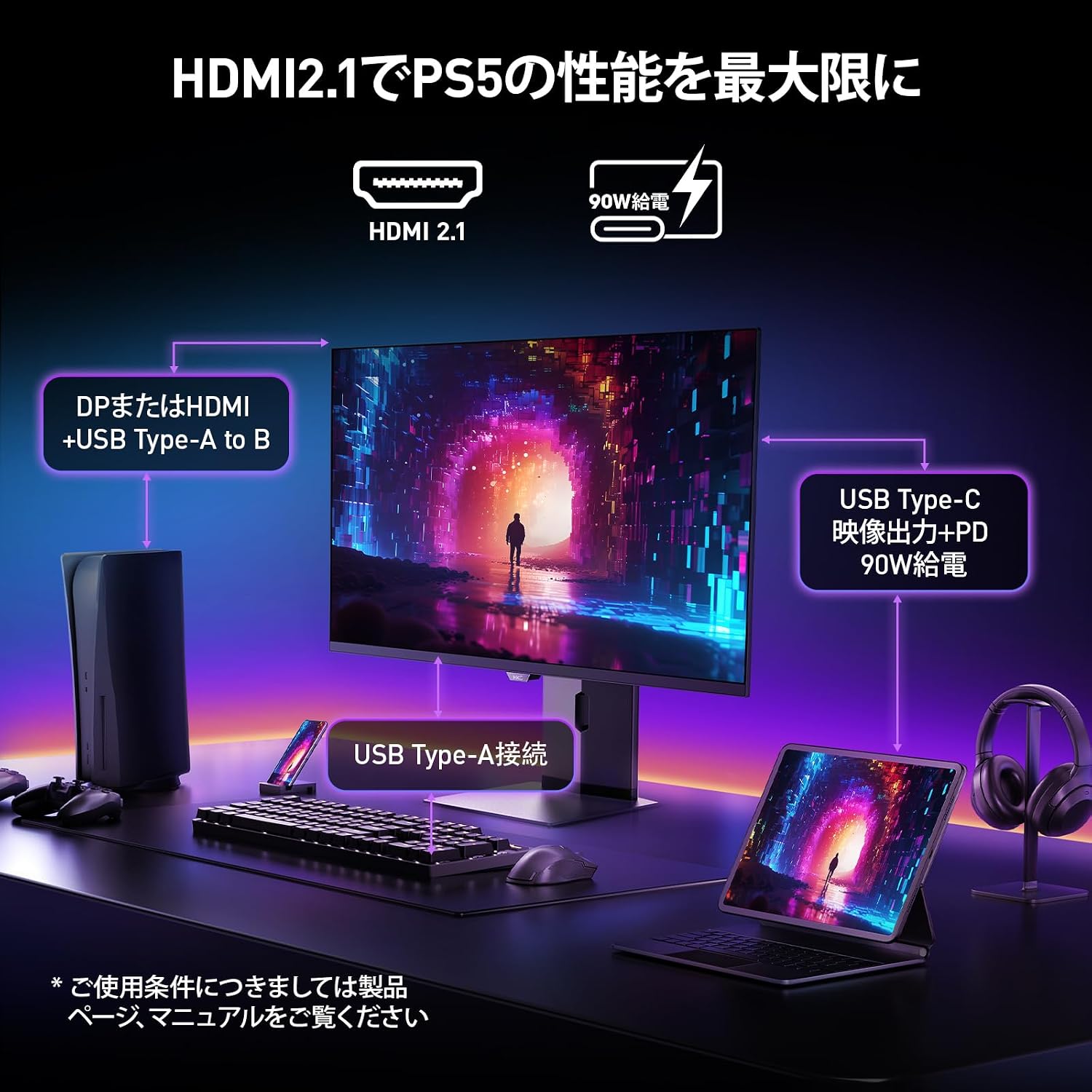
Image: A diagram illustrating how to connect various devices like a PS5, laptop, and peripherals to the monitor using HDMI 2.1, USB Type-C, and USB Type-A ports.
Uostas baigtasview:

Vaizdas: Išsamus view of the monitor's rear input/output ports with numerical labels for identification.
- Maitinimo kabelis: Connect the AC power cable to the monitor and a power outlet.
- USB Type-B (Upstream): Connect to your computer to enable the monitor's USB-A ports.
- USB 3.1 A tipo (x2): Skirta USB periferiniams įrenginiams prijungti.
- HDMI 2.1 (x2): Connect to devices supporting HDMI 2.1 for 4K 240Hz output.
- „DisplayPort 1.4“: Connect to devices supporting DisplayPort 1.4 for 4K 240Hz output.
- Type-C (with PD): Connect to compatible devices for video input and power delivery (up to 90W).
- Ausinių išvestis: Skirta ausinėms arba išoriniams garsiakalbiams prijungti.
Naudojimo instrukcijos
1. Maitinimo įjungimas/išjungimas
Press the power button, usually located on the back or bottom of the monitor, to turn it on or off.
2. Ekrano ekrano (OSD) meniu
Use the joystick or buttons on the monitor to navigate the OSD menu. The OSD allows you to adjust various settings.
Pagrindiniai OSD nustatymai:
- Vaizdo nustatymai: Reguliuokite ryškumą, kontrastą, aiškumą ir spalvų temperatūrą.
- Spalvų režimai: Select from various preset color modes, including a professional color mode for accurate color reproduction (99% DCI-P3, 100% sRGB, Delta E<2, True 10-bit color).
- Įvesties šaltinis: Rankiniu būdu pasirinkite įvesties šaltinį (HDMI 1, HDMI 2, DisplayPort, C tipo).
- Žaidimų ypatybės: Access specific gaming modes (RPG, FPS, RCG) and settings like FreeSync and G-Sync compatibility.
- Atsakymo laikas: The monitor features a 0.03ms (OD) response time for rapid image transitions.
- HDR True Black 400: Optimizes black levels for enhanced detail in dark scenes.
- DIC (Digital Image Control) Mode: Enable or disable DIC to prevent ghosting and improve image quality.

Image: Visual representation of the monitor's color accuracy and wide color gamut.

Image: Illustrates the difference in motion clarity at various refresh rates, highlighting the 240Hz 0.03ms response.

Image: Demonstrates the enhanced black levels and detail in dark scenes provided by the KOORUI QD OLED technology compared to a typical LCD.

Image: Shows the effect of Digital Image Control (DIC) mode on reducing ghosting for smoother visuals.
3. Ergonominiai nustatymai
Monitoriaus stovas leidžia atlikti įvairius pakeitimus, kad būtų optimizuotas jūsų viewpatirtis:
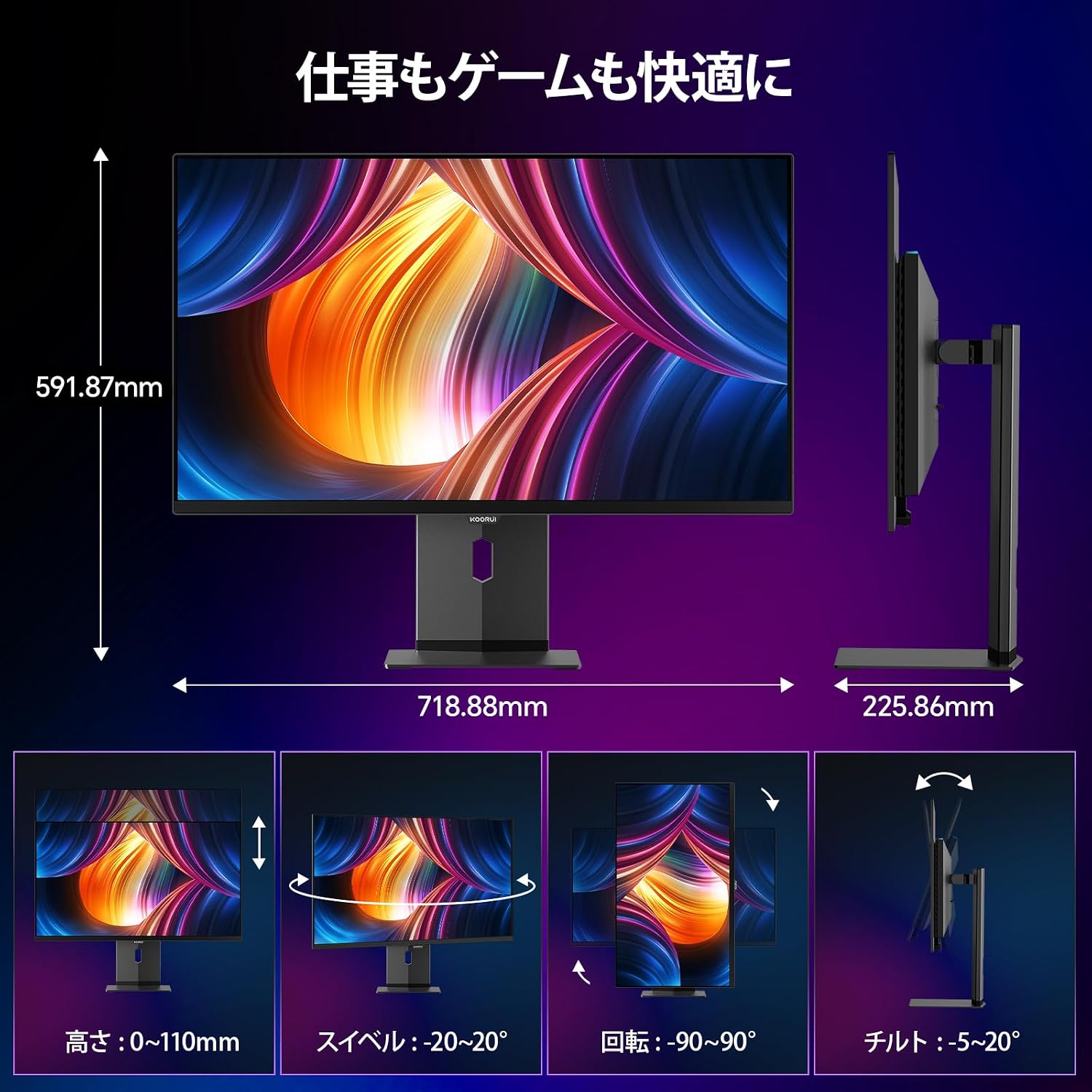
Image: Illustrations of the monitor's adjustable features: height, swivel, pivot (rotation), and tilt.
- Aukščio reguliavimas: Adjust the display height by up to 110mm.
- Pakreipti: Tilt the screen from -5° to 20° for comfortable viewkampų.
- Sukamasis: Swivel the monitor -20° to 20° horizontally.
- Sukimasis (sukimas): Rotate the screen -90° to 90° for portrait or landscape orientation.
Priežiūra
1. Monitoriaus valymas
- Visada atjunkite monitorių prieš valydami.
- Lengvai naudokite minkštą, nepūkuotą audinį dampnuplaukite vandeniu arba švelniu, neabrazyviniu ekrano valikliu.
- Nepurkškite valiklio tiesiai ant ekrano.
- Avoid using benzene, thinner, or any volatile solvents, as they may damage the screen surface.
2. Akių priežiūros funkcijos
The monitor includes features to reduce eye strain during prolonged use:
- Hardware Blue Light Cut: Reduces harmful blue light emissions without affecting color accuracy.
- Flicker Guard: Pašalina ekrano mirgėjimą, kad būtų patogiau viewpatirtį.

Image: Demonstrates the effectiveness of hardware blue light reduction in preserving natural colors.

Image: Illustrates the difference between Flicker Guard off and on, showing reduced screen flickering.
3. Panel Protection Features
To prevent OLED burn-in, the monitor incorporates proprietary panel protection technologies:
- Pikselių poslinkis: Periodically shifts pixels slightly to prevent static images from causing burn-in.
- Užduočių juostos aptikimas: Detects static elements like the taskbar and adjusts their brightness to minimize burn-in risk.
- Graphene Sheet + Custom Heatsink: Advanced thermal management to maintain optimal operating temperature.

Image: Visual explanation of pixel shift, taskbar detection, and thermal management for panel protection.
Trikčių šalinimas
Jei kyla problemų dėl monitoriaus, žr. šias dažniausiai pasitaikančias problemas ir sprendimus:
| Problema | Galima priežastis | Sprendimas |
|---|---|---|
| Ekrane nėra vaizdo | Atjungtas maitinimo laidas, neteisingas įvesties šaltinis, įrenginys neįjungtas. | Patikrinkite maitinimo jungtis, pasirinkite teisingą įvesties šaltinį per OSD, įsitikinkite, kad prijungtas įrenginys įjungtas. |
| Vaizdo mirgėjimas | Flicker Guard disabled, cable issue, graphics card driver issue. | Enable Flicker Guard in OSD, try a different cable, update graphics drivers. |
| Prasta spalvų kokybė | Incorrect color mode, cable issue. | Adjust color settings in OSD, try a different cable. |
| Iš ausinių nėra garso | Headphones not properly connected, audio settings on device/monitor. | Ensure headphones are fully plugged in, check audio output settings on your computer and monitor. |
| USB prievadai neveikia | USB Type-B upstream cable not connected. | Connect the USB Type-B cable from the monitor to your computer. |
Specifikacijos
| Funkcija | Specifikacija |
|---|---|
| Prekės ženklas | KOORUI |
| Modelio numeris | S3241XO |
| Ekrano dydis | 31.5 colių |
| Skydelio tipas | OLED (QLED) |
| Rezoliucija | 4K UHD (3840 x 2160 pikselių) |
| Atnaujinimo dažnis | 240 Hz |
| Reagavimo laikas | 0.03 ms (OD) |
| Krašto santykis | 16:9 |
| Kontrasto santykis | 1,500,000:1 |
| Ryškumas | 280 cd/m² |
| Spalvų gama | 99 % DCI-P3, 100 % sRGB |
| Spalvos gylis | True 10-bit (1.07 billion colors) |
| HDR palaikymas | „DisplayHDR400“ tikroji juoda spalva |
| Adaptyvusis sinchronizavimas | FreeSync and G-Sync Compatible |
| Ryšys | 2x HDMI 2.1, 1x DisplayPort 1.4, 1x Type-C (with 90W PD), 2x USB-A 3.1, 1x USB-B, 1x Headphone Jack |
| Ergonomika | Height Adjustment (110mm), Tilt (-5° to 20°), Swivel (-20° to 20°), Pivot (-90° to 90°) |
| VESA kalnas | 100 x 100 mm |
| Matmenys (P x A x G) | Apytiksliai 71.9 x 59.2 x 22.6 cm (su stovu) |
| Svoris | apytiksliai 8.3 kg |
| Energijos suvartojimas | 264 vatų (maks.) |
Garantija ir palaikymas
The KOORUI S3241XO monitor comes with a 3 metų gamintojo garantija. The LCD panel itself is covered by a 1-year warranty. For warranty claims or technical support, please contact KOORUI customer service.
KOORUI also offers a free recycling service for monitors. Please refer to the official KOORUI website or contact support for details on how to utilize this service.
Dėl papildomos pagalbos apsilankykite KOORUI Brand Store.