
1. Įvadas
This manual provides detailed instructions for the setup, operation, maintenance, and troubleshooting of your OMOTON Bluetooth Keyboard. Please read this manual thoroughly before using the product to ensure proper functionality and longevity.
2. Pakuotės turinys
Patikrinkite, ar pakuotėje yra visi reikalingi daiktai:
- 1 x OMOTON Bluetooth Keyboard
- 1 x C tipo įkrovimo laidas
- 1 x Naudotojo vadovas (šis dokumentas)
3. Produkto ypatybės
- Suderinamumas su keliomis sistemomis: Supports iOS, Windows, and Android operating systems.
- Kompaktiškas ir nešiojamas: Ultra-thin design (6.6mm thickness) and lightweight (0.42 pounds) for easy transport. Dimensions: 9.7"L x 5.9"W x 0.2"H.
- Patobulinta spausdinimo patirtis: Features large keycaps for comfortable and precise typing.
- Įkraunama baterija: Built-in 500mAh lithium battery provides up to 200 hours of working time on a 2-3 hour charge.
- 7 spalvų foninis apšvietimas: Adjustable backlight with 7 color options and 3 brightness levels for typing in various lighting conditions.
- Automatinis miego režimas: Conserves battery by entering sleep mode after 30 minutes of inactivity.
4. Sąrankos instrukcijos
4.1 Klaviatūros įkrovimas
Before initial use, fully charge the keyboard. Connect the provided Type-C charge cable to the keyboard's charging port and to a USB power source. The charge indicator light will illuminate during charging and turn off when fully charged.
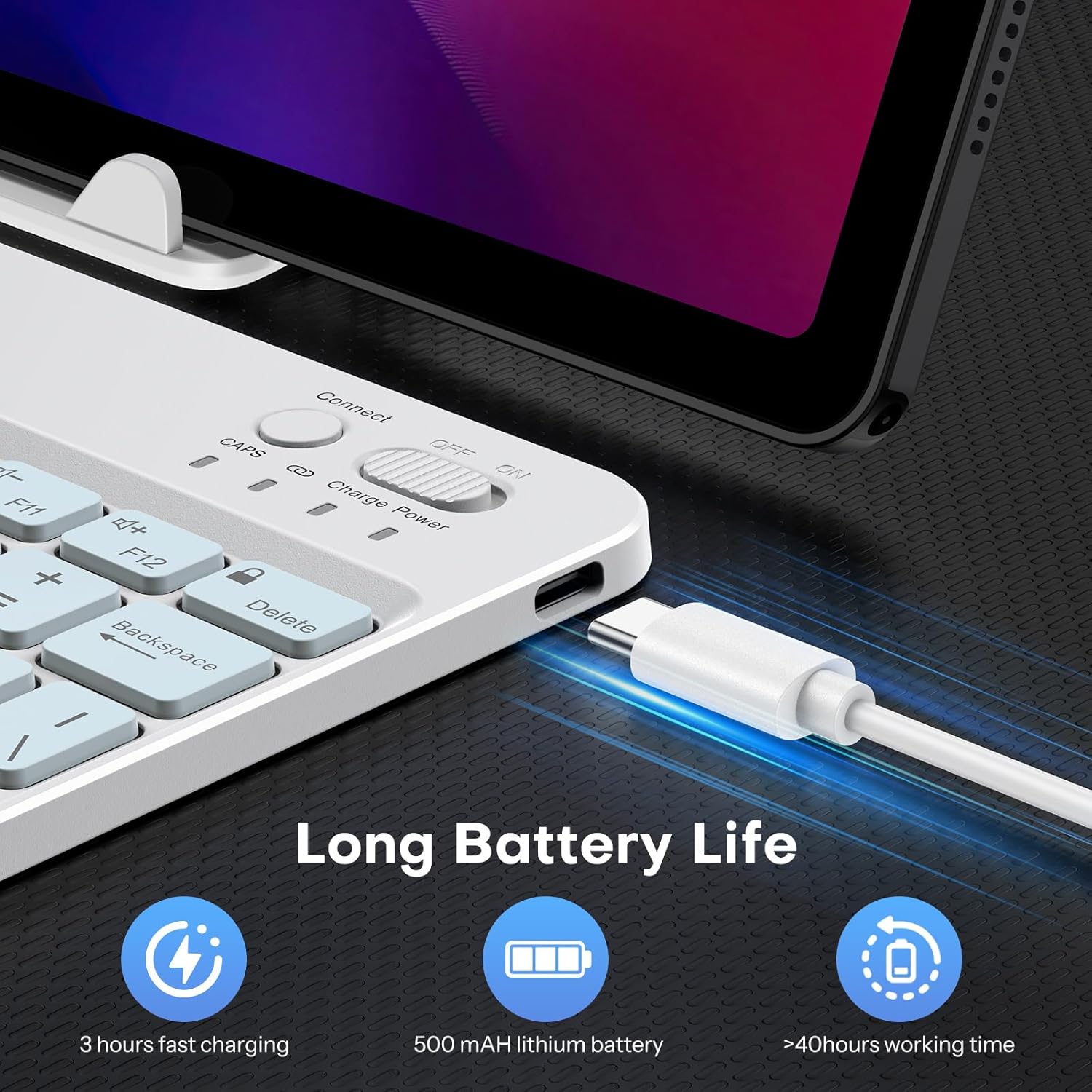
Image: Close-up of the keyboard showing the Type-C charging port and cable connected. The image highlights the charging process and the port location.
4.2 Bluetooth poravimas
- Turn on the keyboard by sliding the power switch to the 'ON' position. The power indicator light will briefly illuminate.
- Press the 'Connect' button (usually located near the power switch) to enter pairing mode. The Bluetooth indicator light will flash, indicating it is ready to pair.
- On your device (tablet, phone, computer), enable Bluetooth and search for available devices.
- Select 'OMOTON Keyboard' (or similar name) from the list of found devices.
- If prompted, enter the pairing code displayed on your device using the OMOTON keyboard and press Enter.
- Once paired, the Bluetooth indicator light on the keyboard will stop flashing and remain solid for a few seconds, then turn off. The keyboard is now connected.

Paveikslėlis: Viršutinė dalis view of the OMOTON Bluetooth Keyboard, highlighting the power switch and the 'Connect' button, which are essential for initiating Bluetooth pairing.
4.3 Operacinių sistemų perjungimas
The keyboard is compatible with multiple operating systems. It is crucial to switch to the correct system mode for optimal functionality. Press the following key combinations:
- FN + A: For iOS / iPadOS / macOS devices
- FN + S: „Windows“ įrenginiams
- FN + D: „Android“ įrenginiams

Image: A visual guide on the keyboard showing the FN key combined with A, S, or D keys to switch between iOS, Windows, and Android operating system modes.
5. Naudojimo instrukcijos
5.1 Foninio apšvietimo valdymas
The keyboard features a 7-color adjustable backlight with 3 brightness levels.
- Norėdami įjungti / išjungti foninį foną arba reguliuoti ryškumą, paspauskite Fn klavišą vienu metu su lightbulb icon key (usually located near the right Ctrl key). Repeated presses will cycle through brightness levels or turn off the backlight.
- To change backlight colors, press the Fn klavišą vienu metu su color palette icon key (usually located next to the lightbulb icon key). Repeated presses will cycle through the 7 available colors.

Image: The OMOTON Bluetooth Keyboard displaying various backlight colors, illustrating the 7-color and 3-brightness level adjustment feature.
5.2 Automatinis miego režimas
To conserve battery life, the keyboard will automatically enter sleep mode after 30 minutes of inactivity. To wake the keyboard, press any key. There may be a slight delay as the keyboard reconnects to your device.
5.3 funkcinių klavišų
The top row of keys (F1-F12) can be used as standard function keys or as multimedia/shortcut keys. To access the secondary function (e.g., volume control, media playback), press the Fn klavišą vienu metu su norimu funkciniu klavišu.
6. Priežiūra
To ensure the longevity and optimal performance of your OMOTON Bluetooth Keyboard, follow these maintenance guidelines:
- Valymas: Klaviatūros paviršiui valyti naudokite minkštą, sausą, nepūkuotą šluostę. Jei nešvarumai sunkiai įveikiami, šiek tiek pamirkykite.ampNuvalykite šluostę vandeniu arba švelniu valymo tirpalu. Venkite per didelės drėgmės.
- Saugykla: Kai nenaudojate klaviatūros, laikykite ją vėsioje, sausoje vietoje, toliau nuo tiesioginių saulės spindulių ir ekstremalių temperatūrų.
- Venkite skysčių: Do not expose the keyboard to liquids. Spills can cause permanent damage.
- Elkitės atsargiai: Venkite klaviatūros numetimo ir stiprių smūgių, nes tai gali pažeisti vidinius komponentus.
7. Problemų sprendimas
7.1 Keyboard Keys Not Working or Responding
- Confirm Device's Operating System: Ensure you have selected the correct operating system mode on the keyboard. Press FN+A skirta „iOS“, FN+S for Windows, or FN+D skirta „Android“.
- Patikrinkite „Bluetooth“ ryšį: Verify that the keyboard is properly paired and connected to your device. If not, re-initiate the pairing process (Section 4.2).
- Baterijos lygis: Ensure the keyboard has sufficient battery charge. Recharge if necessary.
- Iš naujo paleiskite įrenginius: Try turning off and on both the keyboard and your device, then attempt to reconnect.

Image: A troubleshooting graphic explaining how to fix issues with keyboard keys not working, emphasizing confirming the device's operating system and switching modes.
7.2 „Bluetooth“ ryšio problemos
- Atstumas: Ensure the keyboard is within the effective range of your device's Bluetooth signal (typically up to 10 meters).
- Trikdžiai: Pasitraukite nuo kitų belaidžių įrenginių, kurie gali sukelti trikdžius.
- Pamiršti įrenginį: On your device, 'forget' or 'remove' the keyboard from your Bluetooth device list, then attempt to pair again.
8. Specifikacijos
| Prekės ženklas | OMOTON |
| Modelis | B0F65RJ45J |
| Ryšio technologija | Bluetooth |
| Suderinami įrenginiai | Tablet, Android, Windows, iOS |
| Klaviatūros išdėstymas | QWERTY |
| Ypatingos savybės | Backlit (7 colors, 3 brightness levels), Ergonomic, Lightweight |
| Baterijos talpa | 500 mAh ličio baterija |
| Įkrovimo laikas | 2-3 valandas |
| Darbo laikas | Iki 200 valandų |
| Gaminio matmenys (I x P x A) | 9.7 colio x 5.9 colio x 0.2 colio (247 mm x 150 mm x 6.6 mm) |
| Svoris | 0.42 svaro |
| Medžiaga | Plastikiniai |

Image: A visual comparison of the OMOTON Bluetooth Keyboard's dimensions against a smartphone and a tablet, illustrating its compact and portable size.
9. Informacija apie garantiją
The OMOTON Bluetooth Keyboard comes with a 12 mėnesių garantija from the date of purchase. This warranty covers manufacturing defects and malfunctions under normal use. It does not cover damage caused by misuse, accidents, unauthorized modifications, or external factors.
Išsaugokite pirkimo įrodymą, kad galėtumėte kreiptis dėl garantijos.
10. Pagalba klientams
If you encounter any issues or have questions regarding your OMOTON Bluetooth Keyboard that are not addressed in this manual, please contact OMOTON customer support through the retailer's platform or the official OMOTON website. Our support team is available to assist you.
Norėdami gauti daugiau informacijos, apsilankykite OMOTON Store on Amazon.