
1. Įvadas
This user manual provides detailed instructions for the KTC M27P6 27-inch MiniLED Gaming Monitor. Please read this manual thoroughly before operating the device to ensure proper usage and optimal performance. Keep this manual for future reference.
The KTC M27P6 is a high-performance gaming monitor featuring a 27-inch MiniLED panel with 1152 local dimming zones, offering exceptional contrast and brightness up to HDR1400. It supports dual display modes: 4K resolution at 160Hz and Full HD resolution at 320Hz, providing versatility for various gaming and professional needs. Key features include a 1ms GtG response time, Adaptive Sync technology, and comprehensive connectivity options including USB-C with 65W power delivery and KVM functionality.

Vaizdas: Viršview of KTC M27P6 monitor's key features including MiniLED, 1152 local dimming zones, dual mode 4K@160Hz/FHD@320Hz, USB-C, KVM, HDR1400, 145% sRGB, Fast IPS, and Adaptive-Sync.
2. Saugos informacija
- Visada statykite monitorių ant stabilaus, lygaus paviršiaus, kad jis nenukristų.
- Do not expose the monitor to rain or moisture to avoid electric shock or fire.
- Laikykite monitorių atokiau nuo tiesioginių saulės spindulių, šilumos šaltinių ar ekstremalių temperatūrų.
- Užtikrinkite tinkamą vėdinimą aplink monitorių. Neužblokuokite ventiliacijos angų.
- Naudokite tik gamintojo pateiktą arba rekomenduojamą maitinimo adapterį ir laidus.
- Unplug the power cord from the outlet if the monitor will not be used for a long period.
- Nebandykite patys taisyti monitoriaus. Visus techninės priežiūros darbus patikėkite kvalifikuotiems techninės priežiūros specialistams.
- Nelieskite ekrano aštriais daiktais.
3. Pakuotės turinys
Patikrinkite, ar pakuotėje yra visi komponentai. Jei trūksta kokių nors elementų arba jie pažeisti, susisiekite su pardavėju.
- KTC M27P6 27-inch MiniLED Gaming Monitor
- Monitoriaus stovas (pagrindas ir svirtis)
- Maitinimo adapteris
- Maitinimo kabelis
- HDMI kabelis
- „DisplayPort“ laidas
- USB-C kabelis
- USB-B to USB-A Cable (for KVM/USB Hub)
- Vartotojo vadovas (šis dokumentas)
- Garantijos kortelė
4. Stebėtiview
4.1 Priekis View
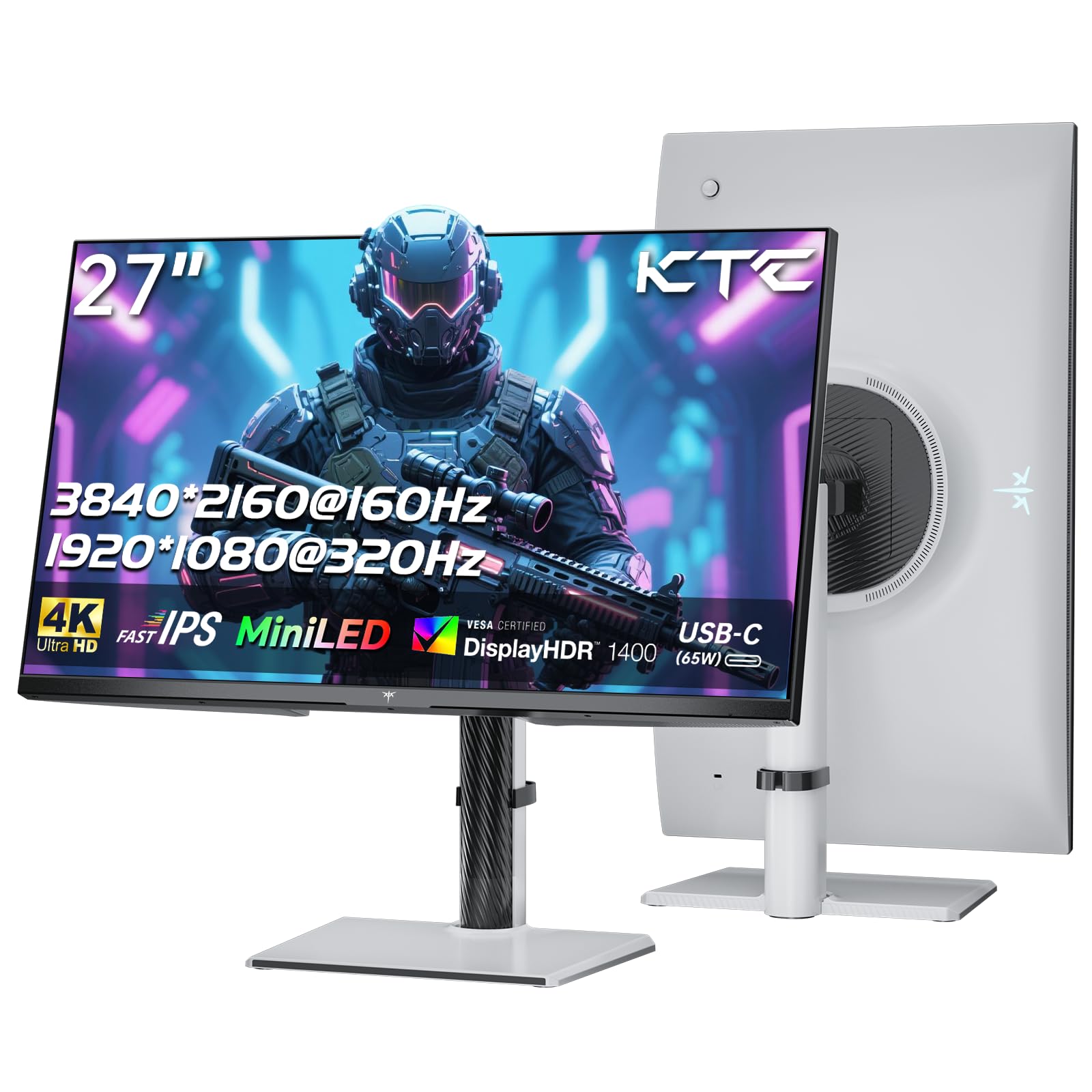
Vaizdas: priekis view of the KTC M27P6 27-inch MiniLED Gaming Monitor.
The front of the monitor features the 27-inch MiniLED display panel. The KTC logo is typically located at the bottom center bezel.
4.2 Galinis View ir uostai

Vaizdas: Galinis view of the KTC M27P6 monitor, highlighting the various input/output ports and the adjustable stand.
The rear of the monitor houses the input/output ports and the stand attachment point. The ports include:
- Maitinimo įvestis: Maitinimo adapterio prijungimui.
- HDMI 2.1 prievadai (x2): For connecting to devices supporting HDMI 2.1 (4K@160Hz / FHD@320Hz).
- DisplayPort 1.4 Ports (x2): For connecting to devices supporting DisplayPort 1.4 (4K@160Hz / FHD@320Hz).
- USB-C prievadas (x1): Full-function port supporting video input (4K@160Hz / FHD@320Hz) and 65W Power Delivery.
- USB-B Upstream Port (x1): For connecting the monitor's USB hub to your computer, enabling the downstream USB-A ports and KVM functionality.
- USB-A 3.0 Downstream Ports (x3): Skirta prijungti periferinius įrenginius, tokius kaip klaviatūros, pelės ar USB atmintinės.
- 3.5 mm garso išvestis: Skirta ausinėms arba išoriniams garsiakalbiams prijungti.
Vaizdo įrašas: Viršijimasview of the KTC M27P6 monitor's features and design, including its connectivity options and adjustable stand.
5. Sąranka
5.1 Stovo surinkimas
- Atsargiai išimkite monitoriaus ir stovo komponentus iš pakuotės.
- Attach the stand arm to the monitor panel by aligning the mounting points and securing with screws (if applicable).
- Attach the stand base to the stand arm, ensuring it is firmly connected.
- Surinktą monitorių padėkite ant stabilaus, lygaus paviršiaus.
The monitor also supports VESA mounting (100x100mm) for use with compatible wall mounts or monitor arms. Ensure the VESA mount is rated for the monitor's weight.

Image: Diagram illustrating the multi-angle adjustment capabilities of the KTC M27P6 monitor stand, including height, tilt, swivel, and pivot.
5.2 Jungiamieji kabeliai
- Maitinimo jungtis: Prijunkite maitinimo adapterį prie monitoriaus maitinimo įvesties, tada įjunkite maitinimo laidą į elektros lizdą.
- Vaizdo jungtis:
- For PC/Gaming Console: Connect one end of the HDMI or DisplayPort cable to your device's output and the other end to the corresponding port on the monitor.
- For USB-C Compatible Devices: Connect the USB-C cable from your device to the monitor's USB-C port for video, data, and power delivery.
- USB Hub/KVM Connection: To use the monitor's USB-A ports and KVM functionality, connect the USB-B to USB-A cable from the monitor's USB-B upstream port to a USB-A port on your computer.
- Garso jungtis: If using external headphones or speakers, connect them to the 3.5mm audio out port on the monitor.
6. Naudojimo instrukcijos
6.1 Maitinimo įjungimas/išjungimas
Norėdami įjungti arba išjungti monitorių, paspauskite maitinimo mygtuką (paprastai esantį monitoriaus gale arba apačioje). Maitinimo indikatoriaus lemputė užsidegs, kai monitorius įjungtas.
6.2 Ekrano meniu naršymas
The On-Screen Display (OSD) menu allows you to adjust various monitor settings. Use the joystick or buttons (refer to your monitor's physical layout) to navigate the OSD menu:
- Press Joystick/Button: Enter OSD menu or confirm selection.
- Judinkite valdymo svirtį aukštyn / žemyn: Naršykite meniu parinktis.
- Judinkite valdymo svirtį į kairę / į dešinę: Adjust values or move to sub-menus.
- Išėjimo mygtukas: Exit the current menu or OSD.
6.3 Dual Mode Switching (4K@160Hz / FHD@320Hz)
The KTC M27P6 supports seamless switching between two display modes: 4K (3840x2160) at 160Hz and Full HD (1920x1080) at 320Hz. This allows you to optimize performance based on your content (e.g., high-resolution graphics for AAA games or ultra-high refresh rate for competitive FPS games).
To switch modes, access the OSD menu and navigate to the "Display" or "Gaming" settings. Select the desired resolution and refresh rate. Your connected device must also support these resolutions and refresh rates for optimal performance.

Image: Illustration of the KTC M27P6 monitor's seamless dual mode switching capability, showing a 4K@160Hz gaming scene and a FHD@320Hz gaming scene.
6.4 Adaptyvusis sinchronizavimas
The monitor supports Adaptive Sync (AMD FreeSync and NVIDIA G-Sync compatible) to eliminate screen tearing and stuttering, providing a smoother gaming experience. Ensure Adaptive Sync is enabled in the monitor's OSD settings and in your graphics card control panel.

Image: Visual representation of Adaptive Sync technology, showing how it prevents screen tearing by synchronizing the monitor's refresh rate with the GPU's frame rate.
6.5 KVM funkcionalumas
The integrated KVM (Keyboard, Video, Mouse) switch allows you to control multiple computers or devices connected to the monitor using a single keyboard and mouse. To use KVM:
- Connect your primary computer to the monitor via DisplayPort/HDMI and the USB-B upstream cable.
- Connect your secondary device (e.g., laptop via USB-C) to the monitor.
- Connect your keyboard and mouse to the USB-A downstream ports on the monitor.
- Switch between connected devices using the KVM hotkey or OSD menu option.
6.6 Color Settings and HDR1400
The monitor features a MiniLED panel with 1152 local dimming zones and VESA DisplayHDR 1400 certification, providing high contrast and vibrant colors. You can adjust color settings (brightness, contrast, color temperature, gamma) through the OSD menu. For HDR content, ensure HDR is enabled in your operating system and the monitor's OSD. The monitor supports 10-bit color depth and a wide color gamut (145% sRGB / 99% DCI-P3).

Image: Visual comparison demonstrating the enhanced dynamic range and detail provided by HDR1400 on the KTC M27P6 monitor.
7. Priežiūra
- Ekrano valymas: Švelniai nuvalykite ekraną minkštu, nepūkuotu skudurėliu. Jei dėmės sunkiai įveikiamos,ampen the cloth with a small amount of screen cleaner (non-ammonia based). Do not spray cleaner directly onto the screen.
- C valymasasing: Monitorių nuvalykite minkštu, sausu skudurėliu.asing. Venkite naudoti abrazyvinius valiklius ar tirpiklius.
- Vėdinimas: Ensure the ventilation openings on the monitor are clear of dust and debris to prevent overheating.
8. Problemų sprendimas
| Problema | Galima priežastis | Sprendimas |
|---|---|---|
| Ekrane nėra vaizdo | Atjungtas maitinimo laidas; atjungtas vaizdo laidas; neteisingas įvesties šaltinis. | Patikrinkite maitinimo ir vaizdo kabelio jungtis. Pasirinkite tinkamą įvesties šaltinį per OSD meniu. |
| Vaizdas neryškus arba iškraipytas | Neteisinga skiriamoji geba; Sugedęs vaizdo kabelis. | Set the display resolution to the native 3840x2160 or 1920x1080. Try a different video cable. |
| Ekrano plyšimas arba mirgėjimas žaidimuose | Adaptyvus sinchronizavimas neįgalintas; Vaizdo plokštės tvarkyklės problemos. | Enable Adaptive Sync in monitor OSD and graphics card settings. Update graphics drivers. |
| USB prievadai neveikia | USB-B upstream cable not connected; Driver issues. | Ensure the USB-B upstream cable is connected from the monitor to your computer. Check computer's USB drivers. |
| Nėra garso iš garso išvesties | Incorrect audio output selected; Volume too low. | Check audio output settings on your computer. Adjust monitor and device volume. |
9. Specifikacijos
| Funkcija | Detalė |
|---|---|
| Prekės ženklas | KTC plėtinys |
| Modelio pavadinimas | M27P6 |
| Ekrano dydis | 27 Pollici (27 inches) |
| Skydelio tipas | MiniLED, Fast IPS |
| Resolution (Native) | 3840 x 2160 (4K UHD) |
| Max Refresh Rate (4K) | 160 Hz |
| Max Refresh Rate (FHD) | 320 Hz |
| Reagavimo laikas | 1 ms GtG |
| Vietinės pritemdymo zonos | 1152 zonos |
| HDR sertifikatas | VESA DisplayHDR 1400 |
| Ryškumas | 1400 cd / m² (smailė) |
| Kontrasto santykis | 1,000,000:1 (dinaminis) |
| Spalvų gama | 145 % sRGB, 99 % DCI-P3 |
| Spalvos gylis | 10 bitų |
| Adaptyvusis sinchronizavimas | AMD FreeSync, NVIDIA G-Sync Compatible |
| Viewing kampas | 178 laipsnių |
| Ryšys | 2x HDMI 2.1, 2x DisplayPort 1.4, 1x USB-C (65W PD), 1x USB-B Upstream, 3x USB-A 3.0 Downstream, 1x 3.5mm Audio Out |
| KVM palaikymas | Taip |
| Stendo reguliavimas | Aukštis, pakreipimas, pasukimas, pasukimas |
| VESA kalnas | 100 x 100 mm |
| Matmenys (DxPxH) | 21.1P x 61.7lx 54.7A cm |
10. Garantija ir palaikymas
KTC products are covered by a limited warranty. Please refer to the warranty card included in your package for specific terms and conditions. For technical support, troubleshooting assistance, or warranty claims, please contact KTC customer service or visit the official KTC websvetainę.
You can find more information and contact details on the KTC official store page: KTC parduotuvė.