
1. Svarbi saugos informacija
Please read all safety instructions carefully before using the Aurzen BOOM Air projector. Keep this manual for future reference.
- Maitinimo šaltinis: Use only the provided power adapter or a compatible USB-C power bank (65W+ output) to prevent damage.
- Vėdinimas: Užtikrinkite tinkamą vėdinimą aplink projektorių. Neužblokuokite ventiliacijos angų.
- Akių sauga: Nežiūrėkite tiesiai į projektoriaus objektyvą, kai lamp įjungtas. Ryški šviesa gali sukelti akių nuovargį arba pažeidimus.
- Vanduo ir drėgmė: Do not expose the projector to rain, moisture, or any liquids.
- Šiluma: Venkite projektoriaus statyti šalia šilumos šaltinių arba tiesioginiuose saulės spinduliuose.
- Valymas: Prieš valydami atjunkite maitinimą. Naudokite minkštą, sausą šluostę. Nenaudokite skystų ar aerozolinių valiklių.
- Aptarnavimas: Nemėginkite patys aptarnauti šio gaminio. Visą techninę priežiūrą patikėkite kvalifikuotam aptarnavimo personalui.
2. Pakuotės turinys
Patikrinkite, ar pakuotėje yra visi reikalingi daiktai:
- 1 × Aurzen BOOM Air Smart Projector
- 1 × Power Cord & Adapter
- 1 × nuotolinio valdymo pultas
- 1 × Cleaning Kit
- 1 × Naudotojo vadovas (šis dokumentas)
Note: An HDMI cable is not included.
3. Produktas baigtasview
The Aurzen BOOM Air is a portable Google TV projector designed for versatile entertainment. It features native 1080P resolution with 4K support, 300 ANSI Lumens brightness, ToF real-time focus, Dolby Audio, and a flexible adjustable stand. It is powered via USB-C, allowing for use with compatible power banks.
Projektoriaus komponentai
Familiarize yourself with the main components of your projector:
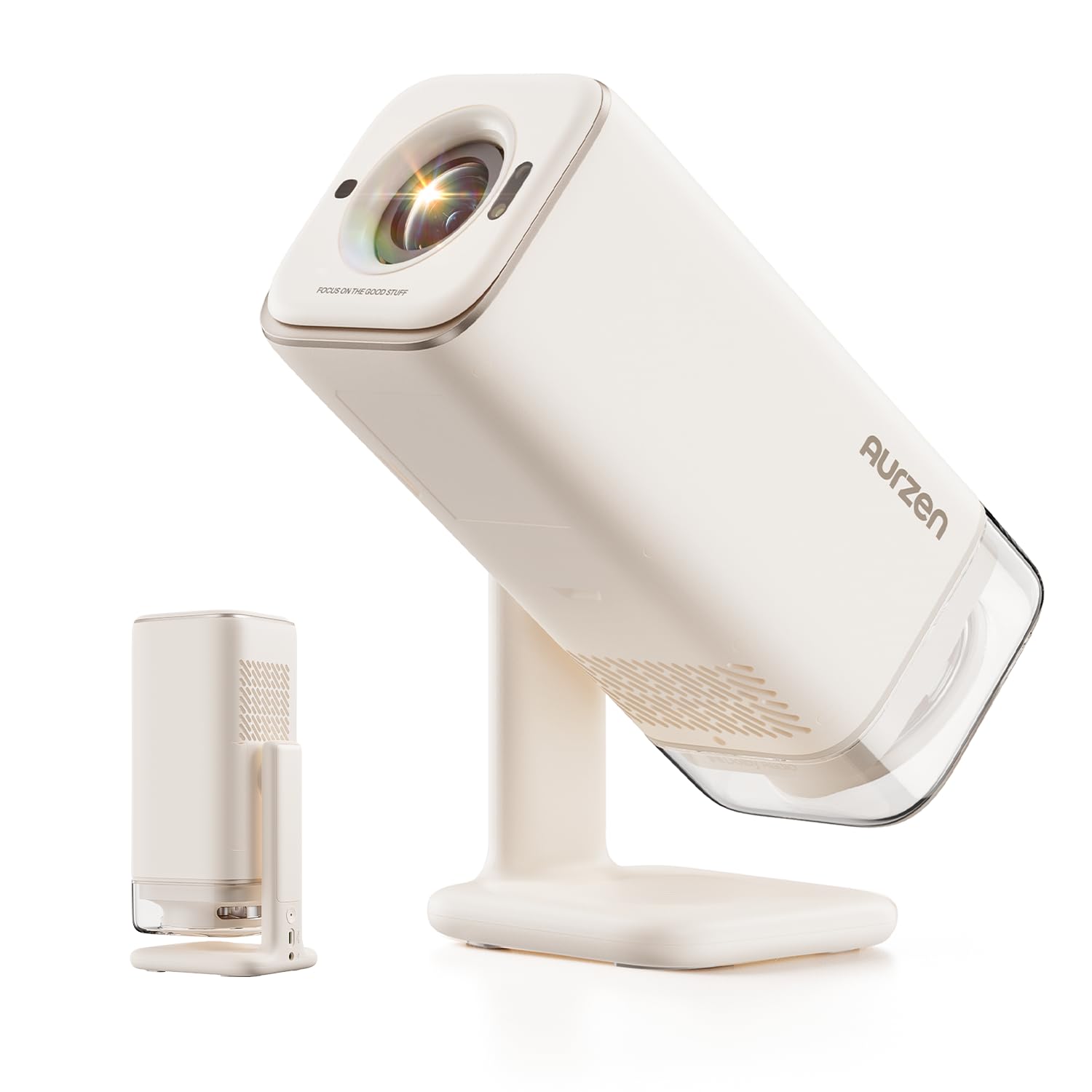
Vaizdas: priekis view of the Aurzen BOOM Air Portable Projector, showing the lens and compact design.

Image: Close-up of the Aurzen BOOM Air Projector, highlighting the USB and HDMI ports, and the overall compact design.
4. Sąranka
4.1 Įjungimas
- Connect the provided power adapter to the projector's DC input port.
- Plug the power adapter into a wall outlet. Alternatively, connect a compatible USB-C power bank (65W or higher output) to the projector's USB-C power input.
- Paspauskite projektoriaus arba nuotolinio valdymo pulto maitinimo mygtuką, kad jį įjungtumėte.
4.2 Initial Google TV Setup
Upon first use, you will be guided through the Google TV setup process:
- Vykdykite ekrane pateikiamus nurodymus, kad pasirinktumėte kalbą ir regioną.
- Prisijunkite prie savo „Wi-Fi“ tinklo pasirinkdami jį iš sąrašo ir įvesdami slaptažodį.
- Prisijunkite naudodami „Google“ paskyrą, kad galėtumėte pasiekti „Google TV“ funkcijas ir programas.
Video: Instructions on how to pair the Bluetooth remote control with the projector. This is a crucial step for initial setup and navigation.
4.3 Išdėstymas ir projekcija
Position the projector on a stable surface. The adjustable stand allows for flexible projection angles, including ceiling projection.
- Rekomenduojamas atstumas: For a 60-inch image, a projection distance of approximately 5.58 feet (1.78 meters) is recommended. Adjust the distance as needed for your desired screen size.
- Aplinka: For optimal clarity and brightness, use the projector in a dim or dark environment.

Image: The Aurzen BOOM Air Projector demonstrating its adjustable stand for various projection angles, including wall and ceiling projection.
Video: Demonstrates the recommended optimal viewing size and distance for the projector, showing a 60-inch image at 5.58 feet.
4.4 Fokusavimas ir trapecijos korekcija
The BOOM Air features ToF (Time-of-Flight) technology for real-time focus and automatic keystone correction, ensuring a clear and properly shaped image even when the projector is moved or placed at an angle.
- Automatinis reguliavimas: The projector will automatically adjust focus and keystone.
- Rankinis reguliavimas: If needed, you can manually adjust the focus using the dedicated focus buttons on the remote control.
Video: Shows how the electric focus function works, including manual adjustment using the remote control.
5. Naudojimo instrukcijos
5.1 „Google TV“ naršymas
Use the remote control to navigate the Google TV interface. The directional pad and select button are used for menu navigation, while dedicated buttons provide quick access to home, back, and app functions.
5.2 Srautinio perdavimo programos
The projector comes with official Google TV built-in, providing access to over 10,000 streaming applications such as Netflix, YouTube, Prime Video, Hulu, HBO, Peacock, and Paramount+. Ensure a stable Wi-Fi connection for optimal streaming performance.

Image: The projector displaying the Google TV home screen, featuring various streaming application icons like Paramount+, YouTube, HBO Max, Peacock, Prime Video, and Hulu.
5.3 Google Voice Control
Utilize the built-in Google Assistant for voice control. Press the dedicated voice button on your remote and speak commands to search for content, control playback, or adjust settings.
5.4 Vaidinimo turinys
The projector supports Google Cast, allowing you to stream content wirelessly from Android, iOS, or laptop devices.
Video: A step-by-step guide on how to cast content from an Android phone to the projector.
5.5 Išorinių įrenginių prijungimas
Projektorius turi įvairius prievadus išoriniams įrenginiams prijungti:
- HDMI: Connect laptops, PCs, TV sticks, or gaming consoles (e.g., PS5).
- USB: Connect USB disk drives for media playback or charge compatible devices.
- Garso išvestis (3.5 mm lizdas): Prijunkite išorinius garsiakalbius arba ausines.
- Bluetooth: Connect wireless headphones or Bluetooth speakers for audio output, or use the projector as a Bluetooth speaker (two-way Bluetooth).

Image: A visual guide illustrating the various input and output connections available on the BOOM Air projector, including HDMI, USB, Audio Out, and USB-C Power.
Video: Explains the different input source interfaces available on the projector and their uses.
5.6 Vaikų režimas
The projector includes a Kids Mode feature that allows for managing screen time, filtering age-appropriate content, and supporting multi-user accounts for a safe viewing experience for children.
6. Priežiūra
Reguliarus techninis aptarnavimas padeda užtikrinti projektoriaus ilgaamžiškumą ir optimalų veikimą.
6.1 Objektyvo valymas
Naudokite pridėtą valymo rinkinį arba minkštą, nepūkuotą šluostę, specialiai skirtą optiniams lęšiams. Švelniai nuvalykite lęšio paviršių, kad pašalintumėte dulkes ar dėmes. Venkite naudoti abrazyvines medžiagas ar stiprias chemines medžiagas.
6.2 Oro angų valymas
Periodically check and clean the air vents to prevent dust buildup, which can affect cooling and performance. Use a soft brush or compressed air to clear any obstructions.

Image: A visual representation of the projector's air filter cover and air outlet, indicating areas for maintenance.
7. Problemų sprendimas
If you encounter issues with your Aurzen BOOM Air projector, refer to the following common problems and solutions:
| Problema | Galima priežastis | Sprendimas |
|---|---|---|
| Projector does not power on. | No power, loose connection, insufficient power bank output. | Ensure power adapter is securely connected and plugged in. If using a power bank, confirm it provides 65W or higher output. |
| No image or blurry image. | Lens cap on, incorrect focus, incorrect input source, projector too far/close. | Remove lens cap. Allow auto-focus to engage or manually adjust focus. Verify correct input source (HDMI, USB). Adjust projection distance. |
| Nėra garso. | Per mažas garsumas, neprijungtas išorinis garso įrenginys, neteisingas garso išvesties nustatymas. | Increase volume. Check connections to external speakers/headphones. Ensure Bluetooth audio is correctly paired or 3.5mm jack is fully inserted. |
| „Wi-Fi“ ryšio problemos. | Silpnas signalas, neteisingas slaptažodis, maršrutizatoriaus problemos. | Ensure projector is within Wi-Fi range. Re-enter password carefully. If Wi-Fi status is "Limited Connection," contact your Internet Service Provider. |
| Nuotolinio valdymo pultas nereaguoja. | Low batteries, not paired. | Replace batteries. Re-pair the Bluetooth remote control (refer to Section 4.2). |
8. Specifikacijos
Detailed technical specifications for the Aurzen BOOM Air Projector (Model D004):
| Funkcija | Specifikacija |
|---|---|
| Prekės ženklas | Aurzen |
| Modelio pavadinimas | D004 |
| Gimtoji raiška | 1920 x 1080 (Full HD) |
| 4K palaikymas | Taip |
| Ryškumas | 300 ANSI liumenai |
| Kontrasto santykis | 500:1 |
| Ekrano tipas | LCD |
| Focus Technology | ToF (Time-of-Flight) Real-time Focus |
| Keystone Korekcija | Automatinis |
| Garsas | Dolby Audio, 10W Visible Speakers |
| Ryšys | 3.5mm Jack, Bluetooth (2-Way), HDMI, USB, Wi-Fi (2.4G & 5G) |
| Maitinimo įvestis | USB-C (requires 65W+ output for optimal performance) |
| Maksimalus vaizdo dydis | 200 colių |
| Minimalus metimo atstumas | 3.71 pėdų |
| Maksimalus metimo atstumas | 18.6 pėdų |
| Matmenys (I x P x A) | 3.9 colio ilgio x 3.9 colių pločio x 10.2 colio aukščio |
| Svoris | 2.7 svaro |
| Operacinė sistema | Official Google TV |
9. Garantija ir palaikymas
9.1 Gaminio garantija
The Aurzen BOOM Air Projector comes with a 2 metų gamintojo garantijaŠi garantija taikoma medžiagų ir gamybos defektams, atsiradusiems įprasto naudojimo sąlygomis. Išsaugokite pirkimo įrodymą, jei galėtumėte pateikti pretenzijas dėl garantijos.
9.2 Pagalba klientams
For technical assistance, troubleshooting, or warranty inquiries, please contact Aurzen customer support. Refer to the contact information provided on the official Aurzen websvetainėje arba pirkimo dokumentuose.
Taip pat galite rasti oficialų naudotojo vadovą PDF formatu čia.