
1. Įvadas
Thank you for choosing the Attoe F-18 Wireless Vertical Gaming Mouse. This ergonomic mouse is designed to provide a comfortable user experience, reducing wrist strain during extended use, while offering advanced features for gaming and productivity. It features tri-mode connectivity (2.4GHz wireless, Bluetooth 5.0, and wired USB-C), 12 programmable buttons, a 5-direction rocker, and adjustable DPI up to 24000.

Image 1.1: Attoe F-18 Wireless Vertical Gaming Mouse with USB receiver.
2. Pakuotės turinys
- Attoe F-18 Vertical Gaming Mouse
- USB-C įkrovimo laidas
- 2.4 GHz USB imtuvas
- Vartotojo vadovas
3. Sąranka ir ryšys
3.1 Pelės įkrovimas
The Attoe F-18 mouse is equipped with a built-in 800mAh ternary lithium battery. Before first use, or when the low battery warning activates, charge the mouse using the provided USB-C cable.
- Connect the USB-C end of the cable to the mouse and the USB-A end to a power source (e.g., computer USB port, USB wall adapter).
- During charging, the four indicator lights on the mouse will illuminate in sequence.
- All four lights will turn off when the mouse is fully charged.
- A red light flashing quickly indicates the battery level has dropped to 25%, signaling the need for charging.

Image 3.1: Illustration of the 800mAh battery and charging indicators.
3.2 Pelės prijungimas
The Attoe F-18 supports three connection modes: 2.4GHz Wireless, Bluetooth 5.0, and Wired USB-C.
3.2.1 2.4 GHz belaidis ryšys
- Įjunkite pelę naudodami maitinimo jungiklį, esantį apačioje.
- Press the bottom Bluetooth button briefly to select 2.4G mode (red indicator light).
- Išimkite USB imtuvą iš jo laikymo lizdo pelės apačioje.
- Insert the USB receiver into an available USB port on your computer. The mouse will automatically connect.

Image 3.2: Steps for connecting via 2.4GHz USB wireless.
3.2.2 „Bluetooth 5.0“ ryšys
- Įjunkite pelę naudodami maitinimo jungiklį, esantį apačioje.
- Press the bottom Bluetooth button briefly to select Bluetooth mode (blue indicator light). The mouse can pair with up to two Bluetooth devices.
- Kompiuteryje arba įrenginyje įjunkite „Bluetooth“ ir ieškokite naujų įrenginių.
- Select "F-18" or "Attoe Mouse" from the list of available devices to pair.
3.2.3 Laidinis USB-C ryšys
Prijunkite pelę tiesiai prie kompiuterio naudodami pridėtą USB-C laidą. Pelė veiks kaip laidinis įrenginys ir bus kraunama vienu metu.
3.3 Programinės įrangos diegimas (tik „Windows“)
To customize the 12 programmable buttons and macro settings, download the dedicated software driver. This software is compatible with Windows operating systems only; Mac OS lacks programming features.
- Žiūrėkite produkto pakuotę arba gamintojo websvetainė, kurioje yra nuoroda į programinės įrangos atsisiuntimą.
- Download and run the installer. If your security program flags the installer, approve the action (e.g., select "Trust") to proceed.
- Vykdykite ekrane pateikiamus nurodymus, kad užbaigtumėte diegimą.
- Once installed, launch the software to customize button functions, lighting, and macros. Programmable data is saved directly to the mouse, so settings persist even when connected to a new computer.

Image 3.3: Screenshot of the custom driver programming software interface.
4. Naudojimo instrukcijos
4.1 Ergonomiškas dizainas
The vertical design of the Attoe F-18 mouse promotes a natural handshake position, which helps alleviate wrist pain, shoulder fatigue, and tendinitis often associated with traditional horizontal mice. This design is ideal for right-handed users and supports various hand sizes for comfortable extended use.

Image 4.1: Visual comparison of vertical mouse grip versus common horizontal mouse grip.
4.2 Button Functions and 5-Direction Rocker
The mouse features 12 programmable buttons, including a unique 5-direction rocker for enhanced control.
- Kairysis / dešinysis mygtukai: Standartiniai pelės paspaudimai.
- Slinkties ratukas: Vertikalaus slinkimo ir vidurinio pelės mygtuko paspaudimo funkcijai.
- Pirmyn/atgal mygtukai: Located on the left side for navigation.
- DPI mygtukas: Adjusts sensitivity (see section 4.3).
- 5-Direction Rocker: Located near the thumb, this rocker replaces five traditional keys (W, A, S, D, and Space/Click) for agile in-game navigation. It allows movements forward, backward, left, right, and a central click.
- BT/2.4G Button: For switching between connectivity modes.
All buttons, except the BT/2.4G button, can be customized using the programming software.

Image 4.2: Close-up of the 5-way joystick, curved buttons, and side function keys.

Image 4.3: Keystroke analysis chart detailing button assignments.
4.3 DPI reguliavimas
The mouse features 5 adjustable DPI presets (1600/2400/3200/4800/24000) powered by a high-precision PMW3325 sensor. Press the DPI button to cycle through the settings. The DPI indicator lights will change to reflect the current setting:
- 1st light: 1600 DPI
- 2nd light: 2400 DPI
- 3rd light: 3200 DPI
- 4th light: 4800 DPI
- All 4 lights: 24000 DPI

Image 4.4: DPI indicators and RGB lighting on the mouse.
4.4 RGB apšvietimas
The side RGB strips feature 5 dynamic effects (Neon, Marquee, Streamer, etc.) to enhance your gaming atmosphere. Lighting modes can be customized via the software.
4.5 Device/Mode Switching
Norėdami perjungti prijungtus įrenginius arba režimus:
- Briefly press the Bluetooth button on the bottom of the mouse.
- The indicator light will show red for 2.4GHz mode and blue for Bluetooth mode.
- The mouse can switch between up to two paired Bluetooth devices and one 2.4GHz receiver connection.

Image 4.5: Diagram illustrating the device/mode switching function on the mouse bottom.
5. Priežiūra
To ensure the longevity and optimal performance of your Attoe F-18 mouse, follow these maintenance guidelines:
- Valymas: Pelės paviršių nuvalykite minkšta, sausa šluoste. Jei nešvarumai sunkiai įveikiami, šiek tiek pamirkykite.ampNuvalykite šluostę vandeniu arba švelniu valymo tirpalu. Venkite stiprių cheminių medžiagų ar abrazyvinių medžiagų.
- Saugykla: Jei ilgesnį laiką nenaudojate pelės, išjunkite ją, kad taupytumėte baterijos veikimo laiką. Laikykite ją vėsioje, sausoje vietoje, toliau nuo tiesioginių saulės spindulių ir ekstremalių temperatūrų.
- Neslystančios pagalvėlės: Ensure the protective film is removed from the Teflon anti-slip pads on the bottom of the mouse for smooth movement.
6. Problemų sprendimas
If you encounter issues with your Attoe F-18 mouse, refer to the following common solutions:
- Pelė nereaguoja:
- Įsitikinkite, kad pelė įjungta.
- Patikrinkite akumuliatoriaus lygį ir, jei reikia, įkraukite.
- Verify the correct connection mode (2.4GHz, Bluetooth, or Wired) is selected.
- Jei naudojate 2.4 GHz dažnį, įsitikinkite, kad USB imtuvas yra tvirtai prijungtas prie veikiančio USB prievado. Išbandykite kitą USB prievadą.
- Jei naudojate „Bluetooth“, įsitikinkite, kad jūsų įrenginyje įjungtas „Bluetooth“ ryšys ir pelė tinkamai susieta.
- If using wired mode, ensure the USB-C cable is properly connected.
- Cursor lag or erratic movement:
- Įsitikinkite, kad pelė yra ant švaraus, neatspindinčio paviršiaus.
- Interference can affect wireless performance. Move the mouse closer to the receiver or try a different USB port for the receiver.
- Check for other wireless devices operating on the same frequency.
- Įsitikinkite, kad baterija pakankamai įkrauta.
- Programuojami mygtukai neveikia:
- Ensure the customization software is installed and running on a Windows PC.
- Verify that the buttons have been correctly programmed and saved within the software.
- Remember that Mac OS does not support programming features for this mouse.
- DPI nesikeičia:
- Press the DPI button firmly to cycle through the settings. Observe the indicator lights.
7. Specifikacijos
| Funkcija | Specifikacija |
|---|---|
| Prekės ženklas | Attoe |
| Modelio numeris | F-18 |
| Ryšio technologija | 2.4 GHz belaidis ryšys, „Bluetooth 5.0“, laidinis USB-C ryšys |
| Judesio aptikimo technologija | Optinis (PMW3325 jutiklis) |
| DPI lygiai | 1600 / 2400 / 3200 / 4800 / 24000 |
| Mygtukų skaičius | 12 (programuojamas) |
| Baterijos talpa | 800 mAh trijų komponentų ličio baterija |
| Gaminio matmenys | 4.3 x 2.8 x 0.04 colio (110 x 72 x 76.5 mm) |
| Prekės svoris | 3.88 ounces (105 ± 5g) |
| Mygtuko tarnavimo laikas | ≥20 milijonai paspaudimų |
| Scroll Wheel Lifespan | ≥1.2 million rotations |
| Efektyvus diapazonas | ≥10 m |
| Veiklos ttage/srovė | 3.7V === 15mA |
| 2.4GHz Rolling Rate | 125-1000Hz |
| Bluetooth Rolling Rate | 133 Hz |
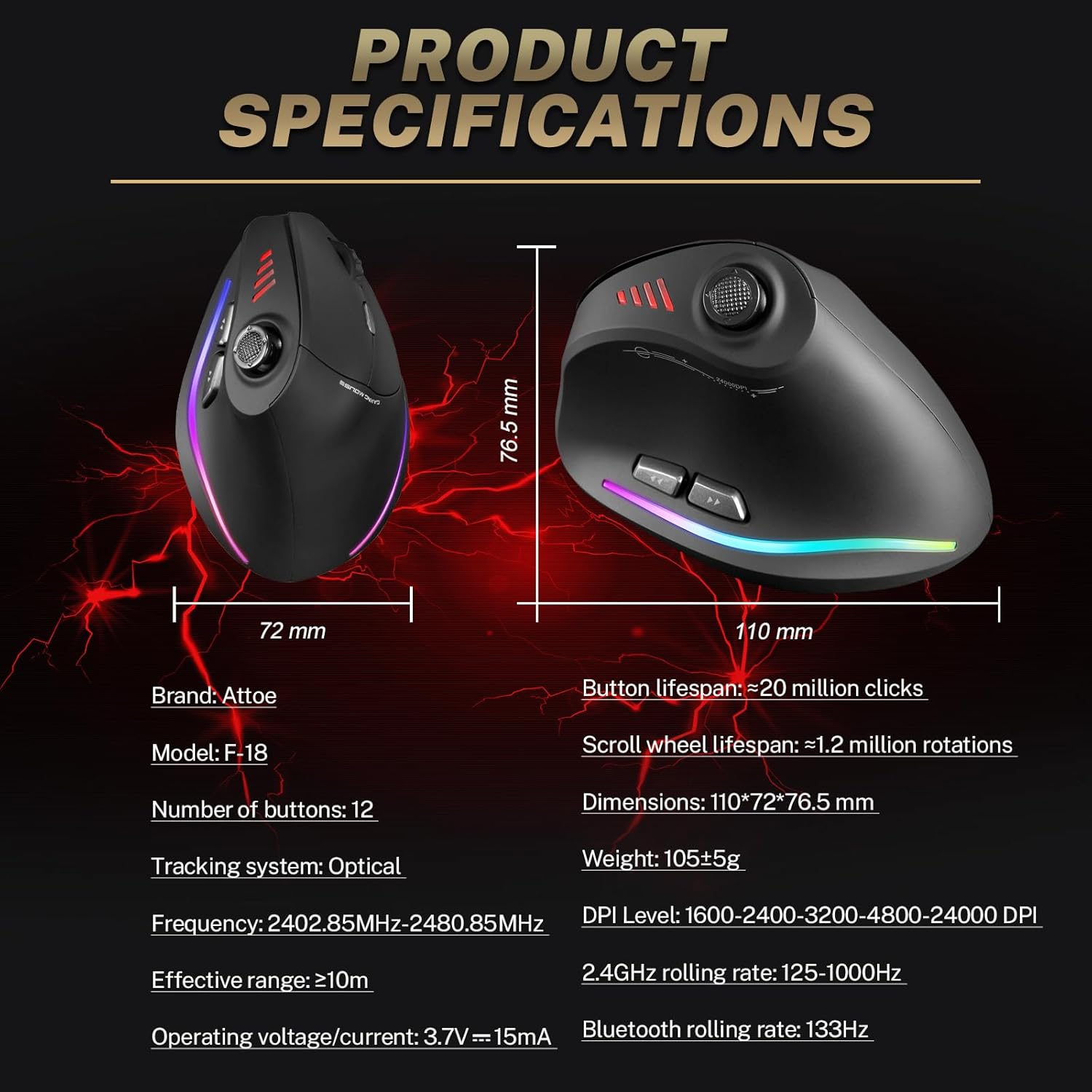
Image 7.1: Diagram showing product dimensions and key specifications.
8. Garantija ir palaikymas
For warranty information or technical support, please refer to the documentation included with your product or visit the official Attoe website. If you require further assistance, contact Attoe customer service.