
1. Įvadas
This manual provides instructions for setting up, operating, and maintaining your Cudy AX1500 WiFi 6 Mesh Wi-Fi System. The M1500 system is designed to provide seamless whole-home Wi-Fi coverage, replacing traditional routers and extenders.
2. Pakuotės turinys
Patikrinkite, ar jūsų pakuotėje yra šie elementai:
- M1500 Mesh Units (3 units for the 3-Pack)
- Power Adapters (one for each M1500 unit)
- Ethernet kabelis
- Diegimo vadovas
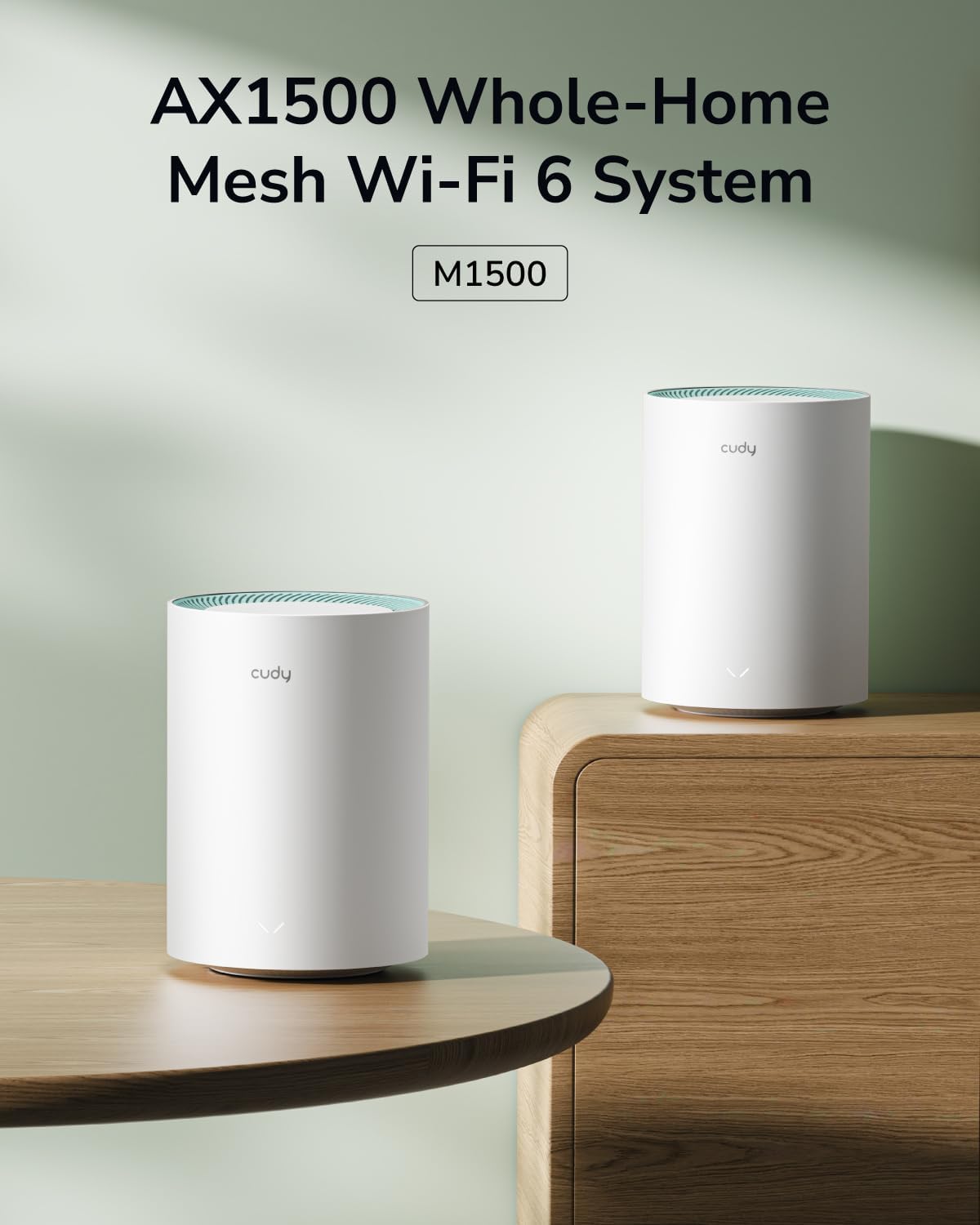
Image: Contents of the Cudy M1500 3-Pack, including three mesh units, power adapters, an Ethernet cable, and an installation guide.
3. Sąrankos vadovas
Follow these steps to set up your Cudy M1500 Mesh Wi-Fi System:
- Download the Cudy App: Ieškokite "Cudy" in your mobile app store (iOS or Android) and download the official Cudy application.
- Prijunkite pagrindinį įrenginį:
- Connect one M1500 unit to your modem using the provided Ethernet cable. Plug one end into the WAN/LAN port of the M1500 unit and the other end into your modem's Ethernet port.
- Connect the power adapter to the M1500 unit and plug it into a power outlet.
- Wait for the unit to power on and the LED indicator to show a stable status (refer to the LED indicator section in the full manual for specific status meanings).
- Pradinis nustatymas per programėlę:
- Open the Cudy app on your smartphone.
- Follow the on-screen instructions to create a Cudy account or log in.
- The app will guide you through detecting the primary M1500 unit and configuring your new Wi-Fi network name (SSID) and password.
- Add Additional Mesh Units:
- Place the remaining M1500 units in desired locations within your home, ensuring they are within range of each other and the primary unit for optimal signal.
- Connect power adapters to these units and plug them into power outlets.
- In the Cudy app, select the option to add new mesh units. The app will automatically detect and pair the new units with your existing mesh network. Alternatively, you can use the WPS/Pair button on the units for synchronization.

Image: Screenshot of the Cudy App, illustrating the user-friendly interface for setting up and managing the mesh Wi-Fi system.
4. Naudojimo instrukcijos
4.1. Seamless Whole-Home Wi-Fi
The Cudy M1500 Mesh Wi-Fi System creates a unified network with a single Wi-Fi name (SSID) throughout your home. Devices automatically connect to the strongest signal as you move, ensuring uninterrupted connectivity.

Image: A diagram illustrating how Cudy Mesh units provide seamless Wi-Fi coverage across multiple rooms in a home.
4.2. Dual-Band Wi-Fi 6 Performance
The system operates on dual bands (2.4 GHz and 5 GHz) with Wi-Fi 6 (802.11ax) technology, offering speeds up to 300 Mbps on 2.4 GHz and 1201 Mbps on 5 GHz. This allows for efficient handling of multiple connected devices and high-bandwidth activities like streaming and gaming.

Image: A Cudy M1500 unit displayed with graphical indicators showing 1201 Mbps on 5 GHz and 300 Mbps on 2.4 GHz, highlighting its Wi-Fi 6 capabilities.
4.3. Gigabito Ethernet prievadai
Each M1500 unit is equipped with three Gigabit Ethernet ports. These ports can be used for wired connections to devices such as PCs, gaming consoles, or smart TVs, providing stable and high-speed internet access. The system also supports Ethernet backhaul, allowing units to connect to each other via Ethernet for improved performance.

Vaizdas: Galinis view of a Cudy M1500 unit, clearly showing the Gigabit Ethernet ports (LAN/WAN) and the power input.
4.4. Išplėstinės funkcijos
- Prieigos taško režimas: Configure the M1500 units to function as access points to extend an existing wired network.
- Spindulio formavimas: Focuses Wi-Fi signals directly towards connected devices for stronger, more reliable connections.
- Tėvų kontrolė: Manage internet access for specific devices or users, including time limits and content filtering.
- Paslaugos kokybė (QoS): Prioritetizuojamas tinklo srautas konkrečioms programoms ar įrenginiams, siekiant užtikrinti optimalų našumą atliekant svarbiausias užduotis.
- Nuotolinė prieiga: Manage your network settings and connected devices remotely via the Cudy app.
- VPN Client Support: Supports PPTP, L2TP, and WireGuard VPN protocols for secure and private network access.

Image: Icons representing VPN client support, including WireGuard, PPTP, and L2TP protocols.
5. Priežiūra
To ensure optimal performance and longevity of your Cudy M1500 Mesh Wi-Fi System:
- Firmware atnaujinimai: Regularly check for and install firmware updates via the Cudy app or web sąsaja. Atnaujinimai dažnai apima našumo patobulinimus, saugos pataisas ir naujas funkcijas.
- Vieta: Place units in open areas, away from obstructions like large metal objects, thick walls, and other electronic devices that may cause interference. Cudy recommends placing units centrally in your home.
- Valymas: Keep the units clean and dust-free. Use a soft, dry cloth to wipe the exterior. Do not use liquid cleaners.
- Maitinimo ciklas: If you experience network issues, try power cycling the units (unplug from power, wait 10 seconds, then plug back in).
6. Problemų sprendimas
If you encounter issues with your Cudy M1500 Mesh Wi-Fi System, refer to the following common solutions:
| Problema | Sprendimas |
|---|---|
| Nėra interneto prieigos |
|
| Poor Wi-Fi Signal or Dead Zones |
|
| Lėti greičiai |
|
| Difficulty Setting Up via App |
|
7. Specifikacijos
| Funkcija | Detalė |
|---|---|
| Prekės ženklas | Cudy |
| Modelio pavadinimas | M1500 3-Pack |
| Dažnių juostos klasė | Dviejų juostų |
| Belaidžio ryšio standartas | 802.11ac, 802.11ax (Wi-Fi 6) |
| Duomenų perdavimo sparta | AX1500 (1201 Mbps esant 5 GHz dažniui, 300 Mbps esant 2.4 GHz dažniui) |
| Ryšio technologija | Ethernet, Wi-Fi |
| Prievadų skaičius | 3 gigabito eterneto prievadai vienam įrenginiui |
| LAN prievado pralaidumas | 1000 Mbps |
| Aprėptis | Up to 2500 square feet (for 3-Pack) |
| Kontrolės metodas | Programėlė |
| Saugumo protokolas | WPA/WPA2/WPA3 |
| Operacinė sistema | OpenWRT |
| Ypatingos savybės | Access Point Mode, Beamforming, Parental Control, QoS, Remote Access, Multi-VPN Support (PPTP/L2TP/WireGuard) |
| Suderinami įrenginiai | PC, Smartphone, Security camera, Tablet |
| Prekės matmenys (I x P x A) | 4.33 colio ilgio x 4.33 colių pločio x 6.08 colio aukščio |
| Prekės svoris | 900 gramų |
8. Garantija ir palaikymas
The Cudy M1500 Mesh Wi-Fi System comes with a 2 metų garantija.
For technical support, troubleshooting assistance, or warranty claims, please visit the official Cudy website or contact Cudy customer support. The Cudy app also provides resources and direct support options.