
Įvadas
This manual provides essential information for setting up, operating, maintaining, and troubleshooting your Lenovo IdeaCentre AIO 27IRH9 All-in-One Desktop. Please read these instructions carefully before using your device.
Kas yra dėžutėje
Patikrinkite, ar jūsų prekės pakuotėje yra visi šie daiktai:
- Lenovo IdeaCentre AIO Desktop Unit
- Belaidė EOS klaviatūra
- Belaidė EOS pelė
- Maitinimo adapteris
- Vartotojo vadovas (šis dokumentas)
Sąranka
Follow these steps to set up your Lenovo IdeaCentre AIO desktop:
- Išpakuokite įrenginį: Carefully remove the All-in-One desktop, keyboard, mouse, and power adapter from the packaging.
- Darbalaukio padėtis: Place the AIO unit on a stable, flat surface, ensuring adequate ventilation around the back and sides.
- Prijunkite maitinimo adapterį: Plug the power adapter into the power-in port on the back of the AIO unit, then connect it to a power outlet.
- Connect Wireless Keyboard and Mouse: The included keyboard and mouse are wireless. Ensure they have batteries installed (if not pre-installed) and are powered on. They should automatically connect to the AIO. If not, refer to their individual manuals for pairing instructions.
- Prijunkite periferinius įrenginius (neprivaloma):
- USB įrenginiai: Connect USB devices (e.g., external hard drives, printers) to the available USB ports (USB-A, USB-C).
- Išorinis ekranas: If using an external monitor, connect it to the HDMI-out port.
- Tinklo kabelis: For a wired internet connection, connect an Ethernet cable to the RJ-45 port.
- Garso įrenginiai: Connect headphones or external speakers to the headphone/microphone combo jack.
- Pradinis paleidimas: Press the power button. The system will boot up, and you will be guided through the Windows 11 initial setup process. Follow the on-screen instructions to configure your operating system, network, and user accounts.

1 paveikslas: Galinis view of the IdeaCentre AIO, highlighting the power input, USB-A ports, Ethernet port, HDMI-in, HDMI-out, USB-C port, and headphone/microphone combo jack.

2 paveikslas: Priekyje view of the IdeaCentre AIO, showcasing the 27-inch display, wireless keyboard, and mouse.
Prietaiso valdymas
Your Lenovo IdeaCentre AIO is designed for efficient daily use. Here are key operational aspects:
- „Windows 11 Home“: The desktop comes pre-loaded with Windows 11 Home. Familiarize yourself with the operating system's interface, Start Menu, and settings.
- Ekrano ypatybės: The 27-inch Full HD IPS display offers a resolution of 1920x1080 pixels, 300 nits brightness, and a 100Hz refresh rate for smooth visuals. It features an anti-glare coating and hardware low blue light technology for eye comfort.
- Garso sistema: Enjoy clear audio with the integrated 3Wx2 HARMAN speakers. The dual microphone setup ensures clear voice input for calls and recordings.
- Integruota kamera: The 5.0 MP camera is suitable for video conferencing and online communication.
- Ryšys:
- Belaidis ryšys: Built-in Wi-Fi 6 provides fast and reliable internet access. Bluetooth 5.2 allows for seamless connection with wireless peripherals.
- Laidinis: Utilize the Ethernet port for stable wired network connections. Multiple USB ports (USB-A, USB-C) are available for various accessories.
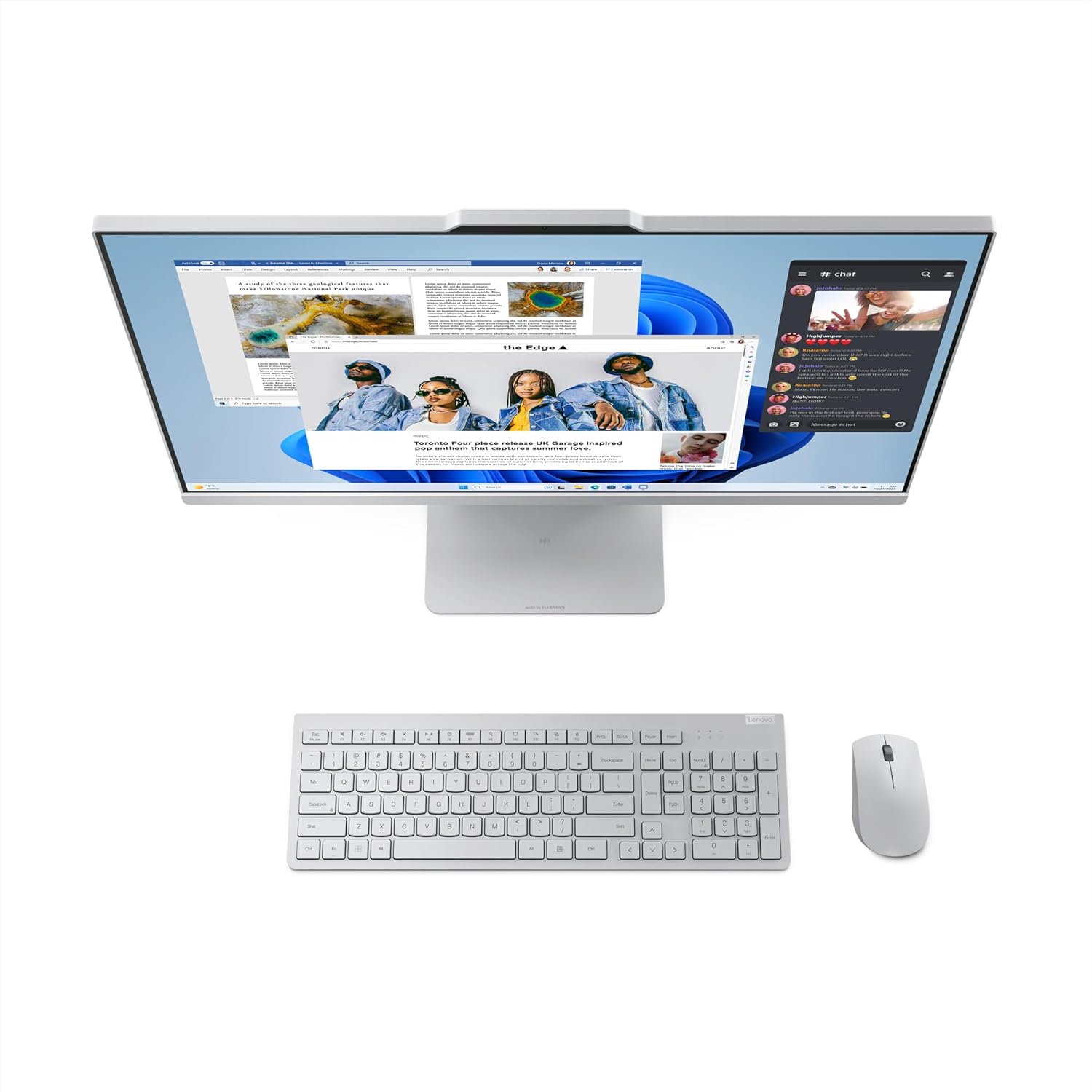
3 paveikslas: Key features of the IdeaCentre AIO, including the 27" FHD IPS display, 99% sRGB, 100Hz refresh rate, 5MP camera, and Harman speakers.

4 paveikslas: Šoninis profesionalasfile of the IdeaCentre AIO, demonstrating the adjustable tilt feature for ergonomic viewing.
Priežiūra
Proper maintenance ensures the longevity and optimal performance of your IdeaCentre AIO desktop:
- Ekrano valymas: Naudokite minkštą, nepūkuotą šluostę, specialiai skirtą elektronikai. Lengvai nuvalykiteampen the cloth with water or a screen cleaner solution (avoid harsh chemicals) and gently wipe the screen. Do not spray liquid directly onto the screen.
- Važiuoklės valymas: Išorinius paviršius nuvalykite minkšta, sausa šluoste. Įsisenėjusius nešvarumus galima lengvai nuvalyti.amp cloth can be used, followed by a dry cloth. Ensure no liquid enters the vents or ports.
- Programinės įrangos atnaujinimai: Reguliariai tikrinkite, ar yra operacinės sistemos atnaujinimų („Windows Update“) ir tvarkyklių atnaujinimų iš „Lenovo“ palaikymo tarnybos, ir įdiekite juos. website. This ensures security, stability, and performance improvements.
- Vėdinimas: Keep the ventilation openings on the back and sides of the AIO clear of obstructions to prevent overheating.
- Atsakomybė už aplinkos apsaugą: The base stand and hinge of this product utilize 65% post-consumer recycled plastic, and the system bag contains 30% ocean-bound plastic. The packaging uses FSC® certified paper. Please dispose of the product and its components responsibly at the end of its life cycle.
Trikčių šalinimas
If you encounter issues with your IdeaCentre AIO, refer to the following common troubleshooting steps:
- Nėra galios:
- Ensure the power adapter is securely connected to both the AIO and a working power outlet.
- Patikrinkite, ar maitinimo lizdas veikia, prijungdami prie jo kitą įrenginį.
- Ekrano problemos (nėra vaizdo / mirga):
- Patikrinkite, ar AIO įjungtas.
- If an external display is connected, ensure the correct input source is selected on the external monitor.
- Iš naujo paleiskite kompiuterį.
- Klaviatūra arba pelė nereaguoja:
- Check the batteries in the wireless keyboard and mouse and replace them if necessary.
- Įsitikinkite, kad klaviatūra ir pelė yra įjungtos.
- Try re-pairing the devices if they have a pairing button or process.
- Nėra interneto ryšio:
- Jei naudojate „Wi-Fi“, įsitikinkite, kad „Windows“ nustatymuose įjungtas „Wi-Fi“ ir esate prisijungę prie tinkamo tinklo.
- Jei naudojate laidinį ryšį, patikrinkite eterneto kabelio jungtį ir maršrutizatoriaus / modemo būseną.
- Restart your router/modem and the AIO.
- Sistemos sulėtėjimas:
- Uždarykite nereikalingas programas.
- Paleiskite virusų nuskaitymą.
- Įsitikinkite, kad „Windows“ ir tvarkyklės yra atnaujintos.
- Patikrinkite disko vietą ir, jei reikia, atlaisvinkite vietos.
If these steps do not resolve the issue, please contact Lenovo Support for further assistance.
Specifikacijos
| Funkcija | Detalė |
|---|---|
| Modelio pavadinimas | IdeaCentre AIO |
| Modelio numeris | 27IRH9 |
| Procesorius | Intel Core i3-1315U (6 Cores, 8 Threads, 1.2GHz Base, 4.5GHz Max) |
| Operacinė sistema | Windows 11 Home Single Language, English |
| Iš anksto įdiegta programinė įranga | Microsoft 365 Basic + Office Home 2024 |
| Atmintis (RAM) | 8GB DDR5-5200 (Expandable up to 32GB, 2 SO-DIMM slots) |
| Sandėliavimas | 512 GB SSD M.2 2280 PCIe 4.0x4 NVMe |
| Grafika | Integruota Intel UHD grafika |
| Ekranas | 27-inch Full HD (1920x1080) IPS, 300 nits, Anti-Glare, 99% sRGB, 100Hz, 3-side borderless, Hardware Low Blue Light, Non-Touch |
| Fotoaparatas | 5.0 MP |
| Garsas | 2x3W HARMAN Speakers, Dual Microphone |
| Belaidis ryšys | „Wi-Fi 6“, „Bluetooth 5.2“. |
| Uostai | 1x USB-C (10Gbps / USB 3.2 Gen 2, data transfer only), USB-A (10Gbps), USB-A (Hi-Speed USB), HDMI-in 1.4, HDMI-out 2.1 TMDS, Ethernet (RJ-45), 1x Headphone/Microphone Combo Jack (3.5mm) |
| Matmenys (P x G x A) | 61.1x19.2x47.3 cm |
| Svoris | 7.1 kilogramo |
| Įtraukti periferiniai įrenginiai | Wireless EOS Keyboard, Wireless EOS Mouse |
Garantija ir palaikymas
Your Lenovo IdeaCentre AIO 27IRH9 comes with a 1 Year Onsite Warranty. For warranty claims or technical assistance, please contact Lenovo Support.
Kontaktinė informacija:
- Lenovo (India) Private Limited: RBD Icon, Level 2, Doddenakundi Village, Marathahalli Outer Ring Road, K. R. Puram Hobli, Bangalore 560037, Karnataka, India
- Manufacturer (Compal Information Technology): No. 58., FIRST AVENUE, A ZONE, KUNSHAN COMPREHENSIVE FREE TRADE ZONE KUNSHAN, JIANGSU CHINA
For the most up-to-date support information, drivers, and manuals, please visit the official Lenovo support websvetainę.