
1. Įvadas
This manual provides comprehensive instructions for the installation, operation, and maintenance of your UNITOPSCI 10.1-inch Android Car Stereo. This unit is specifically designed for Honda Accord 9th Generation 2.0L models manufactured between 2013 and 2017. Please read this manual thoroughly before using the product to ensure proper functionality and safety.
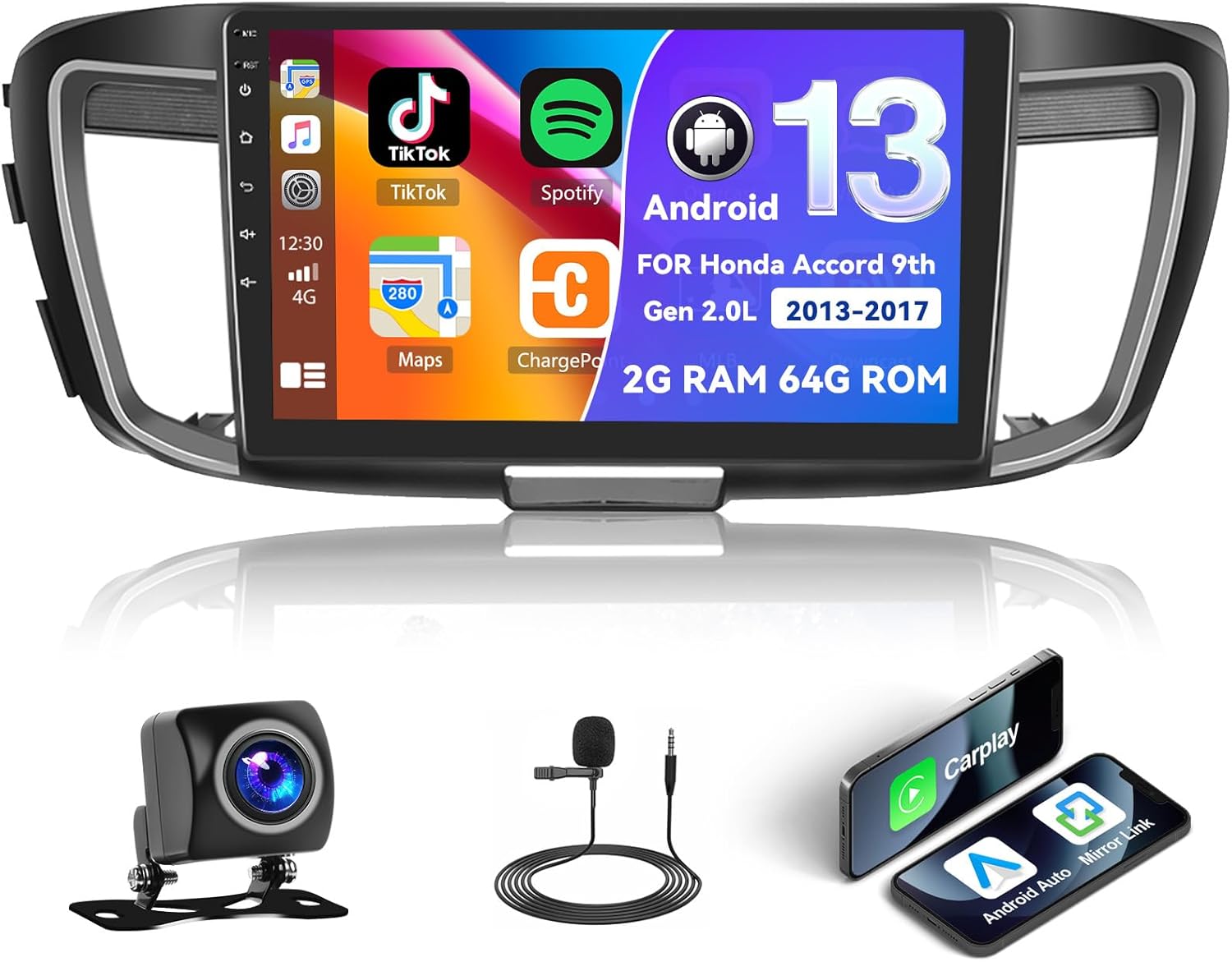
Figure 1.1: UNITOPSCI Android Car Stereo with backup camera, microphone, and smartphone mirroring icons.
2. Saugos informacija
- Do not operate the system in a way that distracts you from driving safely. Always prioritize road safety.
- Įsitikinkite, kad visi laidai yra tinkamai prijungti, kad išvengtumėte trumpojo jungimo ar pažeidimų.
- Venkite įrenginio ilgalaikio laikymo tiesioginiuose saulės spinduliuose, itin aukštose temperatūrose ar drėgmės.
- Professional installation is recommended to ensure correct wiring and functionality.
- Garsumą palaikykite tokį, kad girdėtumėte išorinio eismo garsus.
3. Produktas baigtasview
3.1 Pagrindinės savybės
- 10.1-inch Touchscreen Display (1024*600 resolution)
- „Android“ operacinė sistema (2 GB RAM + 64 GB ROM)
- Wireless/Wired Apple CarPlay and Android Auto
- Dual Mirror Link for Android/iOS phones
- Built-in GPS Navigation with offline map support (HERE WE GO preloaded)
- „WiFi“ ryšys
- Bluetooth with A2DP/Hands-Free/Phone Book functions
- FM/RDS radijas su 18 iš anksto nustatytų stočių
- Backup Camera Input with automatic display switching
- Vairo valdymo (SWC) palaikymas
- Padalintojo ekrano funkcionalumas
- Built-in Equalizer System
- Multiple UI Themes (26 options)
3.2 Pakuotės turinys
- UNITOPSCI Android Car Stereo Unit
- Laidų laidai
- GPS antena
- USB kabeliai (dviguba USB sąsaja)
- Išorinis mikrofonas
- Atsarginė kamera
- Vartotojo vadovas (šis dokumentas)
4. Sąranka ir diegimas
4.1 Suderinamumo patikrinimas
This car stereo is compatible with Honda Accord 9th Generation 2.0L models from 2013 to 2017 (basic version). It is not compatible with high-end versions that include a large OEM screen or navigation system. Please verify your vehicle's center console and compare it with the provided installation frame images to ensure compatibility.

Figure 4.1: Dashboard compatibility for Honda Accord 9th Gen (2013-2017) 2.0L low-end version. Note: Not suitable for models with existing OEM Navi Screen.
4.2 diegimo žingsniai
- Paruošimas: Atjunkite automobilio akumuliatorių, kad išvengtumėte elektros gedimų.
- Remove OEM Unit: Atsargiai nuimkite esamą automobilio radijo ir prietaisų skydelio apdailą. Konkrečias instrukcijas rasite savo transporto priemonės techninės priežiūros vadove.
- Prijunkite laidus: Connect the provided wiring harness to the car stereo and the vehicle's existing wiring. Ensure all connections are secure. Connect the GPS antenna, external microphone, and backup camera cables.
- Bandymo funkcionalumas: Before fully reassembling the dashboard, temporarily connect the battery and power on the unit to test basic functions like power, audio, and display.
- Saugus vienetas: Mount the new car stereo into the dashboard opening and secure it with screws.
- Surinkti iš naujo: Vėl sumontuokite visas prietaisų skydelio apdailos dalis.
- Galutinis prijungimas: Prijunkite transporto priemonės akumuliatorių.
Pastaba: If your vehicle has an OEM Radio with a Center Navi Screen, additional wiring kits may be required. Contact customer support for assistance.
5. Naudojimo instrukcijos
5.1 Maitinimo įjungimas/išjungimas
The unit will typically power on automatically when the vehicle's ignition is turned on. To manually power off or restart, press and hold the power button on the unit or use the software controls.
5.2 belaidis „CarPlay“ ir „Android Auto“
This unit supports both wireless and wired Apple CarPlay and Android Auto. Connect your smartphone via Bluetooth/WiFi for wireless functionality or use a USB cable for a wired connection. Once connected, you can access phone calls, navigation, music, and other compatible apps directly from the stereo's touchscreen.

Figure 5.1: Wireless CarPlay, Android Auto, and Mirror Link interfaces.
5.3 GPS navigacija
The stereo has built-in GPS and supports both online and offline navigation. The HERE WE GO map application is preloaded. To use offline maps, download the necessary map data via a WiFi connection. For online navigation, ensure the unit is connected to WiFi or a mobile hotspot.

Figure 5.2: GPS Navigation interface and WiFi connection options.
5.4 „Bluetooth“ ir FM/RDS radijas
Bluetooth: Pair your smartphone via Bluetooth for hands-free calling, music streaming (A2DP), and automatic phone book download. This enhances safety by allowing you to manage calls without holding your phone.
FM/RDS radijas: Access FM radio stations with 18 preset options. The RDS (Radio Data System) feature displays station information where available. Use the tuner to find news, music, and sports broadcasts.

Figure 5.3: FM/RDS Radio, Bluetooth interface, and Equalizer settings.
5.5 Veidrodinis ryšys
The Mirror Link function allows you to display your Android or iOS phone's screen directly onto the 10.1-inch head unit. This can be achieved via a wired or wireless connection, enabling you to view videos or maps from your phone on the larger screen.
5.6 Vairo valdymas (SWC)
The unit supports your vehicle's existing steering wheel controls. This allows you to adjust volume, change tracks, answer calls, and switch modes without taking your hands off the steering wheel, improving driving safety and convenience. The system includes a learning function for SWC configuration.
5.7 Galinio vaizdo kameros įvestis
When the vehicle is shifted into reverse gear, the stereo automatically displays the view from the connected AHD backup camera on the 10.1-inch screen. This assists with safe parking and maneuvering.

Figure 5.4: Steering Wheel Control interface and backup camera view su gairėmis.
5.8 Padalinto ekrano ir vartotojo sąsajos temos
Padalintas ekranas: The split-screen feature allows you to run two applications side-by-side on the display, for example, navigation on one side and music playback on the other.
Vartotojo sąsajos temos: The Android radio offers 26 different user interface themes. You can customize the look of your desktop by long-pressing the main interface and selecting your preferred theme.

Figure 5.5: Split screen view ir buvamples of different UI desktop themes.
6. Priežiūra
- Valymas: Ekraną ir įrenginį valykite minkšta, sausa šluoste. Venkite abrazyvinių valiklių ar tirpiklių.
- Programinės įrangos atnaujinimai: Reguliariai tikrinkite, ar yra programinės įrangos atnaujinimų, kad užtikrintumėte optimalų našumą ir prieigą prie naujų funkcijų.
- Temperatūra: Do not leave the unit in direct sunlight for extended periods, especially in hot weather, as this can affect its lifespan.
7. Problemų sprendimas
| Problema | Galima priežastis | Sprendimas |
|---|---|---|
| Įrenginys neįsijungia | Neteisingas laidų sujungimas, perdegęs saugiklis, automobilio akumuliatoriaus problema | Patikrinkite maitinimo jungtis, patikrinkite transporto priemonės saugiklius, įsitikinkite, kad akumuliatorius įkrautas. |
| Nėra garso | Volume too low, incorrect audio settings, speaker wiring issue | Increase volume, check audio output settings, verify speaker connections. |
| GPS signalas prarastas arba netikslus | GPS antenna obstructed or disconnected, poor satellite coverage | Įsitikinkite, kad GPS antena tinkamai sumontuota ir turi aiškų view dangaus. Patikrinkite antenos jungtį. |
| Bluetooth ryšio problemos | Device not paired, Bluetooth off on phone or stereo | Ensure Bluetooth is enabled on both devices. Re-pair the device. |
| Jutiklinis ekranas nereaguoja | Laikinas programinės įrangos gedimas | Restart the unit. If issue persists, perform a factory reset (Factory setting keyword: 000000). |
If you encounter issues not listed here or if troubleshooting steps do not resolve the problem, please contact UNITOPSCI customer support.
8. Specifikacijos
| Funkcija | Specifikacija |
|---|---|
| Sistema | Android |
| Lustų rinkinys | 8227L-DEMO |
| Ekrano dydis | 10.1 colių |
| Atmintis (RAM+ROM) | 2 GB RAM + 64 GB ROM |
| Ekrano raiška | 1024*600 |
| Radijo lustas | MT6625 |
| Maitinimo išvestis | 4*45W |
| Darbo temperatūra | -20 ℃ iki 75 ℃ (nuo -4°F iki 167°F) |
| Galia Ampkeltuvas Chip | TDA7388 |
| Radijo grupė | FM/RDS |
| Vaizdo išvestis | Palaikymas |
| Išorinis mikrofonas | Palaikymas |
| Padalintas ekranas | Palaikymas |
| Žemėlapiai | Integruoti neprisijungus pasiekiami žemėlapiai (duomenims atsisiųsti reikalingas internetas) |
| WIFI | Palaikymas |
| USB | Dviguba USB sąsaja |
| Garso formato palaikymas | APE/FLAC/WAV/MP3/WMA ir kt. |
| Vaizdo įrašo formato palaikymas | MKV / RMVB / AVI / MP4 / MDV ir kt. |
| Vaizdo formato palaikymas | PNG / JPEG / JPG / GIF / WBMP / BNP ir kt. |
| Gamyklinių nustatymų raktinis žodis | 000000 |
| Kalbos | Kinų / anglų / prancūzų / italų / korėjiečių / japonų / arabų / ispanų / portugalų / rusų / turkų / vietnamiečių / hebrajų / lenkų / vokiečių |
| Prekės svoris | 3.08 svaro |
| Pakuotės matmenys | 17.13 x 7.8 x 4.06 colio |
9. Garantija ir palaikymas
Your UNITOPSCI Android Car Stereo comes with a 12-month warranty. Replacement is available within 24 months for qualifying issues. We offer lifetime after-sales consultation and technical support.
Dėl bet kokių klausimų, techninės pagalbos ar garantinių pretenzijų susisiekite su mumis:
- El. paštas: UNITOPSCI@126.com

Figure 9.1: UNITOPSCI Customer Support Contact Information.