
1. Įvadas
Thank you for choosing the Dierya x TMKB M1 Wireless Gaming Mouse. This manual provides detailed instructions on how to set up, operate, and maintain your new gaming mouse. The M1 mouse offers versatile connectivity, high-precision tracking, and customizable features to enhance your gaming and productivity experience.
2. Produktas baigtasview
2.1 Komponentai ir valdikliai
Familiarize yourself with the various buttons and features of your Dierya M1 mouse:
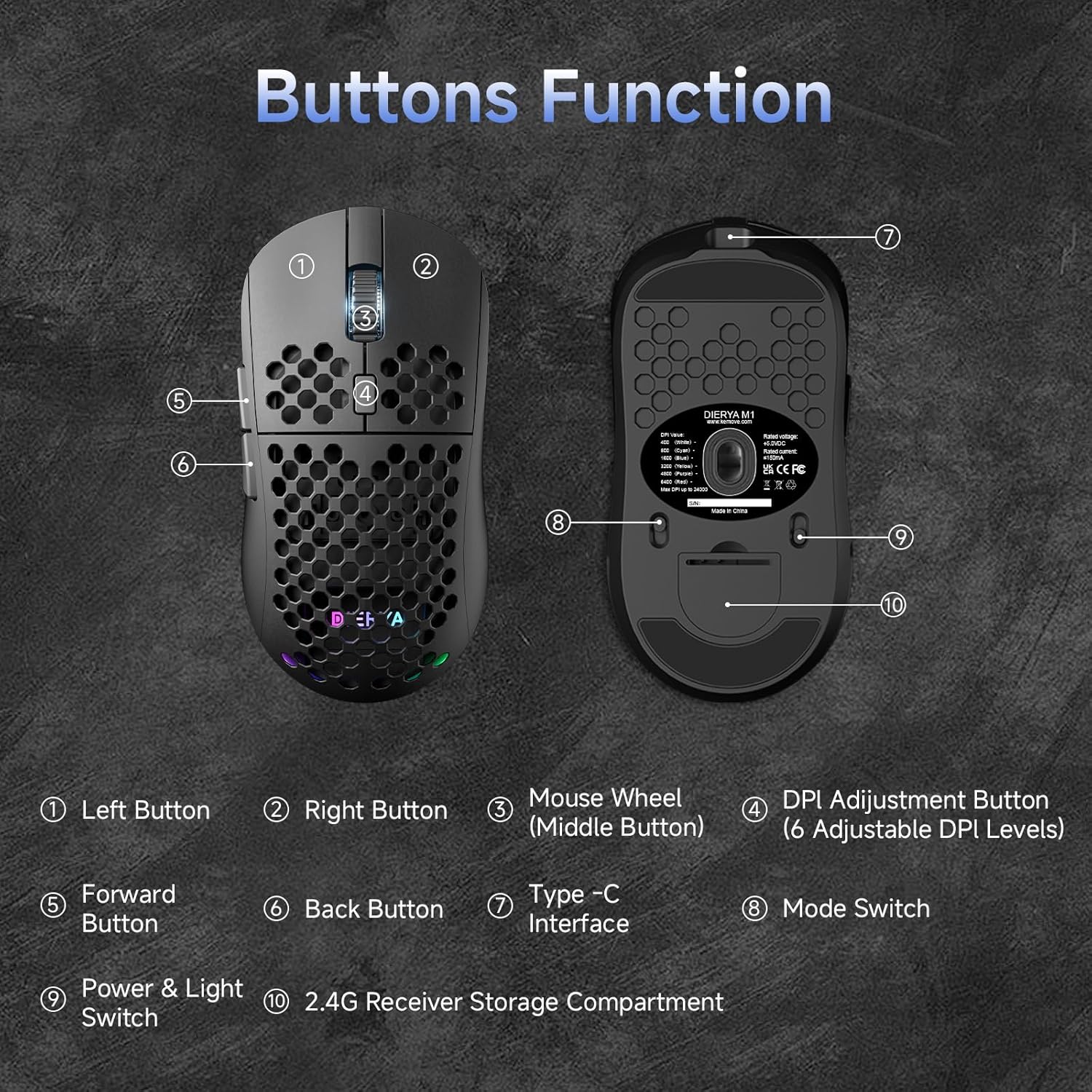
This diagram illustrates the various components of the Dierya M1 wireless gaming mouse. It highlights the Kairysis mygtukas (1), Dešinysis mygtukas (2), Mouse Wheel (Middle Button) (3), DPI Adjustment Button (4) with 6 adjustable DPI levels, Pirmyn mygtukas (5), Mygtukas „Atgal“ (6), Type-C Interface (7) for charging and wired connection, Režimo jungiklis (8) for selecting connection type, Power & Light Switch (9), ir 2.4G Receiver Storage Compartment (10) esantis apatinėje pusėje.
2.2 Pagrindinės savybės
- 24,000 DPI optinis jutiklis: Adjustable DPI range from 200 to 24,000, with 6 preset levels (400-6400 DPI).
- Trijų režimų ryšys: Supports ultra-fast 2.4GHz wireless, energy-efficient Bluetooth 5.2, and stable USB-C wired connections.
- Ilgas baterijos veikimo laikas: 1000mAh battery provides up to 180 hours in ECO mode or 48 hours with RGB lighting, with 1-hour fast charging.
- Lengvas ir ergonomiškas dizainas: Weighs only 90g with a honeycomb shell for breathability and a symmetrical design (125x63x41 mm).
- Programuojami mygtukai: 6 customizable buttons via the M1 Driver software (Windows only).
- Dinaminis RGB apšvietimas: 13 integrated RGB lighting effects with 16.8 million customizable colors.
- Didelis našumas: 125-1000 Hz polling rate, 300 IPS tracking speed, and 35G acceleration.
- Patvarūs jungikliai: Equipped with Huano switches rated for 20 million clicks and 100% PTFE feet for smooth gliding.
3. Sąranka
3.1 Pelės įkrovimas
Before first use, it is recommended to fully charge the mouse. Connect the provided USB-C cable to the Type-C Interface (7) on the mouse and the other end to a USB power source (e.g., computer USB port, USB wall adapter).
- The mouse charges in approximately 1 hour.
- The scroll wheel LED will indicate charging status (e.g., red for charging, green for fully charged).
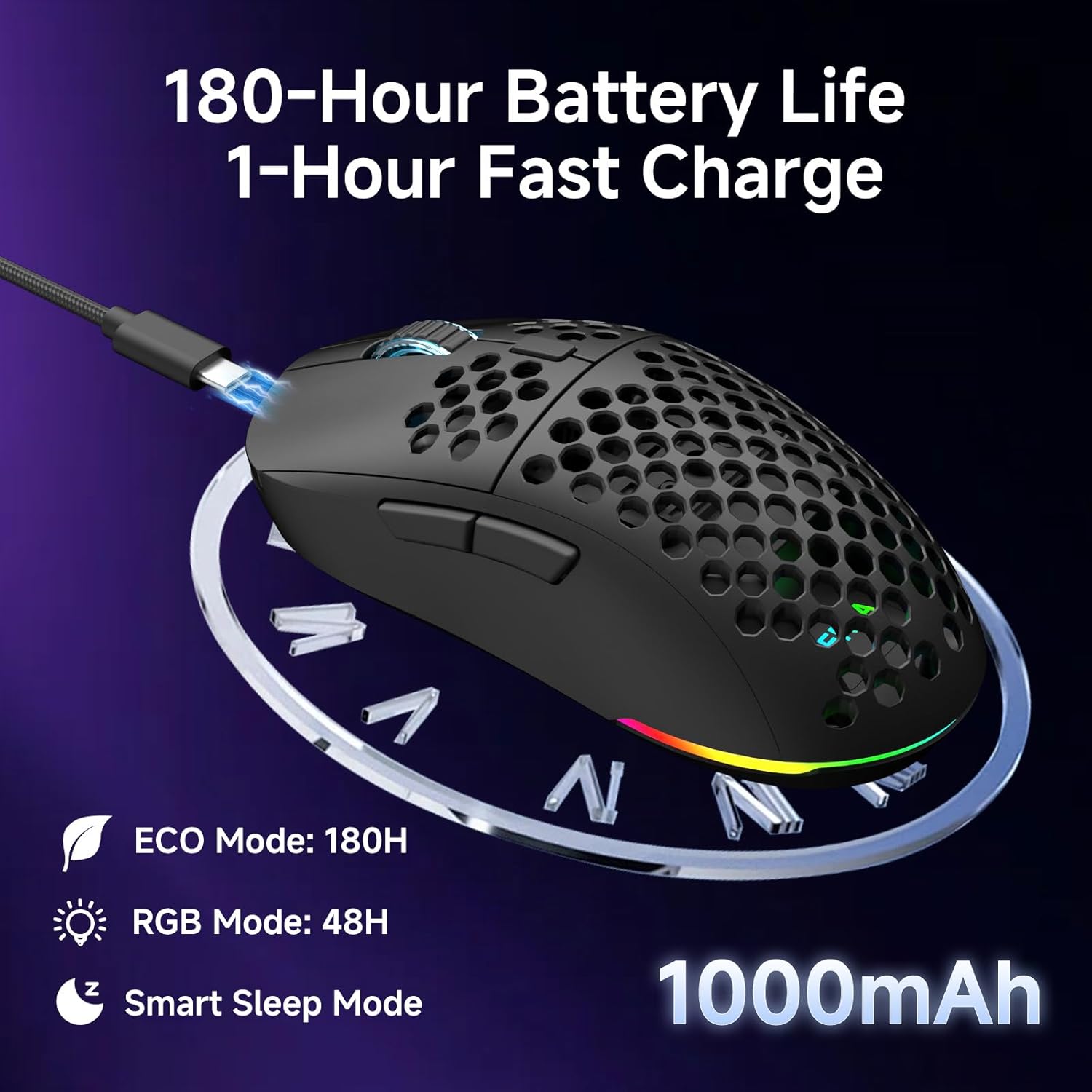
The Dierya M1 mouse features a 1000mAh battery, providing up to 180 hours of use in ECO mode or 48 hours with RGB lighting enabled. It supports fast charging, reaching full capacity in approximately 1 hour via the included USB-C cable. The mouse also includes a smart sleep mode to conserve power during inactivity.
3.2 Pelės prijungimas
The Dierya M1 mouse offers three connection modes: 2.4GHz Wireless, Bluetooth 5.2, and USB-C Wired.

The Dierya M1 mouse supports three flexible connection modes: Bluetooth 5.2 for energy-efficient pairing with up to two devices, 2.4GHz Wireless via a USB dongle for ultra-fast response, and a stable USB-C Wired connection for charging and direct use. Each mode offers a different polling rate, with 2.4GHz and wired modes providing 1000Hz, and Bluetooth offering 125Hz.
3.2.1 2.4 GHz belaidis ryšys
- Locate the 2.4G receiver in the storage compartment (10) on the underside of the mouse.
- Prijunkite 2.4G imtuvą prie laisvo kompiuterio USB prievado.
- Set the Mode Switch (8) on the underside of the mouse to the '2.4G' position.
- The mouse should connect automatically. The polling rate for this mode is 1000 Hz.
3.2.2 „Bluetooth 5.2“ ryšys
- Set the Mode Switch (8) on the underside of the mouse to the 'BT' position.
- Kompiuteryje arba įrenginyje atidarykite „Bluetooth“ nustatymus ir ieškokite naujų įrenginių.
- Select 'Dierya M1' from the list of available devices to pair.
- The mouse supports Bluetooth 5.2 and has a polling rate of 125 Hz in this mode.
3.2.3 USB-C laidinis ryšys
- Connect the USB-C cable to the Type-C Interface (7) on the mouse.
- Prijunkite kitą USB-C kabelio galą prie laisvo kompiuterio USB prievado.
- The mouse will automatically switch to wired mode and begin charging. The polling rate for this mode is 1000 Hz.
4. Naudojimo instrukcijos
4.1 DPI reguliavimas
The Dierya M1 mouse features a dedicated DPI Adjustment Button (4) to cycle through preset DPI levels. The scroll wheel LED color indicates the current DPI setting.
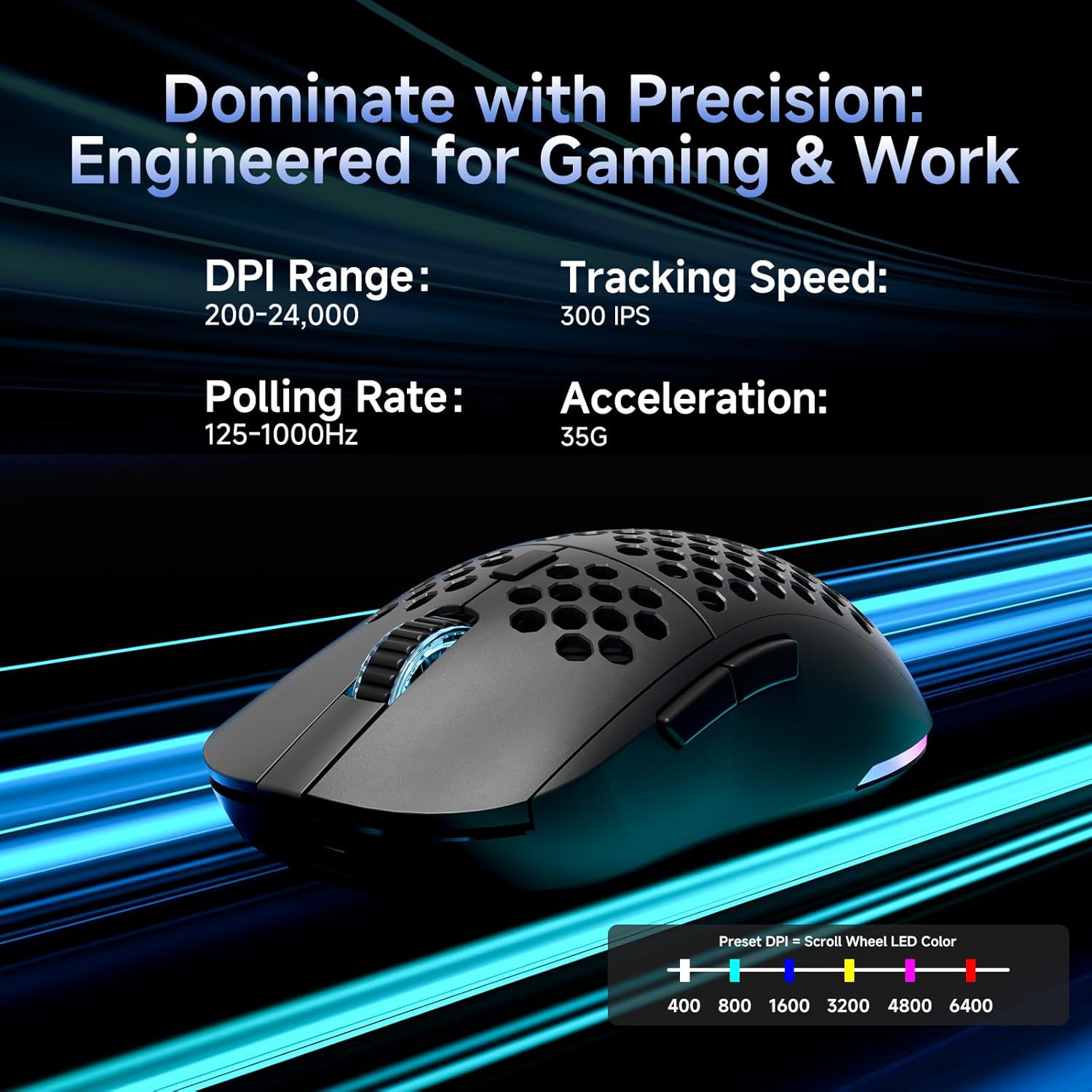
This image details the performance specifications of the Dierya M1 mouse, including a DPI range of 200-24,000, a tracking speed of 300 IPS, a polling rate of 125-1000Hz, and 35G acceleration. It also shows the preset DPI levels (400, 800, 1600, 3200, 4800, 6400) and the color indicators on the scroll wheel for each setting.
- Press the DPI Adjustment Button (4) to cycle through the 6 default DPI settings: 400, 800, 1600, 3200, 4800, and 6400 DPI.
- Each DPI level is indicated by a specific color on the scroll wheel LED.
- For custom DPI settings and a wider range (200-24,000 DPI), use the M1 Driver software.
4.2 RGB apšvietimo valdymas
The Dierya M1 mouse features dynamic RGB lighting. You can control the lighting effects and colors using the M1 Driver software.
- The mouse has 13 built-in RGB lighting effects.
- Use the M1 Driver software to customize colors (16.8 million options), brightness, and speed of the lighting effects.
- The Power & Light Switch (9) on the underside can be used to turn the lighting on or off.
4.3 Programmable Buttons and Software
The M1 mouse has 6 programmable buttons that can be customized using the dedicated M1 Driver software.

The Dierya M1 driver software, currently available for Windows, allows users to customize various aspects of the mouse. This includes reassigning the 6 programmable buttons, creating macros, adjusting DPI settings, modifying the polling rate, and personalizing the 13 dynamic RGB lighting effects with 16.8 million colors.
- Programinės įrangos suderinamumas: The M1 Driver software is currently only available for Windows operating systems.
- Rakto priskyrimas: Reassign functions to any of the 6 programmable buttons (Left, Right, Middle, DPI, Forward, Back).
- Makrokomandų kūrimas: Create and assign complex macros to streamline in-game actions or productivity tasks.
- DPI & Polling Rate: Fine-tune DPI settings beyond the presets and adjust the polling rate.
- RGB pritaikymas: Personalize lighting effects, colors, and patterns.
- Profile Valdymas: Išsaugoti ir įkelti skirtingus profesionalusfiles įvairiems žaidimams ar programoms.
4.4 Energijos taupymo režimai
The M1 mouse is designed with automatic power-saving features to extend battery life:
- The mouse will enter an automatic power-saving mode after 1-5 minutes of inactivity.
- This inactivity time can be adjusted via the M1 Driver software.
- Norėdami pažadinti pelę, tiesiog ją pajudinkite arba spustelėkite bet kurį mygtuką.
5. Priežiūra
Proper maintenance ensures the longevity and optimal performance of your Dierya M1 mouse.
- Valymas: Pelės paviršiui nuvalyti naudokite minkštą, sausą šluostę. Įsisenėjusiam purvui šiek tiek nuvalykiteamp Galima naudoti šluostę, tačiau įsitikinkite, kad į pelę nepatenka drėgmės. Venkite stiprių cheminių medžiagų ar abrazyvinių valiklių.
- Jutiklio priežiūra: Kad sekimas būtų tikslus, laikykite pelės apačioje esantį optinį jutiklį švarų, be dulkių ar šiukšlių.
- Akumuliatoriaus priežiūra: Avoid fully discharging the battery frequently. For long-term storage, charge the mouse to about 50% and store it in a cool, dry place.
- Saugykla: Kai nenaudojate, laikykite pelę švarioje, sausoje vietoje, toliau nuo ekstremalių temperatūrų.
6. Problemų sprendimas
If you encounter issues with your Dierya M1 mouse, refer to the following common troubleshooting steps:
| Problema | Galima priežastis | Sprendimas |
|---|---|---|
| Pelė nereaguoja (2.4 GHz) | Išsikrovęs akumuliatorius, atjungtas imtuvas, neteisingas režimas, trukdžiai. | Charge the mouse. Ensure 2.4G receiver is securely plugged in. Set Mode Switch to '2.4G'. Try a different USB port. Reduce distance to receiver. |
| Pelė nereaguoja (Bluetooth) | Išsikrovusi baterija, netinkamas režimas, nesuporuotas, įrenginyje išjungtas „Bluetooth“. | Charge the mouse. Set Mode Switch to 'BT'. Ensure Bluetooth is enabled on your device. Re-pair the mouse in Bluetooth settings. |
| Pelė nereaguoja (laidinė) | Cable not connected, faulty cable/port. | Ensure USB-C cable is securely connected to both mouse and computer. Try a different USB port or cable. |
| Netikslus sekimas | Nešvarus jutiklis, netinkamas paviršius, neteisingas DPI. | Clean the optical sensor. Use a mouse pad or a clean, non-reflective surface. Adjust DPI settings. |
| RGB apšvietimas neveikia | Lighting switched off, low battery, software issue. | Check Power & Light Switch (9). Charge the mouse. Check settings in M1 Driver software. |
| Mygtukai neprogramuojami | M1 Driver not installed/running, not on Windows. | Ensure M1 Driver software is installed and running (Windows only). Check software settings. |
7. Specifikacijos
| Modelio pavadinimas | M1 |
| Prekės ženklas | Dierya |
| Ryšio technologija | 2.4 GHz belaidis ryšys, „Bluetooth 5.2“, laidinis USB-C ryšys |
| Judesio aptikimo technologija | Optinis |
| DPI diapazonas | 200 - 24,000 DPI (6 preset levels: 400, 800, 1600, 3200, 4800, 6400) |
| Apklausos rodiklis | 125-1000 Hz |
| Stebėjimo greitis | „300 IPS“ |
| Pagreitis | 35G |
| Mygtukų skaičius | 6 (programuojamas) |
| Baterijos talpa | 1000 mAh Ličio jonų |
| Baterijos veikimo laikas | Up to 180 hours (ECO mode), 48 hours (RGB mode) |
| Įkrovimo laikas | apytiksliai 1 valanda |
| Svoris | 90 gramų |
| Matmenys | 125 x 63 x 41 mm |
| Jungiklio tipas | Huano (20 million clicks) |
| Feet Material | 100% PTFE |
| Operacinės sistemos suderinamumas | „Windows“, „MacOS“, „Linux“, „Chrome“ OS |
| Driver Software Compatibility | Tik Windows |
8. Garantija ir palaikymas
8.1 Gamintojo garantija
The Dierya M1 Wireless Gaming Mouse comes with a 1 metų gamintojo garantijaŠi garantija taikoma medžiagų ir gamybos defektams, atsiradusiems įprasto naudojimo sąlygomis. Išsaugokite pirkimo įrodymą, jei galėtumėte pateikti pretenzijas dėl garantijos.
8.2 Pagalba klientams
For further assistance, technical support, or warranty inquiries, please refer to the official Dierya website or contact your retailer. Ensure you have your product model (M1) and proof of purchase ready when seeking support.