
1. Įvadas ir pabaigaview
Welcome to your new DigiLand 10.1-inch Android Tablet MID1050. This manual provides essential information for setting up, operating, and maintaining your device. The tablet features a 10.1-inch display, an Octa-core processor, 6GB RAM, 32GB internal storage (expandable), and runs on Android 15. Please read this manual thoroughly to ensure proper use and to maximize your tablet's potential.
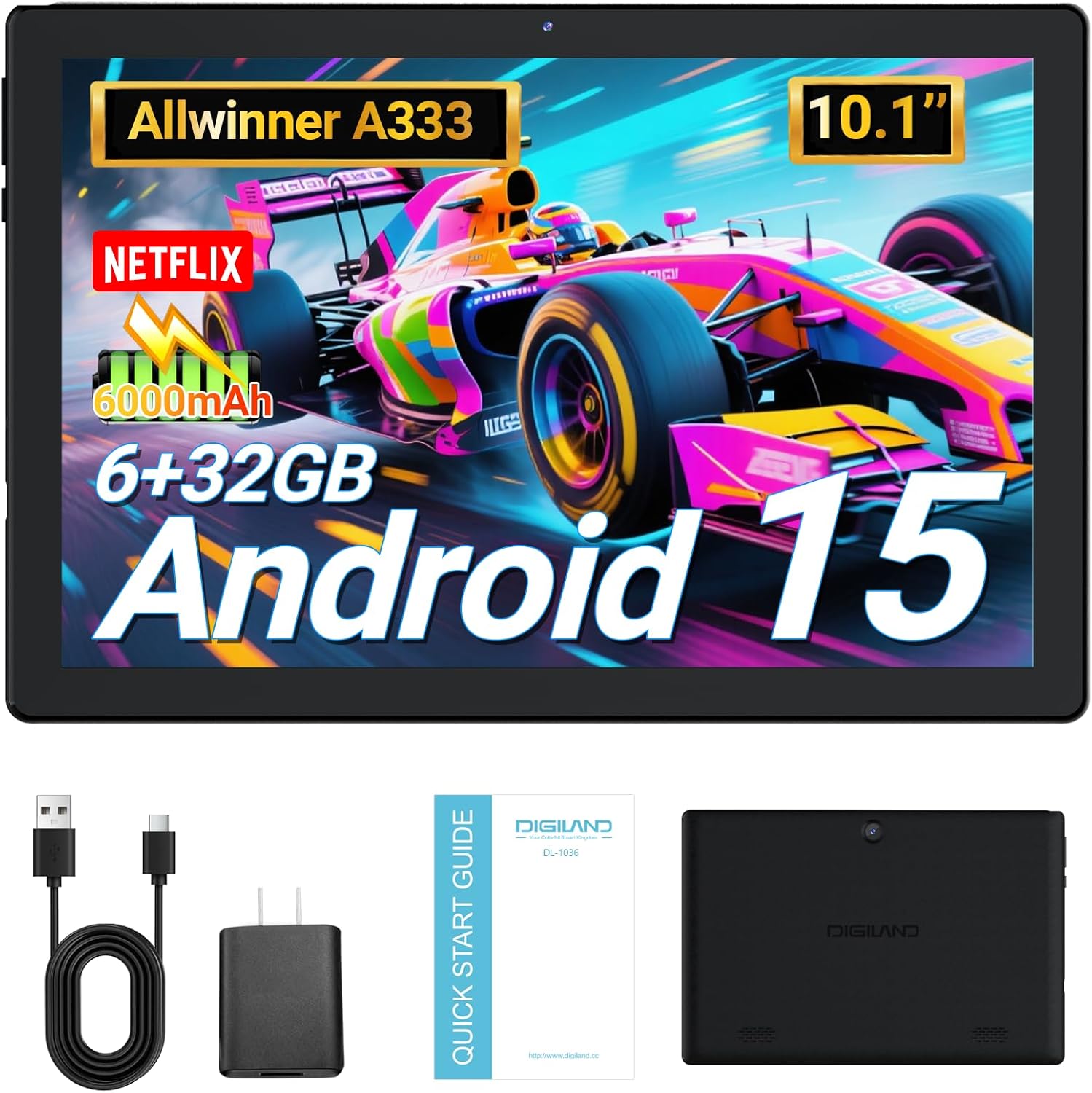
Image: DigiLand 10.1-inch Android Tablet MID1050.
2. Produkto ypatybės
- Latest Android 15 System: Experience enhanced compatibility, faster response times, and smoother operation. The tablet is GMS certified and comes with Google Play pre-installed, supporting popular social applications.
- Didelis našumas: Equipped with a high-performance Octa-core CPU, 6GB RAM (expandable to 3+3GB), and 32GB ROM. Storage can be expanded up to 1TB using an SD card.
- Daugiafunkcinis dizainas: Features a 5MP rear camera and a 2MP front camera. Includes Bluetooth 5.0, built-in GPS, 5G WiFi, FM radio, dual-speakers, and a 3.5mm headphone jack.
- 10.1 colių HD ekranas: Enjoy a clear and vibrant visual experience with an 800x1280 IPS display. The 6000mAh rechargeable battery provides 8-10 hours of mixed use.

Vaizdas: Viršview of DigiLand Android Tablet features.
3. Kas yra dėžutėje
Upon unboxing your DigiLand tablet, please ensure all the following items are present:
- 1 x DigiLand 10.1-inch Android Tablet
- 1x USB laidas
- 1 x 5V/1A Power Adapter (US regulations)
- 1 x Naudotojo vadovas (šis dokumentas)
- 1x garantinis talonas
- 1 x Children's Silicone Case
4. Sąrankos vadovas
4.1 Planšetinio kompiuterio įkrovimas
Before first use, fully charge your tablet. Connect the provided USB cable to the tablet's Type-C port and the power adapter. Plug the adapter into a standard electrical outlet. The battery indicator on the screen will show charging status.
4.2 Įjungimas / išjungimas
- Norėdami įjungti: Press and hold the Power button (located on the side) until the DigiLand logo appears.
- Norėdami išjungti: Paspauskite ir palaikykite maitinimo mygtuką, tada ekrane rodomoje parinkčių sąraše pasirinkite „Išjungti“.
4.3 Pradinė sąranka
Upon first power-on, follow the on-screen prompts to configure your tablet:
- Pasirinkite norimą kalbą.
- Prisijunkite prie „Wi-Fi“ tinklo.
- Prisijunkite naudodami „Google“ paskyrą arba sukurkite naują.
- Review ir sutikite su sąlygomis ir nuostatomis.
- Nustatykite ekrano užraktą (PIN kodą, šabloną arba slaptažodį).
4.4 „MicroSD“ kortelės įdėjimas
To expand storage, locate the MicroSD card slot on the side of the tablet. Gently insert the MicroSD card (up to 1TB supported) into the slot until it clicks into place. Ensure the card is oriented correctly.

Image: Diagram showing the location of ports and buttons on the DigiLand Android Tablet.
5. Naudojimo instrukcijos
5.1 Pagrindinė navigacija
The tablet uses a multi-touch display. Common gestures include:
- Bakstelėkite: Pasirinkite elementą arba atidarykite programėlę.
- Perbraukimas: Slinkite per ekranus arba sąrašus.
- Žiupsnelis: Priartinkite arba atitolinkite vaizdus ir web puslapių.
- Ilgas paspaudimas: Pasiekite kontekstinius meniu arba perkelkite piktogramas.
5.2 Prisijungimas prie „Wi-Fi“.
Norėdami prisijungti prie interneto:
- Eikite į Nustatymai > Tinklas ir internetas > Wi-Fi.
- Perjungti „Wi-Fi“ On.
- Iš sąrašo pasirinkite norimą tinklą.
- Jei būsite paraginti, įveskite slaptažodį, tada palieskite Prisijunkite.
5.3 Bluetooth poravimas
Norėdami prisijungti prie „Bluetooth“ įrenginių:
- Eikite į Nustatymai > Prijungti įrenginiai > Bluetooth.
- Perjungti Bluetooth On.
- Įsitikinkite, kad jūsų „Bluetooth“ įrenginys veikia susiejimo režimu.
- Select your device from the 'Available devices' list and follow any on-screen instructions to complete pairing.
5.4 Kameros naudojimas
Planšetinis kompiuteris turi 2 MP priekinę kamerą ir 5 MP galinę kamerą.
- Atidarykite Fotoaparatas app from the home screen or app drawer.
- Norėdami nufotografuoti, palieskite užrakto mygtuką.
- Perjunkite priekinę ir galinę kameras naudodami kameros piktogramą.
- Pasirinkite vaizdo įrašymo režimą, kad įrašytumėte vaizdo įrašus.

Image: Capturing moments with the tablet's cameras.
5.5 Programėlių valdymas
Download and manage applications:
- Įdiegti programas: Atidarykite Google Play parduotuvė programėlę, suraskite norimą programėlę ir palieskite Įdiegti.
- Pašalinti programas: Long-press an app icon on the home screen or app drawer, then drag it to 'Uninstall' or go to Nustatymai > Programėlės > pasirinkite programėlę > Pašalinkite.

Image: The tablet's screen showing various applications.
5.6 Split Screen Multitasking
The tablet supports split-screen mode for multitasking:
- Atidarykite pirmąją norimą naudoti programėlę.
- Braukite aukštyn nuo ekrano apačios ir palaikykite, kad pasiektumėte naujausias programas.
- Tap the app icon at the top of the first app's card, then select 'Split screen'.
- Pasirinkite antrąją programėlę iš neseniai naudotų programėlių arba programėlių stalčiaus, kad užpildytumėte kitą ekrano pusę.

Image: Tablet displaying two applications simultaneously in split-screen mode.
5.7 Video Playback Demonstration
Watch this video for a demonstration of the tablet's functions and video playback capabilities.
Video: Android 15 Tablet Product Function Demonstration by GuYi-USA. This video showcases the tablet's interface and media playback.
6. Priežiūra
6.1 Planšetinio kompiuterio valymas
Use a soft, lint-free cloth to clean the screen and body of the tablet. Avoid using abrasive cleaners, alcohol, or harsh chemicals, as these can damage the screen and finish.
6.2 Akumuliatoriaus priežiūra
- Venkite tabletės laikymo ekstremaliose temperatūrose (karštyje arba šaltyje).
- Reguliariai kraukite akumuliatorių, tačiau nepalikite jo ilgam laikui visiškai įkrauto arba visiškai išsikrovusio.
- Naudokite tik pateiktą įkroviklį arba sertifikuotą suderinamą įkroviklį.
6.3 Programinės įrangos naujiniai
Regularly check for and install software updates to ensure your tablet has the latest features, security patches, and optimal performance. Go to Nustatymai > Sistema > Sistemos atnaujinimas.
6.4 Saugojimo valdymas
Norėdami palaikyti optimalų našumą, periodiškai valdykite planšetinio kompiuterio saugyklą:
- Pašalinkite nenaudojamas programas.
- Išvalyti programų talpyklas (Nustatymai > Programėlės > pasirinkite programėlę > Saugykla ir talpykla > Išvalyti talpyklą).
- Didelis perkėlimas file(nuotraukas, vaizdo įrašus) į debesies saugyklą arba išorinę „MicroSD“ kortelę.
7. Problemų sprendimas
Jei kyla problemų dėl planšetinio kompiuterio, žr. toliau pateiktas dažniausiai pasitaikančias problemas ir sprendimus:
| Problema | Sprendimas |
|---|---|
| Tablet will not turn on | Ensure the battery is sufficiently charged. Connect the tablet to the charger for at least 30 minutes before attempting to power on again. |
| Wi-Fi ryšio problemos | Check if your Wi-Fi router is working correctly. Restart both the router and the tablet. Forget the network in tablet settings and reconnect. |
| Programėlės stringa arba užstringa | Clear the app's cache (Settings > Apps > [App Name] > Storage & cache > Clear cache). If the problem persists, try uninstalling and reinstalling the app. |
| Lėtas veikimas | Close unnecessary background applications. Free up storage space by deleting old files or uninstalling unused apps. Restart the tablet. |
| Ekranas nereaguoja | Perform a forced restart by holding the Power button for about 10-15 seconds until the tablet restarts. |
8. Specifikacijos
Key technical specifications for the DigiLand 10.1-inch Android Tablet MID1050:
| Funkcija | Detalė |
|---|---|
| Modelio numeris | MID1050 |
| Operacinė sistema | Android 15 |
| Ekrano dydis | 10.1 colių |
| Maksimali ekrano skiriamoji geba | 800x1280 IPS |
| Procesorius | Octa-core (A133P) |
| RAM | 6 GB |
| Vidinė saugykla | 32 GB (išplečiama iki 1 TB per TF kortelę) |
| Priekinė kamera | 2 MP |
| Galinė kamera | 5 MP |
| Baterijos talpa | 6000mAh (Approx. 8-10 hours mixed use) |
| Belaidis ryšys | 5G WiFi (802.11g) |
| Bluetooth | 5.0 |
| Matmenys (IxPxH) | 10.1 x 5.5 x 0.3 colio |
| Prekės svoris | 2.01 svaro |
9. Garantija ir palaikymas
9.1 Gaminio garantija
The DigiLand 10.1-inch Android Tablet MID1050 comes with a one-year warranty from the date of purchase. This warranty covers manufacturing defects and ensures the product meets quality standards.
9.2 Pagalba klientams
For any quality problems, technical assistance, or warranty claims, please contact our customer service team. You can reach us via your Amazon Purchase Record. We are committed to ensuring customer satisfaction and providing the best possible service.