
1. Įvadas
Thank you for choosing the PEICHENG Android 15.0 10-inch Tablet. This manual provides essential information for setting up, operating, and maintaining your device. Please read it thoroughly to ensure optimal performance and longevity of your tablet.
2. Kas yra dėžutėje
Išpakuodami patikrinkite, ar yra visi toliau išvardyti daiktai:
- PEICHENG Android 15.0 10-inch Tablet
- Bluetooth klaviatūra
- Belaidė pelė
- Stylus Pen
- Foldable Protective Case
- USB įkrovimo laidas
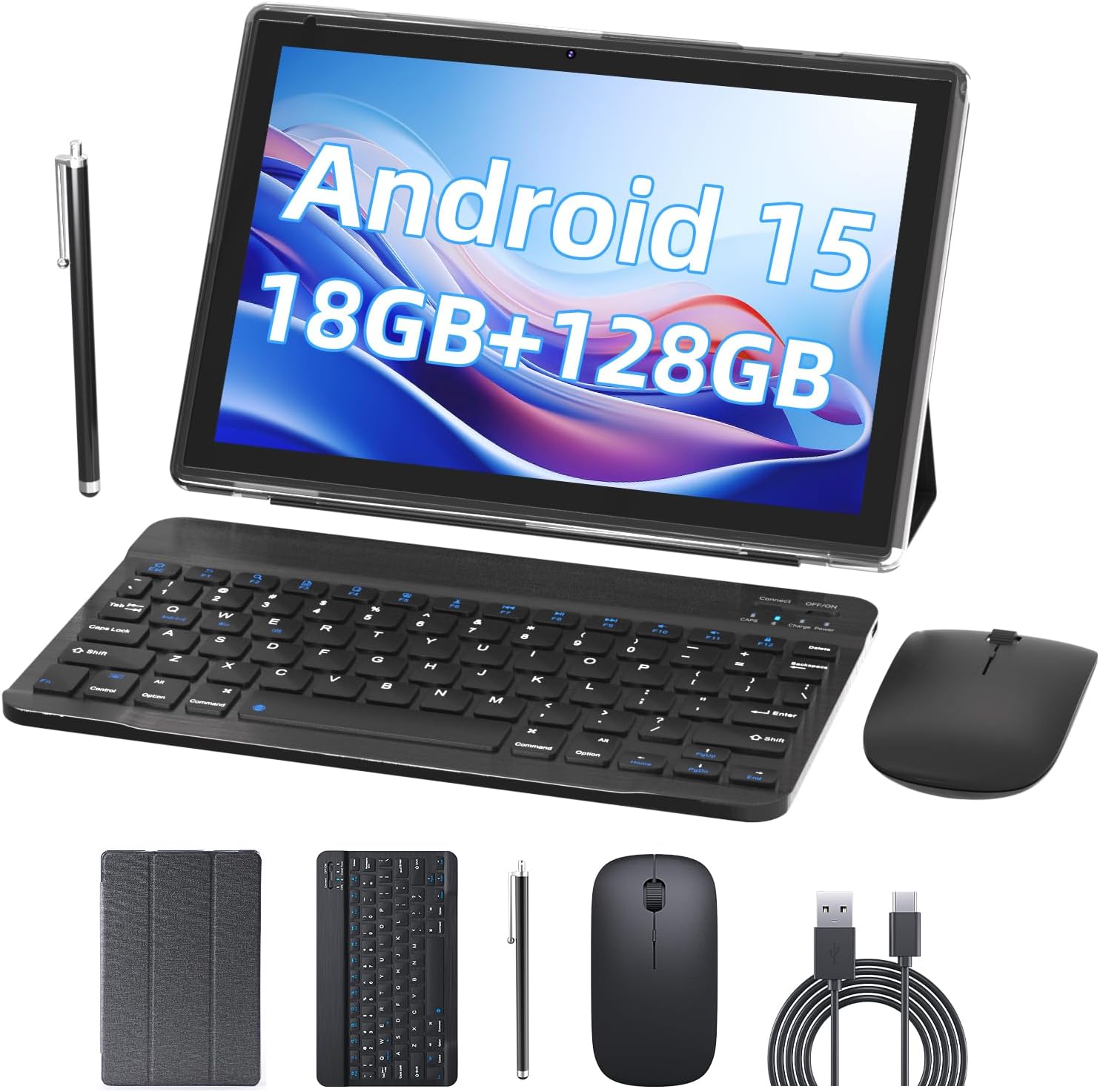
Image 2.1: Contents of the PEICHENG Tablet package, including the tablet, keyboard, mouse, stylus, case, and charging cable.
3. Produktas baigtasview
The PEICHENG 10-inch Tablet is designed for versatility and performance. It features a 10.1-inch IPS display, front and rear cameras, and various ports for connectivity. Familiarize yourself with the device's layout for ease of use.
3.1 Pagrindiniai komponentai
- Ekranas: 10.1-inch IPS touchscreen (1280x800 resolution).
- Kameros: 8MP Rear Camera, 2MP Front Camera.
- Prievadai: USB-C port for charging and data transfer, MicroSD card slot.
- Mygtukai: Power button, Volume Up/Down.
4. Sąranka
4.1 Pradinis įkrovimas
Before first use, fully charge your tablet using the provided USB charging cable and a compatible power adapter. The charging indicator will typically show progress and turn off when fully charged.
4.2 Įjungimas / išjungimas
- Norėdami įjungti: Paspauskite ir palaikykite maitinimo mygtuką, kol užsidegs ekranas.
- Norėdami išjungti: Paspauskite ir palaikykite maitinimo mygtuką, tada ekrane rodomoje parinkčių sąraše pasirinkite „Išjungti“.
4.3 Pradinė konfigūracija
Upon first startup, follow the on-screen prompts to:
- Pasirinkite norimą kalbą.
- Prisijunkite prie „Wi-Fi“ tinklo.
- Prisijunkite naudodami „Google“ paskyrą arba sukurkite naują.
- Set up security features (PIN, pattern, or password).

Image 4.1: The PEICHENG Tablet configured for use with its accessories, suitable for various tasks.
5. Naudojimo instrukcijos
5.1 „Android 15.0“ operacinė sistema
Your tablet runs on the Android 15.0 operating system, offering a user-friendly interface and access to a vast ecosystem of applications via the Google Play Store.
5.2 Pagrindinė navigacija
- Perbraukimas: Move your finger across the screen to scroll through content or switch between home screens.
- Bakstelėkite: Touch an icon or item once to open or select it.
- Ilgas paspaudimas: Paspauskite ir palaikykite elementą, kad pamatytumėte papildomas parinktis arba jį perkeltumėte.
- Žiupsnelis, norint priartinti: Norėdami priartinti arba atitolinti vaizdus, naudokite du pirštus ir web puslapių.
5.3 Programėlių valdymas
Download and install applications from the Google Play Store. To uninstall an app, long-press its icon and drag it to the 'Uninstall' option.
5.4 Ekrano funkcijos
The 10.1-inch IPS display provides clear visuals. Utilize the 'Reading Mode' feature in the display settings to reduce harmful blue light, enhancing comfort during extended reading sessions.

5.1 pav.: Planšetinio kompiuterio ekranasasing multiple applications and web content, demonstrating its multitasking capabilities.
6. Priedai
Your PEICHENG Tablet comes with a suite of accessories to enhance its functionality.
6.1 Bluetooth klaviatūra
Poravimas: Turn on the keyboard and enable Bluetooth on your tablet. Ieškokite available devices and select the keyboard to pair. Once connected, you can use it for typing, similar to a laptop.
6.2 belaidė pelė
Poravimas: Similar to the keyboard, turn on the mouse and enable Bluetooth on your tablet. Pair the mouse through the Bluetooth settings. The mouse provides precise navigation and control.
6.3 rašiklio rašiklis
The stylus allows for more precise input, drawing, and note-taking on the touchscreen. No pairing is required for basic functionality.
6.4 apsauginis dėklas
The foldable protective case safeguards your tablet from scratches and minor impacts. It also functions as a stand, allowing for comfortable viewrašymo ir spausdinimo kampai.

Image 6.1: The PEICHENG Tablet with its keyboard and mouse, demonstrating its capability as a portable workstation.
7. Baterijos valdymas
The tablet is equipped with a 6000mAh battery, providing extended usage time.
7.1 Įkrovimas
Use the provided USB-C cable to charge the tablet. It is recommended to use a compatible charger to ensure efficient and safe charging.
7.2 Baterijos veikimo laiko patarimai
- Sumažinkite ekrano ryškumą.
- Išjunkite „Wi-Fi“ ir „Bluetooth“, kai jų nenaudojate.
- Uždarykite nenaudojamas programas, veikiančias fone.
- Įjunkite energijos taupymo režimus nustatymuose.
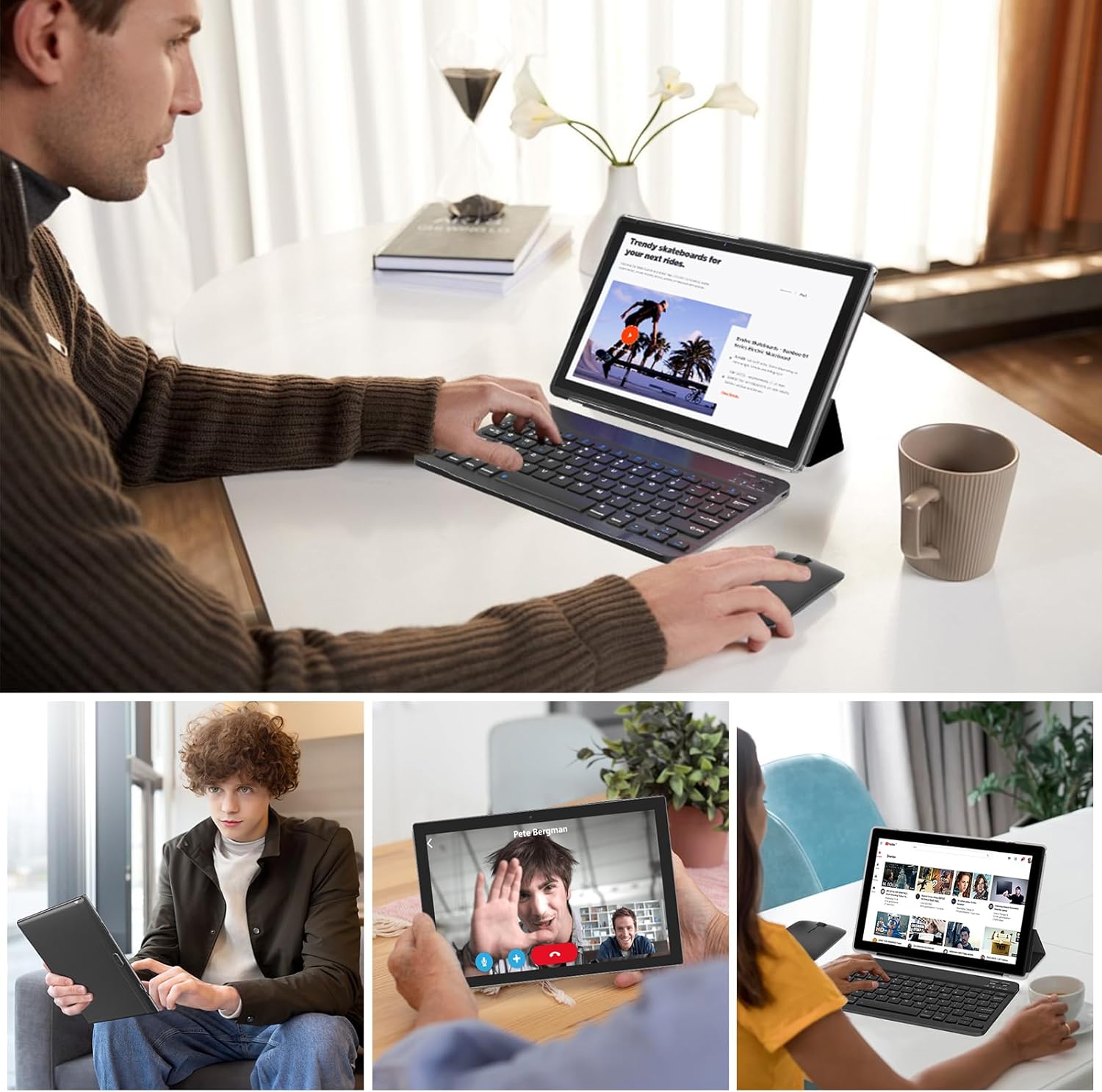
Image 7.1: Visual representation of the tablet's 6000mAh battery, highlighting its extended endurance.
8. Ryšys
8.1 „Wi-Fi“ 6.0
The tablet supports 2.4GHz and 5GHz Wi-Fi 6.0, providing faster and more stable wireless connections. To connect, go to Nustatymai > Tinklas ir internetas > „Wi-Fi“, pasirinkite savo tinklą ir įveskite slaptažodį.
8.2 „Bluetooth“ ryšys 5.0
Bluetooth 5.0 allows for efficient connection to wireless accessories like headphones, speakers, and the included keyboard and mouse. Enable Bluetooth in Nustatymai> Prijungti įrenginiai> Ryšio nuostatos> „Bluetooth“ and pair your devices.
9. Saugyklos išplėtimas
The tablet comes with 128GB of internal storage and 18GB RAM (6GB physical + 12GB virtual). For additional storage, you can expand it up to 2TB using a MicroSD card (not included). Insert the MicroSD card into the designated slot on the tablet.

Image 9.1: The tablet's storage capabilities, highlighting its 18GB RAM, 128GB internal storage, and support for up to 2TB MicroSD expansion.
10. Kameros naudojimas
The tablet features an 8MP rear camera and a 2MP front camera. Open the Camera app to capture photos and videos. The front camera is ideal for video calls and selfies.
11. Priežiūra
11.1 Valymas
Use a soft, lint-free cloth to clean the screen and body of the tablet. Avoid using harsh chemicals or abrasive materials. For stubborn smudges, a screen cleaner designed for electronics can be used sparingly.
11.2 Programinės įrangos naujiniai
Reguliariai tikrinkite, ar yra programinės įrangos atnaujinimų, ir juos įdiekite, kad jūsų planšetiniame kompiuteryje būtų įdiegtos naujausios funkcijos, saugos pataisymai ir našumo patobulinimai. Eikite į Nustatymai > Sistema > Sistemos naujinimas.
12. Problemų sprendimas
Jei kyla problemų dėl planšetinio kompiuterio, žr. šiuos dažniausiai pasitaikančius sprendimus:
- Įrenginys neįsijungia: Įsitikinkite, kad akumuliatorius įkrautas. Prijunkite įkroviklį ir palaukite kelias minutes, prieš bandydami vėl įjungti.
- Ekranas nereaguoja: Pabandykite iš naujo paleisti planšetinį kompiuterį, palaikydami maitinimo mygtuką maždaug 10–15 sekundžių.
- „Wi-Fi“ ryšio problemos: Iš naujo paleiskite „Wi-Fi“ maršrutizatorių ir planšetinį kompiuterį. Planšetinio kompiuterio nustatymuose pamirškite tinklą ir prijunkite jį iš naujo.
- Programėlės stringa: Išvalykite probleminės programos talpyklą (Nustatymai > Programos > [Programos pavadinimas] > Atmintis ir talpykla > Išvalyti talpyklą). Jei problema išlieka, pabandykite iš naujo įdiegti programėlę.
- Lėtas veikimas: Uždarykite nenaudojamas programas, išvalykite talpyklą ir užtikrinkite pakankamai vietos saugykloje. Gamyklinių parametrų atkūrimą apsvarstykite kaip paskutinę išeitį (Nustatymai > Sistema > Atstatyti parinktys > Ištrinti visus duomenis (atkurti gamyklinius) - Note: This will delete all data on your tablet. Back up important files pirmas.).
13. Specifikacijos
| Funkcija | Specifikacija |
|---|---|
| Prekės ženklas | PEICENGAS |
| Modelio pavadinimas | 10.1 colio planšetinis kompiuteris |
| Operacinė sistema | Android 15.0 |
| Ekrano dydis | 10.1 colių |
| Maksimali ekrano skiriamoji geba | 1280x800 IPS |
| RAM | 18 GB (6 GB fizinė + 12 GB išplėtimo kortelė) |
| Vidinė saugykla | 128 GB ROM |
| Išplečiama saugykla | Iki 2 TB per „MicroSD“ kortelę |
| Procesorius | 2.0GHz Quad-core |
| Wi-Fi ryšys | 2.4 G / 5 G „Wi-Fi 6.0“ |
| Bluetooth | Bluetooth 5.0 |
| Priekinė kamera | 2 MP |
| Galinė kamera | 8 MP |
| Baterijos talpa | 6000 mAh |
| Matmenys (IxPxH) | 10.1 x 4.85 x 0.4 colio |
| Prekės svoris | 2.66 svaro |
14. Garantija ir palaikymas
For warranty information and technical support, please refer to the documentation provided with your purchase or contact PEICHENG customer service. Keep your proof of purchase for warranty claims.