
1. Įvadas
This user manual provides detailed instructions for the Bemi Cognita Tab 6+ E-Reader. Please read this manual carefully before using your device to ensure proper operation and to maximize your reading experience. Keep this manual for future reference.
1.1 Pakuotės turinys
- Bemi Cognita Tab 6+ E-Reader
- USB įkrovimo laidas
Išpakuojant įsitikinkite, kad visi daiktai yra pakuotėje ir yra geros būklės.
2. Įrenginys baigtasview
Familiarize yourself with the physical components of your Bemi Cognita Tab 6+ E-Reader.

2.1 paveikslas: Priekyje view of the Bemi Cognita Tab 6+ E-Reader. The device features a 6-inch E-Ink display with the Bemi logo and model name visible. The screen is designed to mimic paper for a comfortable reading experience.

2.2 paveikslas: Priekyje ir gale view of the Bemi Cognita Tab 6+ E-Reader. This image highlights the device's thin design and the textured back cover, which provides a secure grip.

2.3 paveikslas: Šoninė view of the Bemi Cognita Tab 6+ E-Reader, illustrating the location of the power button and a small LED indicator. This button is used for turning the device on/off and waking it from sleep.
2.1 Pagrindiniai komponentai:
- 6-inch E-Ink Touchscreen: Glare-free display for comfortable reading.
- Maitinimo mygtukas: Located on the side for turning the device on/off and sleep/wake.
- USB-C prievadas: Įkrovimui ir duomenų perdavimui.
- MicroSD kortelės lizdas: Expandable storage up to 256GB.
- Šoniniai valdymo mygtukai: For page turning and navigation.
- SMARTlight: Adjustable front light for reading in various conditions.
3. Sąranka
3.1 Pradinis įkrovimas
Before first use, fully charge your Bemi Cognita Tab 6+ E-Reader. Connect the provided USB cable to the device's USB-C port and the other end to a compatible USB power adapter (not included) or a computer's USB port.
- Pilnas įkrovimas paprastai trunka maždaug 2–3 valandas.
- Įkrovimo indikatoriaus lemputė rodys įkrovimo būseną.
3.2 Įjungimas / išjungimas
- Norėdami įjungti: Press and hold the Power button (refer to Figure 2.3) for a few seconds until the screen activates.
- Norėdami išjungti: Press and hold the Power button until a power-off menu appears, then select "Power Off".
- Miegui / pabudimui: Trumpai paspauskite maitinimo mygtuką, kad perjungtumėte įrenginį į miego režimą arba jį pažadintumėte.
3.3 „Wi-Fi“ ryšys
Connecting to Wi-Fi allows you to download books, transfer files, and access online services.
- From the home screen, tap the Nustatymai piktogramą.
- Pasirinkite Wi-Fi.
- Perjunkite „Wi-Fi“ jungiklį į On.
- The device will scan for available networks. Select your desired network from the list.
- Jei būsite paraginti, įveskite slaptažodį, tada palieskite Prisijunkite.
3.4 Pradinė konfigūracija
Upon first power-on, you may be guided through initial setup steps, including language selection and time zone settings. Follow the on-screen prompts.
4. Naudojimo instrukcijos
4.1 Sąsajos naršymas
The Bemi Cognita Tab 6+ features a touch-sensitive E-Ink screen and physical side buttons for navigation.
- Lietimo gestai: Palieskite, kad pasirinktumėte, braukite, kad slinktumėte, suspauskite, kad priartintumėte (kur palaikoma).
- Šoniniai mygtukai: Use the physical buttons on the side to turn pages forward or backward during reading.
- G jutiklis: The device automatically rotates the screen orientation based on how you hold it, accommodating both right and left-handed users.
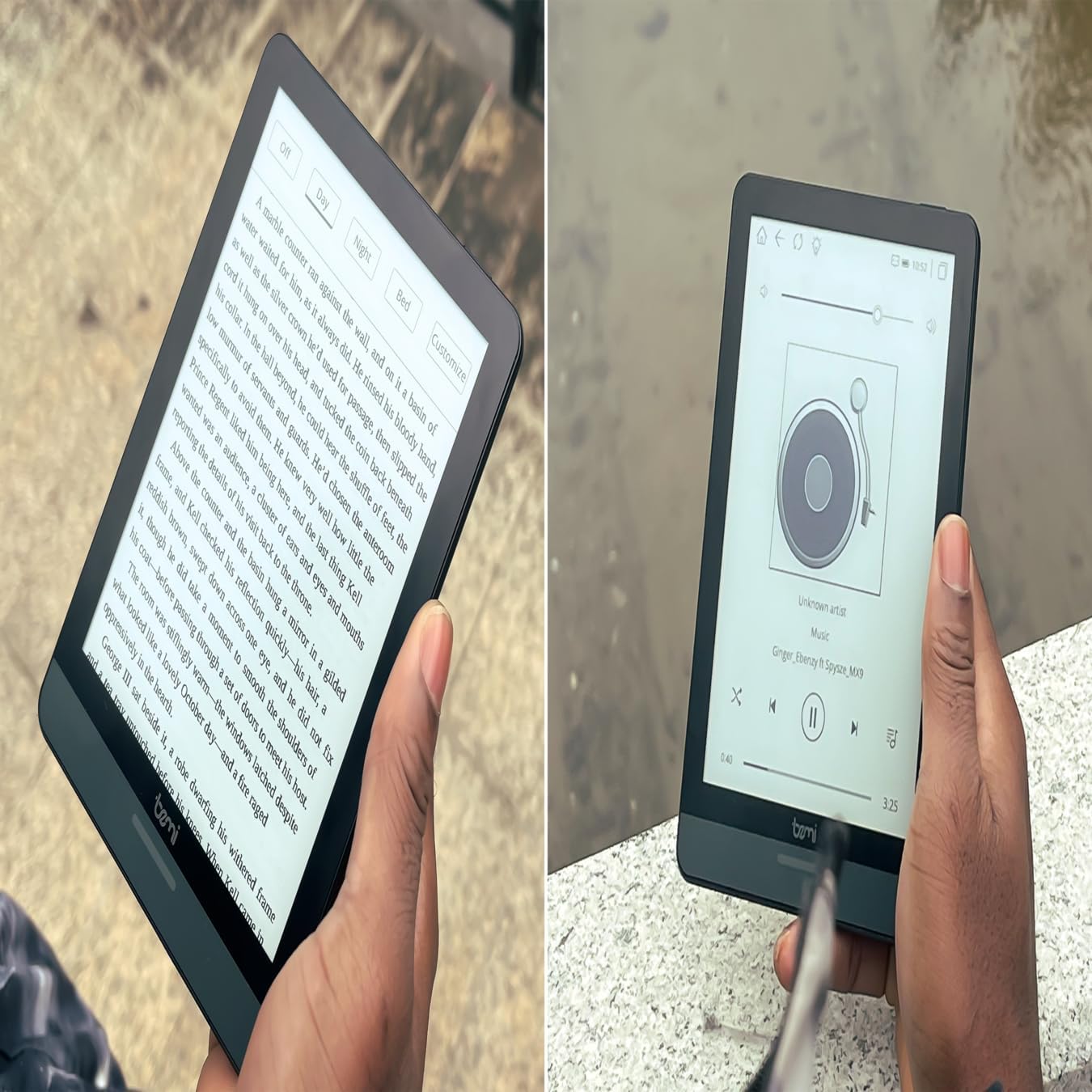
4.1 paveikslas: User holding the Bemi Cognita Tab 6+ E-Reader while reading. The image shows the clear text display on the E-Ink screen, highlighting the device's readability.
4.2 Knygų skaitymas
Norėdami atidaryti ir skaityti knygą:
- From the home screen, tap on the biblioteka or Knygos piktogramą.
- Browse your collection or use the search function to find a book.
- Tap on the book cover to open it.
- Use the touch screen or side buttons to turn pages.
4.3 Adjusting SMARTlight
The SMARTlight feature allows you to adjust both the brightness and color temperature of the screen's front light.
- During reading, tap the center of the screen to bring up the reading menu.
- Ieškokite Šviesa or SMARTlight piktogramą.
- Adjust the sliders for brightness (intensity) and color temperature (warm to cool) to your preference.
4.4 Perdavimas Files
You can transfer e-books and other supported files to your device via Wi-Fi or USB cable.
- Per Wi-Fi: If your device supports cloud services or direct Wi-Fi transfer, follow the specific application instructions.
- Per USB kabelį:
- Connect your E-Reader to a computer using the provided USB cable.
- The device will appear as a removable storage drive on your computer.
- Nuvilkite norimą files (e.g., EPUB, PDF, MOBI) into the appropriate folders on the E-Reader (e.g., "Books" folder).
- Prieš atjungdami laidą, saugiai atjunkite įrenginį nuo kompiuterio.
4.5 Using MicroSD Card
To expand storage, insert a microSD card (up to 256GB) into the designated slot.
- Gently insert the microSD card with the gold contacts facing down until it clicks into place.
- Norėdami išimti, švelniai stumkite kortelę į vidų, kol ji iššoks.
- Files on the microSD card will be accessible through the device's file manager or library.
5. Priežiūra
5.1 Prietaiso valymas
- Use a soft, lint-free cloth to gently wipe the screen and body of the device.
- Įsisenėjusioms dėmėms šiek tiek pamirkykiteampNuvalykite šluostę vandeniu arba ekrano valikliu, skirtu specialiai elektronikai.
- Venkite naudoti stiprias chemines medžiagas, abrazyvines medžiagas ar per didelę drėgmę.
5.2 Akumuliatoriaus priežiūra
- Norėdami pailginti akumuliatoriaus veikimo laiką, venkite dažnai visiškai jį iškrauti.
- Laikykite prietaisą vėsioje, sausoje vietoje, kai jo ilgesnį laiką nenaudojate.
- Charge the device regularly, even if not used, to prevent deep discharge.
5.3 Saugykla
When not in use, store your E-Reader in a protective case to prevent scratches and damage to the screen.
6. Problemų sprendimas
If you encounter issues with your Bemi Cognita Tab 6+, refer to the following common solutions:
| Problema | Sprendimas |
|---|---|
| Įrenginys neįsijungia. | Ensure the battery is charged. Connect the device to a power source for at least 30 minutes. If it still doesn't turn on, try a hard reset by holding the power button for 10-15 seconds. |
| Ekranas užstrigęs arba nereaguoja. | Perform a soft reset by holding the power button for 5-7 seconds until the device restarts. If the issue persists, try a hard reset. |
| Nepavyksta prisijungti prie „Wi-Fi“. | Check if Wi-Fi is enabled in settings. Verify the Wi-Fi password. Restart your E-Reader and your Wi-Fi router. Ensure you are within range of the Wi-Fi signal. |
| Books are not appearing in the library. | Užtikrinti, files are in a supported format (e.g., EPUB, PDF). If transferred via USB, ensure they are in the correct folder. Try refreshing the library or restarting the device. |
| Baterija greitai išsikrauna. | Reduce screen brightness. Turn off Wi-Fi and Bluetooth when not in use. Close background applications. Ensure the device is not constantly searching for networks. |
7. Specifikacijos
| Funkcija | Detalė |
|---|---|
| Modelio pavadinimas | Bemi Cognita Tab 6+ |
| Ekrano dydis | 6 Inches (E-Ink Carta, 1024x758, 212 ppi) |
| Vidinė atmintis | 32 GB |
| Išplečiama saugykla | MicroSD card slot, up to 256 GB |
| Ryšys | Wi-Fi, Bluetooth |
| Operacinė sistema | Android 8.1 |
| Žmogaus sąsajos įvestis | Touchscreen, Side Control Buttons |
| Ypatingos savybės | Adjustable SMARTlight, G-Sensor for auto-rotation, Glare-Free & Eye-Friendly E-Ink Display |
| Matmenys (apytiksliai) | 7 mm storio |
| Įtraukti komponentai | USB kabelis |
8. Garantija ir palaikymas
8.1 Informacija apie garantiją
Your Bemi Cognita Tab 6+ E-Reader comes with a standard manufacturer's warranty. Please refer to the warranty card included in your product packaging or visit the official Bemi websvetainėje rasite išsamias garantijos sąlygas ir galiojimo laiką.
Gali būti siūlomi papildomi apsaugos planai, skirti ilgesniam galiojimo laikui. Dėl išsamesnės informacijos kreipkitės į savo pardavėją.
8.2 Pagalba klientams
For technical assistance, troubleshooting beyond this manual, or warranty claims, please contact Bemi customer support:
- Websvetainė: www.bemi-electronics.com
- El. paštas: Refer to the Bemi websvetainė kontaktiniam el. paštui.
- Telefonas: Refer to the Bemi websvetainė su kontaktiniais telefono numeriais.
When contacting support, please have your device model (Cognita Tab 6+) and purchase information ready.