
1. Įvadas
Thank you for choosing the PRIXTON Prado XL 15.6-inch Digital Photo Frame. This manual provides essential information for setting up, operating, and maintaining your device. Please read it carefully before use to ensure optimal performance and longevity of your digital photo frame.
The PRIXTON Prado XL features a vibrant 15.6-inch Full HD IPS touchscreen display, offering clear and vivid image reproduction. With built-in Wi-Fi, 32GB of internal memory, and support for both photos and videos, it allows you to easily share and display your cherished memories. The frame also includes integrated speakers and multiple input options, including USB Type-C, USB-A, and an SD card slot, providing versatile ways to manage your content.
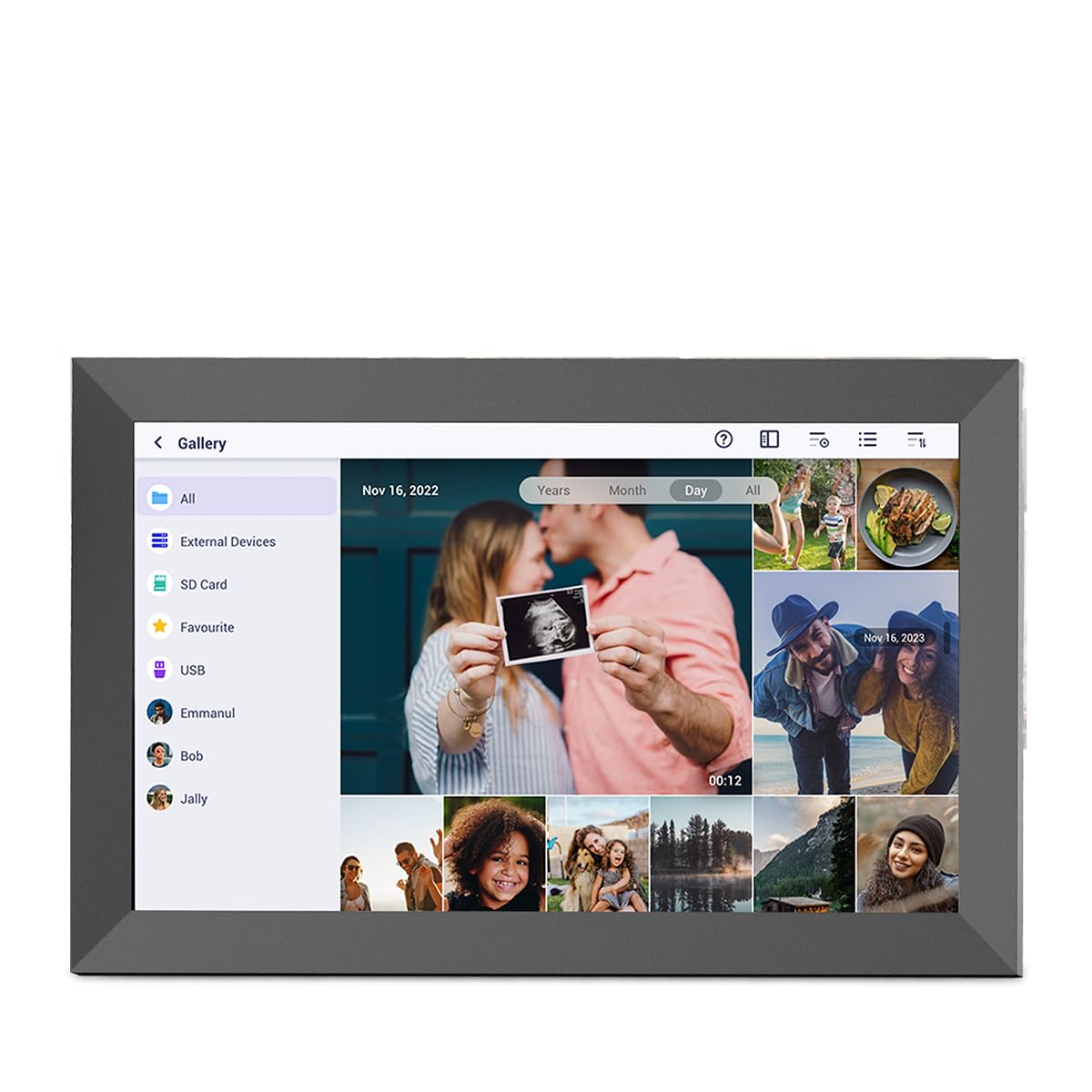
Image: The PRIXTON Prado XL digital photo frame showcasing a family picture.
2. Pakuotės turinys
Pažymėkite langelį prie šių elementų:
- PRIXTON Prado XL 15.6-inch Digital Photo Frame
- Maitinimo adapteris
- Vartotojo vadovas (šis dokumentas)
3. Produktas baigtasview
Familiarize yourself with the various ports and controls on your digital photo frame.

Image: Back panel of the frame, highlighting the power button, USB-A, USB-C, SD card slot, and headphone jack.
Pagrindiniai komponentai:
- Maitinimo mygtukas: Located on the back, used to turn the frame on/off or put it into sleep mode.
- USB-A prievadas: For connecting USB flash drives to transfer photos and videos.
- C tipo USB prievadas: For connecting compatible devices or for data transfer.
- SD kortelės lizdas: For inserting SD cards to display or transfer media.
- Ausinių lizdas: Skirtas prijungti išorinius garso įrenginius.
- DC maitinimo įvestis: Maitinimo adapterio prijungimui.
- Sieninio tvirtinimo angos: Rėmo tvirtinimui prie sienos.
4. Sąranka
4.1 Įjungimas
- Connect the power adapter to the DC Power Input port on the back of the frame.
- Įkiškite maitinimo adapterį į sieninį lizdą.
- Rėmelis įsijungs automatiškai. Jei ne, paspauskite ir kelias sekundes palaikykite nuspaudę maitinimo mygtuką.
4.2 Pradinė konfigūracija
Upon first startup, you will be guided through the initial setup process:
- Pasirinkite kalbą: Iš sąrašo pasirinkite pageidaujamą kalbą.
- Prisijunkite prie „Wi-Fi“: Select your Wi-Fi network and enter the password. A stable internet connection is required for app functionality and software updates.
- Nustatyti datą ir laiką: Configure the correct date, time, and time zone.
4.3 Connecting with the Uhale App
The Uhale app allows you to easily send photos and videos directly to your frame from your smartphone.
- Atsisiųskite programą: Ieškokite "Uhale" in your smartphone's app store (iOS or Android) and install it.
- Sukurti paskyrą: Open the Uhale app and follow the instructions to create a new user account.
- Suporuokite rėmelį: On your digital photo frame, navigate to the "Settings" menu and find the "Bind Device" or "Add Device" option. This will display a unique code or QR code.
- Enter Code/Scan QR: In the Uhale app, select "Add Device" and either manually enter the code displayed on your frame or use your phone's camera to scan the QR code.
- Suporavę galite pradėti siųsti nuotraukas ir vaizdo įrašus į savo rėmelį.

Image: A smartphone screen showing the Uhale app interface next to the digital photo frame.
5. Rėmo valdymas
5.1 Jutiklinio ekrano navigacija
The Prado XL features a responsive touchscreen for easy navigation:
- Bakstelėkite: Pasirinkite elementą arba atidarykite meniu.
- Perbraukimas: Navigate through photos, menus, or lists.
- Žiupsnelis, norint priartinti: Zoom in or out on photos (if supported by software).
5.2 Nuotraukų ir vaizdo įrašų pridėjimas
There are several ways to add media to your frame:
5.2.1 Via Uhale App
- Open the Uhale app on your paired smartphone.
- Pasirinkite nuotraukas arba vaizdo įrašus, kuriuos norite siųsti.
- Tap the "Send" or "Share" button to transfer them to your frame.
- The media will appear on your frame shortly, provided it is connected to Wi-Fi.
5.2.2 Via USB Drive or SD Card
- Insert a USB flash drive into the USB-A port or an SD card into the SD card slot.
- The frame will detect the external storage. Navigate to the "Gallery" or "Files" section.
- Select the desired photos or videos and choose to copy them to the frame's internal memory.

Image: User interacting with the Uhale app to send content to the digital photo frame.
5.3 Managing Content and Slideshows
- Galerija: Access all your stored photos and videos. You can view them individually or start a slideshow.
- Ištrinti: Select unwanted media and choose the delete option.
- Skaidrių demonstravimo nustatymai: Customize slideshow duration, transition effects, and playback order in the settings menu.

Image: The digital photo frame displaying a lively birthday party scene.
6. Nustatymų meniu
Access the settings menu by tapping the gear icon on the home screen. Here you can configure various aspects of your frame:
- Ekranas: Adjust brightness, screen sleep time, and display mode.
- „Wi-Fi“: Tvarkykite savo tinklo ryšius.
- Data ir laikas: Manually set or synchronize date and time.
- Saugykla: View internal storage usage and manage external storage devices.
- Apie: View device information, including software version and model number.
7. Priežiūra
7.1 Ekrano valymas
Norėdami nuvalyti jutiklinį ekraną, švelniai nuvalykite jį minkštu, nepūkuotu skudurėliu. Jei dėmės sunkiai pašalinamos, šiek tiek nuvalykiteampNuvalykite šluostę vandeniu arba ekranui saugiu valymo tirpalu. Venkite naudoti stiprias chemines medžiagas ar abrazyvines medžiagas.
7.2 Programinės įrangos naujiniai
Ensure your frame is connected to Wi-Fi to receive automatic software updates. Updates provide new features, performance improvements, and bug fixes. You can manually check for updates in the "Settings" > "About" menu.
8. Problemų sprendimas
| problema | Galimas sprendimas |
|---|---|
| Rėmelis neįsijungia. | Įsitikinkite, kad maitinimo adapteris yra tvirtai prijungtas tiek prie rėmelio, tiek prie veikiančio maitinimo lizdo. Išbandykite kitą lizdą. |
| Nepavyksta prisijungti prie „Wi-Fi“. | Check if your Wi-Fi router is on and working. Re-enter the Wi-Fi password carefully. Move the frame closer to the router. |
| Nuotraukos / vaizdo įrašai nerodomi. | Verify that the media has been successfully uploaded via the app or copied from USB/SD. Check file formats for compatibility. Ensure the frame is connected to Wi-Fi if using the app. |
| Jutiklinis ekranas nereaguoja. | Restart the frame by holding the power button. Ensure the screen is clean and free of debris. |
| Frame is slow or freezes. | Restart the frame. Clear some internal storage if it is nearly full. |
9. Specifikacijos
| Funkcija | Detalė |
|---|---|
| Modelio numeris | 10006183 |
| Ekrano dydis | 15.6 colių |
| Ekrano tipas | IPS jutiklinis ekranas |
| Rezoliucija | 1920 x 1080 „Full HD“ |
| Vidinė atmintis | 32 GB Flash |
| RAM | 1 GB |
| Ryšys | Wi-Fi |
| Uostai | USB Type-C, USB-A, SD Card Slot, Headphone Jack |
| Garsas | Integruoti garsiakalbiai |
| Matmenys (I x P x A) | 14 x 21 x 2.51 cm |
10. Garantija ir palaikymas
PRIXTON products are designed and manufactured to the highest quality standards. For information regarding warranty coverage, please refer to the warranty card included with your product or visit the official PRIXTON websvetainę.
If you encounter any issues or have questions not covered in this manual, please contact PRIXTON customer support for assistance. You can find contact details on the PRIXTON websvetainėje arba per savo pirkimo platformą.
Palaikymas internetu: Visit the PRIXTON Store on Amazon