
1. Produktas baigtasview
The PeriPage P92 is a compact and lightweight thermal tattoo stencil printer designed for both professional tattoo artists and enthusiasts. It utilizes inkless thermal technology to produce clear and precise tattoo lines, streamlining the stencil creation process. This printer offers versatile connectivity options, including Bluetooth and USB, making it compatible with a wide range of devices such as smartphones, tablets, and PCs.

Image: The PeriPage P92 Tattoo Stencil Printer, a sleek black device, shown on a desk with a printed tattoo stencil.
Pagrindinės funkcijos:
- Nešiojamas dizainas: Compact and lightweight (approximately 15.2 ounces) for easy transport.
- Bespalvė terminė technologija: Eliminates the need for ink cartridges, reducing operational costs.
- Aukštas suderinamumas: Supports Android, iOS, Windows, and macOS devices.
- Universalus ryšys: Connects via Bluetooth for wireless printing or USB for wired connections.
- Powerful Mobile App: The "PeriPage APP" provides abundant resources, including built-in tattoo templates and design editing tools.
- Efektyvus spausdinimas: Capable of printing clear and precise tattoo lines in seconds.
- Ilgas baterijos veikimo laikas: Built-in 2600mAh rechargeable battery, capable of printing up to 200 pages per charge.
2. Sąrankos vadovas
2.1 Išpakavimas ir pradinis įkrovimas
Carefully remove all components from the packaging. Before first use, ensure the printer is fully charged using the provided USB cable and a compatible power adapter. The power indicator light will typically change to indicate a full charge.
2.2 Programinės įrangos diegimas
To operate the PeriPage P92, you will need to install the appropriate software:
- For Smartphones/Tablets (Android/iOS): Download the "PeriPage APP" from your device's respective app store (Google Play Store for Android, Apple App Store for iOS).
- For PCs (Windows/macOS): Download the printer driver from the official PeriPage websvetainė: https://www.ileadtek.com/en/download.html.

Image: The PeriPage P92 printer connected to a laptop via USB and a smartphone via Bluetooth, illustrating multi-device compatibility.
2.3 Loading Stencil Paper
- Įsitikinkite, kad spausdintuvas yra išjungtas arba veikia budėjimo režimu.
- Gently insert the tattoo stencil paper (thermal paper, 8.5x11 inches) into the paper feed slot at the front of the printer.
- The printer will automatically detect and feed the paper into position. Ensure the transfer film side is facing up.

Image: A step-by-step visual guide showing how to power on the printer, insert stencil paper, and initiate printing via the app.
3. Naudojimo instrukcijos
3.1 Įjungimas / išjungimas
To power on the printer, press and hold the power button (usually located on the top or side) for approximately 2 seconds until the indicator light illuminates. To power off, press and hold the power button again until the light turns off.
3.2 Prijungimas prie įrenginio
- „Bluetooth“ ryšys:
- Įsitikinkite, kad jūsų išmaniajame telefone arba planšetiniame kompiuteryje įjungtas „Bluetooth“ ryšys.
- Open the "PeriPage APP".
- Within the app, search for and select the PeriPage P92 printer to establish a connection.
- USB jungtis:
- Connect the printer to your PC using the provided USB cable.
- Ensure the printer driver is installed on your PC.
- Spausdintuvas turėtų būti atpažįstamas kaip spausdinimo įrenginys.
3.3 Using the PeriPage App for Printing
The "PeriPage APP" is your primary interface for creating and printing tattoo stencils.
- Open the "PeriPage APP" on your connected device.
- You can choose to use built-in tattoo templates or import your personal designs. The app offers tools for editing, resizing, and adjusting your designs.
- Once your design is ready, select the print option within the app.
- Confirm print settings (e.g., density, size) if prompted.
- The printer will then feed the stencil paper and print your design.

Image: Screenshots of the PeriPage mobile application interface, demonstrating design editing, template selection, and 3D preview funkcijos.

Image: The PeriPage P92 printer actively printing a tattoo stencil design onto thermal paper, with a smartphone displaying the design.
4. Priežiūra
4.1 Spausdintuvo valymas
Reguliarus valymas padeda išlaikyti spausdinimo kokybę ir prailgina spausdintuvo tarnavimo laiką.
- Išorė: Wipe the exterior of the printer with a soft, dry cloth. Avoid using abrasive cleaners or solvents.
- Terminio spausdinimo galvutė: If print quality degrades, gently clean the thermal print head with an alcohol wipe or a specialized thermal printer cleaning pen. Ensure the printer is off and cooled down before cleaning.
- Popieriaus kelias: Periodically check the paper path for any dust or debris and remove it carefully.
4.2 Saugykla
Spausdintuvą laikykite vėsioje, sausoje vietoje, toliau nuo tiesioginių saulės spindulių ir ekstremalių temperatūrų. Jei ilgesnį laiką nenaudojate, įsitikinkite, kad spausdintuvas yra visiškai įkrautas, o tada išjunkite.
5. Problemų sprendimas
This section addresses common issues you might encounter with your PeriPage P92 printer.
5.1 Prasta spausdinimo kokybė
- Blankūs atspaudai:
- Check if the thermal paper is loaded correctly with the transfer film side facing up.
- Ensure the printer's battery is sufficiently charged.
- Clean the thermal print head (refer to Section 4.1).
- Adjust print density settings within the PeriPage APP.
- Streaks or Gaps:
- Clean the thermal print head.
- Ensure the paper is free from wrinkles or damage.
- Incomplete Designs (Large Shadows/Complex Images): The printer is optimized for clear line drawings. Complex images with large shaded areas may not transfer optimally.
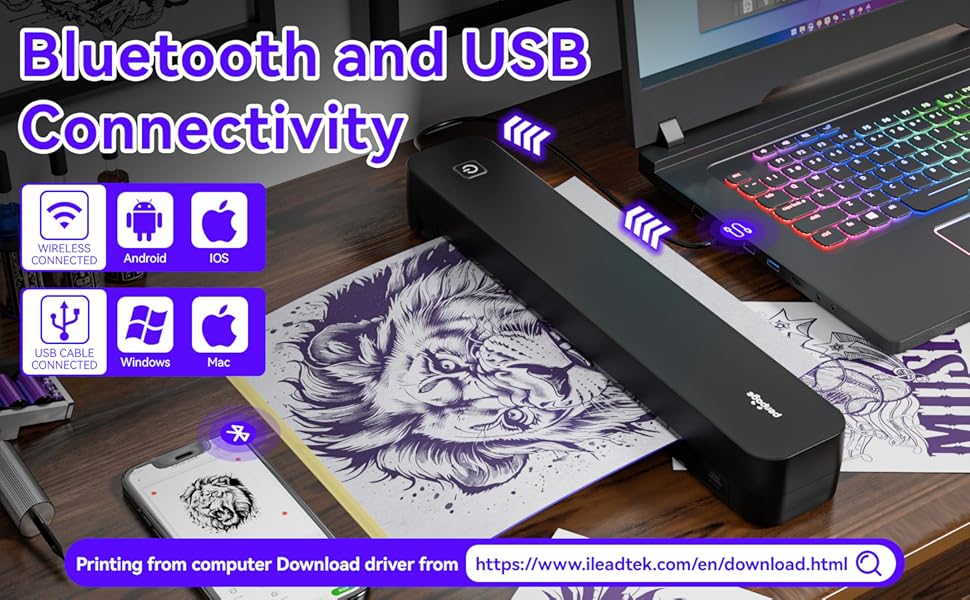
Image: A comparison showing effective line drawings and less shadowy prints versus bad effects with large shadows and complex images, illustrating optimal design types for the printer.
5.2 Ryšio problemos
- „Bluetooth“ neprisijungia:
- Įsitikinkite, kad spausdintuvas įjungtas ir yra jūsų įrenginio diapazone.
- Patikrinkite, ar jūsų įrenginyje įjungtas „Bluetooth“ ryšys.
- Iš naujo paleiskite spausdintuvą ir įrenginį.
- Pamirškite įrenginį „Bluetooth“ nustatymuose ir bandykite susieti dar kartą.
- USB Not Recognized:
- Ensure the USB cable is securely connected to both the printer and your PC.
- Verify that the correct printer drivers are installed on your PC.
- Išbandykite kitą USB prievadą arba kabelį.
5.3 Popieriaus užstrigimas
If paper gets jammed, gently pull the paper out in the direction of the paper path. Avoid forcing it, as this can damage the printer mechanisms. Ensure paper is loaded straight and not wrinkled.
6. Specifikacijos
| Funkcija | Detalė |
|---|---|
| Prekės ženklas | PeriPage |
| Modelio pavadinimas | HDD-P92 |
| Ryšio technologija | Bluetooth, USB |
| Spausdinimo technologija | Terminis (be rašalo) |
| Ypatinga funkcija | Nešiojami |
| Spalva | Juoda |
| Spausdintuvo išvestis | Vienspalvis |
| Max Print Speed (B&W) | 6 puslapis per minutę |
| Prekės svoris | 15.2 uncijos |
| Elemento matmenys (D x P x A) | 2.13 "D x 4" P x 11.4" A |
| Valdiklio tipas | Android, iOS |
| Spausdinimo laikmena | Terminis popierius |
| Suderinami įrenginiai | Nešiojamieji kompiuteriai, asmeniniai kompiuteriai, išmanieji telefonai, planšetiniai kompiuteriai |
| Kontrolės metodas | Programėlė |
| Maksimalus laikmenos dydis | A4, 8.5x11 Inches |
| Baterija | 2600mAh rechargeable, prints ~200 pages per charge |
7. Informacija apie garantiją
Pagal produkto specifikacijas, yra "Not Application" for warranty. Please refer to your retailer's return policy or contact the seller directly for any issues or concerns regarding your purchase.
8. Parama
Daugiau pagalbos rasite šiuose šaltiniuose:
- PeriPage APP: The mobile application often includes help sections, FAQs, and direct support contact options.
- Oficialus Websvetainė: Visit the PeriPage official website for updated drivers, FAQs, and support contact information: www.ileadtek.com.
- Pardavėjo palaikymas: Contact the seller (Ileadtek Inc.) through the platform where you purchased the product for specific purchase-related inquiries.