
1. Produktas baigtasview
This Ossuret car stereo is designed to upgrade the infotainment system in your Renault Clio 3 (models 2005-2014). It features a 9-inch Android 13 touchscreen, offering modern connectivity and navigation capabilities. The system integrates seamlessly with your vehicle's existing controls and provides a range of multimedia options.

Image: The Ossuret 9-inch Android 13 Car Stereo seamlessly integrated into a Renault Clio 3 dashboard, showcasing its large display and modern interface.
2. Sąranka ir diegimas
2.1 Pakuotės turinys
Before installation, verify all components are present:
- Main Head Unit (9-inch Android 13 Car Stereo)
- Maitinimo kabelis
- Išorinis mikrofonas
- GPS antena
- RCA jungtis (tik „WiFi“ versijai)
- USB kabeliai (x2)
- Galinio kameros įvesties RCA kabelis
- Canbus dekoderis
- Gamyklinis USB adapteris
- Radijo antenos adapterio kabelis
- Radijo antenos adapteris

Image: A comprehensive layout of all included accessories, such as power cables, USB cables, GPS antenna, external microphone, RCA harness, Canbus decoder, and various adapters.
2.2 Suderinamumas
This car stereo is specifically designed for Renault Clio 3 models manufactured between 2005 and 2014. Ensure your vehicle falls within this range for proper fitment and functionality.
2.3 Diegimo veiksmai (bendrasis vadovas)
Installation typically involves removing the factory radio and installing the new head unit using the provided frame and wiring harnesses. Professional installation is recommended.
- Paruošimas: Prieš pradėdami bet kokius elektros darbus, atjunkite automobilio akumuliatorių.
- Gamyklinio bloko pašalinimas: Carefully remove the existing car stereo and trim panels from your Renault Clio 3 dashboard.
- Prijunkite laidus: Connect the provided power cable, RCA harness, USB cables, and antenna adapters to the new head unit and the vehicle's wiring. The Canbus decoder ensures compatibility with factory features like steering wheel controls.
- GPS antenos įrengimas: GPS anteną montuokite vietoje, kur nėra šviesos. view dangaus, paprastai ant prietaisų skydelio arba po priekiniu stiklu.
- Bandymo jungtys: Before fully reassembling, temporarily connect the battery and test the unit's basic functions (power, audio, display).
- Saugus vienetas: Mount the new head unit into the dashboard using the custom frame, ensuring a secure and flush fit.
- Surinkti iš naujo: Reinstall all trim panels and reconnect the vehicle battery.

Image: A visual comparison showing the original Renault Clio 3 dashboard setup (left) versus the modernized dashboard with the Ossuret 9-inch car stereo installed (right).
3. Naudojimo instrukcijos
3.1 Įjungimas / išjungimas ir pagrindinė navigacija
Press and hold the power button (usually located on the front panel or side) to turn the unit on or off. Navigate the Android 13 interface using the responsive 9-inch capacitive touchscreen.

Image: A hand demonstrating interaction with the responsive touchscreen interface of the car stereo.
3.2 Belaidis „CarPlay“ ir „Android Auto“
The unit supports wireless Apple CarPlay and Android Auto via the pre-installed and activated Zlink application. Connect your smartphone via Wi-Fi or Bluetooth to access phone functions, navigation, music, and messages directly on the car stereo display.
- Ryšys: Įjunkite „Wi-Fi“ ir „Bluetooth“ savo išmaniajame telefone. Atidarykite „Zlink“ programėlę automobilio stereo sistemoje ir vykdykite ekrane pateikiamus nurodymus, kad susietumėte savo įrenginį.
- Savybės: Access apps like Google Maps, Spotify, Podcasts, and make calls hands-free.

Image: The car stereo displaying the Apple CarPlay and Android Auto interfaces, showing various compatible applications like Phone, Music, Maps, and Messages.
3.3 „Bluetooth“ funkcionalumas
Prijunkite mobilųjį telefoną per „Bluetooth“, kad galėtumėte skambinti laisvų rankų įranga ir transliuoti garsą.
- Poravimas: Go to the Bluetooth settings on the car stereo and your phone. Select the car stereo from your phone's available devices to pair.
- Skambučiai: Use the built-in microphone for clear hands-free conversations. You can download your phone's contacts to the radio.
- Muzikos transliacija: Leiskite garsą iš telefono per automobilio garsiakalbius.

Image: The car stereo displaying a phone dialer interface, indicating an active Bluetooth connection for hands-free calling, with a built-in microphone for voice input.
3.4 GPS navigacija
The unit features integrated GPS navigation with support for online and offline map applications (e.g., Waze, Navitel, Google Maps). It offers voice guidance and a dual-zone function, allowing navigation to run in the background while other media plays.
- Žemėlapio atnaujinimai: Ensure your map data is up-to-date for accurate navigation.
- Naršymas internete: Connect to Wi-Fi to use online navigation apps.
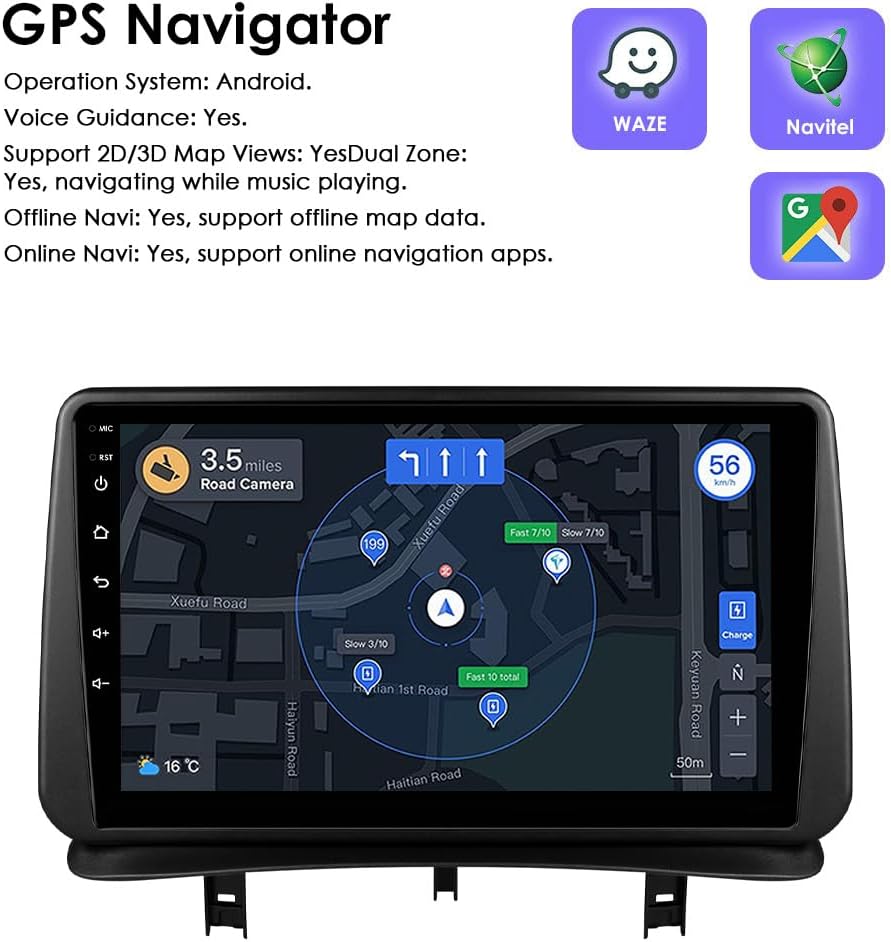
Image: The car stereo displaying a detailed GPS navigation map with route information, current speed, and road camera alerts.
3.5 USB medijos atkūrimas
Connect external USB devices (up to 2TB) to play audio and video files. The unit supports various multimedia formats.
- Palaikomi garso formatai: MP3, WMA, AAC, RM, FLAC ir kt.
- Palaikomi vaizdo įrašų formatai: MPEG-1/2/4, H264, H263, VC1, RV, RMVB, DivX, Sorenson Spark, VP8, AVS Stream, etc.

Image: The car stereo displaying a file browser interface for USB storage, showing various folders and files, with two USB ports connected at the bottom.
3.6 FM radijas
Access the FM radio function to listen to local stations. The interface allows for easy tuning and station saving.

Image: The car stereo displaying the FM radio interface, showing frequency tuning and station presets.
3.7 Vairo valdymas
The unit is compatible with your vehicle's factory steering wheel controls. This allows you to adjust volume, change tracks, and answer calls without taking your hands off the wheel.

Image: The car stereo displaying media playback controls, indicating compatibility with steering wheel controls for safe operation.
3.8 Galinio vaizdo kameros įvestis
The system supports a rear-view camera input. When the vehicle is shifted into reverse, the display automatically switches to the camera feed, providing a clear view of the area behind your car and assisting with parking maneuvers.

Image: A technical diagram illustrating the backup camera display interface on the car stereo, complete with dynamic parking guidelines.
3.9 Padalinto ekrano rodinys
Utilize the split-screen feature to run two applications simultaneously, such as navigation and music playback, or a camera feed and music, enhancing multitasking capabilities.

Image: The car stereo displaying a split-screen view, with navigation on one side and music playback on the other, demonstrating simultaneous application usage.
3.10 Valdymas balsu
The system supports voice commands, allowing you to control various functions hands-free. Voice control sensitivity is enhanced for better responsiveness.

Image: The car stereo interface showing voice command prompts, such as "Hey Siri, find a restaurant" and "OK, Navigate home," indicating active voice control functionality.
3.11 „Wi-Fi“ ryšys
Connect the car stereo to a Wi-Fi hotspot (e.g., from your smartphone) to access online features, download apps, and browse the internet.

Image: The car stereo displaying a YouTube interface, with a smartphone showing a Wi-Fi signal, illustrating the unit's Wi-Fi connectivity for online content.
3.12 Sound Adjustment (Built-in DSP)
The integrated Digital Sound Processor (DSP) allows for advanced audio customization, including a 48-band EQ adjustment, to optimize sound quality to your preference.

Image: The car stereo displaying a graphic equalizer interface, indicating the presence of a built-in DSP for detailed sound adjustments.
4. Priežiūra
Norėdami užtikrinti „Ossuret“ automobilio garso sistemos ilgaamžiškumą ir optimalų veikimą, laikykitės šių priežiūros nurodymų:
- Valymas: Jutiklinį ekraną ir išorę valykite minkšta, sausa šluoste. Įsisenėjusias dėmes galima lengvai nuvalyti.amp cloth with a mild, non-abrasive cleaner can be used, followed by drying. Avoid harsh chemicals or abrasive materials.
- Programinės įrangos atnaujinimai: Reguliariai tikrinkite, ar yra programinės įrangos atnaujinimų, kad užtikrintumėte, jog sistema veikia efektyviai ir joje yra naujausios funkcijos bei saugos pataisymai.
- Temperatūra: Venkite ilgą laiką laikyti įrenginį ekstremalioje temperatūroje.
- Jungtys: Įsitikinkite, kad visi laidai yra tvirtai prijungti. Atsilaisvinusios jungtys gali sukelti protarpiais kylančių problemų.
5. Problemų sprendimas
Jei kyla problemų dėl automobilio garso sistemos, žr. šias dažniausiai pasitaikančias problemas ir sprendimus:
| Problema | Galima priežastis | Sprendimas |
|---|---|---|
| Įrenginys neįsijungia. | Atsilaisvinęs maitinimo laidas, perdegęs saugiklis, automobilio akumuliatoriaus problema. | Patikrinkite maitinimo kabelio jungtis. Patikrinkite transporto priemonės saugiklius. Įsitikinkite, kad transporto priemonės akumuliatorius įkrautas. |
| Nėra garso arba garsas iškraipytas. | Speaker wiring issues, incorrect audio settings, volume too low. | Verify speaker connections. Adjust volume and audio settings (EQ, balance). |
| Vairo valdikliai neveikia. | Canbus decoder not correctly installed or configured. | Ensure the Canbus decoder is properly connected and configured in the system settings. Refer to the installation guide for specific wiring. |
| GPS signalas silpnas arba netikslus. | GPS antenna improperly placed, environmental interference. | Relocate the GPS antenna to a position with a clearer view dangaus. Venkite kliūčių. |
| „CarPlay“ / „Android Auto“ neprisijungia. | Bluetooth/Wi-Fi off on phone, Zlink app not running, phone compatibility. | Ensure Bluetooth and Wi-Fi are active on your phone. Restart the Zlink app. Check phone compatibility with CarPlay/Android Auto. |
| Sistema lėta arba užstringa. | Per daug veikiančių programų, mažai atminties, programinės įrangos triktis. | Close unnecessary applications. Restart the unit. Check for and install any available software updates. |
6. Specifikacijos
- Prekinis ženklas: Ossuret
- Suderinama transporto priemonė: Renault Clio 3 (2005–2014 m.)
- Ekrano dydis: 9 colių
- Operacinė sistema: Android 13
- Atmintis: 2 GB RAM + 32 GB saugykla
- Ypatingos savybės: Wireless CarPlay, Android Auto, GPS Navigation, Bluetooth, Wi-Fi, Steering Wheel Control, Backup Camera Input, Split Screen Display, Voice Control, Built-in DSP
- Ryšio technologija: „Bluetooth“, USB, „Wi-Fi“
- Kontrolės metodas: Touch, Voice
- Garso išvesties režimas: Stereo
- Suderinami įrenginiai: Išmanusis telefonas

Image: A graphic highlighting key specifications such as 48 EQ adjustment, Quad-Core processor, 2GB RAM, and 32GB storage, alongside the car stereo interface.
7. Garantija ir palaikymas
7.1 Informacija apie garantiją
Šis „Ossuret“ automobilio stereofoninis įrenginys turi 1 metų garantija nuo įsigijimo datos. Ši garantija taikoma gamybos defektams ir gedimams įprasto naudojimo metu. Išsaugokite pirkimo įrodymą, jei galėtumėte pateikti pretenzijas dėl garantijos.
7.2 Pagalba klientams
For technical assistance, troubleshooting beyond this manual, or warranty inquiries, please contact Ossuret customer support through the retailer where the product was purchased. You may also visit the official Ossuret websvetainėje, kur rasite papildomų išteklių ir kontaktinės informacijos.