
„Xbox“ 2-29563 serija
Xbox Wireless Controller Storm Breaker Special Edition
Modelis: EP2-29563
Prekinis ženklas: Xbox
Įvadas
The Xbox Wireless Controller Storm Breaker Special Edition is designed to provide an enhanced gaming experience across multiple platforms. This controller features a unique aesthetic with classic grays and blacks, offset with whites, along with textured grips for improved handling. It offers seamless connectivity and customizable controls to optimize your gameplay.
Pagrindinės savybės
- Storm Breaker Special Edition Design: Features a distinctive gray, black, and white pattern.
- Textured Triggers: Provides enhanced grip and control during gameplay.
- Rubberized Grips: Located on the back cases for secure handling.
- Wireless & Bluetooth Connectivity: Easily pairs with Xbox consoles, PCs, and mobile devices.
- Bendrinimo mygtukas: Seamlessly capture and share screenshots and game recordings.
- Pritaikomas mygtukų atvaizdavimas: Personalize controls using the Xbox Accessories app.
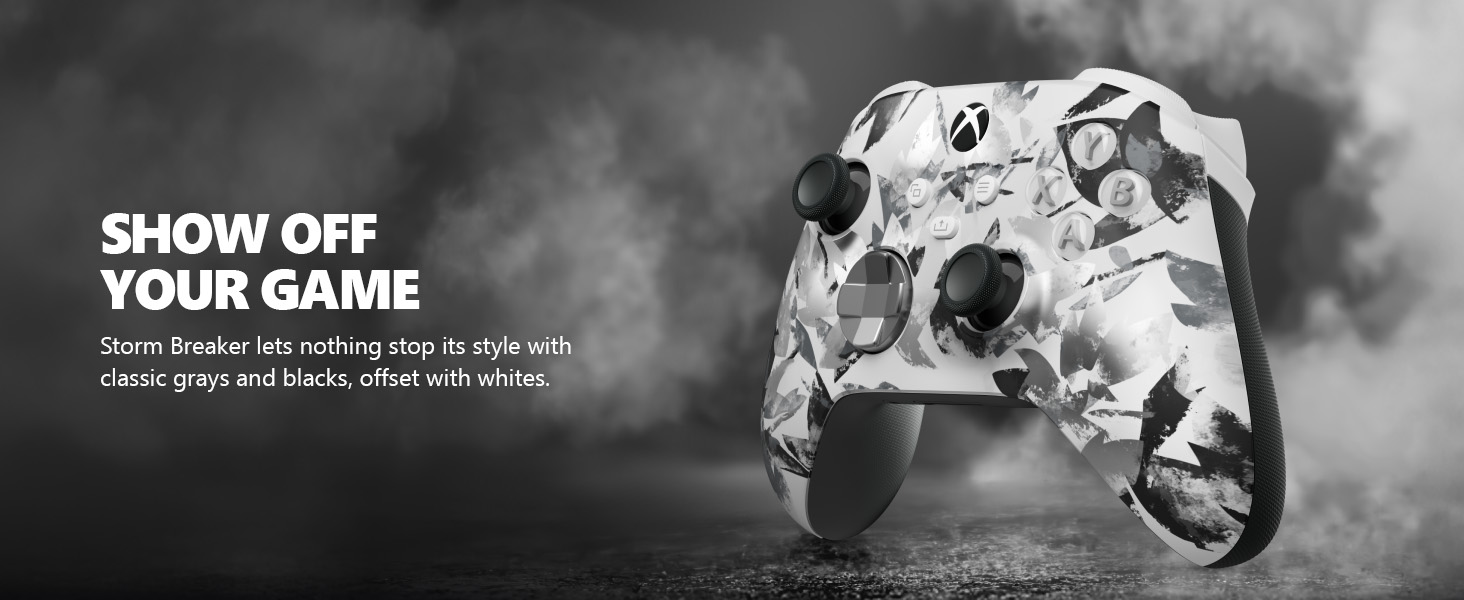
Image: The Xbox Wireless Controller Storm Breaker Special Edition showcasing its distinctive color scheme.
Sąranka
1. Akumuliatoriaus įdėjimas
The controller requires two AA batteries (included). To install:
- Raskite baterijų skyrių valdiklio gale.
- Press the small tab and lift the battery cover.
- Įdėkite dvi AA baterijas, užtikrindami teisingą poliškumą (+ ir -).
- Uždėkite akumuliatoriaus dangtelį, kol jis užsifiksuos.
2. Susiejimas su įrenginiais
The controller supports both Xbox Wireless and Bluetooth for versatile connectivity.
- For Xbox Console:
- Įjunkite „Xbox“ konsolę.
- Paspauskite „Xbox“ mygtuką ant valdiklio, kad jį įjungtumėte.
- Paspauskite ir palaikykite susiejimo mygtuką (⏚) on the top of the controller until the Xbox button flashes rapidly.
- Press the Pair button on your Xbox console (usually near the USB port or on the front).
- The Xbox button on the controller will become solid when connected.
- For PC (Windows 10/11) via Bluetooth:
- Įsitikinkite, kad jūsų kompiuteryje įjungtas „Bluetooth“ ryšys.
- Paspauskite „Xbox“ mygtuką ant valdiklio, kad jį įjungtumėte.
- Paspauskite ir palaikykite susiejimo mygtuką (⏚) on the top of the controller until the Xbox button flashes rapidly.
- Kompiuteryje eikite į Nustatymai > Įrenginiai > „Bluetooth“ ir kiti įrenginiai.
- Select "Add Bluetooth or other device" and then "Bluetooth".
- Choose "Xbox Wireless Controller" from the list and follow on-screen prompts.
- Mobiliesiems įrenginiams („Android“ / „iOS“):
- Įjunkite „Bluetooth“ savo mobiliajame įrenginyje.
- Paspauskite „Xbox“ mygtuką ant valdiklio, kad jį įjungtumėte.
- Paspauskite ir palaikykite susiejimo mygtuką (⏚) on the top of the controller until the Xbox button flashes rapidly.
- On your mobile device, search for Bluetooth devices and select "Xbox Wireless Controller" to pair.
Vaizdo įrašas: Viršijimasview of the Xbox Wireless Controller, demonstrating its physical features and ports, useful for understanding setup.
Valdiklio valdymas
1. Pagrindiniai valdikliai
- Nykštys: Use for movement and camera control.
- D-Pad: Ideal for precise directional input in games and menu navigation.
- A, B, X, Y mygtukai: Primary action buttons for in-game commands.
- Paleidikliai (LT/RT) ir buferiai (LB/RB): Used for various actions like shooting, accelerating, or menu selection.
2. Bendrinimo mygtukas
The dedicated Share button (⤓) allows you to quickly capture and share your gaming moments:
- Press once to take a screenshot.
- Press and hold to record the last 30 seconds of gameplay.
3. Ausinių lizdas
A 3.5mm audio jack is located at the bottom of the controller, allowing you to connect compatible headsets for in-game audio and chat.
4. Customization with Xbox Accessories App
Download the Xbox Accessories app on your Xbox console or Windows PC to customize button mapping and create personalized controller profiles.
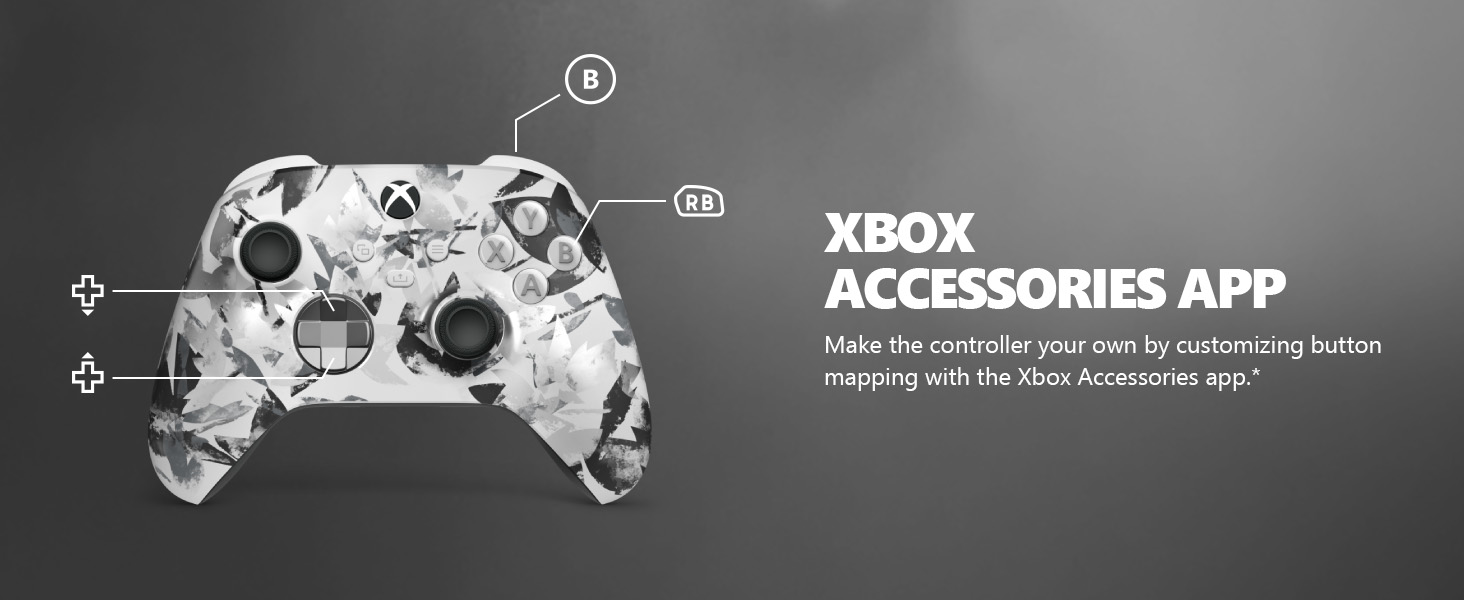
Image: The Share button and an illustration of button mapping customization via the Xbox Accessories app.
Priežiūra
- Valymas: Valdiklį valykite minkšta, sausa šluoste. Venkite abrazyvinių valiklių ar tirpiklių.
- Akumuliatoriaus priežiūra: Remove batteries if the controller will not be used for an extended period to prevent leakage.
- Saugykla: Laikykite valdiklį vėsioje, sausoje vietoje, apsaugotoje nuo tiesioginių saulės spindulių ir ekstremalių temperatūrų.
Trikčių šalinimas
- Valdiklis neprisijungia:
- Įsitikinkite, kad baterijos yra tinkamai įdėtos ir įkrautos.
- Pabandykite dar kartą susieti, kaip aprašyta skyriuje „Sąranka“.
- Patikrinkite, ar nėra trukdžių iš kitų belaidžių įrenginių.
- Atnaujinkite valdiklio programinę-aparatinę įrangą naudodami „Xbox“ priedų programėlę.
- Mygtukai nereaguoja:
- Nuvalykite aplink mygtukus, kad pašalintumėte visas šiukšles.
- Test the controller with another device or game to isolate the issue.
- Trumpas baterijos veikimo laikas:
- Naudokite naujas aukštos kokybės AA baterijas.
- Consider using a rechargeable battery pack (sold separately) for extended play.
Specifikacijos
| Funkcija | Detalė |
|---|---|
| Modelio numeris | EP2-29563 |
| Ryšys | „Xbox“ belaidis ryšys, „Bluetooth“ |
| Suderinamumas | Xbox Series X|S, Xbox One, Windows 10/11, Android, iOS |
| Maitinimo šaltinis | 2 AA baterijos (pridedamos) |
| Garso prievadas | 3.5 mm ausinių lizdas |
| Matmenys | 6.91 x 5.61 x 2.76 colio |
| Svoris | 14.1 uncijos |
| Gamintojas | Microsoft |
Garantija ir palaikymas
For warranty information and technical support, please refer to the documentation included with your product or visit the official Xbox support websvetainėje. Išsaugokite pirkimo įrodymą garantiniams reikalavimams.
Palaikymas internetu: support.xbox.com
Ask a question about this manual
Ask about setup, troubleshooting, compatibility, parts, safety, or missing instructions. Manuals+ will review the question and use this page’s manual context to help answer it.