
1. Įvadas
The Raspberry Pi 500 Desktop Computer Kit is a compact and powerful personal computer integrated into a keyboard. Designed for both beginners and experienced users, this kit provides a complete computing experience with its quad-core processor, ample RAM, and essential peripherals. This manual will guide you through the setup, operation, and maintenance of your Raspberry Pi 500.
2. Pakuotės turinys
Before you begin, please ensure all items listed below are present in your kit:
- Raspberry Pi 500 Computer (integrated into keyboard)
- 32GB microSD Card (pre-loaded with Raspberry Pi OS)
- English Beginner's Guide
- Micro HDMI to HDMI-A Cable
- USB pelė
- US Keyboard (integrated with Raspberry Pi 500)
- JAV maitinimo šaltinis
3. Sąrankos vadovas
Follow these steps to set up your Raspberry Pi 500 Desktop Computer Kit:
- Įdėkite „MicroSD“ kortelę: Locate the microSD card slot on the rear of the Raspberry Pi 500 keyboard. Gently insert the pre-loaded 32GB microSD card until it clicks into place.
- Prijunkite išorinius įrenginius:
- Pelė: Connect the USB mouse to one of the USB ports on the rear of the Raspberry Pi 500.
- Ekranas: Connect one end of the micro HDMI to HDMI-A cable to one of the micro HDMI ports on the Raspberry Pi 500 and the other end to an HDMI input on your monitor or TV.
- Prijunkite maitinimą: Plug the US Power Supply into the USB-C power port on the Raspberry Pi 500, then plug the power supply into a wall outlet. The Raspberry Pi 500 will automatically power on and begin booting the operating system.
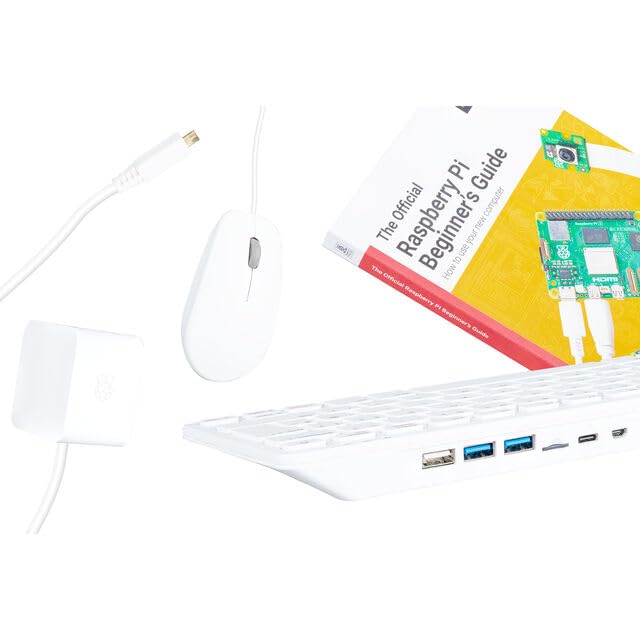
This image shows the Raspberry Pi 500 integrated into a keyboard, along with the included mouse and necessary cables for connection, illustrating a typical setup.
Žr. pridėtą English Beginner's Guide for more detailed setup instructions and initial software configuration.
4. Naudojimo instrukcijos
Once powered on, your Raspberry Pi 500 will boot into the Raspberry Pi OS desktop environment. Here are some basic operating guidelines:
- Pirmasis paleidimas: The first boot may take a few minutes as the system initializes. Follow any on-screen prompts for initial setup, such as setting your region, language, and Wi-Fi network.
- Ryšys:
- „Wi-Fi“ ir „Bluetooth“: The Raspberry Pi 500 has built-in Wi-Fi and Bluetooth. You can configure these through the desktop environment's network settings.
- Ethernet: For a wired network connection, plug an Ethernet cable into the Gigabit Ethernet port.
- USB prievadai: Use the USB 2.0 and USB 3.0 ports for connecting additional peripherals like external storage, webcams, or other accessories.
- Ekrano išvestis: The dual micro HDMI outputs allow you to connect two monitors for an extended desktop experience. The system supports OpenGL for graphics processing.
- GPIO Expansion: The General Purpose Input/Output (GPIO) pins provide advanced users with the ability to connect and control various electronic components and sensors for custom projects.
- Išsijungia: Always shut down the Raspberry Pi OS properly through the desktop menu (usually under the 'Raspberry Pi' icon) to prevent data corruption on the microSD card. Do not simply unplug the power.
5. Priežiūra
Proper maintenance ensures the longevity and optimal performance of your Raspberry Pi 500:
- Valymas: Keep the device clean and free from dust. Use a soft, dry cloth for the keyboard and exterior. For hard-to-reach areas, use compressed air. Ensure the device is powered off before cleaning.
- Vėdinimas: The Raspberry Pi 500 includes a heat sink to manage operating temperatures. Ensure the vents are not obstructed to allow for proper airflow. Avoid operating the device in enclosed spaces or direct sunlight.
- Programinės įrangos atnaujinimai: Regularly update the Raspberry Pi OS and installed software to benefit from the latest features, security patches, and performance improvements. This can typically be done via the terminal using commands like
sudo apt updateirsudo apt upgrade. - Duomenų atsarginė kopija: Periodically back up important data from your microSD card to an external storage device to prevent data loss.
6. Problemų sprendimas
If you encounter issues with your Raspberry Pi 500, consider the following troubleshooting steps:
- Nėra galios:
- Ensure the power supply is correctly connected to both the Raspberry Pi 500 and a working wall outlet.
- Verify the power supply is the official Raspberry Pi 500 power supply or a compatible 5V USB-C power supply with sufficient current (e.g., 3A).
- Nėra ekrano išvesties:
- Check that the micro HDMI to HDMI-A cable is securely connected to both the Raspberry Pi 500 and your monitor.
- Ensure your monitor is set to the correct HDMI input source.
- Try a different micro HDMI port or cable if available.
- Peripherals Not Responding (Mouse):
- Ensure the USB mouse is firmly plugged into a USB port.
- Pabandykite prijungti pelę prie kito USB prievado.
- Restart the Raspberry Pi 500.
- Operacinė sistema nepaleidžiama:
- Ensure the microSD card is properly inserted and not damaged.
- If the microSD card is corrupted, you may need to re-flash the Raspberry Pi OS image onto it using a computer and imaging software.
7. Specifikacijos
Key technical specifications for the Raspberry Pi 500 Desktop Computer Kit:
| Funkcija | Detalė |
|---|---|
| Modelio pavadinimas | Raspberry Pi 500 |
| Modelio numeris | Sc1285 |
| Procesorius | 2.4GHz Quad-Core ARM Cortex-A76 |
| RAM | 8 GB LPDDR4 |
| Sandėliavimas | 32 GB „MicroSD“ kortelė (pridedama) |
| Operacinė sistema | Raspberry Pi OS |
| Ryšys | Wi-Fi, Bluetooth, Gigabit Ethernet, 1x USB 2.0, 2x USB 3.0 |
| Vaizdo išvestis | Dual Micro HDMI (supports OpenGL) |
| Išsiplėtimas | GPIO kaiščiai |
| Matmenys (I x P x A) | Approximately 11.260" x 4.800" x 0.8" (integrated into keyboard) |
| Svoris | Maždaug 2 svarai |
8. Garantija ir palaikymas
Please note that no warranty is provided with this product. For technical assistance, software updates, community forums, and additional resources, please visit the official Raspberry Pi websvetainė adresu www.raspberrypi.com. The Raspberry Pi community offers extensive documentation and support for all Raspberry Pi products.