
1. Įvadas
The Doohoeek Tri-Mode Programmable Keyboard (Model K28) is a versatile 25-key macro keypad designed to enhance productivity for Windows users. It offers three connectivity modes: wired USB-C, 2.4GHz wireless, and Bluetooth 5.0, allowing seamless switching between up to three devices. This manual provides detailed instructions for setting up, operating, and maintaining your programmable keyboard.

Image: The Doohoeek Tri-Mode Programmable Keyboard, highlighting its compact design and customizable keys.
2. Kas yra dėžutėje
Upon unboxing your Doohoeek K28 keyboard, please ensure all the following items are present:
- Doohoeek K28 Programmable Keyboard x1
- Shortcuts Stickers x1
- USB-C laidas x1
- 2.4G Dongle x1
- Vartotojo vadovas x1
Video: An unboxing of the Doohoeek Tri-Mode Programmable Keyboard, showing the keyboard, stickers, cables, and user manual.
3. Sąranka
3.1. Initial Connection & Charging
- Connect the keyboard to your computer using the provided USB-C cable. This will charge the internal battery and enable wired mode.
- Ensure the power switch on the side of the keyboard is in the "ON" position.
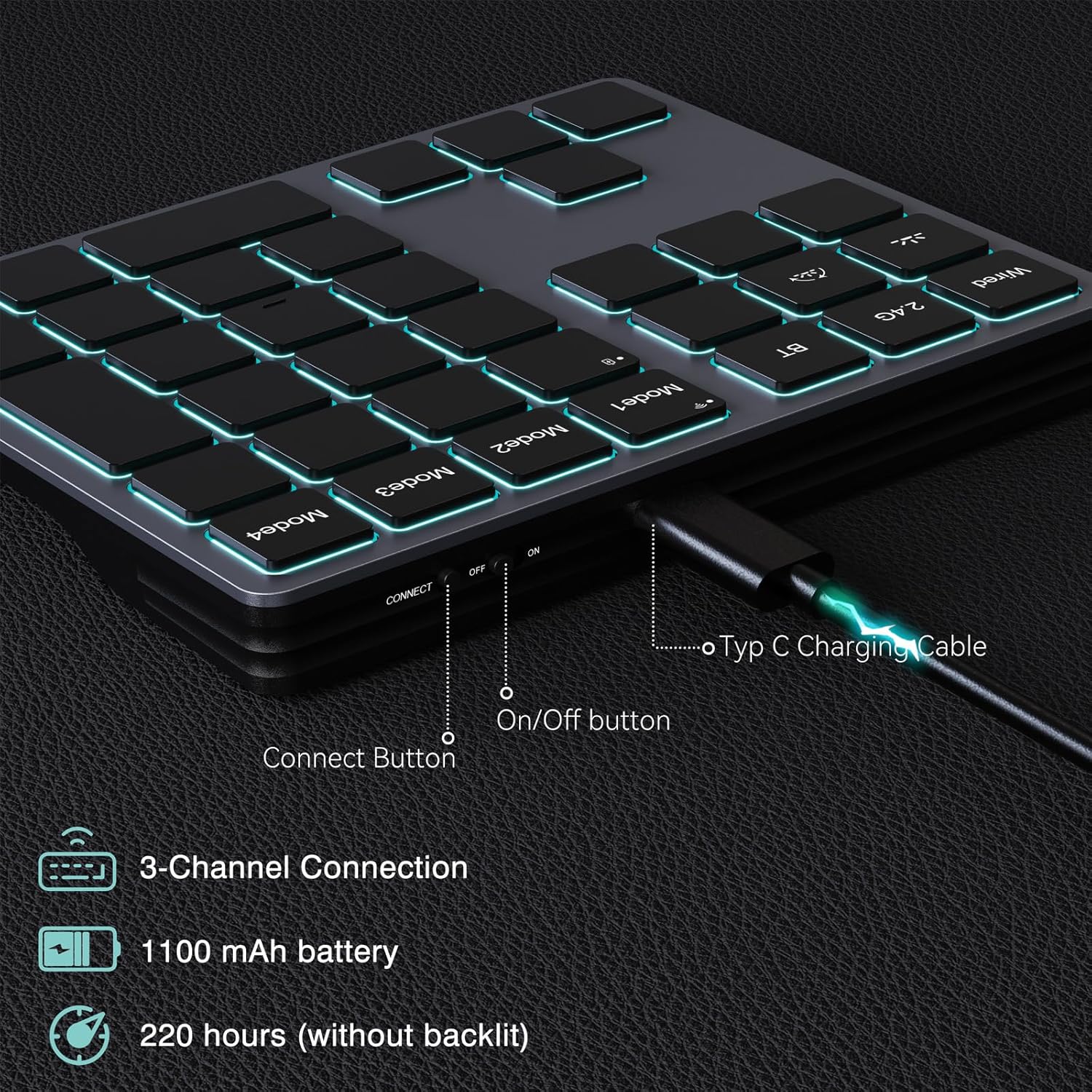
Image: The side of the Doohoeek K28 keyboard with the USB-C cable connected, indicating the power switch and connect button for initial setup.
3.2. Software Installation & Configuration
To program the keys, you must install the dedicated configuration software. This software is compatible with Windows devices only.
- Download the latest configuration software from the official Doohoeek website (refer to the included User Manual for the exact URL or QR code).
- Svarbu: For reliable and secure programming, all key customization must be performed while the keyboard is in wired mode. The software may prompt you to connect the device via USB-C if not already in wired mode.
- Once the software is installed and the keyboard is connected in wired mode, open the application.
- You can now assign complex macros, shortcuts, or text strings to any key by dragging and dropping functions from the preset list onto the virtual keyboard layout.
- After making changes, always click the "Apply" or "Save" button within the software to store your configurations. These settings are saved onboard the keyboard and will work across all wireless modes once configured.
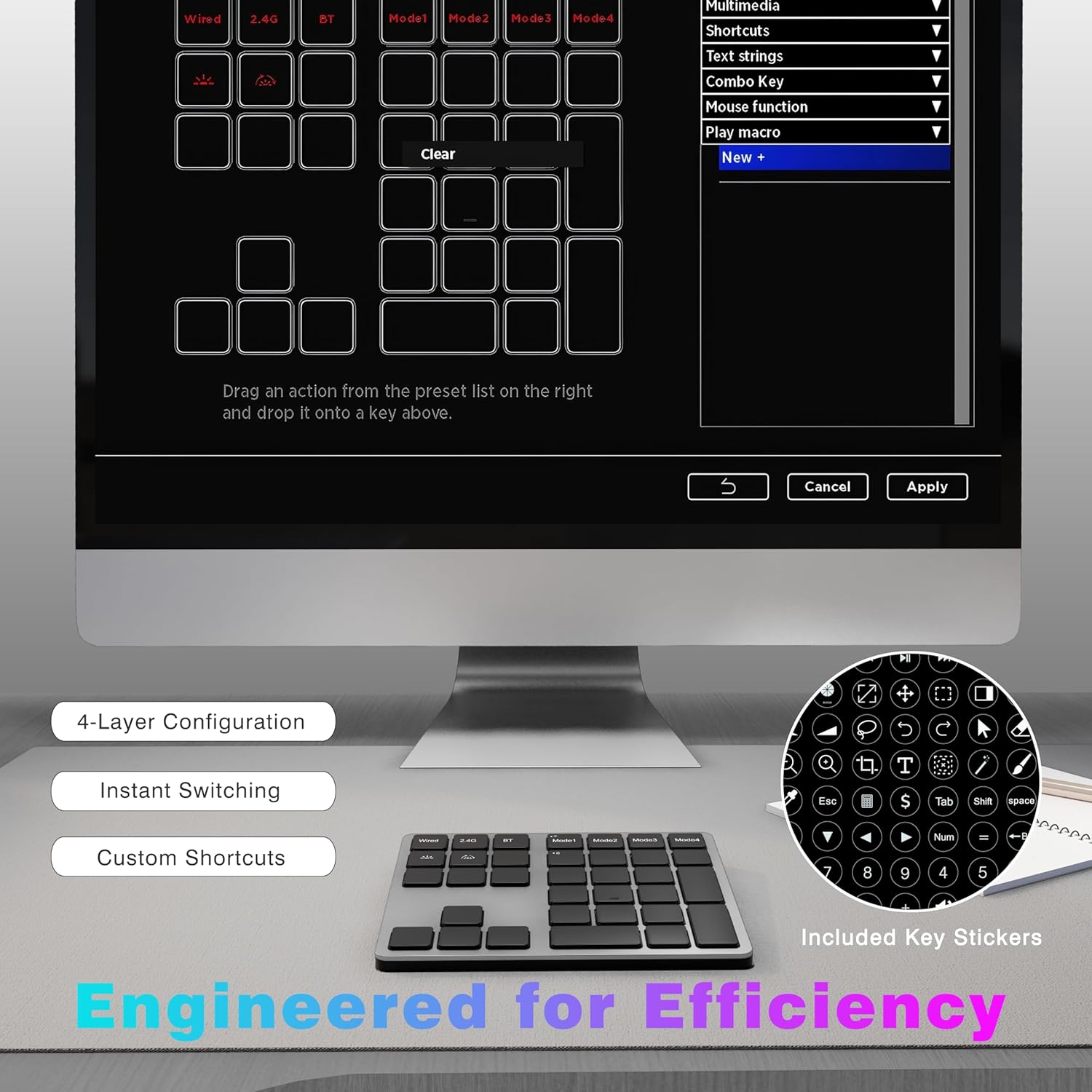
Image: The Doohoeek K28 configuration software interface, demonstrating how to drag and drop functions to customize keys.
Video: A step-by-step guide on how to configure the Doohoeek K28 keyboard using its dedicated software, including setting up combo keys and text strings.
3.3. Foninis apšvietimas
The keyboard features vibrant RGB backlighting with multiple effects. To adjust the backlighting:
- Press the dedicated brightness button (often marked with a sun icon) to adjust the brightness level.
- Press the dedicated color switch button (often marked with a circular arrow icon) to cycle through different lighting colors and effects.

Image: The Doohoeek K28 keyboard displaying its RGB backlighting, with indicators for brightness and color adjustment keys.
4. Naudojimo instrukcijos
4.1. Tri-Mode Connectivity & Device Switching
The Doohoeek K28 supports three connection modes: Wired, 2.4G Wireless, and Bluetooth (BT). It can pair with up to 3 devices simultaneously.
- Laidinis režimas: Connect the USB-C cable to your computer. The keyboard will automatically switch to wired mode.
- 2.4G belaidis režimas: Insert the 2.4G USB dongle into your computer. Press the "2.4G" button on the keyboard to activate this mode.
- „Bluetooth“ režimas: Press the "BT" button on the keyboard. On your device, search for "Doohoeek K28" in Bluetooth settings and pair.
- Perjungimo įrenginiai: Use the dedicated "Wired", "2.4G", or "BT" buttons to instantly switch between connected devices.

Image: The Doohoeek K28 keyboard positioned between a laptop and a desktop, illustrating its seamless device switching capability via Bluetooth, 2.4G, and wired connections.
4.2. 4-Layer Key Mapping
The keyboard allows you to create and switch between 4 distinct key layouts (layers) for different tasks or software. This is ideal for optimizing your workflow for various applications.
- Use the "Mode1", "Mode2", "Mode3", and "Mode4" keys to switch between the configured layers.
- Each layer can be programmed independently using the configuration software.

Image: The Doohoeek K28 keyboard displaying its four programmable modes, each configurable for specific applications or tasks.
4.3. Applying Shortcut Stickers
The included shortcut stickers can be applied to the keys to visually represent their assigned functions, especially useful for custom macros or less common shortcuts.
- Carefully peel off the desired sticker.
- Align it with the center of the keycap and press firmly.

Image: A user demonstrating one-handed operation of the Doohoeek K28 keyboard, highlighting its ergonomic design for efficient use.
5. Priežiūra
- Valymas: Klaviatūros paviršių nuvalykite minkšta, sausa šluoste. Įsisenėjusius nešvarumus lengvai nuvalykite.amp cloth with mild soap can be used, ensuring no liquid enters the key switches or ports.
- Saugykla: Klaviatūrą laikykite vėsioje, sausoje vietoje, apsaugotoje nuo tiesioginių saulės spindulių ir ekstremalių temperatūrų.
- Akumuliatoriaus priežiūra: To prolong battery life, avoid fully discharging the keyboard frequently. Charge it regularly, especially if not used for extended periods.
6. Problemų sprendimas
6.1. Klaviatūra nereaguoja
- Patikrinkite galią: Ensure the keyboard is switched "ON" and has sufficient battery charge. Connect via USB-C to charge.
- Laidinis ryšys: Verify the USB-C cable is securely connected to both the keyboard and the computer.
- 2.4G belaidis ryšys: Ensure the 2.4G dongle is properly inserted into a USB port and the keyboard is in 2.4G mode. Try a different USB port.
- „Bluetooth“ ryšys: Confirm Bluetooth is enabled on your device and the keyboard is paired. Re-pair if necessary.
6.2. Software Not Detecting Keyboard / Configuration Issues
- Wired Mode Required: Remember that key programming and configuration must be done in wired mode. Ensure the keyboard is connected via USB-C and the software recognizes it.
- Programinės įrangos diegimas iš naujo: If issues persist, try uninstalling and reinstalling the configuration software.
- Antivirusinė programa / užkarda: Temporarily disable your antivirus or firewall during software installation if you encounter warnings, as some legitimate software from smaller developers may be flagged. Re-enable after installation.
6.3. Neveikia foninis apšvietimas
- Ryškumo reguliavimas: Press the brightness control button to ensure it's not set to the lowest level.
- Baterijos lygis: Low battery can affect backlighting performance. Charge the keyboard fully.
7. Specifikacijos
| Funkcija | Detalė |
|---|---|
| Modelis | K28 |
| Ryšys | 2.4G belaidis ryšys, „Bluetooth 5.0“, USB-C laidinis ryšys |
| Raktų skaičius | 25 (Fully Programmable) |
| Key Mapping Layers | 4 |
| Foninis apšvietimas | RGB with Multiple Effects |
| Suderinami įrenginiai | Windows PC, Laptops, Tablets |
| Medžiaga | Akrilnitrilo butadieno stirenas (ABS) |
| Prekės svoris | 9.9 uncijos |
| Pakuotės matmenys | 6.22 x 4.84 x 1.26 colio |
| Maitinimo šaltinis | Įkraunama baterija |

Image: Detailed dimensions and weight of the Doohoeek K28 keyboard, emphasizing its compact and portable nature.
8. Garantija ir palaikymas
For warranty information, technical support, or further assistance, please refer to the contact details provided in your product packaging or visit the official Doohoeek websvetainę. Išsaugokite pirkimo čekį garantiniams reikalavimams.
Grąžinimo politika: This product is eligible for a refund/replacement within 30 days of purchase, as per Amazon's return policy.