
1. Įvadas
This manual provides essential information for setting up, operating, and maintaining your Zwide i3 CPU N305 2-in-1 Tablet Laptop. Please read this guide thoroughly before using the device to ensure optimal performance and longevity. Keep this manual for future reference.
2. Produktas baigtasview
2.1 Pagrindinės savybės
- Universalus „du viename“ dizainas: Operates as a laptop or tablet with a 360-degree rotatable 8-inch touchscreen.
- Operacinė sistema: Pre-installed with Windows 11 Pro for a comprehensive computing experience.
- High-Performance CPU: Equipped with an upgraded Intel N305 CPU (8 cores, 8 threads, up to 3.8GHz) for enhanced multi-tasking and performance.
- AmpAtmintis ir saugykla: Features 16GB LPDDR5 RAM and a 1TB SSD for efficient operation and storage. Storage is expandable up to 1TB via TF card.
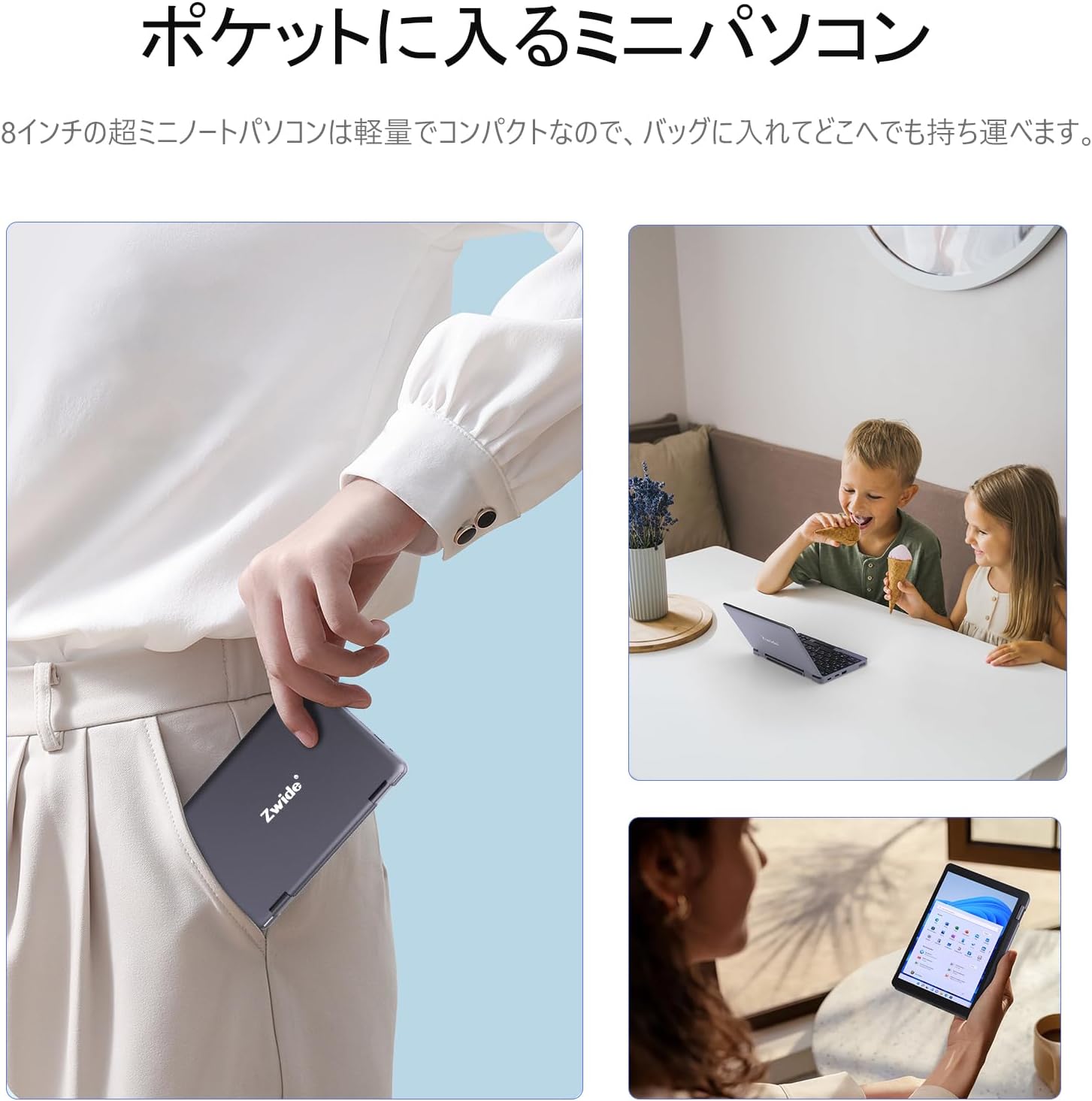
- Kompaktiškas ir nešiojamas: Ultra-compact size (20 x 13 x 1.8 cm) and lightweight design for easy portability.
- Saugus prisijungimas: Integrated fingerprint authentication on the power button for quick and secure access.
- Didelės raiškos ekranas: 8.4-inch HD display with 1920x1200 FHD resolution for clear visuals.
- Ryšys: Supports Bluetooth 5.2 for efficient wireless connections and Wi-Fi.
- Japanese Keyboard: Features a Japanese keyboard layout for localized input.
2.2 Įrenginio išdėstymas ir prievadai
Familiarize yourself with the physical components and connection ports of your Zwide 2-in-1 Tablet Laptop.
Vaizdas: Šoninė view of the Zwide 2-in-1 Tablet Laptop highlighting its various ports.
- USB 3.0 prievadai: For connecting USB devices such as external storage, mice, or keyboards.
- Mini HD Port: Skirta prijungti išorinius ekranus arba projektorius.
- TF kortelės lizdas: Skirta atminties išplėtimui naudojant TF (microSD) kortelę.
- Ausinių lizdas: Skirta ausinėms arba išoriniams garsiakalbiams prijungti.
- Įkrovimo prievadas: Skirta prijungti maitinimo adapterį įrenginiui įkrauti.
- LAN prievadas: Laidinio tinklo ryšiui.
- Thunderbolt Port (Type-C): Didelės spartos duomenų perdavimui, vaizdo išvesčiai ir energijos tiekimui.
3. Sąranka
3.1 Pradinis įkrovimas
Before first use, fully charge your Zwide 2-in-1 Tablet Laptop. Connect the provided power adapter to the charging port and plug it into a power outlet. The charging indicator light will show the charging status.
3.2 Įjungimas / išjungimas
- Norėdami įjungti: Press and hold the power button for a few seconds until the screen lights up.
- Norėdami išjungti: Go to the Start Menu in Windows, select Power, and then choose Shut down. Alternatively, press and hold the power button for approximately 10 seconds to force a shutdown (use only when necessary).
3.3 Pradinė „Windows“ sąranka
Upon first power-on, you will be guided through the Windows 11 Pro setup process. Follow the on-screen instructions to configure language, region, network settings, and user accounts.
3.4 Išorinių įrenginių prijungimas
You can connect various peripherals to your device:
- USB įrenginiai: Plug USB mice, external keyboards, or storage devices into the USB 3.0 ports.
- Išorinis ekranas: Use a Mini HD cable to connect to an external monitor or TV.
- TF kortelė: Insert a TF card into the designated slot for additional storage.
4. Naudojimo instrukcijos
4.1 2 viename režimai
Your device supports multiple modes thanks to its 360-degree hinge:
- Nešiojamojo kompiuterio režimas: Standartinė nešiojamojo kompiuterio konfigūracija rašymui ir produktyvumui.
- Planšetinio kompiuterio režimas: Fold the keyboard back completely for a full tablet experience with touchscreen interaction.
- Palapinės režimas: Stand the device in an inverted 'V' shape for media consumption or presentations.
- Stovėjimo režimas: Position the keyboard face down to use the screen as a display stand.

Image: Zwide 2-in-1 Tablet Laptop in traditional laptop mode.

Image: Zwide 2-in-1 Tablet Laptop converted to tablet mode.
4.2 Touchscreen and Keyboard Usage
- Jutiklinis ekranas: Use multi-touch gestures for navigation, zooming, and interaction in tablet mode or when the screen is accessible.
- Klaviatūra: The integrated Japanese keyboard features a backlight for use in low-light conditions. A trackpoint is also available for precise cursor control.
4.3 Fingerprint Login
To set up fingerprint authentication, navigate to Windows Settings > Accounts > Sign-in options. Follow the instructions to register your fingerprint. Once set up, you can securely log in by touching the power button with your registered finger.
4.4 Belaidis ryšys
- „Wi-Fi“: Norėdami prisijungti prie „Wi-Fi“ tinklo, užduočių juostoje spustelėkite „Wi-Fi“ piktogramą, pasirinkite norimą tinklą ir, jei būsite paraginti, įveskite slaptažodį.
- Bluetooth: To pair Bluetooth devices, go to Windows Settings > Devices > Bluetooth & other devices. Ensure Bluetooth is enabled on both your laptop and the device you wish to pair.
4.5 External Display Output
Connect an external display to the Mini HD port or Thunderbolt (Type-C) port. Once connected, press the Windows key + P to open the project menu and select your preferred display mode (e.g., Duplicate, Extend, Second screen only).
5. Priežiūra
5.1 Prietaiso valymas
- Ekranui ir išoriniams paviršiams valyti naudokite minkštą, nepūkuotą šluostę.
- Įsisenėjusioms dėmėms šiek tiek pamirkykiteampNuvalykite šluostę vandeniu arba ekranui saugiu valikliu.
- Venkite naudoti stiprias chemines medžiagas, abrazyvus ar tirpiklius.
5.2 Akumuliatoriaus priežiūra
- Norėdami pailginti akumuliatoriaus veikimo laiką, venkite dažnai visiškai jį iškrauti.
- Laikykite prietaisą vėsioje, sausoje vietoje, kai jo ilgesnį laiką nenaudojate.
- Nelaikykite prietaiso ekstremaliose temperatūrose.
5.3 Programinės įrangos naujiniai
Reguliariai tikrinkite, ar yra „Windows“ naujinimų, ir juos įdiekite, kad jūsų sistemoje būtų įdiegti naujausi saugos pataisymai ir našumo patobulinimai. Eikite į „Nustatymai“ > „Windows“ naujinimas.
5.4 Saugojimo valdymas
Periodiškai valykite nereikalingus files and applications to maintain optimal performance. Utilize cloud storage or external drives for large files to free up internal SSD space.
6. Problemų sprendimas
If you encounter issues with your Zwide 2-in-1 Tablet Laptop, refer to the following common solutions:
| Problema | Galimas sprendimas |
|---|---|
| Įrenginys neįsijungia | Įsitikinkite, kad įrenginys įkrautas. Prijunkite maitinimo adapterį ir bandykite dar kartą. Jei įrenginys nereaguoja, atlikite griežtą atkūrimą 10–15 sekundžių palaikydami maitinimo mygtuką. |
| Ekranas tuščias arba mirga | Restart the device. Check external display connections if applicable. Adjust display settings in Windows. |
| Wi-Fi or Bluetooth not connecting | Ensure Wi-Fi/Bluetooth is enabled in Windows settings. Restart the device and your router/Bluetooth device. Update network drivers. |
| Lėtas veikimas | Close unnecessary applications. Check for background processes. Ensure sufficient free storage space. Run a system scan for malware. |
| Pirštų atspaudų jutiklis neveikia | Ensure your finger is clean and dry. Re-register your fingerprint in Windows settings. |
If the problem persists, please contact Zwide customer support for further assistance.
7. Specifikacijos
| Funkcija | Detalė |
|---|---|
| Prekės ženklas | Zwide |
| Modelio pavadinimas | NA08H |
| Ekrano dydis | 8 colių |
| Spalva | Pilka |
| Standžiojo disko talpa | 1 TB (SSD) |
| CPU modelis | Intel N305 |
| CPU greitis | Iki 3.8 GHz |
| Įdiegtos RAM dydis | 16 GB (LPDDR5) |
| Operacinė sistema | Windows 11 Pro |
| Vaizdo plokštė | Integrated (Intel UHD Graphics) |
| Bluetooth versija | 5.2 |
| Ekrano raiška | 1920 x 1200 pikselių (Full HD) |
| Ekrano tipas | LCD |
| Max Display Brightness | 350 cd/m² |
| Belaidis tipas | Wi-Fi |
| Prekės matmenys (IxPxH) | 20 x 13 x 2 cm |
| Formos faktorius | Kabrioletas |
| Webkumštelis | Priekyje |
| Klaviatūros aprašymas | Backlit, Japanese Layout |
| Kontrolės metodas | Touch, Trackpoint |
| Modelio metai | 2025 |
| Įtraukti komponentai | Klaviatūra |
8. Oficialūs produktų vaizdo įrašai
8.1 Zwide 8-inch Mini Notebook PC Overview
Video: This video demonstrates the compact size, 360-degree rotation, and various usage modes of the Zwide 8-inch mini notebook PC, including tablet and laptop configurations, touch screen interaction, and port usage.
8.2 Zwide Pocket Handheld Mini Laptop Portability
Video: This video showcases the Zwide mini laptop's portability, demonstrating how it fits into a pocket and its use in various on-the-go scenarios.
8.3 Zwide 2-in-1 Tablet 8-inch Mini PC Functionality
Video: This video illustrates the 2-in-1 tablet functionality of an 8-inch mini PC, demonstrating its versatility and touch screen capabilities. Note: This video features an N100 CPU model, while the product is N305.
9. Garantija ir palaikymas
9.1 Informacija apie garantiją
Your Zwide 2-in-1 Tablet Laptop comes with a 1-year domestic warranty in JapanŠi garantija taikoma gamybos defektams ir aparatinės įrangos gedimams įprasto naudojimo metu. Išsaugokite pirkimo įrodymą, jei galėtumėte pateikti pretenzijas dėl garantijos.
9.2 Pagalba klientams
For technical assistance, warranty claims, or any other inquiries, please contact Zwide customer support through the official website or your retailer. Provide your model number (NA08H) and a detailed description of the issue for faster service.