
Įvadas
This manual provides detailed instructions for the setup, operation, and maintenance of your Doohoeek Keyboard Folio with Status Screen. This accessory is designed to enhance the functionality of your Samsung Galaxy Tab S11 11 inch 2025, transforming it into a versatile workstation with a comfortable typing experience and integrated protection.
Suderinamumas
This keyboard folio is exclusively compatible with the Samsung Galaxy Tab S11 11-inch 2025 (model numbers: SM-X730 ir SM-X736B).
Norėdami patikrinti planšetinio kompiuterio modelio numerį, eikite į Nustatymai > Apie planšetinį kompiuterį on your device, or check the back of your tablet for the printed model information.

Image: Illustration showing the keyboard folio's compatibility with the Samsung Galaxy Tab S11 2025 11-inch tablet.
Pagrindinės savybės
- Status Display Screen: Provides real-time information on battery level, connection status, and charging status.
- Foninio apšvietimo klavišai: Features 7 adjustable colors and 3 brightness levels for comfortable typing in various lighting conditions.
- Integruotas jutiklinis skydelis: Supports multi-touch gestures and palm-rejection technology for precise navigation.
- Any-Angle Kickstand: Allows for smooth adjustment of viewing angles in both horizontal and vertical orientations.
- Nuimama magnetinė klaviatūra: The keyboard can be easily detached from the folio for flexible use.
- S-Pen Holder: A dedicated cutout in the case securely holds and provides easy access to your S-Pen.
- Įkraunama baterija: Built-in 650mAh battery for extended use.
- Žirkliniai jungiklio klavišai: Provides a tactile and responsive typing experience.
- Bluetooth ryšys: Ensures a stable wireless connection to your tablet.

Vaizdas: Stambus planas view of the keyboard's status display screen, showing indicators for pairing, wireless connection, and battery level.

Paveikslėlis: Du views of the keyboard folio, highlighting the 7-color backlit keys and 3 brightness levels.

Vaizdas: Išsamus view of the keyboard folio showing the exact cutout for the S-Pen, the rechargeable battery, and the scissor-switch key mechanism.
Sąranka
1. Inserting the Tablet
- Gently align your Samsung Galaxy Tab S11 11-inch 2025 with the case's frame.
- Press the tablet firmly into the case until it is securely seated. Ensure all edges are properly covered by the protective frame.
2. Klaviatūros įkrovimas
- Locate the charging port on the keyboard (typically USB-C).
- Connect the provided charging cable to the keyboard and a suitable USB power adapter.
- The status display screen will indicate charging status. A full charge typically takes approximately 2-3 hours.
3. „Bluetooth“ poravimas
- Įsitikinkite, kad klaviatūra yra įkrauta ir įjungta.
- Klaviatūroje paspauskite ir palaikykite Fn + C keys simultaneously for 1 second. The status display screen will show "Pairing..." and the Bluetooth indicator will flash.
- On your Samsung Galaxy Tab S11, go to Nustatymai > Prijungti įrenginiai > „Bluetooth“.
- Įjunkite „Bluetooth“ ir ieškokite galimų įrenginių.
- Select "Doohoeek Keyboard" (or similar name) from the list of devices.
- Follow any on-screen prompts to complete the pairing process. The status display screen will show "Wireless Keyboard Connected" once pairing is successful.

Image: Illustration demonstrating the pairing process, showing the keyboard's status display screen indicating "Pairing..." and "Wireless Keyboard Connected".
Naudojimo instrukcijos
1. Using the Keyboard and Trackpad
- Rašant: The QWERTY layout with scissor-switch keys provides a familiar and comfortable typing experience.
- Trackpad: Use the integrated trackpad for precise cursor control. It supports standard multi-touch gestures for scrolling, zooming, and other functions. Palm-rejection technology helps prevent accidental inputs.

Image: Illustration demonstrating the multi-touch trackpad and palm-rejection feature, showing hands interacting with the trackpad.
2. Foninio apšvietimo reguliavimas
- To change backlight colors, press the Fn + Light bulb icon key. Cycle through the 7 available colors.
- To adjust backlight brightness, press the Fn + Up/Down arrow keys (or specific brightness keys if available). There are 3 brightness levels.
3. Using the Any-Angle Stand
- The integrated kickstand on the back of the folio allows you to prop up your tablet.
- Adjust the stand to achieve your desired viewing angle for both horizontal (landscape) and vertical (portrait) orientations.

Image: Illustration showing the keyboard folio with the tablet in various viewing angles, demonstrating the versatility of the any-angle stand for both horizontal and vertical use.
4. Detaching the Keyboard
- The keyboard is held in place by strong magnets. To detach, simply pull the keyboard away from the folio.
- This allows for lighter tablet use when typing is not required, or for more flexible positioning of the keyboard.
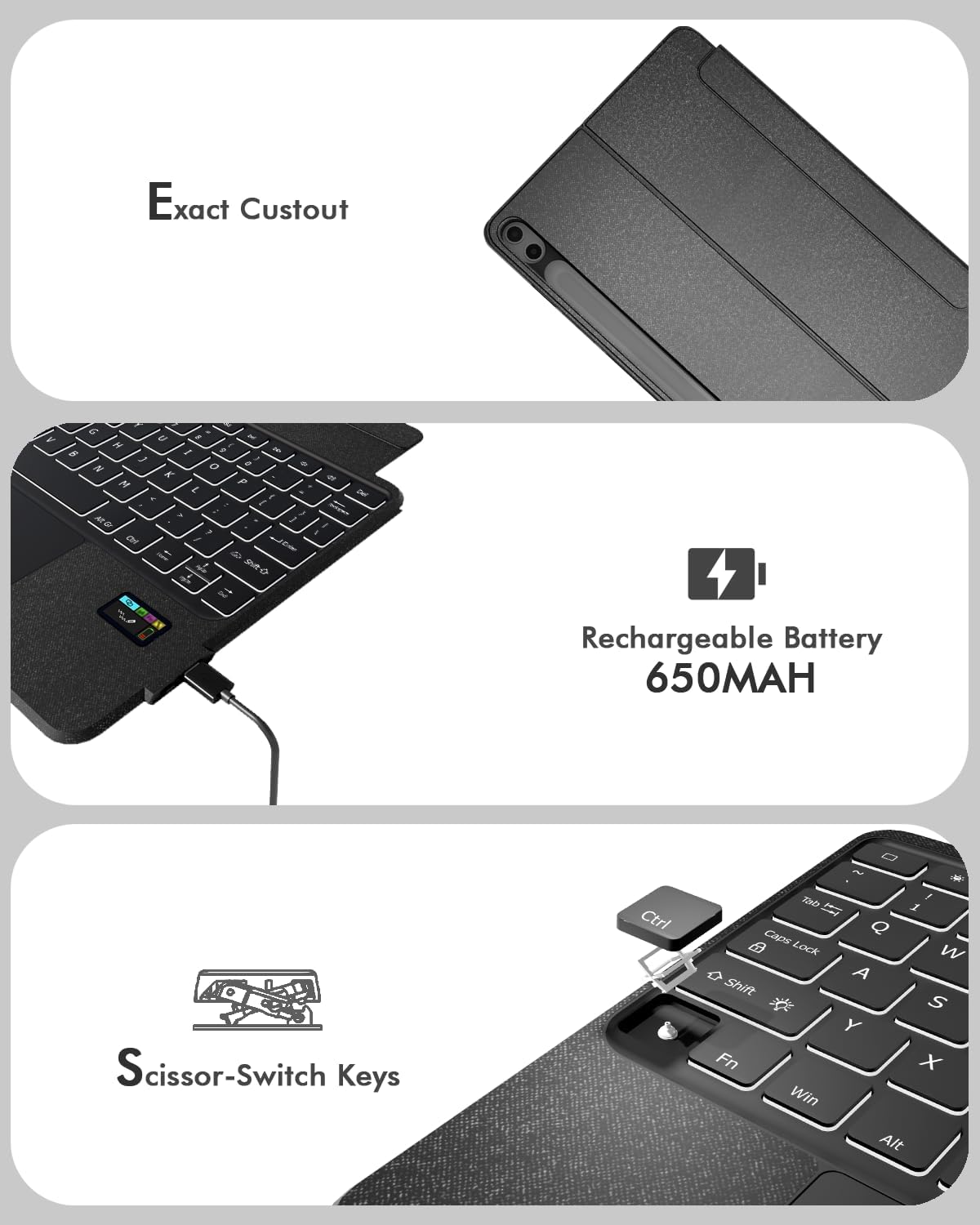
Image: The keyboard folio with the keyboard detached, showcasing the tablet propped up by the kickstand and the separate keyboard unit.
5. S-Pen Access
- The case features a dedicated cutout on the back for storing your S-Pen.
- To retrieve the S-Pen, gently push it through the cutout from the back of the case.
Image: Illustration showing the S-Pen being stored and retrieved from the dedicated holder on the tablet case.
Priežiūra
Valymas
- Klaviatūrai ir korpusui valyti naudokite minkštą,amp audinys.
- Avoid using harsh chemicals or abrasive cleaners, as these can damage the surface.
- Prieš valydami, įsitikinkite, kad klaviatūra yra išjungta ir atjungta nuo bet kokio maitinimo šaltinio.
Akumuliatoriaus priežiūra
- For optimal battery life, avoid fully discharging the keyboard frequently.
- Kai klaviatūra ilgesnį laiką nenaudojama, laikykite ją vėsioje, sausoje vietoje.
Trikčių šalinimas
Klaviatūra neprisijungia / nereaguoja
- Patikrinkite akumuliatorių: Ensure the keyboard has sufficient charge. Refer to the status display screen.
- Iš naujo susiekite „Bluetooth“: If the connection is lost, try re-pairing the keyboard with your tablet following the "Bluetooth Pairing" steps in the Setup section.
- Iš naujo paleiskite įrenginius: Turn off and on both your tablet and the keyboard, then attempt to reconnect.
Keyboard Entering Sleep Mode Too Quickly
- The keyboard is designed to enter a power-saving sleep mode after a period of inactivity.
- To wake it up, simply press any key. There might be a slight delay for the first few keystrokes as it reconnects.
Foninis apšvietimas neveikia
- Patikrinkite akumuliatorių: Žemas akumuliatoriaus įkrovos lygis gali paveikti foninio apšvietimo veikimą. Įkraukite klaviatūrą.
- Nustatykite nustatymus: Ensure the backlight is turned on and brightness is set to a visible level using the Fn key combinations.
Specifikacijos
| Prekės ženklas | Doohoek |
| Suderinami įrenginiai | Samsung Galaxy Tab S11 11-inch 2025 (SM-X730/SM-X736B) |
| Ryšio technologija | Bluetooth |
| Klaviatūros aprašymas | Keyboard Folio with Status Screen |
| Ypatingos savybės | Backlit, Built-In Screen, Integrated Stand, Trackpad, Removable Keyboard |
| Medžiaga | Plastikiniai |
| Maitinimo šaltinis | Įkraunama baterija (650 mAh) |
| Jungiklio tipas | Mechanical (Scissor-Switch) |
| Klaviatūros išdėstymas | QWERTY |
| Raktų skaičius | 84 |
Garantija
This Doohoeek Keyboard Folio comes with a 1 metų garantija nuo įsigijimo datos. Ši garantija taikoma gamybos defektams ir gedimams įprasto naudojimo sąlygomis. Ji netaikoma žalai, atsiradusiai dėl netinkamo naudojimo, nelaimingų atsitikimų, neleistinų modifikacijų ar įprasto nusidėvėjimo.
Išsaugokite pirkimo įrodymą, kad galėtumėte kreiptis dėl garantijos.
Palaikymas
For technical assistance, troubleshooting beyond this manual, or warranty inquiries, please contact Doohoeek customer support through the retailer where the product was purchased or visit the official Doohoeek websvetainė kontaktinei informacijai.