
Įvadas
This manual provides essential information for the installation, operation, and maintenance of your ZTE G5 Max (MC7530) 5G Outdoor CPE. The G5 Max is a high-performance 5G outdoor customer-premises equipment designed to deliver ultra-high-speed 5G FWA (Fixed Wireless Access) services. It supports 5G-NR-REL.17 technology, features a POE network interface, and high-gain 4MIMO antennas. When paired with an indoor Wi-Fi router, it enables advanced applications like 5G AR, cloud gaming, and 4K video.
Pakuotės turinys
Prašome patikrinti, ar pakuotėje yra visi reikalingi daiktai:
- ZTE G5 Max (MC7530) 5G Outdoor CPE unit
- AC Adapter (PoE adapter)
- Ethernet kabelis (PoE ryšiui)
- Greitos pradžios vadovas
- Installation accessories for wall and pole mounting
Produktas baigtasview
Įrenginio išdėstymas
The ZTE G5 Max (MC7530) is designed for outdoor deployment. It features LED indicators and a LAN (PoE) port for connectivity.
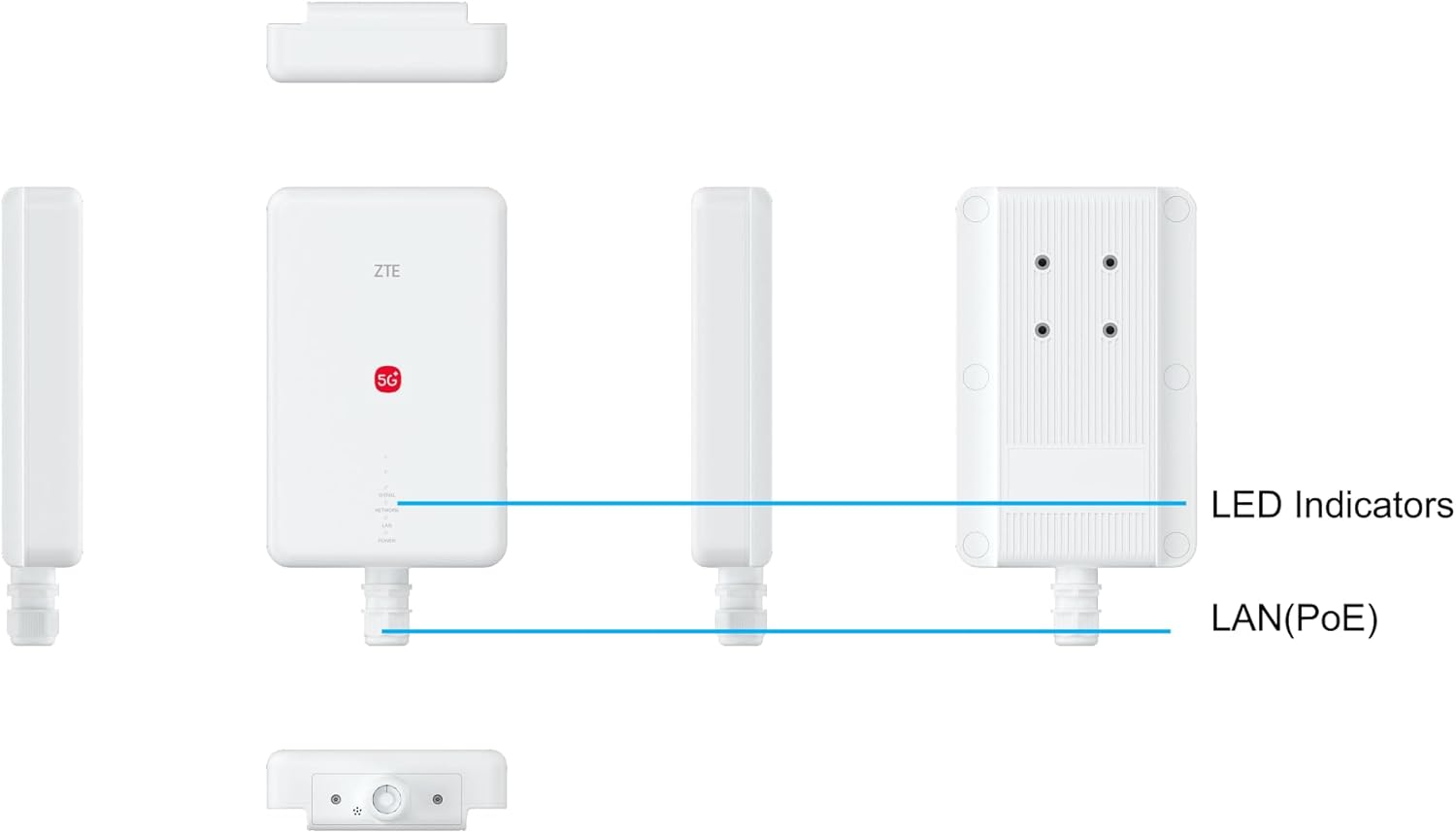
Vaizdas: Diagram illustrating the ZTE G5 Max (MC7530) with labels for LED Indicators and the LAN (PoE) port.
LED indikatoriai
The device features several LED indicators to show its operational status:
- Signalas: Indicates the strength of the 5G/4G cellular signal.
- Tinklas: Indicates network connectivity status.
- LAN: Indicates the status of the LAN (PoE) port connection.
- Galia: Nurodo įrenginio maitinimo būseną.
Sąrankos instrukcijos
1. SIM kortelės montavimas
The device supports a 4FF SIM card. Locate the SIM card slot, typically protected by a cover, and insert your activated 4FF SIM card. Ensure the SIM card is correctly oriented and securely seated.
2. Mounting the CPE
The ZTE G5 Max is an outdoor unit and should be mounted in a location with optimal cellular signal reception, away from obstructions. Use the provided installation accessories for secure wall or pole mounting. Consider the proximity to your indoor network equipment for the Ethernet cable run.
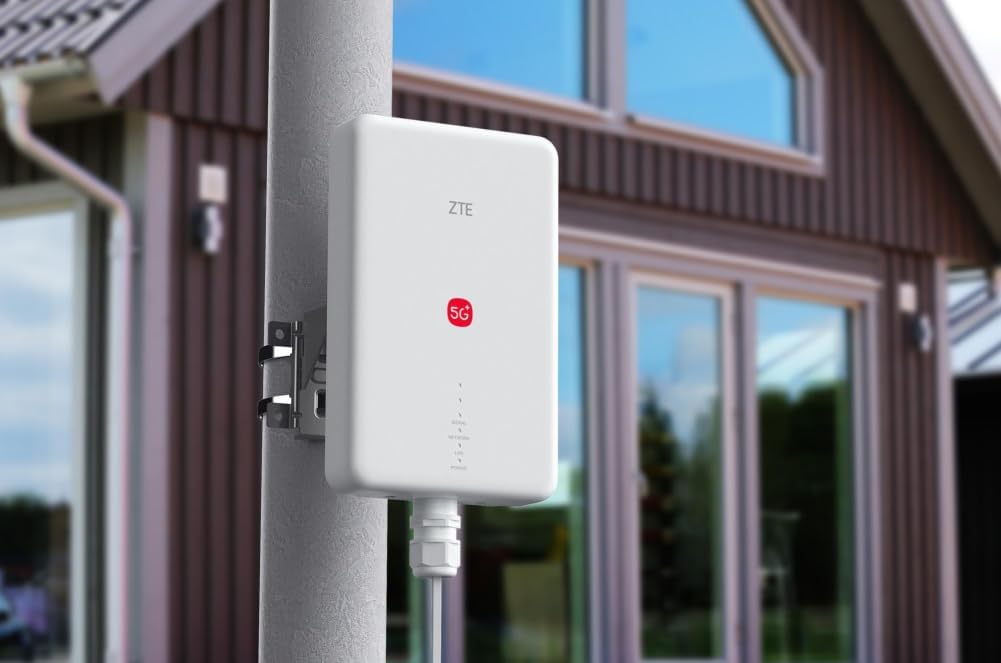
Vaizdas: ZTE G5 Max (MC7530) 5G Outdoor CPE mounted on an outdoor pole, demonstrating a typical installation scenario.

Vaizdas: ZTE G5 Max (MC7530) 5G Outdoor CPE mounted on an exterior wall of a building.

Vaizdas: ZTE G5 Max (MC7530) 5G Outdoor CPE mounted on a window frame, showing an alternative installation method.
3. Maitinimas ir tinklo jungtis (PoE)
Connect the provided PoE adapter to a power outlet. Use an Ethernet cable to connect the PoE adapter's "PoE Out" port to the LAN (PoE) port on the ZTE G5 Max. Then, connect the "LAN In" port of the PoE adapter to your indoor Wi-Fi router or network switch. This single Ethernet cable provides both power and data connectivity to the outdoor CPE.
Naudojimo instrukcijos
Once powered on, the ZTE G5 Max will automatically attempt to connect to the 5G/4G cellular network. Monitor the LED indicators to confirm successful connection:
- Maitinimo šviesos diodas: Should be solid green when powered on.
- Signalo šviesos diodas: Will indicate signal strength. More bars or a solid green light typically means good signal.
- Tinklo šviesos diodas: Should indicate active network connection.
- LAN šviesos diodas: Should indicate active connection to your indoor network.
For advanced settings and network configuration, access the device's web management interface through a computer connected to your indoor network. Refer to the Quick Start Guide for default IP address and login credentials.
Techninės specifikacijos
| Funkcija | Aprašymas |
|---|---|
| Modelio pavadinimas | MC7530 |
| 5G NR sąsaja | 3GPP Release 17, supports NSA and SA modes |
| 5G NR dažniai | N1/3/7/38/78 (4MIMO support) |
| 4G LTE sąsaja | 3GPP DL Category 20, UL Category 18 |
| 4G LTE Frequencies | B1/3/7/38 (4MIMO support) |
| Antenna Gain (700-960 MHz) | 2 dBi |
| Antenna Gain (1400-2700 MHz) | 3 dBi |
| Antenna Gain (3300-4200 MHz) | 5 dBi (Omni) and 13 dBi (Directional) |
| 5G ENDC Speed (DL/UL) | 3.66 Gb/s / 180 Mb/s |
| 5G SA Speed (DL/UL) | 4.29 Gb/s / 160 Mb/s |
| LTE FDD Speed (DL/UL) | 2.0 Gb/s / 200 Mb/s |
| RJ45 sąsaja | 1 x 2.5GE, PoE support |
| USB sąsaja | 1 x Type-C (for debugging) |
| SIM lizdas | 4FF / eSIM compatibility (Note: eSIM menu availability may vary by firmware version) |
| Ypatingos savybės | AR Support, 4MIMO, PoE, Weather-resistant |
| Operacinė sistema | ZyNOS |
| Suderinami įrenginiai | Asmeninis kompiuteris |
| Belaidžio ryšio standartas | 802.11ac, 802.11ax (Note: Refers to capabilities when integrated with a compatible indoor Wi-Fi router) |
| Antenos tipas | Pataisyta |
| Kilmės šalis | Kinija |
Trikčių šalinimas
Nėra tinklo ryšio
- Check SIM card: Ensure it is correctly inserted and activated with your mobile network provider.
- Check LED indicators: Verify Power, Signal, and Network LEDs are active and indicate a good status. Refer to the "Product Overview" section for LED meanings.
- Check cable connections: Ensure the Ethernet cable between the CPE and PoE adapter, and the PoE adapter and indoor router, is securely connected.
- Signalo stiprumas: If the Signal LED indicates low strength, try adjusting the CPE's position or orientation for better reception.
- Iš naujo nustatyti įrenginį: Locate the reset hole on the device and use a pin to press and hold the reset button for approximately 10 seconds to restore factory settings. Pastaba: tai ištrins visus pasirinktinius nustatymus.
Lėti greičiai
- Patikrinkite signalo stiprumą: Ensure the CPE has optimal signal reception. A weak signal will result in lower speeds.
- Verify network congestion: High network traffic in your area or from your service provider can affect speeds.
- Check indoor network: Ensure your indoor Wi-Fi router and connected devices are not experiencing issues or bandwidth saturation.
Priežiūra
The ZTE G5 Max (MC7530) is designed for outdoor use and is weather-resistant. However, regular checks can ensure optimal performance and longevity:
- Keep the exterior clean: Periodically wipe down the device to remove dust, dirt, or debris that might accumulate, especially around vents or ports.
- Inspect cables: Check the Ethernet cable for any signs of wear, cuts, or damage, especially where it enters the device or is exposed to environmental elements.
- Firmware atnaujinimai: Reguliariai tikrinkite gamintojo oficialią website for available firmware updates to ensure the device has the latest features, performance improvements, and security patches.
Garantija ir palaikymas
Informacija apie garantiją
The product typically comes with a standard return policy. For specific warranty terms and conditions, please refer to your purchase documentation or contact your retailer. Information regarding spare parts availability and software update guarantees is currently listed as unavailable.
Techninė pagalba
For technical assistance, please contact your product vendor or refer to the official ZTE support channels. Ensure you have your model number (MC7530) and purchase details ready when seeking support.


