
1. Įvadas
Welcome to the COLORROOM Kids Tablet A30L1 EVA user manual. This guide provides essential information to help you set up, operate, and maintain your new tablet. Designed for children aged 3-12, this tablet offers a safe and engaging digital environment for learning and entertainment, featuring robust parental controls and a durable design.
2. Saugos informacija
- Priežiūra: Always supervise children during tablet use.
- Įkrovimas: Use only the provided charger and cable. Do not use the tablet while charging.
- Vandens ekspozicija: Keep the tablet away from water and moisture.
- Temperatūra: Venkite ekstremalių temperatūrų.
- Valymas: Clean the tablet with a soft, dry cloth. Do not use liquid cleaners.
- Ekrano laikas: Utilize parental controls to manage screen time and prevent excessive use.
3. Pakuotės turinys
Patikrinkite, ar pakuotėje yra visi reikalingi daiktai:
- COLORROOM Kids Tablet A30L1 EVA (with EVA Protective Case)
- USB-C kabelis
- Maitinimo adapteris
- Vartotojo vadovas (šis dokumentas)
Vaizdo įrašo aprašymas: This video demonstrates the unboxing process of the COLORROOM Kids Tablet, showcasing the tablet, its protective EVA case, and included accessories like the charging cable and adapter.
4. Sąranka
4.1 Pradinis įjungimas
- Paspauskite ir palaikykite maitinimo mygtuką (esantį šone), kol ekranas užsidegs.
- Vykdykite ekrane pateikiamus nurodymus, kad pasirinktumėte kalbą ir regioną.
4.2 Prisijungimas prie „Wi-Fi“.
- From the home screen, tap the 'Settings' icon.
- Select 'Network & internet' then 'Wi-Fi'.
- Iš sąrašo pasirinkite savo „Wi-Fi“ tinklą ir įveskite slaptažodį.
- Palieskite „Prisijungti“.
4.3 Setting up Google Kids Space and Parental Controls
The tablet comes with Google Kids Space pre-installed, offering a curated selection of apps, books, and videos for children. Parental controls are managed through Google Family Link.
- Open the 'Google Kids Space' app.
- Follow the instructions to set up a child profile and link it to your Google Family Link account on your smartphone.
- On your smartphone, download and install the Google Family Link app.
- Use the Family Link app to manage your child's device, including app usage, screen time limits, and content restrictions.

Vaizdo aprašymas: A close-up of the COLORROOM Kids Tablet screen displaying the Google Kids Space interface with various child-friendly app icons for playing, reading, watching, and creating.
Vaizdo įrašo aprašymas: This video demonstrates how to use Google Family Link on a parent's smartphone to manage app restrictions and usage time for the child's tablet, ensuring a safe digital experience.
5. Planšetinio kompiuterio valdymas
5.1 Pagrindinė navigacija
- Jutiklinis ekranas: Palieskite, kad pasirinktumėte, braukite, kad slinktumėte, suspauskite, kad priartintumėte.
- Pagrindinis ekranas: Access all installed apps and widgets.
- Pranešimai: Braukite žemyn nuo ekrano viršaus iki view pranešimai ir greitieji nustatymai.
5.2 Using Educational Apps and Content
The tablet provides access to thousands of high-quality educational content, including picture books, educational comics, children's books, early learning apps for alphabet and numbers, programming tools, and interactive games.

Vaizdo aprašymas: The COLORROOM Kids Tablet in its purple EVA case, displaying a vibrant home screen with various educational and entertainment app icons, including STEM, ABC, and drawing applications.
Vaizdo įrašo aprašymas: This video highlights the diverse range of educational apps available on the tablet, covering subjects like English, Kanji, and arithmetic, along with learning manga, children's books, games, and videos.
5.3 Accessing YouTube Kids
YouTube Kids is designed for children, offering a safe and easy way to enjoy videos. Filters can be flexibly adjusted according to your child's growth.
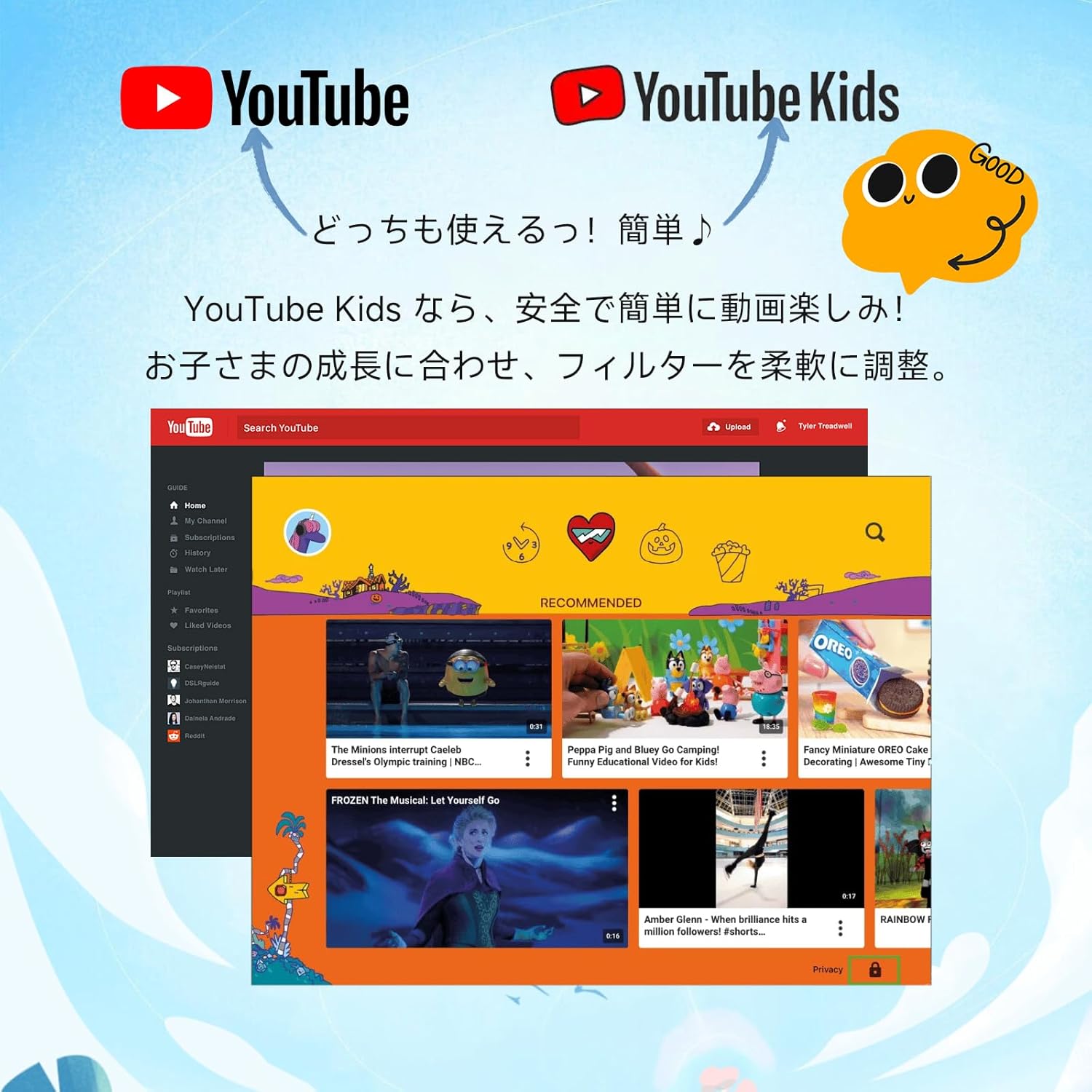
Vaizdo aprašymas: An image comparing the interfaces of standard YouTube and YouTube Kids, emphasizing the child-friendly design and content filtering of YouTube Kids.
5.4 Kameros naudojimas
The tablet features a 5MP front camera and an 8MP rear camera for capturing photos and videos.

Vaizdo aprašymas: An illustration highlighting the 5MP front camera and 8MP rear camera of the COLORROOM Kids Tablet, with example photos of children.
5.5 AR Zoo Application
Explore augmented reality with the pre-installed AR Zoo app. Scan animal pictures to bring them to life on your tablet screen.
Vaizdo įrašo aprašymas: This video demonstrates the AR Zoo game, where users can scan animal cards with the tablet's camera to see 3D augmented reality animals appear on the screen.
6. Tėvų kontrolė
The tablet is equipped with comprehensive parental controls to ensure a safe and educational experience for your child. These features are primarily managed through the Google Family Link app on your smartphone.
- Custom Child Profiles: Sukurkite individualų profesionaląfiles kiekvienam vaikui.
- Laiko limitai: Set precise daily usage limits in 15-minute increments to prevent overuse.
- App Approval: Individually approve safe apps and websvetaines.
- Content Monitoring: Easily check your child's device usage and content viewred.
- Mokymosi tikslai: Set learning objectives, and restrict entertainment content until goals are met.
- GPS funkcija: Monitor the tablet's location through the Family Link app.

Vaizdo aprašymas: A visual representation of the parental control dashboard, showing options for setting shutdown times, app restrictions, and educational goals for child profiles.
7. Funkcijos Overview
7.1 Ekranas
- Dydis: 10.1 colių
- Rezoliucija: 1280x800 HD IPS ekranas
- „Widevine“ 1 lygio palaikymas: Ensures high-quality streaming for services like Netflix and YouTube.

Vaizdo aprašymas: The tablet screen showing a comparison between L1 (1080P) and L3 (720P) Widevine levels, indicating support for high-definition content streaming.
Vaizdo įrašo aprašymas: This video showcases the 10.1-inch large screen of the tablet, highlighting its visual quality for children's content.
7.2 Našumas
- Operacinė sistema: Android 16 (personalized, secure, user-friendly)
- CPU: 2.0 GHz aštuonių branduolių
- RAM: 24 GB (4 GB fizinė + 20 GB virtualioji išplėtimo atmintis)
- Vidinė saugykla: 64 GB ROM
- Išplečiama saugykla: Supports microSD cards up to 1TB

Vaizdo aprašymas: The tablet screen displaying the Android 16 operating system, emphasizing enhanced privacy, improved operability, and AI features for a smart daily experience.
7.3 Baterija
- Talpa: 6000 mAh
- Baterijos veikimo laikas: Iki 8 valandų nepertraukiamo naudojimo
- Supports fast charging and features low power consumption.

Vaizdo aprašymas: The tablet screen showing a charging battery icon, alongside images of children using the tablet for studying, playing games, and watching videos, illustrating its long battery life.
7.4 Apsauga
- EVA Protective Case: Lightweight and shock-absorbing, providing excellent protection against drops.
- 360-degree Rotating Handle/Stand: Allows for vertical or horizontal viewing and easy portability.
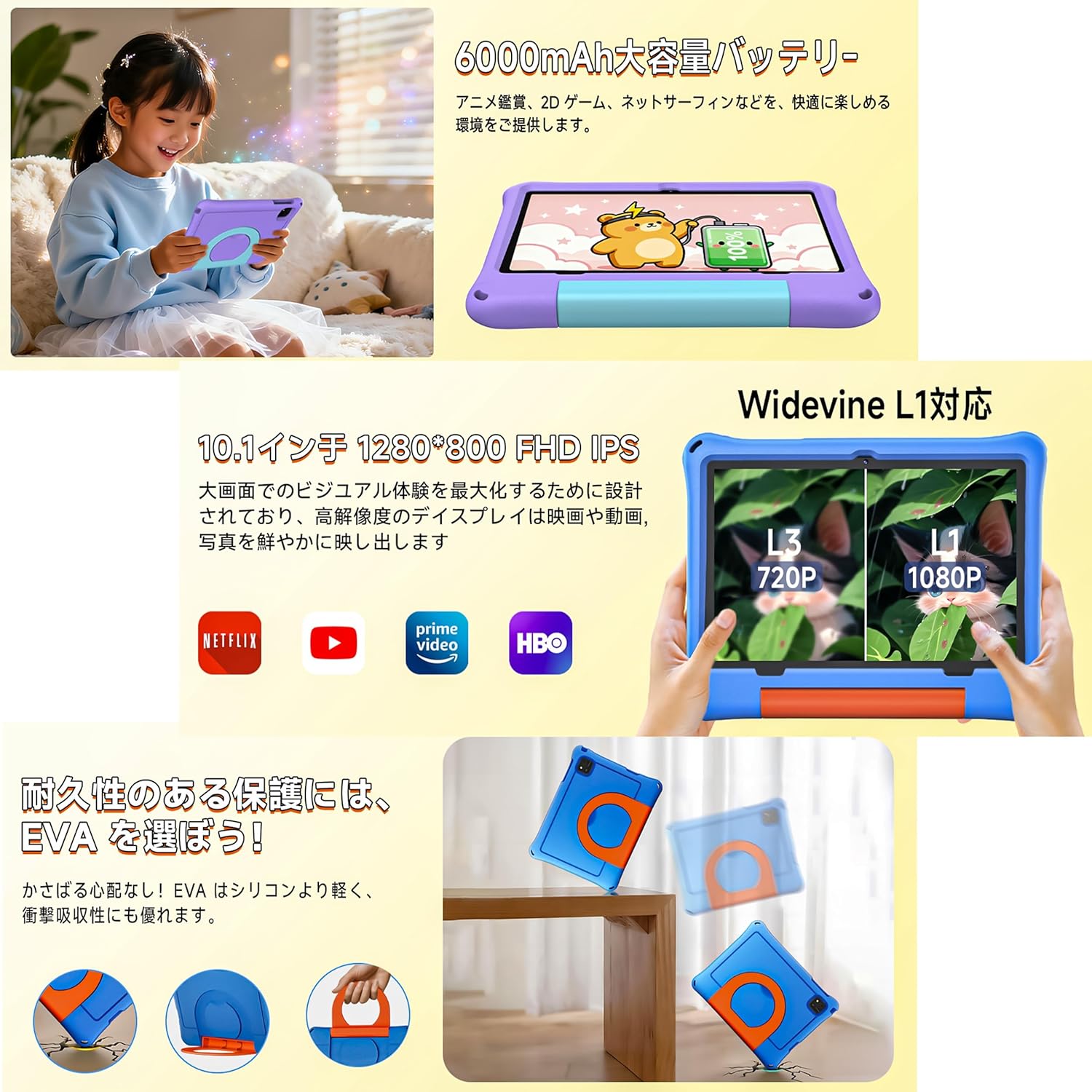
Vaizdo aprašymas: The tablet in its EVA case, highlighting its shock-absorbing properties with illustrations of drops and the versatile 360-degree rotating handle that doubles as a stand.
Vaizdo įrašo aprašymas: This video demonstrates the 360-degree rotating handle/stand and the durable, shock-resistant case of a 7-inch kids tablet. Note: This product is a 10.1-inch tablet, but features similar case design.
8. Priežiūra
8.1 Planšetinio kompiuterio valymas
Planšetinio kompiuterio ekranui ir korpusui valyti naudokite minkštą, nepūkuotą šluostę. Įsisenėjusias dėmes šiek tiek nuvalykite.ampNuvalykite šluostę vandeniu. Venkite naudoti stiprias chemines medžiagas ar abrazyvines medžiagas.
8.2 Akumuliatoriaus priežiūra
- Venkite dažnai visiškai iškrauti akumuliatorių.
- Do not leave the tablet connected to the charger for extended periods after it's fully charged.
- Ilgą laiką nenaudojamą tabletę laikykite vėsioje, sausoje vietoje.
8.3 Programinės įrangos naujiniai
Periodically check for system updates to ensure optimal performance and security. Go to 'Settings' > 'System' > 'System update' to check for and install available updates.
9. Problemų sprendimas
- Planšetinis kompiuteris neįsijungia: Įsitikinkite, kad akumuliatorius įkrautas. Prijunkite įkroviklį ir bandykite dar kartą.
- Ekranas užstrigo: Paspauskite ir palaikykite maitinimo mygtuką maždaug 10 sekundžių, kad priverstumėte paleisti iš naujo.
- „Wi-Fi“ ryšio problemos: Check if your Wi-Fi router is working correctly. Restart the tablet and try reconnecting.
- Programėlės stringa: Clear the app's cache in 'Settings' > 'Apps' > [App Name] > 'Storage' > 'Clear cache'. If the issue persists, reinstall the app.
- Lėtas veikimas: Uždarykite nereikalingas fonines programas. Išvalykite talpyklą ir laikinąsias files. Consider a factory reset if problems continue (back up data first).
10. Specifikacijos
| Funkcija | Specifikacija |
|---|---|
| Prekės ženklas | SPALVOS KAMBARYS |
| Modelio pavadinimas | A30L1 EVA |
| Operacinė sistema | Android 16 |
| CPU | 2.0 GHz Octa-Core (Unisoc) |
| RAM | 24 GB (4GB + 20GB virtual) |
| Sandėliavimas | 64 GB (išplečiama iki 1 TB per „microSD“) |
| Ekrano dydis | 10.1 colių |
| Ekrano raiška | 1280x800 pixels HD IPS |
| Priekinė kamera | 5 MP |
| Galinė kamera | 8 MP |
| Baterijos talpa | 6000 mAh |
| Baterijos veikimo laikas | Iki 8 valandų |
| Ryšys | „Wi-Fi“ (802.11ac), „Bluetooth“ |
| Matmenys | 32 x 22.4 x 3.6 cm |
| Svoris | 500 g |
11. Garantija ir palaikymas
The COLORROOM Kids Tablet A30L1 EVA comes with a 1 metų kokybės užtikrinimo paslauga. If you encounter any issues with the product, please contact our specialized after-sales service team promptly. We are committed to providing efficient support to resolve your concerns and exceed your expectations.
For support, please refer to the contact information provided with your purchase or visit the COLORROOM brand store on Amazon.