
Tongtion TGN-W3401-B-YK-001
Tongtion Wireless Display Dongle Adapter User Manual
Model: TGN-W3401-B-YK-001
1. Įvadas
Thank you for choosing the Tongtion Wireless Display Dongle Adapter. This device provides a seamless and portable solution for mirroring content from your smartphone, PC, or tablet to a larger display such as a TV, monitor, or projector. Featuring 1080p HDMI streaming, 5GHz WiFi, and support for AirPlay and Miracast, it offers a plug-and-play experience for various applications including business presentations, home entertainment, and multimedia education.
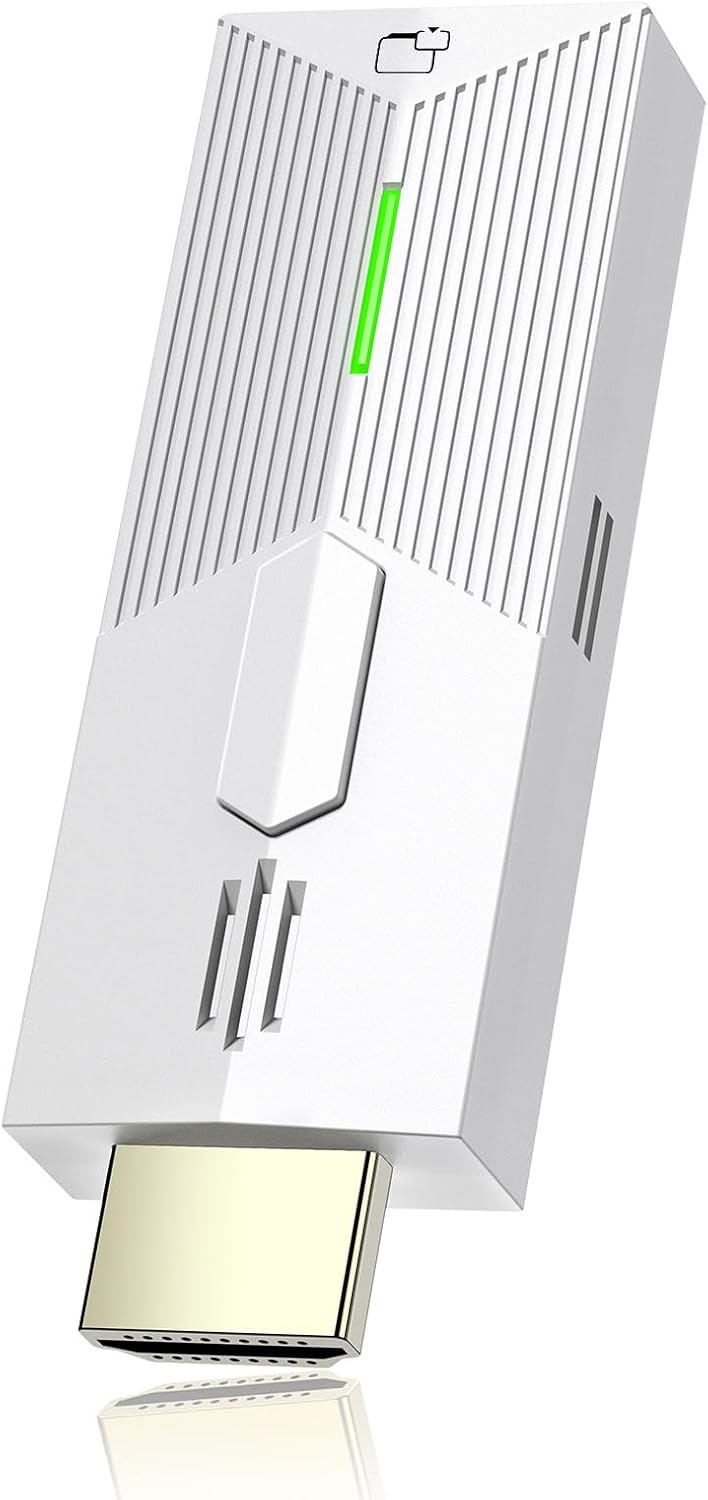
Image: The Tongtion Wireless Display Dongle Adapter, a compact white device with an HDMI connector and status indicator.
2. Pakuotės turinys
Prašome patikrinti, ar pakuotėje yra visi reikalingi daiktai:
- Tongtion Wireless HDMI Display Dongle Adapter
- USB Power Cable (often integrated or separate for power)
- Vartotojo vadovas (šis dokumentas)
3. Produktas baigtasview
The Tongtion Wireless Display Dongle Adapter is designed for ease of use and stable performance. Below are the key components and their functions:
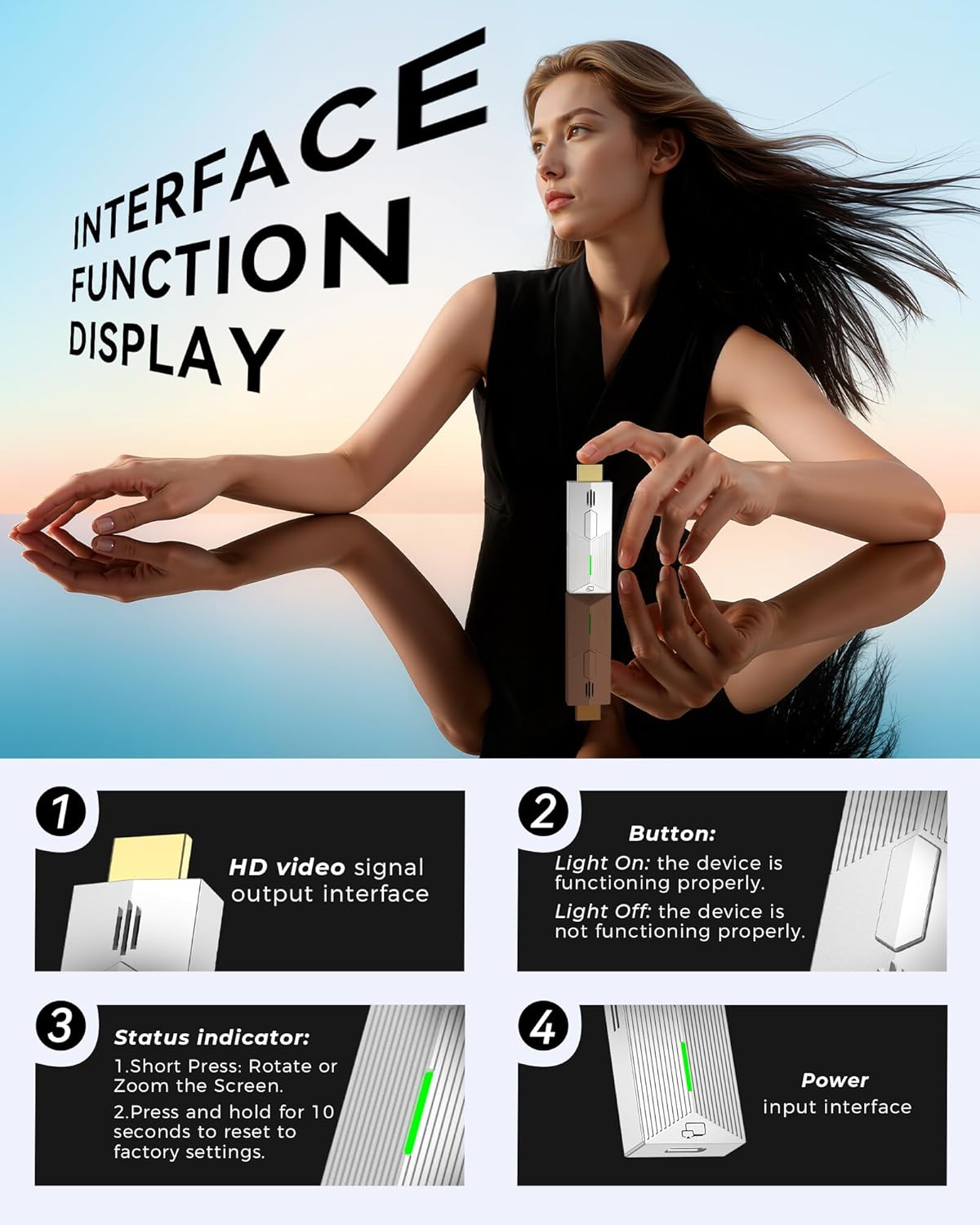
Vaizdas: Išsamus view of the dongle's interface, highlighting the HDMI output, button, status indicator, and power input.
- HD Video Signal Output Interface: This is the HDMI connector that plugs into your TV, monitor, or projector.
- Mygtukas:
- Short Press: Rotates or zooms the screen.
- Press and hold for 10 seconds: Resets the device to factory settings.
- Būsenos indikatorius:
- Light On: The device is functioning properly.
- Light Off: The device is not functioning properly.
- Maitinimo įvesties sąsaja: Connects to the USB power cable for device operation.
The device supports 5G stable transmission for low latency and a smooth viewing experience. It is compatible with a wide range of devices and operating systems, including iOS, Android, Windows, and macOS.

Image: Diagram showing compatibility with various devices including iPhone, Android, Tablet, Laptop, TV, Monitor, and Projector, along with supported operating systems and protocols like WiFi, AirPlay, DLNA, Miracast, Windows, iOS, Android, and macOS.
4. Sąrankos vadovas
Follow these steps to set up your Tongtion Wireless Display Dongle Adapter:
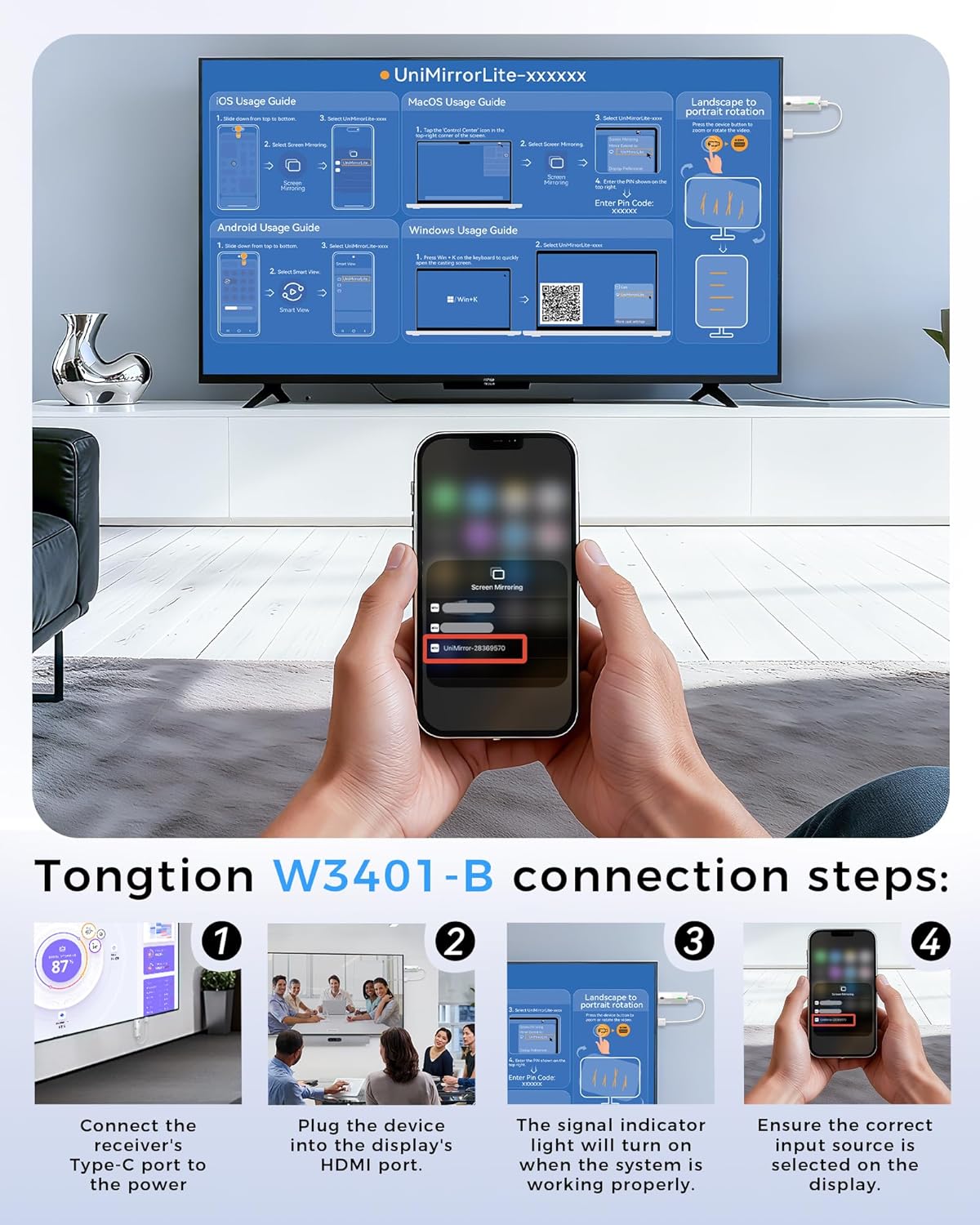
Image: Visual guide demonstrating the four connection steps for the Tongtion Wireless Display Dongle.
- Prijunkite maitinimą: Connect the receiver's Type-C port (or USB power input) to a power source using the provided USB cable. This can be a USB port on your TV or a separate USB power adapter (5V/2A recommended).
- Plug into Display: Plug the device into an available HDMI port on your TV, monitor, or projector.
- Patvirtinimo indikatorius: Ensure the signal indicator light on the dongle turns on, indicating the system is working properly.
- Pasirinkite įvestį: On your display device (TV/monitor/projector), use its remote control to select the correct HDMI input source that the dongle is connected to.
Once connected, your display should show a setup screen with instructions for connecting your source device (smartphone, PC, etc.). The specific network name (SSID) and PIN will be displayed on your screen.
5. Naudojimo instrukcijos
The Tongtion Wireless Display Dongle supports various wireless protocols for screen mirroring. No dedicated app is required for most devices.

Image: Comprehensive usage guides for connecting iOS, macOS, Android, and Windows devices, including steps for screen mirroring and screen rotation.
5.1. iOS Usage Guide (AirPlay)
- Slide down from the top-right corner of your iPhone/iPad screen to open Control Center.
- Tap the "Screen Mirroring" icon.
- Select "UniMirrorLite-xxxxxx" (the name displayed on your TV screen) from the list of available devices.
- Your iOS device screen will now be mirrored to the display.
5.2. macOS Usage Guide (AirPlay)
- Click the "Control Center" icon in the top-right corner of your macOS screen.
- Select "Screen Mirroring".
- Choose "UniMirrorLite-xxxxxx" (the name displayed on your TV screen) from the list.
- If prompted, enter the PIN code displayed on your TV screen.
5.3. Android Usage Guide (Miracast/Smart View)
- Slide down from the top of your Android screen to open the Quick Settings panel.
- Tap the "Smart View" (or "Cast", "Wireless Display", "Screen Mirroring") icon.
- Select "UniMirrorLite-xxxxxx" (the name displayed on your TV screen) from the list of available devices.
- Your Android device screen will now be mirrored to the display.
5.4. Windows Usage Guide
- Paspauskite „Windows“ klavišas + K on your keyboard to quickly open the "Connect" sidebar.
- Select "UniMirrorLite-xxxxxx" (the name displayed on your TV screen) from the list of available wireless displays.
- Your Windows screen will now be mirrored or extended to the display.
5.5. Screen Rotation and Zoom
The Wireless HDMI Display Adapter supports mirror mode and off-screen mode. By clicking the button in the middle of the dongle, you can easily zoom in and out of the screen or rotate the display to enhance the viewpatirtį.

Image: A laptop displaying content on its screen while simultaneously extending the display to a large TV via the wireless dongle, illustrating the extended mode functionality.
6. Priežiūra
To ensure the longevity and optimal performance of your Tongtion Wireless Display Dongle Adapter, please follow these maintenance guidelines:
- Valymas: Įrenginį valykite minkšta, sausa šluoste. Venkite naudoti skystus valiklius ar aerozolius.
- Saugykla: Laikykite prietaisą vėsioje, sausoje vietoje, apsaugotoje nuo tiesioginių saulės spindulių ir ekstremalių temperatūrų.
- Tvarkymas: Elkitės su įrenginiu atsargiai. Venkite jo numesti ir stipriai sutrenkti.
- Galia: Always use the recommended power adapter (5V/2A) to prevent damage.
7. Problemų sprendimas
If you encounter issues with your Tongtion Wireless Display Dongle Adapter, refer to the following common problems and solutions:
| Problema | Galima priežastis / sprendimas |
|---|---|
| Nėra vaizdo televizoriuje / monitoriuje. |
|
| Unstable connection or lag. |
|
| Cannot mirror certain apps (e.g., Netflix, Amazon Prime Video). | This dongle does not support certain paid applications that employ "HDCP" video copyright protection. These include, but are not limited to, Netflix, Amazon Prime Videos, Hulu, Comcast TV, Xfinity, Vudu, Sky Go, and BT Sport. This is a limitation due to copyright protection, not a device malfunction. |
| Device not found during screen mirroring. |
|
8. Specifikacijos
| Funkcija | Detalė |
|---|---|
| Prekės ženklas | Tongtion |
| Modelio numeris | TGN-W3401-B-YK-001 |
| Ryšio technologija | HDMI, 5GHz WiFi |
| Jungties tipas | HDMI |
| Rezoliucija | 1080p Full HD Output (supports 4K decoding) |
| Palaikomi protokolai | AirPlay, DLNA, Miracast, Cast |
| Palaikoma OS | iOS, Android, Windows, macOS |
| Prekės svoris | 2.39 uncijos |
| Gaminio matmenys | 5.8 x 3.7 x 1 colio |
9. Garantija ir palaikymas
Tongtion products are designed for reliability and performance. For warranty information and technical support, please refer to the official Tongtion websvetainėje arba susisiekite su mūsų klientų aptarnavimo komanda.
- Palaikymas internetu: Aplankykite Tongtion Store on Amazon produktų informacijai ir DUK.
- Susisiekite: For further assistance, please reach out to Tongtion customer support through the contact methods provided on our official channels.
Ask a question about this manual
Ask about setup, troubleshooting, compatibility, parts, safety, or missing instructions. Manuals+ will review the question and use this page’s manual context to help answer it.