
Įvadas
This manual provides instructions for the OMOTON Illuminated Keyboard. Designed with extra-large fonts, this keyboard offers enhanced visibility, making it suitable for users who benefit from clearer visual experiences, including seniors, students, and office workers. It aims to reduce eye fatigue and typing errors. The keyboard features a wired 2-in-1 USB-A/C interface for broad compatibility and includes multimedia keys for efficient control of various functions.
Produkto savybės
- Large Font Keys: Keys feature oversized characters for improved readability, minimizing typing errors.
- Multimedijos funkcionalumas: Dedicated multimedia keys provide quick access to functions such as music, video playback, and volume control.
- Dual USB A/C Compatibility: Equipped with a 2-in-1 USB-A/C cable, allowing connection to a wide range of devices.
- Ergonomiškas dizainas: Features a user-friendly, ergonomic design with an adjustable kickstand for comfortable typing positions, reducing strain during extended use.
- „Windows“ suderinamumas: Specifically designed for seamless operation with Windows operating systems.
Sąranka
The OMOTON Illuminated Keyboard is designed for simple plug-and-play setup.
- Prijunkite klaviatūrą: Locate an available USB-A or USB-C port on your computer.
- Prijunkite: Connect the keyboard's 2-in-1 USB cable to the chosen port. The keyboard will be automatically recognized by your operating system (Windows).
- Patikrinkite ryšį: Once connected, the keyboard should be ready for use. The backlight will illuminate.

Image: The keyboard features a versatile 2-in-1 USB-A/C cable for easy connection to various devices, including laptops and desktop PCs.
Naudojimo instrukcijos
Foninio apšvietimo valdymas
The keyboard features an adjustable white backlight. Use the following key combinations to control it:
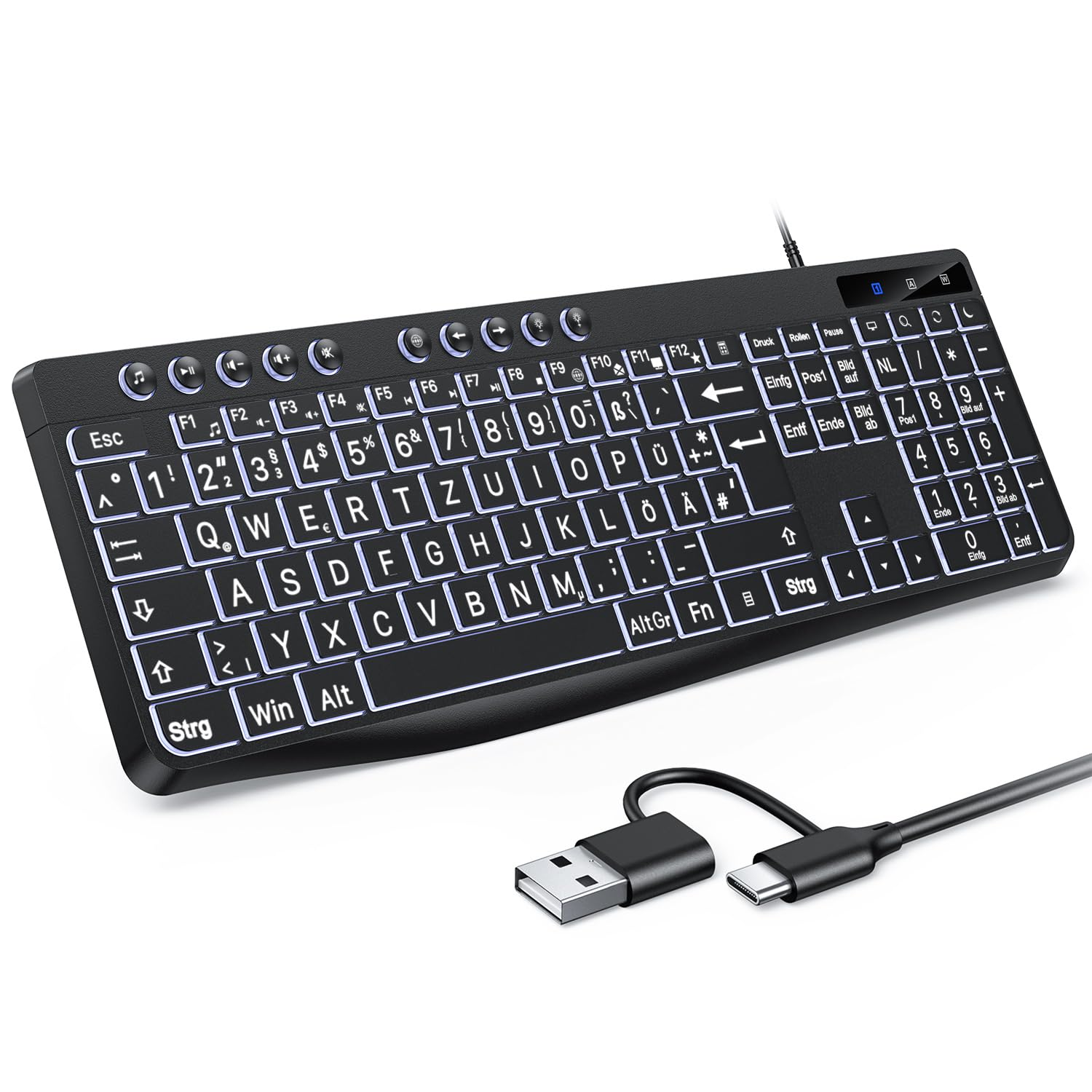
Image: Visual guide for backlight control functions.
- Fn + Print Screen (Druck): Toggles the backlight on or off.
- Fn + Scroll Lock (Rollen): Switches between constant illumination mode and 'breathing' mode.
- In Constant Illumination Mode:
- Fn + rodyklė aukštyn: Padidina foninio apšvietimo ryškumą.
- Fn + rodyklė žemyn: Sumažina foninio apšvietimo ryškumą.
- In 'Breathing' Mode:
- Fn + rodyklė kairėn: Adjusts breathing frequency (slower).
- Fn + rodyklė dešinėn: Adjusts breathing frequency (faster).
Daugialypės terpės raktai
The keyboard includes dedicated multimedia keys (F1-F12) that provide quick access to various functions when pressed in combination with the Fn raktas.

Image: The multimedia keys (F1-F12) offer convenient shortcuts for common tasks.
- Fn + F1–F12: Access functions such as volume control, media playback, email, web browser, and calculator. Refer to the icons on the F-keys for specific functions.
Priežiūra
To ensure the longevity and optimal performance of your OMOTON Illuminated Keyboard, follow these maintenance guidelines:
- Valymas: Regularly clean the keyboard with a soft, dry, lint-free cloth. For stubborn dirt, slightly dampNuvalykite šluostę vandeniu arba švelniu valymo tirpalu. Venkite stiprių cheminių medžiagų ar abrazyvinių medžiagų.
- Dulkių šalinimas: Norėdami pašalinti dulkes ir šiukšles iš tarpų tarp klavišų, naudokite suslėgtą orą.
- Išsiliejęs skystis: Išsiliejus skysčiui, nedelsdami atjunkite klaviatūrą nuo kompiuterio. Apverskite ją aukštyn kojomis, kad nutekėtų skystis, ir prieš vėl prijungdami leiskite jai visiškai išdžiūti.
- Saugykla: Klaviatūrą laikykite vėsioje, sausoje vietoje, apsaugotoje nuo tiesioginių saulės spindulių ir ekstremalių temperatūrų.
Trikčių šalinimas
If you encounter issues with your OMOTON Illuminated Keyboard, refer to the following common troubleshooting steps:
- Klaviatūra nereaguoja:
- Įsitikinkite, kad USB laidas yra tvirtai prijungtas tiek prie klaviatūros, tiek prie kompiuterio.
- Pabandykite prijungti klaviatūrą prie kito kompiuterio USB prievado.
- Iš naujo paleiskite kompiuterį.
- Jei naudojate USB šakotuvą, pabandykite klaviatūrą prijungti tiesiai prie kompiuterio.
- Foninis apšvietimas neveikia:
- Paspauskite Fn + Print Screen kad nebūtų išjungtas foninis apšvietimas.
- Reguliuokite ryškumą naudodami Fn + rodyklė aukštyn / žemyn raktus.
- Klavišai neveikia tinkamai:
- Check for any physical obstructions or debris under the keys.
- Ensure your operating system drivers are up to date (though typically plug-and-play for keyboards).
Specifikacijos
| Prekės ženklas | OMOTON |
| Suderinami įrenginiai | PC |
| Ryšio technologija | USB-A/C |
| Klaviatūros aprašymas | Multimedija |
| Rekomenduojami gaminio naudojimo būdai | Kasdienis naudojimas |
Garantija ir palaikymas
OMOTON products are designed for reliability and performance. For specific warranty details regarding your Illuminated Keyboard, please refer to the warranty card included with your purchase or visit the official OMOTON websvetainę.
If you require technical assistance or have questions not covered in this manual, please contact OMOTON customer support through their official channels. Contact information can typically be found on the product packaging or the brand's websvetainę.