
1. Įvadas
Welcome to the user manual for your SGIN Android Tablet 10.1 Inch, Model GE8300. This manual provides essential information for setting up, operating, maintaining, and troubleshooting your new tablet. Designed with children in mind, this tablet features a durable case, parental controls, and pre-installed educational content through Kidoz software. Please read this manual thoroughly to ensure proper use and to maximize your tablet's potential.
2. Produktas baigtasview
The SGIN Android Tablet 10.1 Inch is equipped with a 10.1-inch HD IPS display, a quad-core processor, 4GB RAM, and 64GB of internal storage. It runs on Android 13 and includes a protective case with an adjustable bracket.
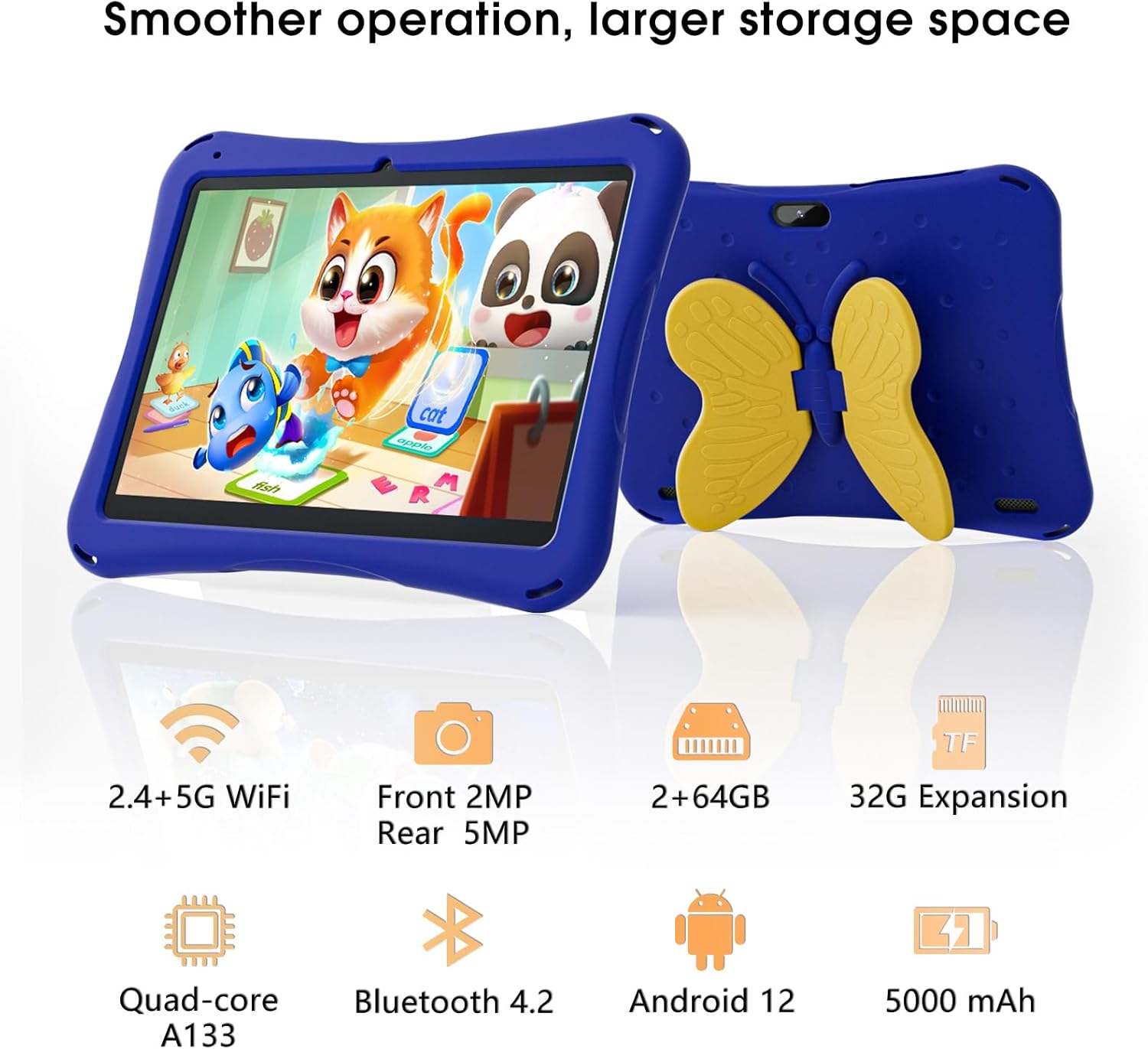
Image: SGIN Android Tablet 10.1 Inch with its protective blue case and yellow butterfly stand.
Planšetinio kompiuterio komponentai

Image: Detailed diagram illustrating the various components and ports of the SGIN Android Tablet.
- Priekinė kamera: Vaizdo skambučiams ir asmenukėms.
- Galinė kamera: Nuotraukų ir vaizdo įrašų darymui.
- Garsiakalbiai: Dėl garso išvesties.
- C tipo prievadas: Įkrovimui ir duomenų perdavimui.
- TF kortelės lizdas: Išplečiamai saugyklai.
- Ausinių lizdas: Laidinių ausinių prijungimui.
- Padidinti garsumą: Button to raise the audio level.
- Sumažinti garsumą: Button to lower the audio level.
- Laikiklis: Adjustable stand integrated into the protective case.
3. Sąranka
3.1 Planšetinio kompiuterio įkrovimas
Before first use, fully charge the tablet using the provided Type-C cable and power adapter. The 5000mAh battery provides approximately 6-8 hours of usage on a full charge. A charging indicator will typically appear on the screen.
3.2 Įjungimas / išjungimas
- Norėdami įjungti: Press and hold the power button (usually located on the side) until the SGIN logo appears.
- Norėdami išjungti: Paspauskite ir palaikykite maitinimo mygtuką, tada ekrane rodomoje parinkčių sąraše pasirinkite „Išjungti“.
- Norėdami paleisti iš naujo: Paspauskite ir palaikykite maitinimo mygtuką, tada iš parinkčių pasirinkite „Paleisti iš naujo“.
3.3 Pradinė sąranka ir „Wi-Fi“ ryšys
Upon first power-on, follow the on-screen prompts to complete the initial Android 13 setup. This includes selecting your language, region, and connecting to a Wi-Fi network. The tablet supports both 2.4G and 5G Wi-Fi for stable internet connectivity.
- Eikite į Nustatymai > Tinklas ir internetas > Wi-Fi.
- Perjungti „Wi-Fi“ On.
- Iš sąrašo pasirinkite norimą tinklą.
- Jei būsite paraginti, įveskite slaptažodį, tada palieskite Prisijunkite.
4. Naudojimo instrukcijos
4.1 Pagrindinė navigacija
The tablet uses a touch-sensitive screen for navigation. Common gestures include tapping to select, swiping to scroll, pinching to zoom, and long-pressing for additional options.
4.2 Kameros naudojimas
The tablet features a 2MP front-facing camera and a 5MP rear camera. To use the camera:
- Atidarykite Fotoaparatas taikymas.
- Select between front and rear cameras using the switch icon.
- Palieskite užrakto mygtuką, kad nufotografuotumėte arba pradėtumėte / sustabdytumėte vaizdo įrašymą.
4.3 Saugojimo valdymas
The tablet comes with 64GB of internal storage. If more space is needed, you can expand it by inserting a TF (microSD) card into the TF card slot. The tablet supports expansion up to 34GB.
4.4 „Bluetooth“ ryšys
The tablet supports Bluetooth 4.2 for connecting to wireless accessories such as headphones or speakers.
- Eikite į Nustatymai > Prijungti įrenginiai > Ryšio nuostatos > Bluetooth.
- Perjungti Bluetooth On.
- Pasirinkite savo įrenginį iš galimų įrenginių sąrašo, kurį norite susieti.
5. Tėvų kontrolės funkcijos
The SGIN tablet includes a built-in parental control security system to manage your child's usage and content access.
- Nustatyti slaptažodžius: Create a password to secure parental control settings.
- Screen Time Limits: Define daily usage limits for the tablet.
- Turinio filtravimas: Eliminate unwanted ads and create specific media files or approved websites for your children.
- Kelios paskyros: Set up individual accounts for each child, allowing personalized settings and content access.
6. Kidoz Kids Software
The tablet comes with the Kidoz Kid's software pre-installed, offering a safe and engaging environment for children.
- Accessing Kidoz: Launch the Kidoz app from the home screen.
- Vaikų parduotuvė: Explore thousands of free games and educational apps available for download within the Kidoz environment.
- Mokomasis turinys: Kidoz provides content that supports learning in subjects like math, language, music, and painting.
7. Priežiūra
7.1 Valymas
Use a soft, lint-free cloth to clean the screen and the tablet's body. For stubborn smudges, slightly dampNuvalykite šluostę vandeniu. Venkite stiprių cheminių medžiagų ar abrazyvinių medžiagų.
7.2 Akumuliatoriaus priežiūra
To prolong battery life, avoid exposing the tablet to extreme temperatures. Charge the tablet regularly and avoid letting the battery completely drain frequently.
7.3 Programinės įrangos naujiniai
Reguliariai tikrinkite, ar yra sistemos atnaujinimų, kad užtikrintumėte optimalų našumą ir saugumą. Eikite į Nustatymai > Sistema > Sistemos atnaujinimas.
7.4 apsauginis dėklas
The included kid-proof case is designed to protect the tablet from dust, bumps, and drops. It also features a hollow design for heat dissipation. Ensure the tablet is properly seated within the case for maximum protection.

Image: The durable anti-drop protective case with its adjustable bracket.
8. Problemų sprendimas
If you encounter issues with your SGIN tablet, refer to the following common solutions:
- Planšetinis kompiuteris neįsijungia: Įsitikinkite, kad planšetinis kompiuteris įkrautas. Prijunkite jį prie įkroviklio ir palaukite kelias minutes, prieš bandydami jį vėl įjungti.
- Nereaguojantis ekranas: If the screen becomes unresponsive, try restarting the tablet by holding down the power button for approximately 10-15 seconds until it powers off, then power it on normally.
- „Wi-Fi“ ryšio problemos: Check if other devices can connect to the Wi-Fi network. Restart your Wi-Fi router. On the tablet, forget the network and reconnect.
- Lėtas našumas: Close unused applications running in the background. Clear cache data for apps. Consider performing a factory reset if performance issues persist (back up important data first).
- Programėlių strigimas: Ensure apps are updated to their latest versions. Clear the app's cache and data via Nustatymai > Programėlės > [Programėlės pavadinimas] > Saugykla ir talpykla.
Jei problemų nepavyko išspręsti atlikus šiuos veiksmus, susisiekite su klientų aptarnavimo tarnyba.
9. Specifikacijos
Key technical specifications for the SGIN Android Tablet 10.1 Inch Model GE8300:
| Funkcija | Specifikacija |
|---|---|
| Modelio numeris | GE8300 |
| Ekrano dydis | 10.1 colių |
| Ekrano raiška | 1280 x 800 pikselių (HD IPS) |
| Procesorius | 1.6 GHz Quad-core (Allwinner A133) |
| RAM | 4 GB (2 GB fizinė + 2 GB išplečiama) |
| Vidinė saugykla | 64 GB ROM |
| Išplečiama saugykla | Iki 34 GB per TF kortelę |
| Operacinė sistema | Android 13 |
| Baterijos talpa | 5000 mAh |
| Priekinė kamera | 2 MP |
| Galinė kamera | 5 MP |
| Belaidis ryšys | 2.4G/5G belaidis internetas, „Bluetooth 4.2“ |
| Spalva | Giliai mėlyna |
| Siuntinio matmenys | 32.2 x 20.4 x 4.7 cm; 1.04 kg |
10. Garantija ir palaikymas
10.1 Gaminio garantija
The SGIN Android Tablet 10.1 Inch Model GE8300 comes with a 1 metų garantija nuo įsigijimo datos. Ši garantija taikoma gamybos defektams, atsiradusiems įprasto naudojimo metu. Išsaugokite pirkimo įrodymą, jei galėtumėte pateikti pretenzijas dėl garantijos.
10.2 Pagalba klientams
If you require further assistance or have questions not covered in this manual, please contact SGIN customer support. Refer to the product packaging or the official SGIN websvetainę, kurioje rasite naujausią kontaktinę informaciją.