
1. Įvadas
Thank you for choosing the Jansite 5-inch Waterproof Motorcycle CarPlay Android Auto Display. This device is designed to enhance your motorcycle riding experience by providing seamless smartphone integration for navigation, music, and communication. Please read this manual thoroughly before use to ensure proper installation and operation.
2. Sąranka
2.1 Kas yra dėžutėje
Atidarius pakuotę, patikrinkite, ar yra visi komponentai:
- Jansite 5-inch Motorcycle CarPlay Android Auto Display
- Maitinimo kabelis
- Mounting Brackets (for handlebar installation)
- Gaminio vadovas
- 64G TF Card (if included in your package)
Video: This video provides a product unboxing and display demonstration for a motorcycle screen, illustrating the components and initial setup.
2.2 diegimas
The Jansite display is designed for easy installation on most motorcycle handlebars. Ensure your phone supports wireless CarPlay or Android Auto before proceeding.
- Choose the appropriate mounting location on your handlebar.
- Assemble the mounting bracket components. The kit includes various spacers to fit different handlebar diameters (22mm, 25mm, 28mm).
- Securely attach the mounting clamp to the handlebar using the provided screws and Allen key.
- Attach the display unit to the mounting arm.
- Connect the power cable: The red wire connects to the motorcycle's ACC (Accessory) power, and the black wire connects to the negative terminal of the motorcycle battery.
- Ensure all connections are secure and the display is firmly mounted before riding.

Image: Detailed diagram of the display components and wiring for motorcycle installation.
Video: This video demonstrates the unboxing and installation process of the Carpuride W603, which is similar in design and installation to the Jansite display. It shows how to mount the device on a motorcycle handlebar and connect the necessary cables.
3. Operacija
3.1 Belaidis „CarPlay“ ryšys
To connect your iPhone to the display via wireless CarPlay:
- Įsitikinkite, kad „iPhone“ įjungtas „Bluetooth“.
- On the Jansite display, select the "CarPlay" icon.
- On your iPhone, go to Bluetooth settings and search for available devices.
- Select the device name displayed on the Jansite screen (e.g., "CAR-BT_4DAF").
- Patvirtinkite susiejimo užklausą abiejuose įrenginiuose.
- Once connected, CarPlay will launch automatically on the display.
Video: This video demonstrates the wireless CarPlay connection process, showing how to pair an iPhone with the motorcycle display.
3.2 Belaidis „Android Auto“ ryšys
To connect your Android phone to the display via wireless Android Auto:
- Ensure Bluetooth is enabled on your Android phone and the Android Auto app is installed.
- On the Jansite display, select the "Android Auto" icon.
- „Android“ telefone eikite į „Bluetooth“ nustatymus ir ieškokite galimų įrenginių.
- Select the device name displayed on the Jansite screen.
- Patvirtinkite susiejimo užklausą abiejuose įrenginiuose.
- Once connected, Android Auto will launch automatically on the display.
3.3 Bluetooth Connection (for calls/music without CarPlay/Android Auto)
You can also connect your phone directly via Bluetooth for calls and music playback without using CarPlay or Android Auto. This is useful for connecting to Bluetooth helmets or earphones.
- Įjunkite „Bluetooth“ savo telefone.
- On the Jansite display, select the "BT" (Bluetooth) icon.
- On your phone, search for the device name (e.g., "CAR-BT_4DAF") and pair.
- You can then make calls or play music directly from your phone through the display, routing audio to your connected Bluetooth helmet/earphones.

Image: Illustration of the dual Bluetooth connection for phone and helmet/earphones.
4. Pagrindinės savybės
4.1 Navigacija
Utilize your preferred navigation apps (e.g., Google Maps, Apple Maps) directly on the 5-inch IPS display. Voice commands via Siri or Google Assistant allow for hands-free route planning and guidance.

Image: The display showing navigation features and voice assistant prompts.
4.2 Muzikos atkūrimas
Stream music from your smartphone apps (e.g., Spotify, Apple Music) and control playback directly from the display. Audio is routed to your connected Bluetooth helmet or earphones.
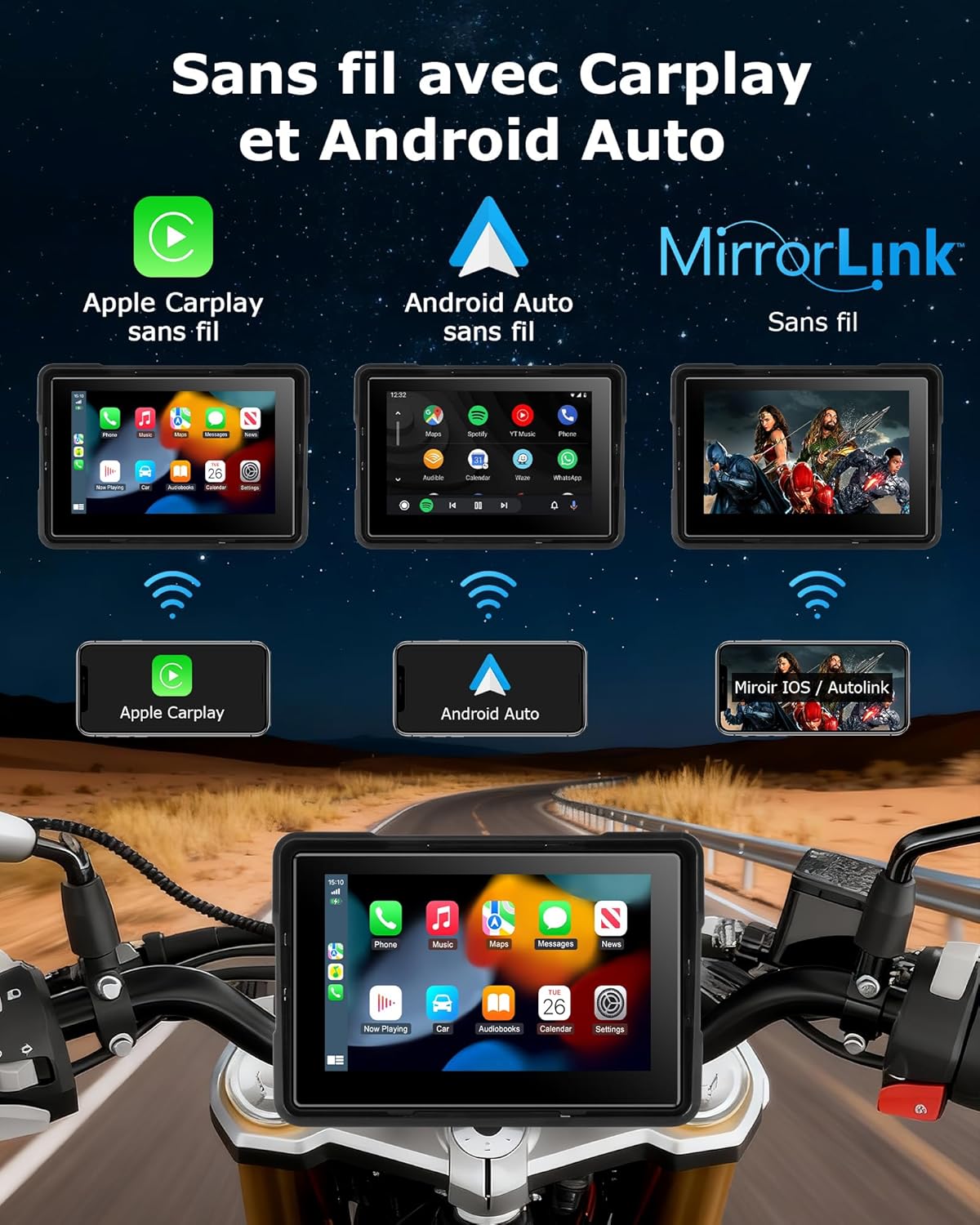
Image: The display showing the music playback interface.
4.3 Skambinimas laisvų rankų įranga
Make and receive calls safely while riding. The display integrates with your phone's contacts and dialer, allowing you to manage calls without removing your hands from the handlebars.
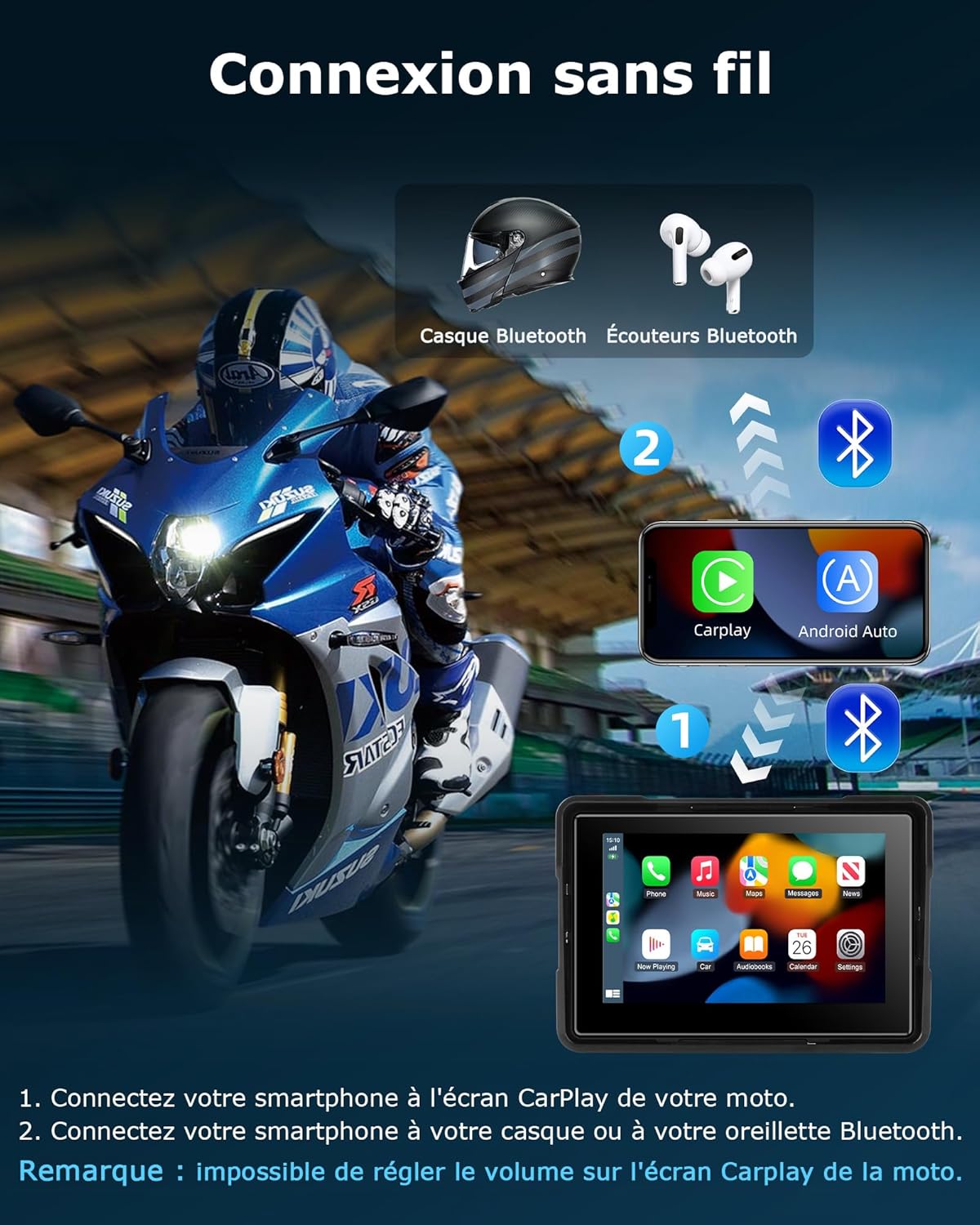
Image: The display showing the hands-free calling interface.
4.4 Screen Brightness and Volume Adjustment
The 5-inch IPS screen features an anti-glare display for clear visibility in direct sunlight and a night mode for reduced glare in low-light conditions. Brightness is automatically adjusted, and volume can be controlled directly from the display interface.

Image: The display adapting to different lighting conditions (day, night, rain, high temperature, snow).
4.5 TF kortelių palaikymas
The device supports TF cards for local media playback, allowing you to store and access music or videos directly from the display.
4.6 IP67 atsparumo vandeniui įvertinimas
With an IP67 waterproof and dustproof rating, the display is designed to function reliably in various weather conditions, including heavy rain. It operates effectively in temperatures ranging from -4°F to 158°F (-20°C to 70°C).

Image: The display demonstrating its IP67 waterproof capabilities in various weather scenarios.
5. Specifikacijos
| Prekės ženklas | Jansite |
| Modelis | B0FSX3WGCZ |
| Ekrano dydis | 5 colių |
| Ypatingos savybės | „Android Auto“, „Apple CarPlay“ |
| Ryšio technologija | Bluetooth |
| Kontrolės metodas | Jutiklinis ekranas |
| Ekrano tipas | LCD |
| Atsparumo vandeniui įvertinimas | IP67 |
| Darbinė temperatūra | -4°F iki 158°F (nuo -20°C iki 70°C) |
6. Problemų sprendimas
If you encounter issues with your Jansite display, please refer to the following common solutions:
- Įrenginys neįsijungia: Check all power cable connections. Ensure the red wire is connected to an ACC power source and the black wire to the battery's negative terminal.
- Nepavyksta prisijungti prie „CarPlay“ / „Android Auto“:
- Įsitikinkite, kad jūsų išmaniajame telefone įjungtas „Bluetooth“.
- Verify that your smartphone supports wireless CarPlay or Android Auto.
- Pamirškite įrenginį iš telefono „Bluetooth“ nustatymų ir bandykite susieti dar kartą.
- Restart both the display and your smartphone.
- Nėra garso:
- Ensure your Bluetooth helmet or earphones are properly paired with the display.
- Check the volume settings on both the display and your connected audio device.
- Ekranas nereaguoja į prisilietimą: Ensure the screen is clean and dry. If wearing gloves, ensure they are compatible with capacitive touchscreens.
For further assistance, please contact Jansite customer support.
7. Garantija ir palaikymas
The Jansite Motorcycle CarPlay Android Auto Display comes with a 1 metų garantija nuo įsigijimo datos. Ši garantija taikoma gamybos defektams ir gedimams įprasto naudojimo metu.
For warranty claims, technical support, or any questions regarding your product, please contact Jansite customer service through the retailer where you purchased the product or refer to the contact information provided in the product packaging.


