
1. Produktas baigtasview
This manual provides essential information for setting up, operating, and maintaining your CRUA 34-inch UWQHD 3440x1440P IPS Ultrawide Gaming Monitor. Please read it thoroughly before use.
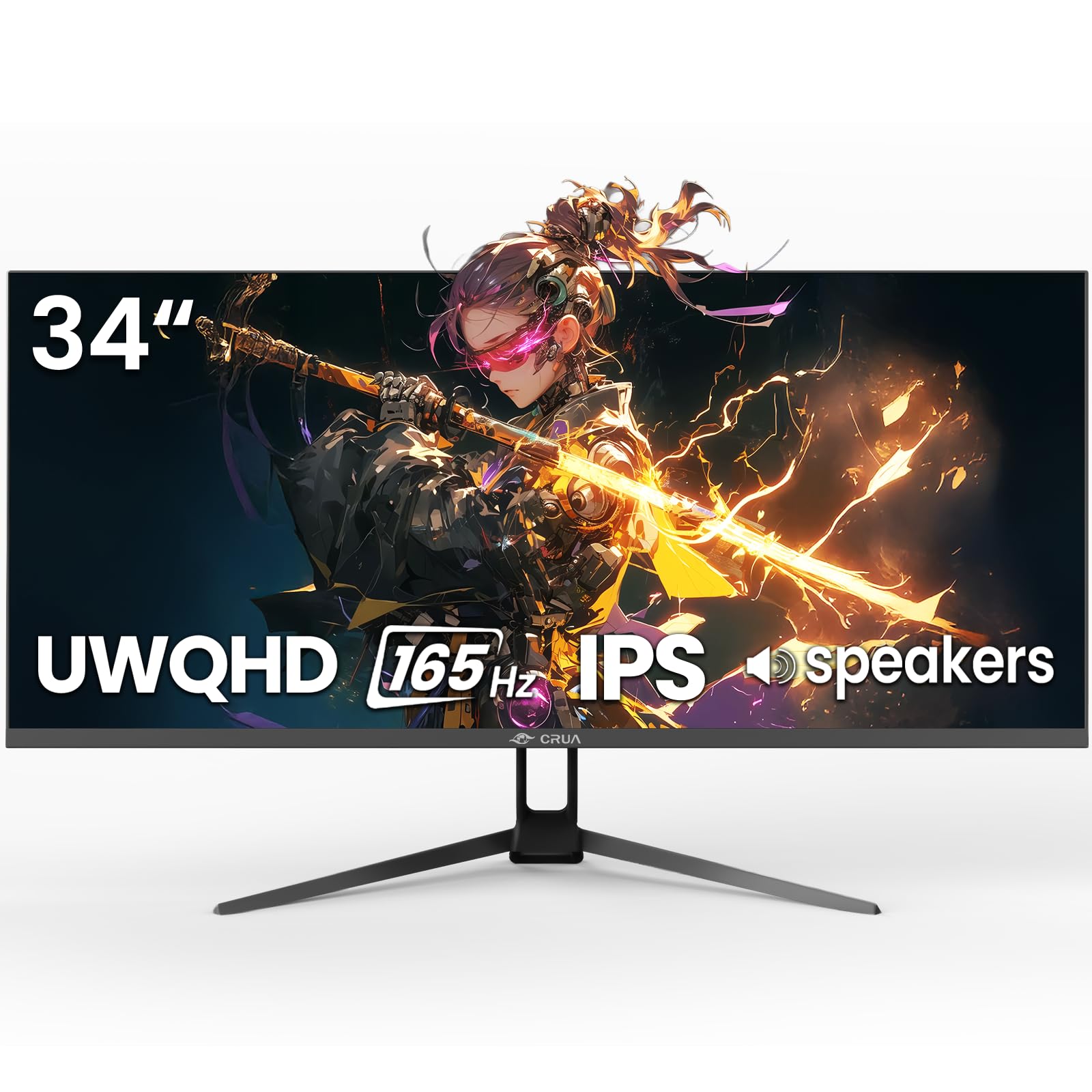
1 pav.: priekis view of the CRUA 34-inch Ultrawide Gaming Monitor.
2. Pakuotės turinys
Patikrinkite, ar pakuotėje yra visi reikalingi daiktai:
- 34-inch Ultrawide Monitor
- Pagrindas ir stovas
- Vartotojo vadovas
- DP Cable x1 (4.92 ft)
- Power Adapter x1 (4.92 ft)
3. Sąrankos instrukcijos
3.1 Stovo surinkimas
- Atsargiai išimkite monitorių iš pakuotės, padėkite jį ekranu žemyn ant minkšto, švaraus paviršiaus, kad nesubraižytumėte.
- Pritvirtinkite stovo pagrindą prie stovo kaklelio naudodami pateiktus varžtus.
- Align the assembled stand with the mounting points on the back of the monitor and secure it firmly.
3.2 Tvirtinimas prie sienos (pasirinktinai)
The monitor supports VESA wall mounting (75x75mm). Use appropriate wall mount hardware (not included) and follow the wall mount manufacturer's instructions. Ensure the stand is removed before mounting.
3.3 Prisijungimas prie įrenginio
Prijunkite monitorių prie kompiuterio ar kitų įrenginių naudodami atitinkamus kabelius.
- DisplayPort (DP 1.4): For optimal performance, including 165Hz refresh rate and FreeSync, use the supplied DP cable.
- HDMI (HDMI 2.0): Palaiko iki 100 Hz atnaujinimo dažnį.
- Garso išvestis (3.5 mm): Prijunkite išorinius garsiakalbius arba ausines.

2 pav.: galinis view of the monitor displaying available ports and wall mount area.
3.4 Maitinimo jungtis
Connect the power adapter to the monitor's DC input port, then plug the power adapter into a power outlet.
4. Naudojimo instrukcijos
4.1 Maitinimo įjungimas/išjungimas
Press the power button located on the monitor to turn it on or off. The monitor will typically detect an active input signal automatically.
4.2 Ekrano meniu (OSD)
Use the control buttons (often a joystick or set of buttons) on the monitor to navigate the OSD menu. This menu allows you to adjust various display settings.
Raktų nustatymai:
- Ryškumas / kontrastas: Reguliuokite vaizdo ryškumą ir ryškumą.
- Spalvų nustatymai: Fine-tune color temperature, gamma, and saturation. The monitor features 120% sRGB, 8-bit color depth, and 16.7 million colors for vivid visuals.
- Įvesties šaltinis: Rankiniu būdu pasirinkite tarp HDMI ir DisplayPort įvesčių.
- Atnaujinimo dažnis: Ensure your device is configured to output at 165Hz (via DP) or 100Hz (via HDMI) for the smoothest experience.
- FreeSync: Enable AMD FreeSync for tear-free gaming. This feature synchronizes the monitor's refresh rate with your GPU's frame rate.

Figure 3: Visual representation of 165Hz refresh rate and FreeSync in action.
4.3 PIP/PBP Functions
The monitor supports Picture-in-Picture (PIP) and Picture-by-Picture (PBP) modes, allowing you to display content from multiple input sources simultaneously.
- PIP režimas: Displays a smaller window from a second source over the main display.
- PBP režimas: Padalija ekraną į kelias dalis, kurių kiekvienoje greta rodomas skirtingas įvesties šaltinis.

Figure 4: Illustration of PIP and PBP modes for multitasking.
4.4 Integruoti garsiakalbiai
The monitor includes built-in speakers for audio output. You can also connect external speakers or headphones via the 3.5mm audio port for enhanced sound.
5. Priežiūra
5.1 Monitoriaus valymas
- Visada atjunkite monitorių prieš valydami.
- Lengvai naudokite minkštą, nepūkuotą audinį dampnuplaukite vandeniu arba švelniu, neabrazyviniu ekrano valikliu.
- Nepurkškite valiklio tiesiai ant ekrano.
- Venkite naudoti alkoholio, amoniako ar abrazyvinių valiklių, nes jie gali pažeisti ekrano paviršių.
5.2 Bendroji priežiūra
- Laikykite monitorių atokiau nuo tiesioginių saulės spindulių, šilumos šaltinių ir per didelio dulkių kiekio.
- Užtikrinkite tinkamą vėdinimą aplink monitorių.
- Venkite dėti sunkių daiktų ant monitoriaus ar jo laidų.
6. Problemų sprendimas
Jei kyla problemų dėl monitoriaus, žr. šiuos dažniausiai pasitaikančius sprendimus:
- Nėra galios: Ensure the power cable is securely connected to both the monitor and the power outlet. Verify the power adapter is functioning.
- Nėra signalo: Check that the video cable (DP or HDMI) is firmly connected to both the monitor and your computer. Select the correct input source in the OSD menu. If using HDMI, ensure your device's display settings are compatible with the monitor's capabilities (e.g., set to 60Hz if experiencing issues at higher refresh rates).
- Image Flickering/Distortion: Check cable connections. Ensure your graphics card drivers are up to date. Try a different video cable. If FreeSync is enabled, try disabling it to see if the issue persists.
- Prasta vaizdo kokybė: Adjust brightness, contrast, and color settings in the OSD menu. Ensure the display resolution is set to 3440x1440P on your connected device.
- Nėra garso: Verify that the audio cable (if using external speakers) is connected correctly. Check the volume settings on both the monitor and your computer. Ensure the correct audio output device is selected in your computer's sound settings.
Jei problema išlieka ir išbandžius šiuos veiksmus, susisiekite su klientų aptarnavimo tarnyba.
7. Specifikacijos
| Funkcija | Specifikacija |
|---|---|
| Prekės ženklas | CRUA |
| Modelio numeris | CR340G |
| Ekrano dydis | 34 colių |
| Rezoliucija | UWQHD 3440 x 1440 Pixels |
| Krašto santykis | 21:9 |
| Ekrano technologija | IPS |
| Atnaujinimo dažnis | 165 Hz |
| Reagavimo laikas | 1 milisekundė |
| Ryškumas | 380 cd/m² |
| Kontrasto santykis | 1000:1 |
| Spalvų gama | 120% sRGB |
| Viewing kampas | 178 laipsnių |
| Ryšys | 2x HDMI 2.0, 1x DisplayPort 1.4, 1x 3.5mm Audio |
| Adaptyvusis sinchronizavimas | AMD FreeSync |
| Papildomos funkcijos | Built-In Speakers, PIP & PBP function, Tilt Adjustment |
| Montavimo tipas | Desk Mount/Wall Mount (75x75mm VESA) |
| Elemento matmenys (D x P x A) | 9 "D x 32" P x 17" A |
8. Garantija ir palaikymas
8.1 Informacija apie garantiją
This CRUA monitor comes with a 1 metų garantija. Additionally, a 30-day free return and exchange policy is provided from the date of purchase. Please retain your proof of purchase for warranty claims.
8.2 Pagalba klientams
For technical assistance, warranty claims, or any questions regarding your CRUA monitor, please contact CRUA customer support through the retailer where the product was purchased or visit the official CRUA websvetainė, kurioje rasite kontaktinius duomenis.