
1. Svarbi saugos informacija
Please read all instructions carefully before using this monitor. Keep this manual for future reference.
- Saugokite monitorių nuo lietaus, drėgmės ar ekstremalių temperatūrų.
- Užtikrinkite tinkamą vėdinimą aplink monitorių, kad išvengtumėte perkaitimo.
- Naudokite tik prie monitoriaus pridėtą maitinimo adapterį.
- Nedėkite sunkių daiktų ant maitinimo laido ar monitoriaus.
- Jei monitorius ilgesnį laiką nebus naudojamas, atjunkite maitinimo kištuką nuo lizdo.
- Nebandykite patys atlikti monitoriaus techninės priežiūros. Visus techninės priežiūros darbus patikėkite kvalifikuotiems specialistams.
2. Pakuotės turinys
Patikrinkite, ar pakuotėje yra visi reikalingi daiktai:
- 27-inch QHD 210Hz Monitor (1 unit)
- Monitor Stand (1 unit)
- Quick Start Guide (QSG) (1 unit)
- DP Cable (1 unit)
- Power Adaptor (1 unit)
- Maitinimo laidas (1 vnt.)
- Shielding Hood (2 units)

Video: KTC 27M1 27 Inch 210Hz Gaming Monitor. This video provides a visual overview of the monitor and its features.
3. Sąrankos instrukcijos
3.1 Monitoriaus stovo surinkimas
- Atsargiai išimkite monitoriaus ir stovo komponentus iš pakuotės.
- Attach the stand base to the stand arm using the provided screw.
- Align the stand arm with the mounting slot on the back of the monitor and push until it clicks into place.
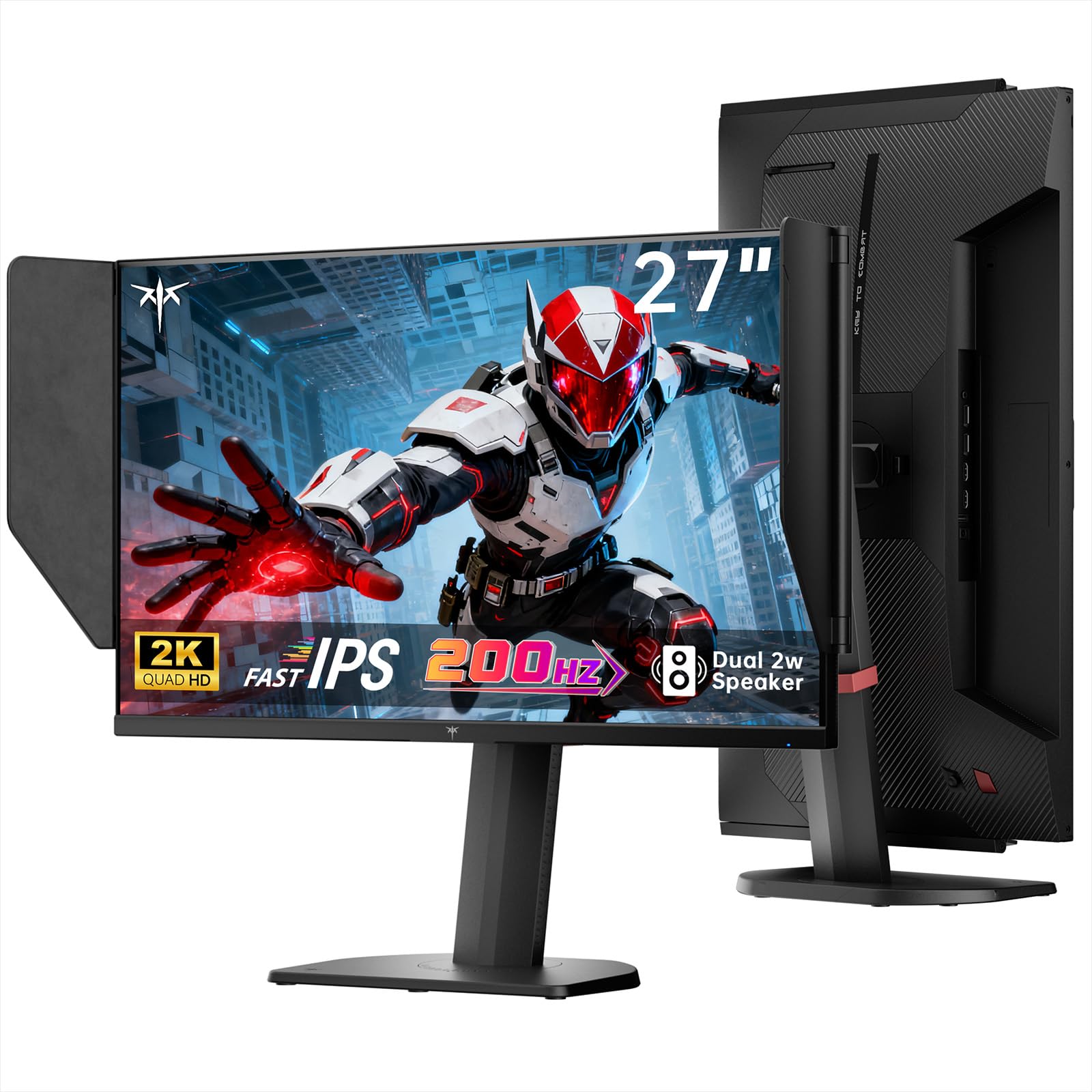
Image: The KTC 27M1 monitor with its stand fully assembled, ready for use.
3.2 Attaching the Shielding Hood
The shielding hood helps reduce glare and reflections for an optimal viewpatirtį.
- Locate the two shielding hood pieces.
- Align each piece with the designated slots on the sides of the monitor and gently slide them into place until secure.

Image: The KTC 27M1 monitor shown with the shielding hood attached, designed to block reflected light.
3.3 Jungiamieji kabeliai
Prijunkite monitorių prie kompiuterio ar kitų įrenginių naudodami atitinkamus kabelius:
- „DisplayPort“ (DP): For 200Hz (overclockable to 210Hz) refresh rates, connect the DP cable from your graphics card to the monitor's DP 1.4 port.
- HDMI: For 144Hz refresh rates, connect an HDMI 2.0 cable from your device to one of the monitor's HDMI ports.
- Galia: Connect the power adapter to the DC input on the monitor, then plug the power cord into a wall outlet.
- Garsas: Connect headphones or external speakers to the 3.5mm earphone jack if desired.

Vaizdas: Stambus planas view of the KTC 27M1 monitor's rear ports, including HDMI, DisplayPort, USB, and earphone jack.
4. Naudojimo instrukcijos
4.1 Maitinimo įjungimas/išjungimas
Press the 5-way navigation joystick located on the back of the monitor to power it on or off.
4.2 Ekrano meniu naršymas
The 5-way navigation joystick is used to access and navigate the On-Screen Display (OSD) menu:
- Paspauskite vairasvirtę, kad atidarytumėte OSD meniu.
- Norėdami naršyti meniu parinktis, judinkite valdymo svirtį aukštyn / žemyn / kairėn / dešinėn.
- Press the joystick again to select an option or confirm a setting.
- Norėdami grįžti į ankstesnį meniu arba išeiti iš OSD, pajudinkite valdymo svirtį į kairę.
4.3 Ekrano nustatymų reguliavimas
OSD meniu galite reguliuoti įvairius ekrano nustatymus:
- Ryškumas / kontrastas: Sureguliuokite bendrą šviesumo ir kontrasto lygius.
- Spalvų nustatymai: Modify color temperature (Warm, Cool, User), gamma, hue, and saturation. The monitor offers 130% sRGB color gamut and ΔE<2 for accurate color reproduction.
- Žaidimų sąranka: Enable/disable Adaptive Sync (FreeSync/G-Sync Compatible), adjust Overdrive (Ultra Fast recommended for gaming), and activate Game Assist features.
- Išplėstiniai nustatymai: Toggle HDR (Auto/Off) and OverClock (to achieve 210Hz refresh rate).
- Įvestis: Manually select the input source (DP, HDMI1, HDMI2).
- Sistemos rinkinys: Change OSD language, LED indicator, audio volume, and other system preferences.
4.4 Ergonominiai nustatymai
The monitor stand supports multiple ergonomic adjustments for comfortable viewing:
- Aukščio reguliavimas: Adjust the monitor height by 150±5mm.
- Pakreipti: Tilt the screen from -5° to 35°.
- Sukamasis: Swivel the monitor ±60°.
- Pivot: Pivot the screen from -5° to 90° for vertical orientation.

Image: Visual representation of the KTC 27M1 monitor's tilt, swivel, elevate, and pivot adjustments.
5. Savybės
- Ekranas: 27-inch QHD (2560x1440) Fast IPS panel.
- Atnaujinimo dažnis: 200Hz, overclockable to 210Hz.
- Atsakymo laikas: 1ms (MPRT) for sharp visuals.
- Spalvos tikslumas: 130% sRGB color gamut, 99% DCI-P3 coverage, ΔE<2, 450 cd/m² brightness, 1.07 Billion Colors, 1000:1 Contrast Ratio.
- Adaptyvusis sinchronizavimas: FreeSync and G-Sync Compatible to eliminate screen tearing.
- Akių priežiūra: Flicker-free and low blue light modes for extended comfortable viewing.
- Garsas: Built-in dual 2W speakers.
- Ryšys: 2x HDMI 2.0 ports, 1x DisplayPort 1.4 port, 1x USB 2.0 port, 1x Earphone jack.
- Montavimas: 100x100mm VESA mount compatible.
- Dizainas: Includes a detachable shielding hood to block reflected light.

Image: The KTC 27M1 monitor displaying vibrant colors, highlighting its color accuracy and brightness features.
6. Specifikacijos
| Funkcija | Specifikacija |
|---|---|
| Prekės ženklas | KTC plėtinys |
| Modelio numeris | H27T8 (Marketed as 27M1) |
| Ekrano dydis | 27 colių |
| Gimtoji raiška | 2560 x 1440 (QHD) |
| Ekrano technologija | Beveik IPS |
| Atnaujinimo dažnis | 200 Hz (Overclockable to 210 Hz) |
| Reagavimo laikas | 1 Millisecond (MPRT) |
| Ryškumas | 450 kandelų (cd/m²) |
| Kontrasto santykis | 1000:1 |
| Spalvų gama | 130 % sRGB, 99 % DCI-P3 |
| Viewing kampas | 178 laipsnių |
| HDR palaikymas | Taip |
| Adaptyvusis sinchronizavimas | FreeSync, G-Sync Compatible |
| Integruoti garsiakalbiai | 2x 2W Speakers |
| Ryšys | 2x HDMI 2.0, 1x DisplayPort 1.4, 1x USB 2.0, 1x Earphone |
| VESA kalnas | 100x100mm |
| Ergonomika | Height, Tilt, Swivel, Pivot Adjustment |
| Energijos suvartojimas | 48 vatų |
7. Priežiūra ir priežiūra
- Ekrano valymas: Švelniai nuvalykite ekraną minkštu, nepūkuotu skudurėliu. Jei dėmės sunkiai įveikiamos,ampen the cloth with a mild, non-abrasive screen cleaner.
- C valymasasing: Monitorių valykite minkšta, sausa šluoste.asing. Venkite naudoti stiprius ploviklius ar abrazyvinius valiklius.
- Vėdinimas: Ensure the ventilation openings on the monitor are clear and unobstructed to prevent overheating.
- Saugykla: Jei monitorių ilgesnį laiką nenaudosite, atjunkite jį nuo maitinimo šaltinio ir laikykite vėsioje, sausoje vietoje.
8. Problemų sprendimas
8.1 Nėra galios
- Patikrinkite, ar maitinimo laidas tvirtai prijungtas prie monitoriaus ir maitinimo lizdo.
- Patikrinkite, ar maitinimo lizdas veikia tinkamai, prijungdami kitą įrenginį.
- Įsitikinkite, kad maitinimo adapteris yra tinkamai prijungtas.
8.2 No Signal/Blank Screen
- Confirm that the video cable (DP or HDMI) is securely connected to both the monitor and your computer/device.
- Press the OSD joystick to open the menu and manually select the correct input source.
- Įsitikinkite, kad jūsų kompiuteris / įrenginys įjungtas ir nėra miego režime.
- Try using a different video cable or port to rule out cable/port issues.
8.3 Flickering/Distorted Image
- Patikrinkite, ar vaizdo kabelis nepažeistas ir ar nėra laisvų jungčių.
- Adjust the refresh rate in your computer's display settings to match the monitor's native refresh rate (200Hz or 210Hz if overclocked).
- Enable Adaptive Sync (FreeSync/G-Sync Compatible) in the monitor's OSD menu and your graphics card settings.
- Įsitikinkite, kad jūsų grafikos plokštės tvarkyklės yra atnaujintos.
8.4 No Sound from Built-in Speakers/Earphone Jack
- Patikrinkite garsumo nustatymus monitoriaus OSD meniu ir kompiuterio operacinėje sistemoje.
- Įsitikinkite, kad kompiuterio garso nustatymuose pasirinktas tinkamas garso išvesties įrenginys.
- Verify that the audio cable (if using external speakers) or headphones are properly connected.
9. Garantija ir palaikymas
KTC is committed to providing quality service and support for your monitor.
- Garantija: Šiam produktui suteikiama 3 metų kokybės garantija.
- Techninė pagalba: Lifetime technical support is available for all KTC products.
- Susisiekite su mumis: If you have any questions or encounter issues, please contact KTC customer support. Solutions will be provided within 24 hours.