
1. Įvadas
This manual provides essential information for setting up, operating, maintaining, and troubleshooting your Fusion5 FWIN232 PRO N5 10.1-inch Windows 11 Professional Tablet PC. Please read this guide thoroughly to ensure optimal performance and longevity of your device.

Image: The Fusion5 FWIN232 PRO N5 tablet, showcasindėl savo elegantiško dizaino ir ekrano.
2. Darbo pradžia (sąranka)
2.1 Išpakavimas ir pirminė apžiūra
- Atsargiai išimkite visus komponentus iš pakuotės.
- Verify that all included items are present: Fusion5 FWIN232 PRO N5 Tablet PC, 36W Fast Charger, and this Manual.
- Inspect the tablet for any physical damage. If damage is found, contact customer support immediately.
2.2 Planšetinio kompiuterio įkrovimas
- Connect the included 36W Type-C fast charger to the tablet's USB-C port.
- Įjunkite įkroviklį į maitinimo lizdą.
- Allow the tablet to charge fully before first use. The battery indicator on the screen will show charging status.
2.3 Powering On and Initial Windows 11 Setup
- Press and hold the Power button until the Fusion5 logo appears.
- Follow the on-screen instructions to complete the Windows 11 Professional setup process. This includes selecting your language, region, connecting to a Wi-Fi network, and creating a user account.
2.4 Garantinė registracija
- Scan the QR code provided in the packaging or on the device to register your tablet. This activates your 2-year full warranty, including accidental damage cover.
Vaizdo įrašas: Viršijimasview of the Fusion5 Windows 11 Pro Tablet, highlighting its features and performance.
3. Planšetinio kompiuterio valdymas
3.1 Fiziniai komponentai
Familiarize yourself with the tablet's buttons and ports:
- Maitinimo mygtukas: Located on the side, used to turn the tablet on/off or put it to sleep.
- Garsumo mygtukai: Reguliuokite garso išvestį.
- „Micro SD“ lizdas: Skirta atminties išplėtimui iki 512 GB.
- Mikro HDMI prievadas: Prijunkite prie išorinių ekranų.
- USB 3.0 prievadas: Skirta USB-A įrenginiams prijungti.
- C tipo USB prievadas: For charging and connecting USB-C peripherals.
- Ausinių lizdas (3.5 mm): Garso išvesčiai į ausines arba išorinius garsiakalbius.
- Dual FHD Cameras: Front and rear cameras for video calls and photography.
- Dvigubi garsiakalbiai: Integruota garso išvestis.
Vaizdas: Šoninė view of the Fusion5 FWIN232 PRO N5 tablet, illustrating the location of various ports and buttons.
3.2 Touchscreen Usage
The 10.1-inch Full HD IPS touchscreen supports multi-touch gestures. Use taps, swipes, and pinch-to-zoom for navigation and interaction with applications.
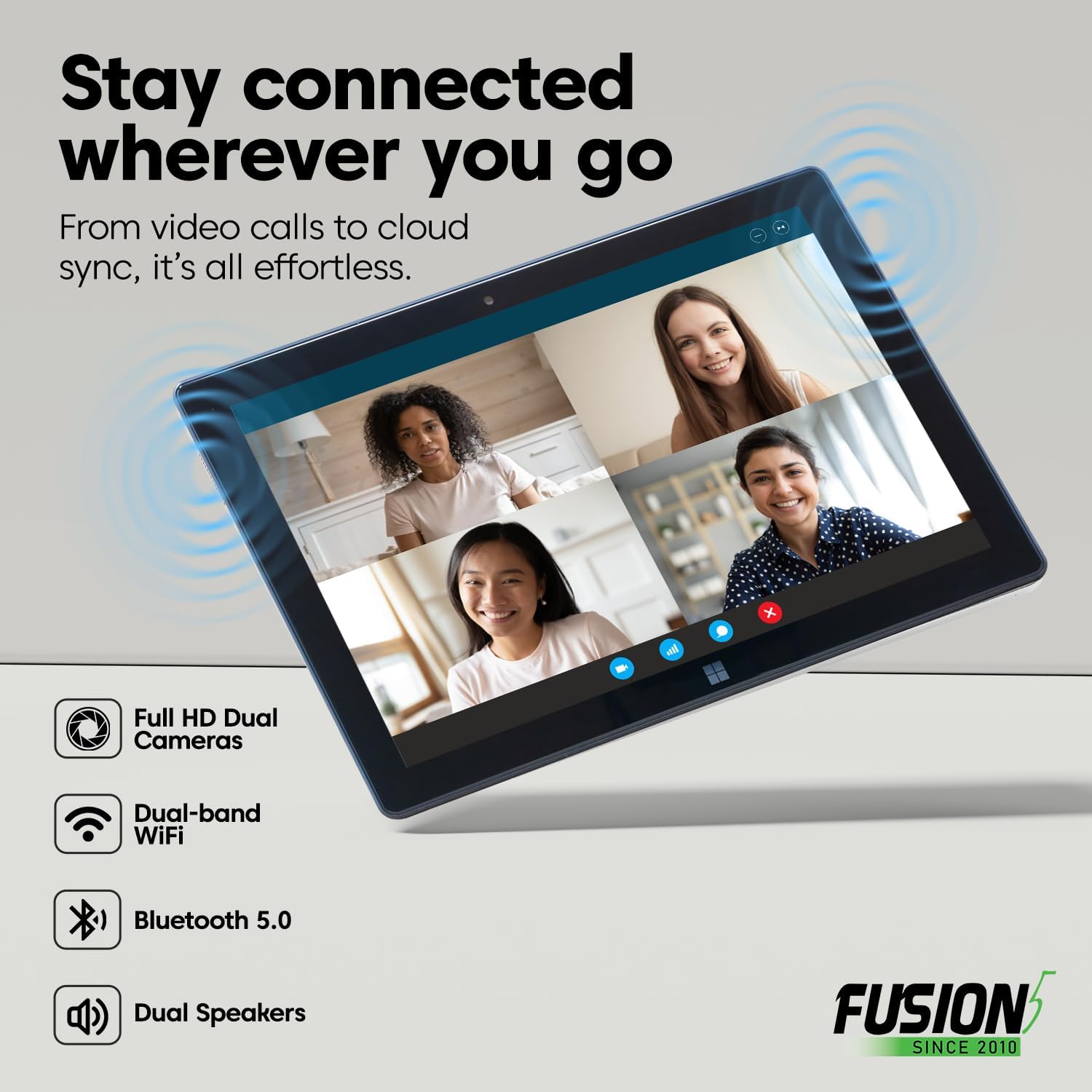
Image: A user interacting with the Fusion5 FWIN232 PRO N5 tablet's touchscreen display.
3.3 Ryšys
- „Wi-Fi“: Connect to 2.4GHz or 5GHz Wi-Fi networks for internet access. Navigate to Windows Settings > Network & Internet > Wi-Fi to manage connections.
- "Bluetooth 5.0": Pair with Bluetooth-enabled devices such as keyboards, mice, and headphones. Go to Windows Settings > Bluetooth & devices to manage pairings.
- Išoriniai ekranai: Use the Micro HDMI port to connect your tablet to a monitor or TV.
- USB įrenginiai: Connect USB-A and USB-C peripherals like flash drives, external hard drives, or docking stations.

Image: Diagram showing the various ports on the Fusion5 FWIN232 PRO N5 tablet, including USB-C, USB-A, and Micro HDMI.
3.4 Darbo režimai
- Planšetinio kompiuterio režimas: Ideal for touch-based interaction, browsing, and media consumption.
- Nešiojamojo kompiuterio režimas: Connect an optional docking keyboard (sold separately) to transform your tablet into a laptop for typing and multitasking.

Image: The Fusion5 FWIN232 PRO N5 tablet connected to an external keyboard, demonstrating laptop mode functionality.
4. Priežiūra ir priežiūra
4.1 Planšetinio kompiuterio valymas
- Ekranui ir korpusui valyti naudokite minkštą, nepūkuotą šluostę.
- Įstrigusiems dėmėms lengvai nuvalykiteampnuvalykite šluostę vandeniu arba ekrano valymo tirpalu.
- Venkite naudoti stiprias chemines medžiagas, abrazyvines medžiagas ar per didelę drėgmę.
4.2 Akumuliatoriaus priežiūra
- Norėdami pailginti baterijos veikimo laiką, venkite ekstremalių temperatūrų.
- Neleiskite akumuliatoriui dažnai visiškai išsikrauti.
- Use only the original 36W Type-C fast charger provided with the tablet.
4.3 Programinės įrangos naujiniai
- Regularly check for and install Windows updates to ensure optimal performance, security, and access to the latest features.
- Go to Windows Settings > Windows Update to manage updates.
4.4 Saugojimo valdymas
- Periodiškai review ir ištrinkite nereikalingus files atlaisvinti vietos saugykloje.
- Utilize the MicroSD card slot for additional storage of media and documents.
- Consider cloud storage solutions like OneDrive for backup and access across devices.
5. Problemų sprendimas
Jei kyla problemų dėl planšetinio kompiuterio, žr. šiuos dažniausiai pasitaikančius sprendimus:
5.1 Planšetinis kompiuteris neįsijungia
- Įsitikinkite, kad planšetinis kompiuteris įkrautas. Prijunkite įkroviklį ir palaukite kelias minutes, prieš bandydami vėl įjungti.
- Paspauskite ir palaikykite maitinimo mygtuką 10–15 sekundžių, kad atliktumėte griežtą atkūrimą.
5.2 „Wi-Fi“ ryšio problemos
- Check if Wi-Fi is enabled in Windows Settings.
- Iš naujo paleiskite „Wi-Fi“ maršrutizatorių ir planšetinį kompiuterį.
- Pamirškite tinklą ir vėl prijunkite.
- Įsitikinkite, kad esate „Wi-Fi“ signalo diapazone.
5.3 Lėtas veikimas
- Uždarykite nereikalingas programas, veikiančias fone.
- Patikrinkite, ar yra laukiančių „Windows“ naujinimų, ir įdiekite juos.
- Užtikrinkite pakankamai laisvos vietos saugykloje.
- Iš naujo paleiskite planšetinį kompiuterį.
5.4 Jutiklinis ekranas nereaguoja
- Iš naujo paleiskite planšetinį kompiuterį.
- Įsitikinkite, kad ekranas yra švarus ir be dulkių ar drėgmės.
- Jei problema išlieka, susisiekite su klientų aptarnavimo tarnyba.
6. Specifikacijos
Key technical specifications for the Fusion5 FWIN232 PRO N5 Tablet PC:
| Funkcija | Detalė |
|---|---|
| Modelio pavadinimas | FWIN232 PRO N5 |
| Operacinė sistema | Windows 11 Professional |
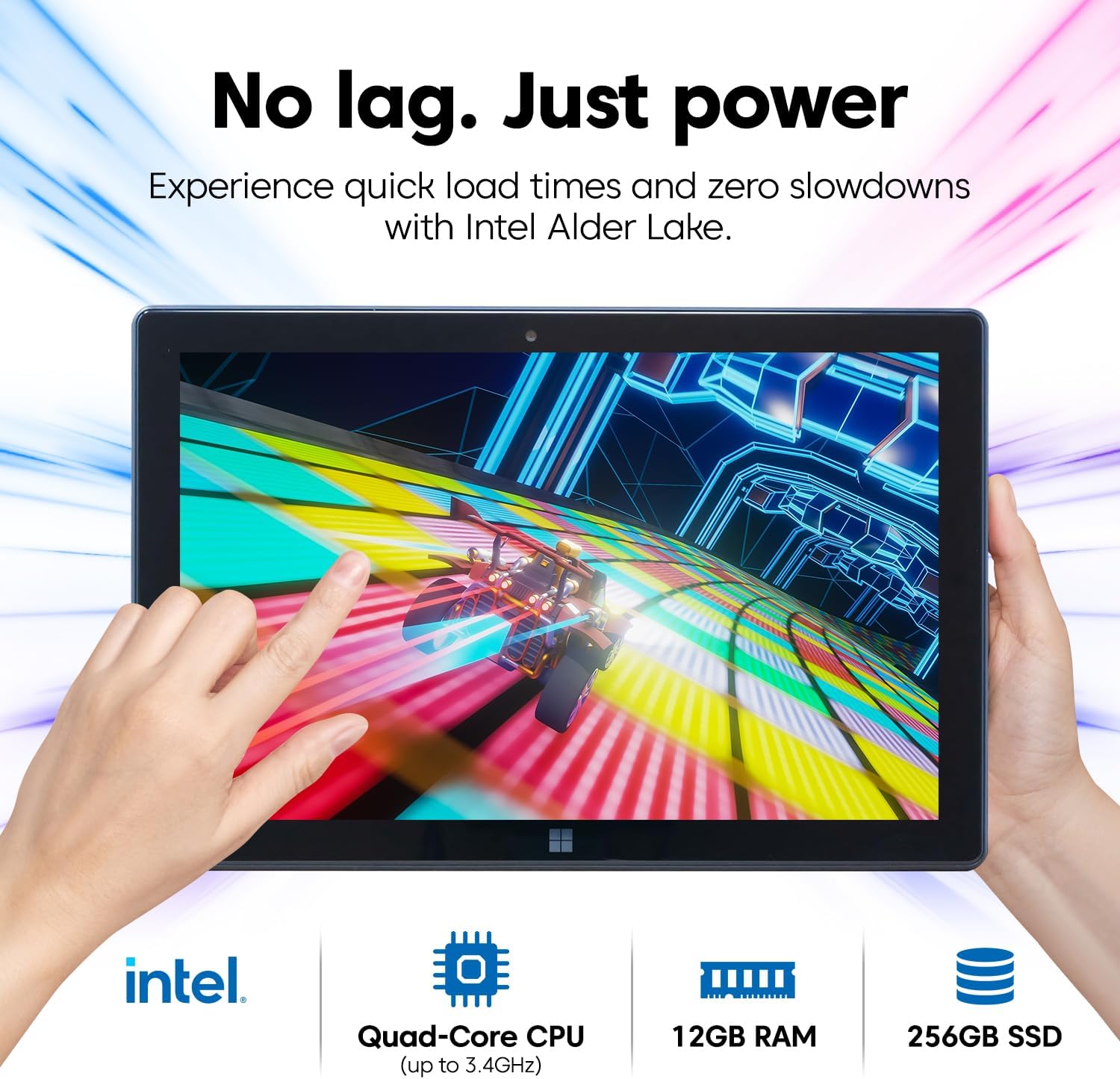
| Procesorius | Intel Alder Lake 13th Gen N100 Quad-Core CPU (up to 3.4 GHz) |
| Grafika | „Intel UHD Graphics“ (integruota) |
| RAM | 12 GB |
| Sandėliavimas | 256 GB SSD |
| Išplečiama saugykla | MicroSD card slot (up to 512 GB) |
| Ekrano dydis | 10.1 colių |
| Ekrano raiška | 1920 x 1080 pikselių (Full HD IPS) |
| Maximum Display Brightness | 500 nitų |
| Ryšys | Dual-Band Wi-Fi (2.4GHz & 5GHz), Bluetooth 5.0 |
| Uostai | USB-C, USB-A, Micro HDMI, 3.5mm Headphone Jack |
| Kameros | Dual FHD Cameras (Front & Rear 2MP) |
| Baterijos talpa | 6000 mAh (ličio polimeras) |
| Svoris | 636 g (apie 23 uncijos) |
| Matmenys (I x P x Storis) | 10.03" x 6.69" x 0.43" |

Image: A visual summary of the Fusion5 FWIN232 PRO N5 tablet's key specifications.
7. Garantija ir palaikymas
7.1 2-Year Full Warranty with Accidental Damage Cover
Your Fusion5 FWIN232 PRO N5 tablet comes with a comprehensive 24-month full warranty. This includes protection for up to two (2) accidental damage incidents, covering issues such as drops and liquid spills. To activate your coverage, please register your device by scanning the QR code provided with your product.

Image: Details of the 2-year full coverage and accidental screen damage protection for the Fusion5 tablet.
7.2 Pagalba klientams
For technical assistance, warranty claims, or any other inquiries, please refer to the contact information provided during your warranty registration or visit the official Fusion5 support website. Scanning the QR code offers zero-contact support.

Image: Illustration emphasizing the tablet's assembly in the USA, highlighting quality and support.