
1. Įvadas
Thank you for choosing the ELECROW 5-inch IPS Touch Screen Monitor. This compact display offers a high-definition visual experience with responsive touch functionality, designed for a wide range of applications including single-board computers and mini PCs. This manual provides essential information for the proper installation, operation, and care of your device.

The ELECROW 5-inch IPS Touch Screen Monitor, a versatile display solution.
Pagrindinės funkcijos:
- HD Display Experience: 5-inch IPS capacitive touchscreen with a 1024 x 600 resolution, 178° viewing angle, and support for up to 1080P signal input.
- Responsive Touch: Supports 5-point multi-touch on Windows and single-touch on Raspberry Pi/Jetson Nano.
- Lengvas prijungimas ir paleidimas: No additional drivers required for most compatible systems.
- Profesionalios funkcijos: Features a headphone jack for audio output and a built-in OSD menu for display adjustments.
2. Kas yra dėžutėje
Patikrinkite, ar jūsų siuntinyje yra visi toliau išvardyti daiktai:
- 1x 5-inch Touch Screen Monitor
- 1x HD Cable (1m)
- 1x USB-A to USB-C Cable (1m)
- 1x Micro-HD Adapter (for Raspberry Pi 4B & 5)
- 4x Hexagonal Copper Standoff Kit (M2.5)
- 2x Pro Stand
- 1x Atsuktuvas
- 1x User Manual (Quick Start Guide)
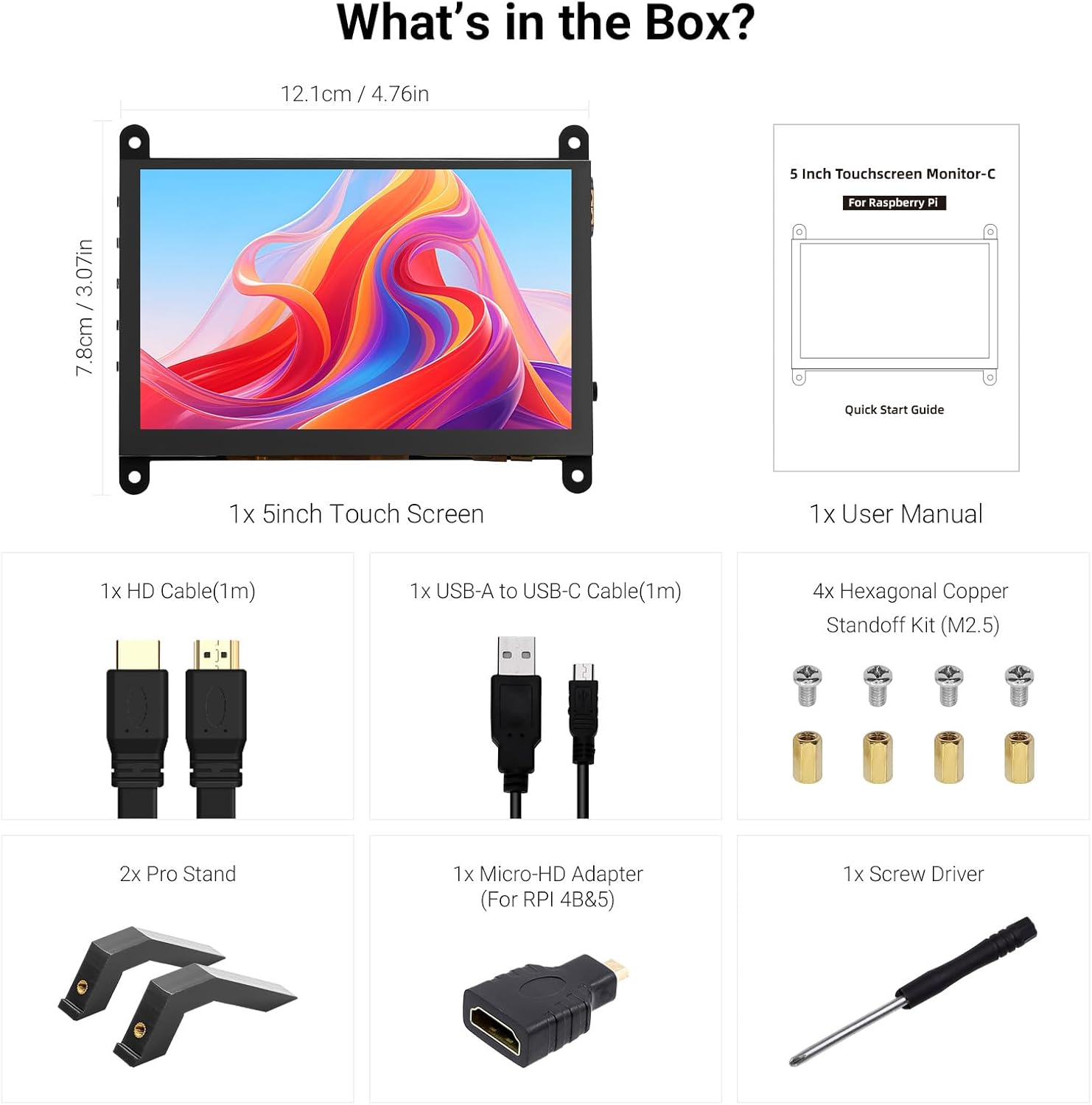
Visi komponentai įtraukti į gaminio pakuotę.
3. Produktas baigtasview
Familiarize yourself with the ports and buttons on your ELECROW 5-inch Touch Screen Monitor:

Išsamus view monitoriaus prievadų ir valdymo mygtukų.
- HD Input Port: Vaizdo signalo įvesties jungčiai.
- USB-C prievadas: For power supply and touch signal transmission.
- 3.5 mm ausinių lizdas: Dėl garso išvesties.
- Meniu mygtukas: Atidaro ekrano meniu (OSD).
- Left/Up Button: Navigates left or up in the OSD menu.
- Right/Down Button: Navigates right or down in the OSD menu.
- Grįžimo mygtukas: Exits a menu or returns to the previous option.
- Maitinimo mygtukas: Įjungia arba išjungia ekraną.
- 20P-FPC-0.5mm Display Port: For flexible cable expansion in embedded systems.
4. Sąrankos instrukcijos
Follow these steps to connect your ELECROW 5-inch Touch Screen Monitor to a compatible device:
4.1 Prisijungimas prie „Raspberry Pi“
- Prijunkite HD kabelį: Use the provided HD cable to connect the monitor's HD Input Port to the HDMI port on your Raspberry Pi. If using Raspberry Pi 4B or 5, use the included Micro-HD adapter.
- Prijunkite USB kabelį: Connect the USB-C port on the monitor to a USB-A port on your Raspberry Pi using the provided USB-A to USB-C cable. This supplies power to the monitor and enables touch functionality.
- Maitinimas: Power up your Raspberry Pi. The display should automatically detect the signal and power on.
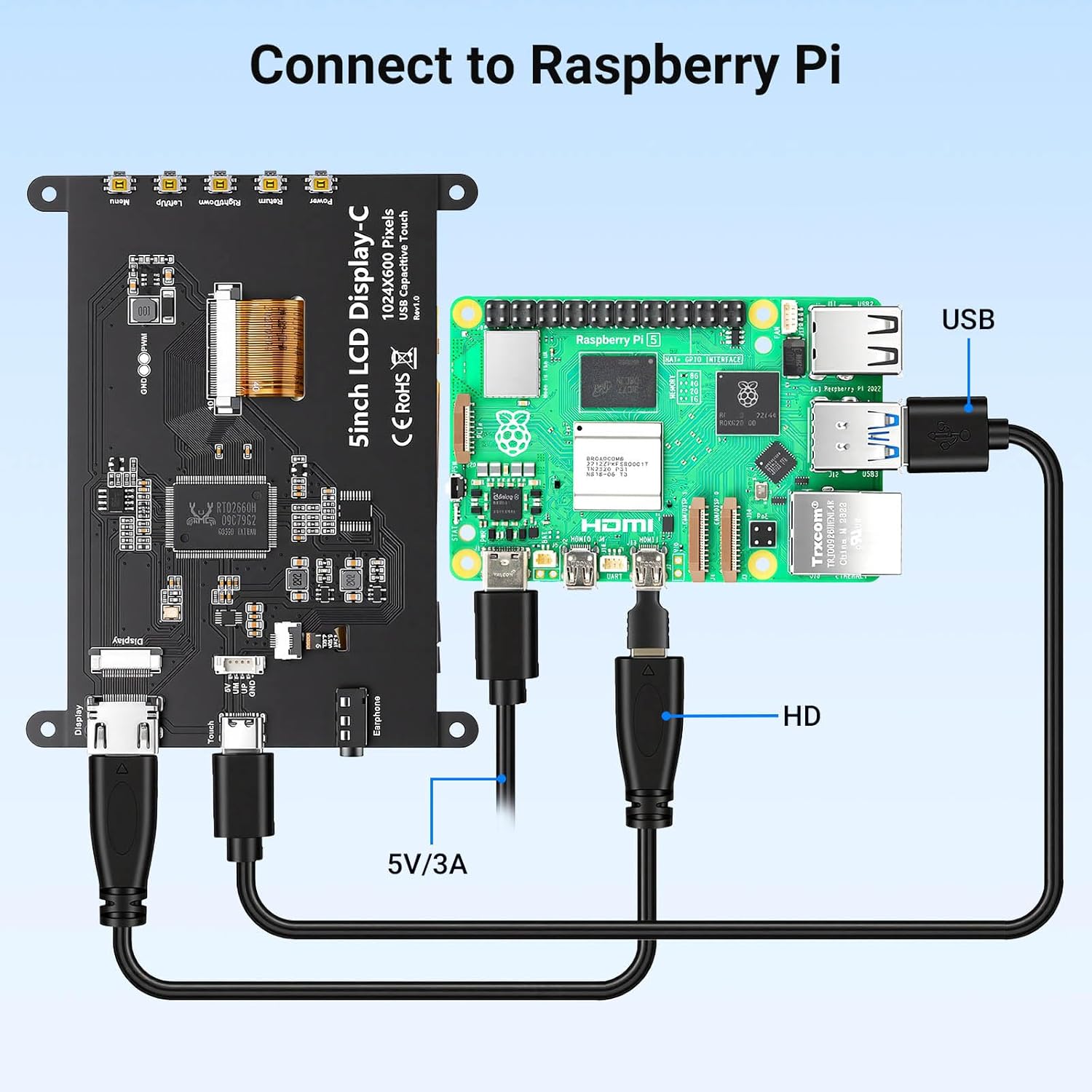
Connection diagram for Raspberry Pi.
4.2 Connecting to Windows PC/Laptop
- Prijunkite HD kabelį: Use the provided HD cable to connect the monitor's HD Input Port to the HDMI port on your PC/laptop.
- Prijunkite USB kabelį: Connect the USB-C port on the monitor to a USB-A port on your PC/laptop using the provided USB-A to USB-C cable. This provides power and enables touch functionality.
- Maitinimas: Power on your PC/laptop. The display should be recognized automatically. No additional drivers are typically required for Windows 7/8/10/11.
5. Naudojimo instrukcijos
5.1 Pagrindinės operacijos
- Maitinimo įjungimas/išjungimas: Press the Power Button (8) to turn the display on or off.
- Lietimo funkcija: The monitor features a capacitive touchscreen. On Windows systems, it supports 5-point multi-touch. On Raspberry Pi (Raspbian, Ubuntu, Kali, Retropie) and Jetson Nano, it supports single-touch operation.

Responsive touch experience for various devices.
5.2 Ekrano meniu naršymas
The On-Screen Display (OSD) menu allows you to adjust various display settings:
- Paspauskite Menu Button (4) norėdami atidaryti OSD meniu.
- Naudokite Left/Up Button (5) ir Right/Down Button (6) , kad galėtumėte naršyti meniu parinktis.
- Paspauskite Menu Button (4) dar kartą, kad pasirinktumėte parinktį arba patvirtintumėte nustatymą.
- Paspauskite Grįžimo mygtukas (7) to exit the current menu or return to the previous level.
Common adjustable settings include Brightness, Contrast, and other display parameters.
5.3 Garso išvestis
Connect headphones or external speakers to the 3.5mm Headphone Jack (3) for audio output from the connected device.
6. Suderinamumas
The ELECROW 5-inch Touch Screen Monitor offers broad compatibility with various operating systems and hardware platforms:
- Operacinės sistemos: Raspbian, Ubuntu, Kali, Retropie, Windows 7/8/10/11, Windows 10 IoT.
- Suderinami įrenginiai: Raspberry Pi 5, Raspberry Pi 4, Raspberry Pi 3 B+, BB Black, Banana Pi, Jetson Nano, PS4, Xbox.

Broad compatibility with popular operating systems and devices.
7. Specifikacijos
| Funkcija | Detalė |
|---|---|
| Prekės ženklas | ELEKTROS |
| Modelio numeris | DLH04950B |
| Ekrano dydis | 5 colių |
| Rezoliucija | 1024 x 600 pikselių |
| Ekrano tipas | IPS |
| Viewing kampas | 178 laipsnių |
| Ryškumas | 410 cd/m² |
| Atnaujinimo dažnis | 60 Hz |
| Reagavimo laikas | 2 milisekundės |
| Ryšys | HDMI, C tipo USB |
| ttage | 5 voltų |
| Matmenys (P x A) | 12.1 cm x 7.8 cm (4.76 x 3.07 colio) |
| Papildomos funkcijos | Portable, Touchscreen, Headphone Jack, OSD Menu |

Visual representation of key display specifications.
8. Priežiūra
Proper care and maintenance will ensure the longevity and optimal performance of your monitor:
- Ekrano valymas: Šiek tiek naudokite minkštą, be pūkelių šluostę dampnuplaukite vandeniu arba ekrano valymo tirpalu. Venkite stiprių cheminių medžiagų, abrazyvinių medžiagų ir per didelės drėgmės.
- Bendras valymas: Wipe the exterior of the monitor with a dry, soft cloth.
- Saugykla: Jei monitorius ilgesnį laiką nenaudojamas, jį laikykite vėsioje, sausoje vietoje, apsaugotoje nuo tiesioginių saulės spindulių ir ekstremalių temperatūrų.
- Tvarkymas: Avoid dropping the monitor or subjecting it to strong impacts. Do not apply excessive pressure to the screen.
- Vėdinimas: Ensure the monitor has adequate ventilation to prevent overheating. Do not block any vents.
9. Problemų sprendimas
If you encounter issues with your ELECROW 5-inch Touch Screen Monitor, refer to the following common problems and solutions:
9.1 Nėra vaizdo / Juodas ekranas
- Patikrinkite jungtis: Ensure the HD cable is securely connected to both the monitor and the source device.
- Maitinimas: Verify that the USB-C cable is properly connected and providing sufficient power (5V). Try a different USB port or power adapter if available.
- Šaltinio įrenginys: Confirm that your source device (e.g., Raspberry Pi, PC) is powered on and outputting a video signal.
- Rezoliucijos nustatymai: Ensure the output resolution of your source device is compatible with the monitor (1024x600 or a resolution that can be scaled).
9.2 Touch Function Not Working
- USB jungtis: The USB-C cable is essential for touch functionality. Ensure it is connected to both the monitor and the source device.
- Operacinės sistemos palaikymas: Verify that your operating system supports touch input and that necessary drivers (if any, though usually plug-and-play) are installed. For Raspberry Pi, ensure the OS is configured for touch.
- Perkalibravimas: Some operating systems may require touch screen calibration. Refer to your OS documentation for instructions.
9.3 Image Quality Issues (Flickering, Distorted Colors)
- Kabelio vientisumas: Try a different HD cable to rule out a faulty cable.
- Šaltinio signalas: Test the monitor with a different source device to determine if the issue is with the monitor or the source.
- OSD nustatymai: Adjust brightness, contrast, and other color settings via the OSD menu.
10. Garantija ir palaikymas
10.1 Informacija apie garantiją
This ELECROW 5-inch Touch Screen Monitor comes with a 1 metų gamintojo garantija. This warranty covers defects in materials and workmanship under normal use. It does not cover damage caused by misuse, accident, modification, or unauthorized repair.
10.2 Techninė pagalba
For technical assistance, troubleshooting beyond this manual, or warranty claims, please contact ELECROW customer support through their official website or the platform where you purchased the product. Please have your model number (DLH04950B) and purchase details ready when contacting support.