
1. Įvadas
The Strong 4G LTE N300 WiFi Router provides high-speed internet access using a 4G SIM card, offering reliable Cat4 LTE speeds up to 150 Mbps and stable N300 Mbps Wi-Fi coverage. This device is designed for easy setup and use, supporting up to 32 devices simultaneously, making it suitable for both home and small office environments where wired broadband may not be available.
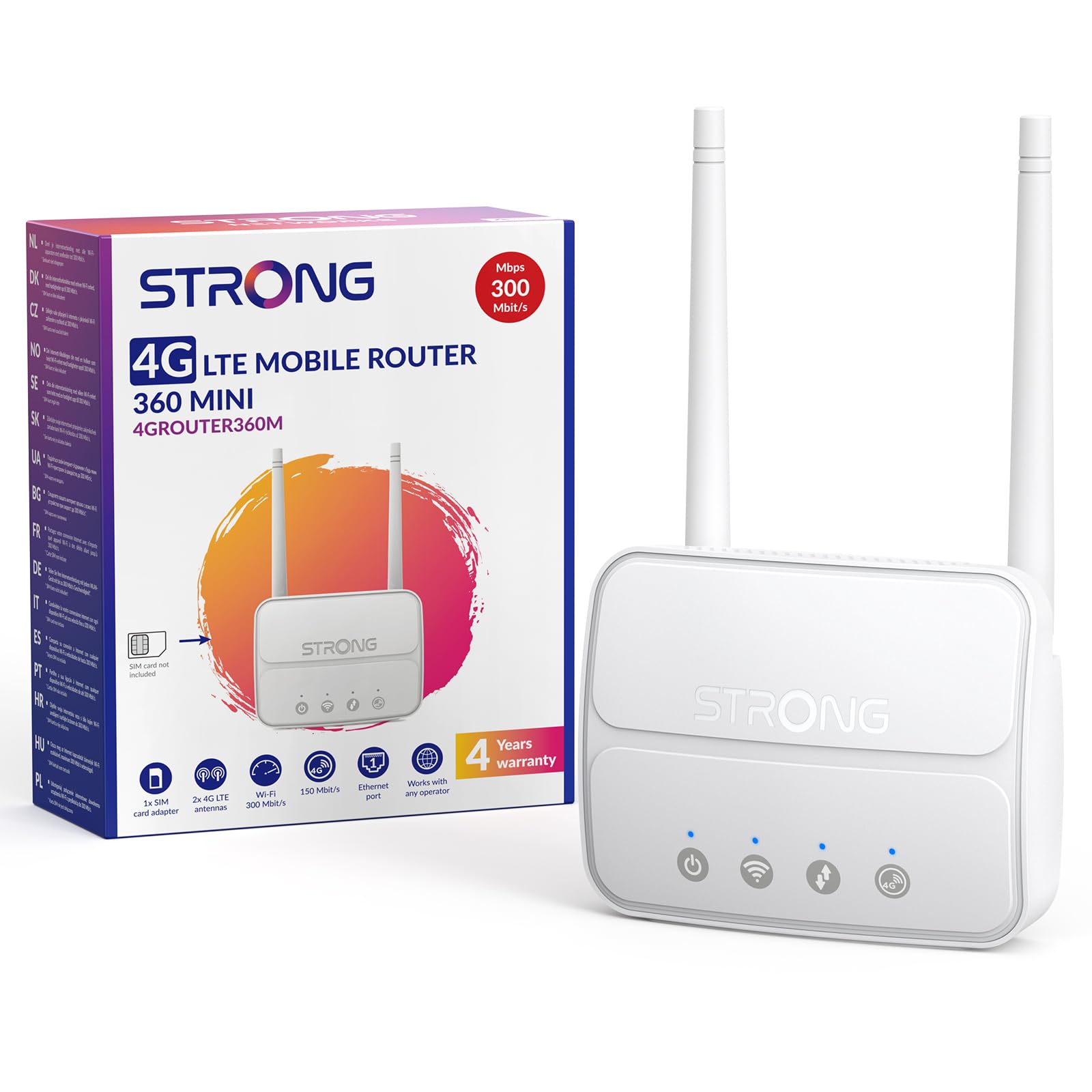
Image 1: The Strong 4G LTE N300 WiFi Router, a compact device with two external antennas for enhanced signal reception.
2. Kas yra dėžutėje
Atidžiai patikrinkite pakuotės turinį. Jei trūksta kokių nors daiktų arba jie pažeisti, susisiekite su klientų aptarnavimo tarnyba.
- Strong 4G LTE N300 WiFi Router
- External Antennas (2 units)
- RJ45 Ethernet kabelis
- Išorinis maitinimo šaltinis
- Nano to Micro SIM Card Adapter
- Greito montavimo vadovas
- Saugos ir garantijos kortelė
3. Sąrankos vadovas
Follow these steps for a quick and easy setup of your Strong 4G LTE N300 WiFi Router.
3.1. Prepare Your SIM Card
Before inserting your SIM card, ensure that any PIN protection is disabled. You can do this by inserting the SIM card into a smartphone and disabling the PIN request through the phone's settings.
3.2. Insert the SIM Card
- Maršrutizatoriuje raskite SIM kortelės lizdą.
- If you have a Nano SIM, use the provided Nano to Micro SIM adapter to fit it into the standard SIM slot.
- Gently insert the prepared SIM card into the slot until it clicks into place.
3.3. Attach External Antennas
Screw the two external 4G antennas onto the designated connectors at the back of the router. Adjust their orientation for optimal signal reception.
3.4. Įjunkite maršrutizatorių
Connect the external power supply to the router's DC-in port and then plug it into a power outlet. The router will automatically power on and begin the startup sequence.
3.5. Connect to the Network (Plug & Play)
The router is designed for Plug & Play operation. Once powered on and with a valid SIM card, it will automatically connect to the 4G LTE network. You can then connect your devices via Wi-Fi or Ethernet.

Image 2: Visual guide for SIM card insertion and powering on the router for instant connection. The image also shows the SIM card slot supporting standard, micro, and nano SIMs with an adapter.
3.6. Prieiga prie Web Sąsaja
For advanced settings and network management, access the router's web sąsają įvesdami 192.168.188.1 į tavo web browser's address bar. Refer to the Quick Installation Guide for default login credentials.
4. Naudojimo instrukcijos
This section details how to use your Strong 4G LTE N300 WiFi Router for optimal performance.
4.1. Prietaisų prijungimas
The router supports connections for up to 32 devices simultaneously.
- „Wi-Fi“ ryšys: Locate the Wi-Fi network name (SSID) and password printed on the label at the bottom of the router. Select this network on your device and enter the password to connect.
- Ethernet jungtis: Use an RJ45 Ethernet cable to connect devices such as PCs, game consoles, or Smart TVs to the router's 100 Mbps LAN port for a stable wired connection.
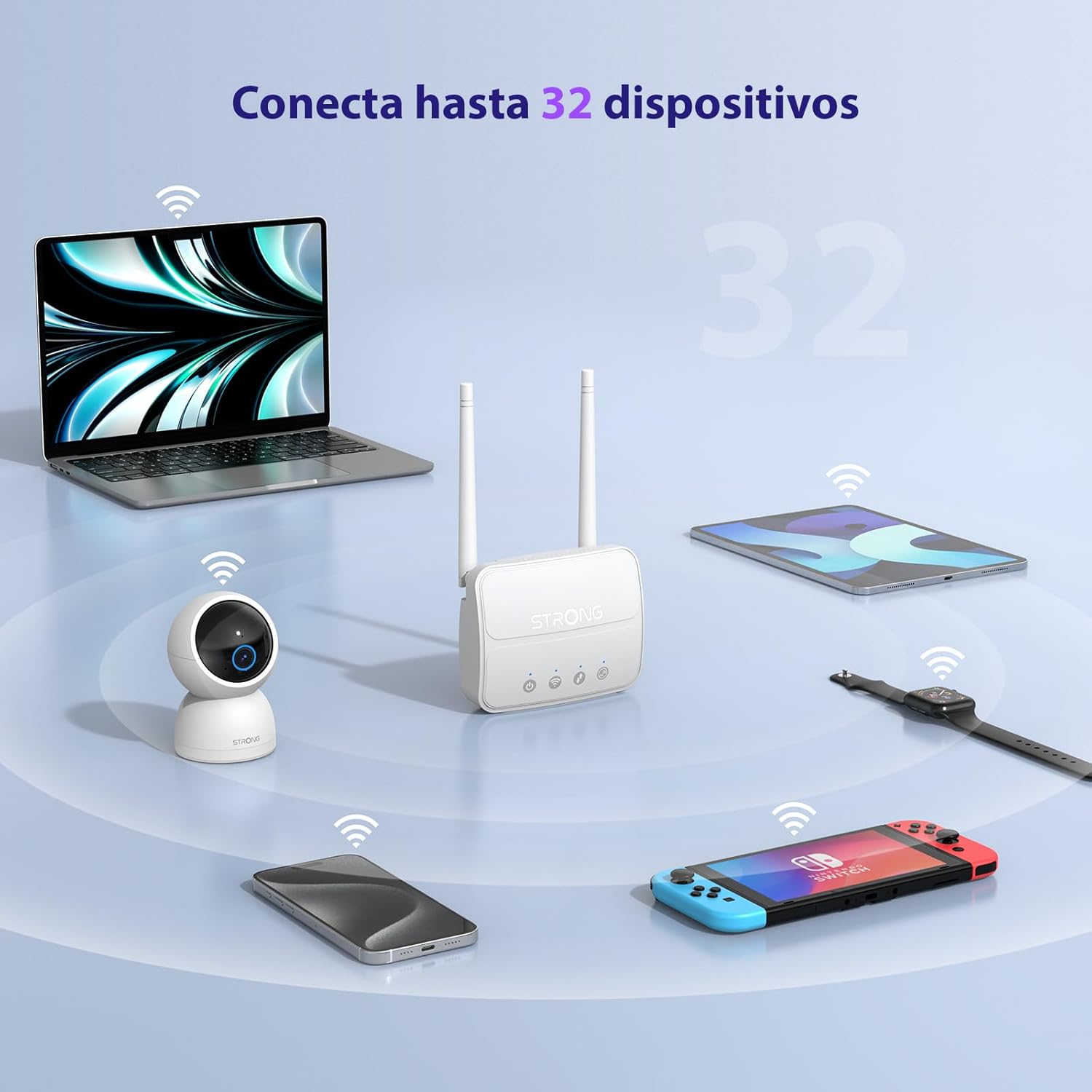
Image 3: The router connecting various devices including laptops, tablets, smartphones, and gaming consoles, demonstrating its capacity for up to 32 simultaneous connections.
4.2. Network Management and Security
The router offers robust security features to protect your network:
- WPA/WPA2 šifravimas: Užtikrina saugų belaidį ryšį.
- PIN Control: Manage SIM card PIN settings.
- MAC filtravimas: Control which devices can connect to your network based on their MAC addresses.
- Advanced Firewall Settings: Customize firewall rules for enhanced protection.
All these settings can be managed through the easy-to-use web sąsaja (192.168.188.1).

Image 4: A user managing network settings on a laptop, illustrating the router's WPA/WPA2 encryption and PIN control features for secure network management.
5. Priežiūra
Tinkama priežiūra užtikrina jūsų maršrutizatoriaus ilgaamžiškumą ir optimalų veikimą.
- Valymas: Maršrutizatoriaus išorę valykite minkštu, sausu skudurėliu. Nenaudokite skystų valiklių ar aerozolių.
- Vieta: Maršrutizatorių pastatykite gerai vėdinamoje vietoje, atokiau nuo tiesioginių saulės spindulių, šilumos šaltinių ir stiprių elektromagnetinių laukų.
- Firmware atnaujinimai: The router features a USB port specifically for firmware updates. Regularly check the Strong official website for the latest firmware versions to ensure improved performance and security. Follow the instructions provided with the firmware update package carefully.
6. Problemų sprendimas
Jei kyla problemų dėl maršrutizatoriaus, žr. šiuos įprastus trikčių šalinimo veiksmus:
- Nėra interneto ryšio:
- Įsitikinkite, kad SIM kortelė tinkamai įdėta ir kad duomenų planas yra aktyvus.
- Verify that the SIM card's PIN protection is disabled.
- Check the signal strength indicators on the router. If the signal is weak, try adjusting the external antennas or relocating the router.
- Iš naujo paleiskite maršrutizatorių atjungdami ir vėl prijungdami maitinimo adapterį.
- „Wi-Fi“ nematomas arba neprisijungia:
- Ensure the Wi-Fi function is enabled (check the router's LED indicators).
- Patikrinkite, ar įvedate teisingą „Wi-Fi“ slaptažodį (SSID ir slaptažodis yra nurodyti ant maršrutizatoriaus etiketės).
- Try connecting a device via Ethernet to confirm the router has internet access.
- Lėti greičiai:
- Check the 4G signal strength. Weak signal can lead to slower speeds.
- Įsitikinkite, kad jokios kitos programos ar įrenginiai nenaudoja per daug pralaidumo.
- Consider the number of connected devices; the router supports up to 32, but performance may vary with heavy usage.
- Nepavyksta pasiekti Web Sąsaja:
- Įsitikinkite, kad jūsų įrenginys prijungtas prie maršrutizatoriaus tinklo („Wi-Fi“ arba eterneto).
- Patvirtinkite, kad įvedate teisingą IP adresą: 192.168.188.1.
- Išbandykite kitą web naršyklė.
If these steps do not resolve the issue, please contact Strong customer support.
7. Specifikacijos
Detailed technical specifications for the Strong 4G LTE N300 WiFi Router (Model 4GROUTER360M).
| Funkcija | Specifikacija |
|---|---|
| Prekės ženklas | Stiprus |
| Modelio pavadinimas | 4GROUTER360M |
| Ryšio technologija | 4G, Ethernet, LTE, Wi-Fi |
| bevielio ryšio standartas | 802.11n (N300 Mbps) |
| 4G LTE greitis | Up to 150 Mbps (Cat4) |
| Ethernet prievadai | 1 x 100 Mbps LAN Port |
| SIM kortelės lizdas | Standard (2FF), includes Nano to Micro adapter |
| Antenos tipas | 2 x External, Detachable 4G Antennas; 2 x Internal Wi-Fi Antennas |
| Maksimalus prijungtų įrenginių skaičius | Iki 32 |
| Apsaugos funkcijos | WPA/WPA2 Encryption, PIN Control, MAC Filtering, Firewall |
| Operacinė sistema | StrongOS |
| Matmenys (paketas) | 18.1 x 15.6 x 7.3 cm |
| Produkto svoris | 204 g |
| Maitinimo šaltinis | Išorinis maitinimo adapteris |
| Ypatingos savybės | Secure Network Management, Plug & Play, Connect up to 32 devices, USB port for firmware updates |
8. Garantija ir palaikymas
Strong is committed to providing reliable products and excellent customer service.
8.1. Informacija apie garantiją
Your Strong 4G LTE N300 WiFi Router comes with a 4-year protection plan, ensuring long-term peace of mind. Please refer to the included Safety and Warranty Card for detailed terms and conditions.
8.2. Pagalba klientams
For any technical assistance, troubleshooting, or warranty inquiries, please contact our expert support team:
- El. paštas: support_at@strong-eu.com
Our support team offers solid service and extended coverage to assist you.

Image 5: Visual representation of Strong's reliable support, highlighting the 4-year protection and contact email for assistance.