
1. Baigėsiview
The Ulefone Tab A9 Pro is an 8.68-inch kids learning tablet designed for children aged 3-12. It features an 8.68" TÜV SÜD Eye Comfort Display, runs on Android 15 with a MediaTek G91 Octa-Core processor, and includes 8GB RAM and 128GB storage (expandable up to 2TB). This tablet is equipped with built-in learning apps, parental controls, and dual SIM support for connectivity on the go. It comes with a durable, shockproof EVA case and a DIY creativity kit.
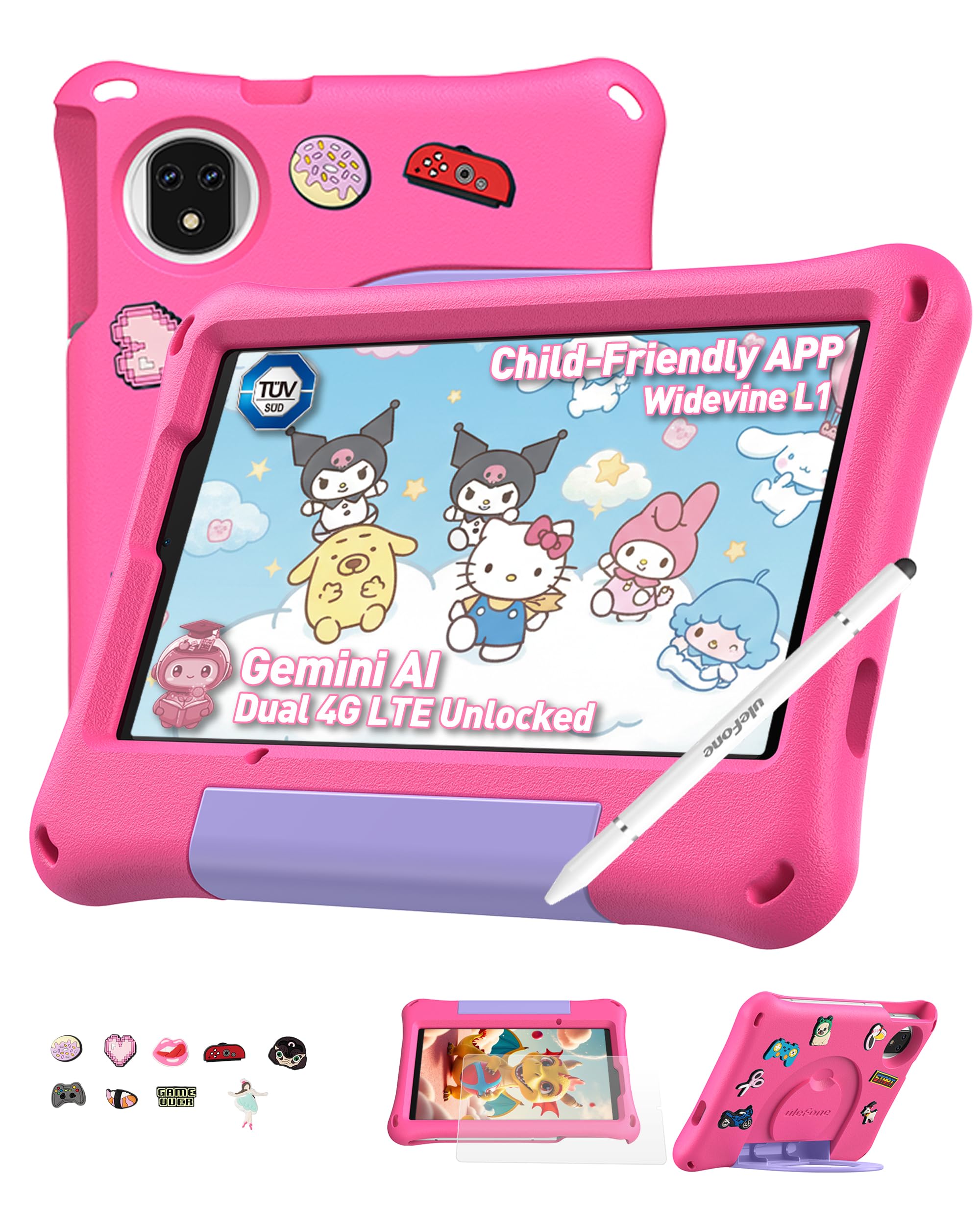
Figure 1: Ulefone Tab A9 Pro Kids Learning Tablet (Pink Edition) with its protective case and various features highlighted.
2. Kas įskaičiuota
The Ulefone Tab A9 Pro package contains the following items:
- 1x Ulefone Tab A9 Pro Tablet
- 1x Type-C to Type-C Charging Cable (1M)
- 1x Tempered Glass Screen Protector (pre-applied)
- 1x Cartoon Decor Kit (15 random accessories)
- 1x EVA Protective Case with adjustable stand
- 1x Capacitive Stylus
- 1x SIM adata
- 1x AC Power Charger
- 1x Safety Prompt Statement
- 1x įkrovimo instrukcijų kortelė
- 1x daugiakalbis vartotojo vadovas

Figure 2: All items included in the Ulefone Tab A9 Pro Kids Learning Tablet package.
1 vaizdo įrašas: išpakavimas ir viskasview of the Ulefone Tab A9 Pro Kids Learning Tablet, demonstrating its components and initial setup.
3. Pagrindinės savybės
- Zero Subscription & Parental Controls: The tablet provides a safe digital environment with no monthly fees. Advanced parental controls allow content filtering, screen time limits, and a secure space for children. It comes preloaded with GMS-certified educational apps.

Figure 3: The tablet features built-in parental control mode for a supervised experience.
Video 2: Demonstration of the advanced parental control features available on the Ulefone Tab A9 Pro Kids Tablet.
- Powerful Android 15 Performance: Equipped with Android 15 OS and a MediaTek G91 Octa-Core processor, 8GB RAM (4+4GB), and 128GB storage (expandable to 2TB). It includes Google Gemini AI for instant answers and supports demanding educational games and 3D applications.
- Eye-Protection Screen: The 8.68-inch IPS display features a 90Hz refresh rate and TÜV SÜD low blue light certification to reduce eye strain. Widevine L1 certification allows streaming HD content from platforms like Disney+ and Netflix.

Figure 4: The 8.68-inch 90Hz display with TÜV SÜD low blue light certification for eye comfort.
- Durable Case & DIY Gift Set: Comes with a rugged, shockproof EVA case with an adjustable stand. The DIY Creativity Kit includes 15 random cartoon accessories for case decoration and a stylus pen for interactive use.

Figure 5: The tablet's double protection with a pre-applied tempered glass screen protector and a soft silicone protective case.
- Travel Essentials: Features Dual SIM support and Dual-band Wi-Fi for connectivity. A 5040mAh battery provides extended use. Includes 12MP+13MP rear cameras and an 8MP front camera with Face Unlock.

Figure 6: The tablet is designed for use at home and on-the-go, with dual SIM and Wi-Fi capabilities.

Figure 7: The tablet is equipped with 12MP + 13MP rear cameras and an 8MP front camera.
4. Sąrankos vadovas
4.1 Pradinis įjungimas
- Ensure the tablet is fully charged using the provided Type-C cable and AC power charger.
- Press and hold the Power button (usually located on the side) until the Ulefone logo appears on the screen.
- Vykdykite ekrane pateikiamus nurodymus, kad pasirinktumėte kalbą, regioną ir sutiktumėte su sąlygomis.
4.2 Prisijungimas prie „Wi-Fi“.
- During initial setup or via Settings, navigate to "Network & internet".
- Įjungti „Wi-Fi“.
- Iš sąrašo pasirinkite norimą „Wi-Fi“ tinklą.
- Enter the Wi-Fi password if prompted and tap "Connect".
4.3 Tėvų kontrolės nustatymas
The Ulefone Tab A9 Pro includes robust parental control features to manage your child's usage:
- Access the dedicated "Kids Mode" application or navigate to "Settings > Digital Wellbeing & parental controls".
- Sukurkite vaiko profesionaląfile and set up a parental password.
- Configure screen time limits, content restrictions, and app access permissions.
- Monitor activity and adjust settings as needed to ensure a safe and educational experience.
5. Planšetinio kompiuterio valdymas
5.1 Sąsajos naršymas
- Pagrindinis ekranas: Swipe left or right to access different pages of apps.
- Pranešimai: Braukite žemyn nuo ekrano viršaus iki view pranešimai ir greitieji nustatymai.
- Naujausios programos: Tap the square icon (or swipe up and hold from the bottom) to see recently used applications.
- Atgal: Tap the triangle icon (or swipe from the left/right edge) to go back to the previous screen.
5.2 Rašiklio naudojimas
The included capacitive stylus can be used for drawing, writing, and precise navigation. Simply touch the stylus tip to the screen as you would with your finger. The stylus has two ends for versatile use.
5.3 Programėlių diegimas ir valdymas
- Preloaded Apps: The tablet comes with various educational and entertainment apps.
- „Google Play“ parduotuvė: Access the Google Play Store to download additional apps, games, and content. Ensure parental controls are configured to manage downloads.
- Programėlių pašalinimas: To remove an app, long-press its icon on the home screen or app drawer, then drag it to the "Uninstall" option, or go to "Settings > Apps > See all apps" and select the app to uninstall.
6. Priežiūra ir priežiūra
- Valymas: Ekraną ir korpusą valykite minkštu, nepūkuotu audiniu. Venkite stiprių cheminių medžiagų ar abrazyvinių medžiagų.
- Akumuliatoriaus priežiūra: To prolong battery life, avoid extreme temperatures. Charge the tablet regularly, but do not leave it plugged in for extended periods after it's fully charged.
- Saugykla: Store the tablet in a cool, dry place. When not in use, keep it in its protective EVA case.
- Programinės įrangos atnaujinimai: Periodically check for system updates in "Settings > System > System update" to ensure optimal performance and security.
7. Įprastų problemų šalinimas
| Problema | Sprendimas |
|---|---|
| Planšetinis kompiuteris neįsijungia. | Ensure the battery is charged. Connect the charger and wait a few minutes before attempting to power on again. If unresponsive, perform a force restart by holding the Power button for 10-15 seconds. |
| Ekranas nereaguoja. | Paleiskite planšetinį kompiuterį iš naujo. Jei problema išlieka, įsitikinkite, kad ekranas švarus ir be šiukšlių. |
| „Wi-Fi“ ryšio problemos. | Patikrinkite, ar nustatymuose įjungtas „Wi-Fi“. Paleiskite maršrutizatorių ir planšetinį kompiuterį iš naujo. Įsitikinkite, kad esate „Wi-Fi“ signalo diapazone. |
| Programėlės stringa arba veikia lėtai. | Close background apps. Clear the cache of the problematic app (Settings > Apps > [App Name] > Storage & cache > Clear cache). Ensure sufficient storage space is available. Restart the tablet. |
| Parental controls not working as expected. | Verify that the parental control settings are correctly configured in the Kids Mode app or system settings. Ensure the parental password is secure and not shared. |
8. Gaminio specifikacijos
| Funkcija | Specifikacija |
|---|---|
| Prekės ženklas | Ulefone |
| Modelio pavadinimas | Ulefone A9 Pro Kids Tablet Pink |
| Atminties talpa | 128 GB (išplečiama iki 2 TB) |
| Ekrano dydis | 8.68 colių |
| Maksimali ekrano skiriamoji geba | 800×1340 |
| Operacinė sistema | Android 15 |
| Procesorius | MediaTek G91 Octa-Core |
| Įdiegta RAM atmintis | 8 GB (4 + 4 GB) |
| Baterijos talpa | 5040 milijonųampprieš valandą (mAh) |
| Galinės kameros | 12 MP + 13 MP |
| Priekinė kamera | 8MP (with Face Unlock) |
| Belaidė technologija | Bluetooth, Dual-band Wi-Fi |
| Korinio ryšio technologija | 4G (Note: Not compatible with AT&T or Cricket) |
| Ausinės Jack | 3.5 mm |
| Prekės matmenys (ilgis x plotis x storis) | 8.37 cm ilgio x 0.31 cm pločio x 4.93 cm storio |
9. Garantija ir klientų aptarnavimas
„Ulefone“ teikia paslaugas. 2 metų garantija for non-human damage. For any questions or support regarding your Ulefone Tab A9 Pro Kids Learning Tablet, please contact customer service via email at: support@ulefone.com.
Išsaugokite pirkimo įrodymą, kad galėtumėte kreiptis dėl garantijos.