
Įvadas
Welcome to the user manual for your new Texas Instruments TI-84 Evo Graphing Calculator. This guide provides essential information for setting up, operating, maintaining, and troubleshooting your device. The TI-84 Evo is designed to enhance learning in mathematics and science, featuring a faster processor, increased graphing space, an intuitive icon-based home screen, and Python programming capabilities.
Please read this manual thoroughly to ensure proper use and to maximize the functionality of your calculator.
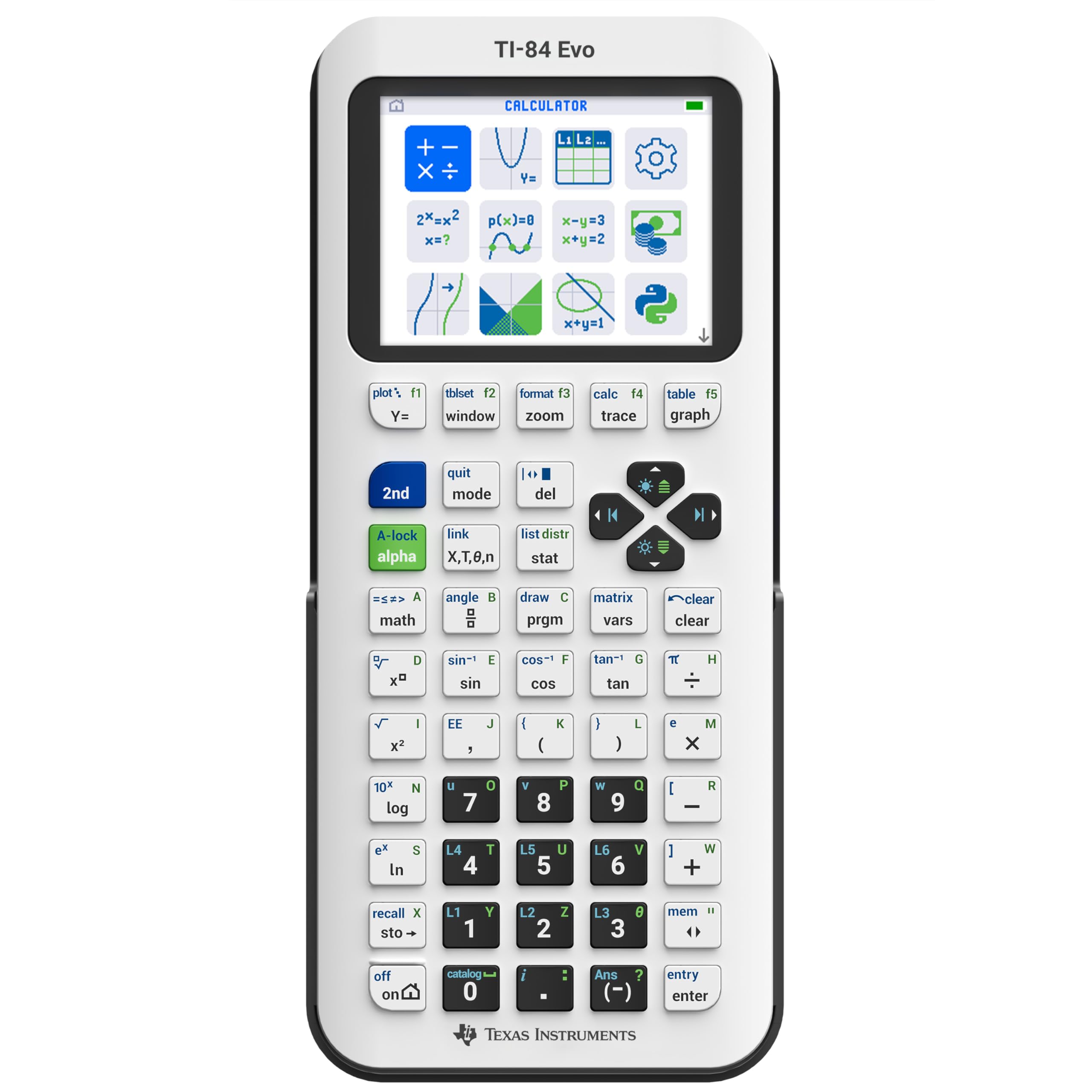
Vaizdas: priekis view of the white TI-84 Evo Graphing Calculator.
Sąranka
1. Pradinis mokestis
Before first use, fully charge your TI-84 Evo calculator.
- Connect the provided USB-C cable to the calculator's USB-C port.
- Kitą laido galą prijunkite prie suderinamo USB maitinimo adapterio (nepridedamas) arba kompiuterio USB prievado.
- Užsidegs įkrovimo indikatoriaus lemputė. Visiškas įkrovimas paprastai trunka kelias valandas.
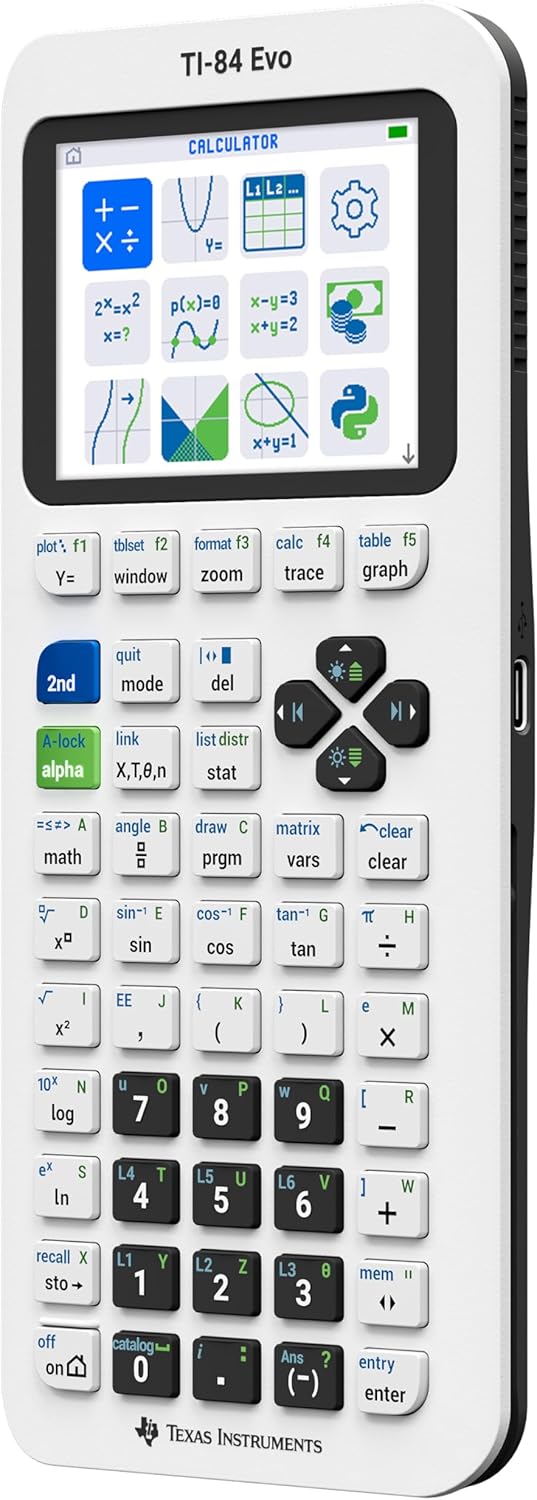
Vaizdas: Šoninė view of the TI-84 Evo showing the USB-C charging port.
2. Maitinimo įjungimas/išjungimas
- Norėdami įjungti, paspauskite ON button located at the bottom left of the keypad.
- Norėdami išjungti, paspauskite 2-oji, tada ON (which functions as IŠJUNGTA).
- The calculator will automatically power off after a period of inactivity to conserve battery.
Naudojimo instrukcijos
1. Icon-Based Home Screen
The TI-84 Evo features an intuitive icon-based home screen for quick access to common math tools and applications.

Image: The icon-based home screen of the TI-84 Evo, displaying various math tools and applications.
- Use the arrow keys to navigate between icons.
- Paspauskite ENTER to select an application or tool.
Video: Official Texas Instruments video demonstrating the TI-84 Evo Graphing Calculator's features, including the icon-based home screen.
2. Pagrindiniai skaičiavimai
Įveskite skaičius ir veiksmus naudodami klaviatūrą. Paspauskite ENTER to compute the result.
- +, -, *, /: Standard arithmetic operations.
- ^: Exponentiation.
- 2-oji: Accesses the secondary function printed above each key.
- ALFA: Accesses the alphabetic character printed above each key.

Image: Close-up of the TI-84 Evo's simplified keypad, highlighting key layout and functions.
3. Funkcijų grafikų braižymas
The TI-84 Evo offers 50% more graphing space for clearer visualization of mathematical relationships.
- Paspauskite Y= to enter function equations.
- Input your desired function (e.g., X^2).
- Paspauskite GRAFIKAS kad būtų rodomas grafikas.
- Naudokite LANGAS to adjust graph settings (Xmin, Xmax, Ymin, Ymax, etc.).
- Naudokite MODYTI for various scaling options.
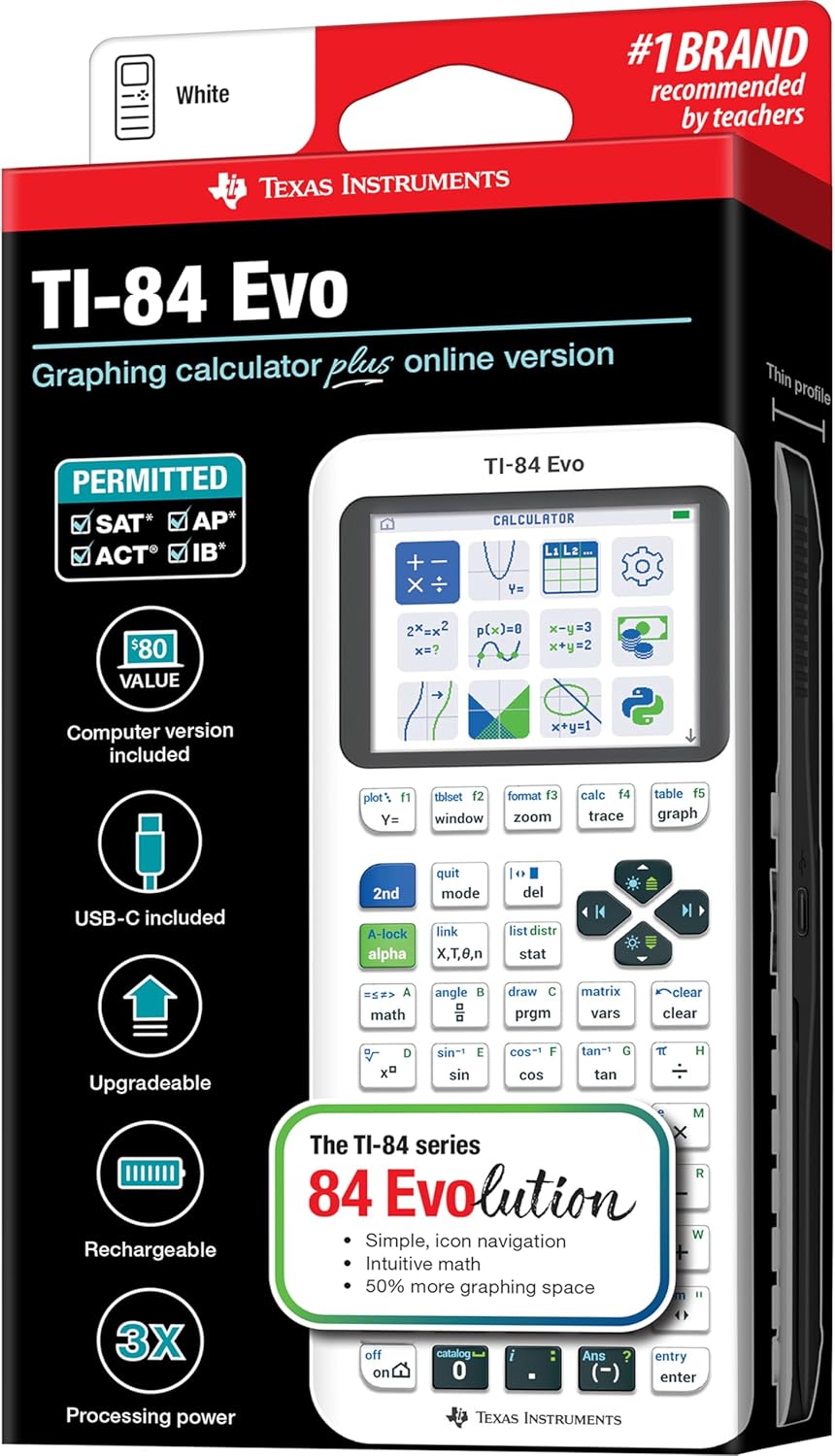
Image: The TI-84 Evo screen displaying a quadratic function graph.
Video: Official Texas Instruments video highlighting the evolution of the TI-84 series, including improved graphing capabilities of the Evo model.
4. Python Programming
The TI-84 Evo includes built-in Python programming functionality, allowing users to write and execute Python scripts.
- Access the Python editor from the icon-based home screen.
- Write, edit, and run Python programs directly on the calculator.
- This feature introduces basic coding skills relevant to real-world applications.
Priežiūra
1. Akumuliatoriaus priežiūra
- The TI-84 Evo uses a rechargeable lithium-ion battery.
- Reguliariai įkraukite akumuliatorių, kad išlaikytumėte optimalų veikimą.
- Venkite ilgesnį laiką visiškai iškrauti akumuliatorių.
- If the calculator will not be used for a long time, charge it to about 50% before storing.
2. Valymas
- Ekraną ir jo korpusą valykite minkštu, sausu skudurėliu.asing.
- Nenaudokite abrazyvinių valiklių, tirpiklių ar aerozolinių purškalų.
- Venkite drėgmės patekimo į bet kokias angas.
Trikčių šalinimas
| Problema | Sprendimas |
|---|---|
| Skaičiuoklė neįsijungia. | Ensure the battery is charged. Connect to a power source using the USB-C cable. If the issue persists, try resetting the calculator by pressing the RESET button (usually a small hole on the back, requiring a paperclip). |
| Ekranas tuščias arba užstrigo. | Paspauskite ir palaikykite ON button for a few seconds to force a restart. If unresponsive, perform a hard reset using the RESET mygtuką. |
| Neteisingi skaičiavimo rezultatai. | Check your input and ensure the calculator is in the correct mode (e.g., radian/degree, float/exact). Refer to the operating instructions for specific function usage. |
| Baterija greitai išsikrauna. | Reduce screen brightness. Ensure the calculator is powered off when not in use. Avoid extreme temperatures. If the problem continues, the battery may need service. |
Specifikacijos
| Funkcija | Detalė |
|---|---|
| Prekės ženklas | Teksaso instrumentai |
| Modelio pavadinimas | TI-84 Evo |
| Modelio numeris | 84EVO/FC |
| Skaičiuoklės tipas | Grafikas |
| Spalva | Baltas |
| Maitinimo šaltinis | Maitinamas su baterijomis (pridedama 1 ličio jonų baterija) |
| Ekrano dydis | 2.8 colių |
| Ekrano tipas | LCD |
| Prekės matmenys (I x P) | 7.57 colio ilgio x 3.4 colio pločio |
| Prekės svoris | 7.2 uncijos |
| UPC | 033317209927 |

Image: Packaging of the TI-84 Evo, showing key features and a comparison table with previous models.
Garantija ir palaikymas
Informacija apie garantiją
The Texas Instruments TI-84 Evo Graphing Calculator comes with a 1 metų ribota garantija from the manufacturer. For detailed warranty terms and conditions, please visit the official Texas Instruments education websvetainę.
Pagalba klientams
For additional support, resources, and frequently asked questions, please visit the official TI-84 Evo information page: education.ti.com/84evo-info.


