
1. Sąranka
1.1 Pakuotės turinys
Prieš surinkdami patikrinkite, ar pakuotėje yra visi komponentai:
- KTC H24F7 24 Inch 240Hz Monitor
- Monitoriaus bazė
- Monitoriaus stovas
- Maitinimo adapteris
- HDMI kabelis
- Greitos pradžios vadovas (QSG)
1.2 Surinkimo instrukcijos
Norėdami surinkti monitorių, atlikite šiuos veiksmus:
- Atsargiai išimkite monitorių ir visus jo komponentus iš pakuotės.
- Attach the monitor stand to the monitor base. Ensure it clicks securely into place.
- Connect the assembled stand and base to the back of the monitor. The stand is designed for easy snap-in installation.
- Padėkite monitorių ant stabilaus, lygaus paviršiaus.

1.3 VESA laikiklio montavimas
The KTC H24F7 monitor supports VESA 100mm x 100mm mounting for alternative stand or wall mount solutions. Ensure you use M4-0.7 x 10mm screws (not included) for secure installation.

1.4 Prisijungimas prie įrenginių
Prijunkite kompiuterį ar kitus įrenginius prie monitoriaus naudodami atitinkamus laidus.
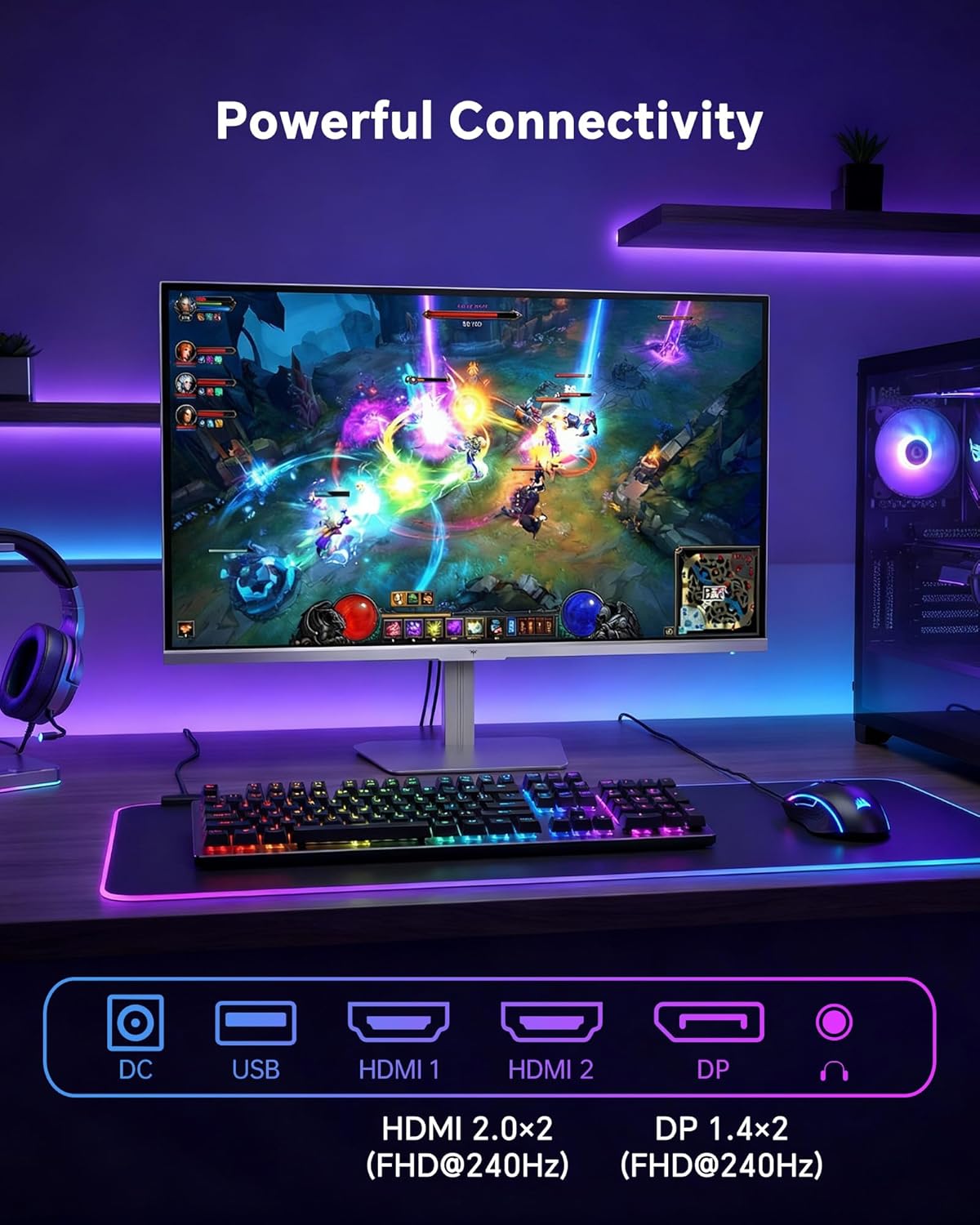
- HDMI: Use an HDMI cable to connect to devices with HDMI output. The monitor has two HDMI 2.0 ports, supporting FHD at 240Hz.
- DisplayPort: Use a DisplayPort cable for devices with DisplayPort output. The monitor has one DisplayPort 1.4, supporting FHD at 240Hz.
- Galia: Connect the power adaptor to the DC input on the monitor and then to a power outlet.
- USB: A USB 2.0 port is available for connecting peripherals.
- Garso išvestis: A 3.5mm audio jack is available for connecting headphones or external speakers.
2. Naudojimo instrukcijos
2.1 Maitinimo įjungimas/išjungimas
Norėdami įjungti arba išjungti monitorių, paspauskite ant jo esantį maitinimo mygtuką. Maitinimo indikatoriaus lemputė užsidegs, kai monitorius bus aktyvus.
2.2 Ekrano meniu (OSD)
The OSD menu allows you to adjust various monitor settings. Use the control buttons (typically located on the back or bottom of the monitor) to navigate the menu and select options. Refer to the Quick Start Guide for specific button functions.
2.3 Ekrano nustatymai
Optimizuokite savo viewpatirtį koreguodami šiuos nustatymus:
- Atnaujinimo dažnis: The monitor supports a 240Hz refresh rate for smooth motion. Ensure your graphics card settings are configured to utilize this rate.

- Adaptyvusis sinchronizavimas: This technology synchronizes the monitor's refresh rate with your graphics card's frame rate to eliminate screen tearing and stuttering. Enable Adaptive Sync in the OSD menu and ensure it is also enabled in your graphics card control panel (FreeSync/G-Sync compatible).

- HDR 400: High Dynamic Range 400 provides enhanced contrast and color accuracy, delivering brighter highlights and deeper shadows. Activate HDR in the OSD menu and your operating system display settings for compatible content.

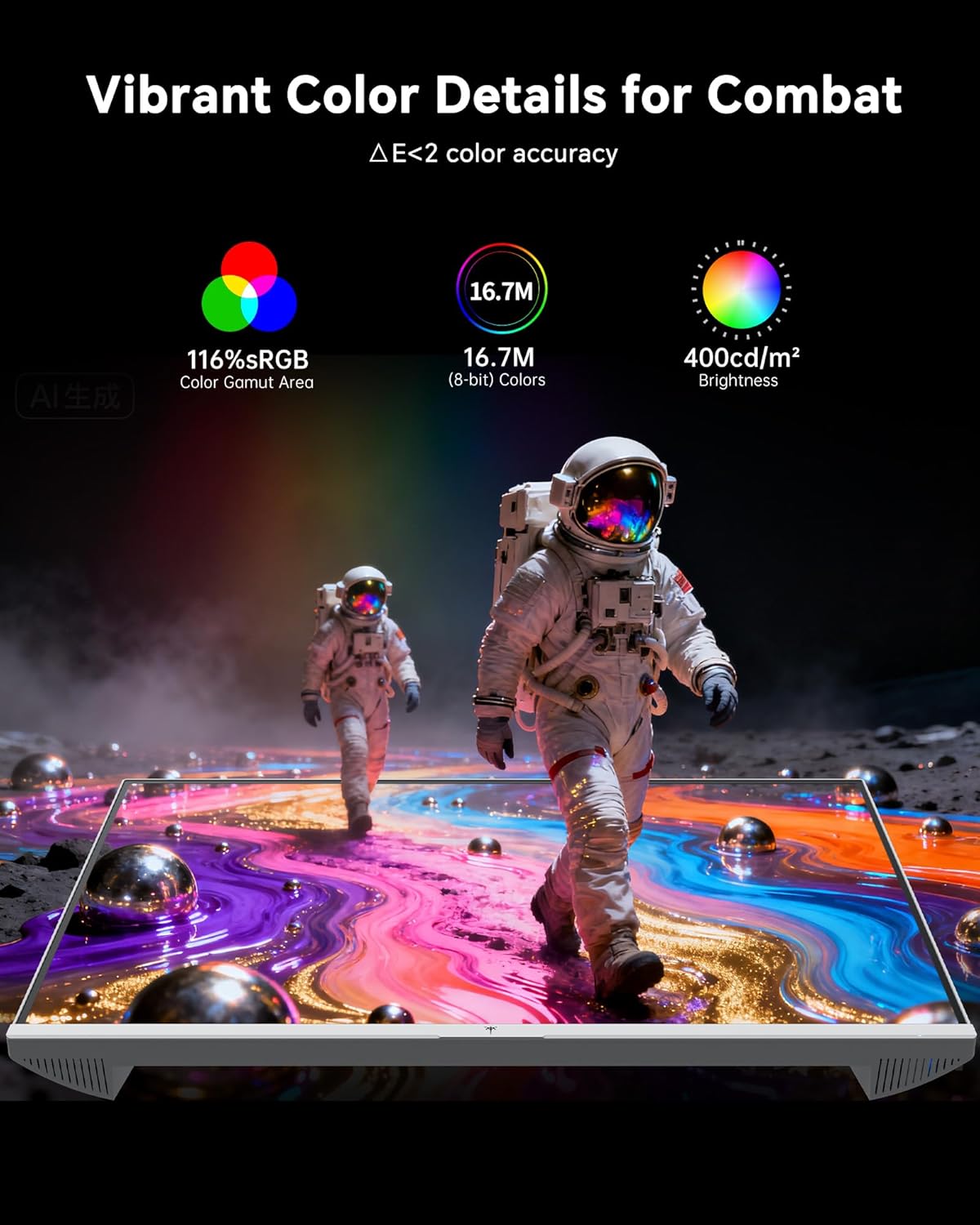
- Spalvų nustatymai: The monitor offers 116% sRGB color gamut and 16.7 million colors. Adjust brightness (up to 400 cd/m²) and color temperature through the OSD menu to suit your preference.
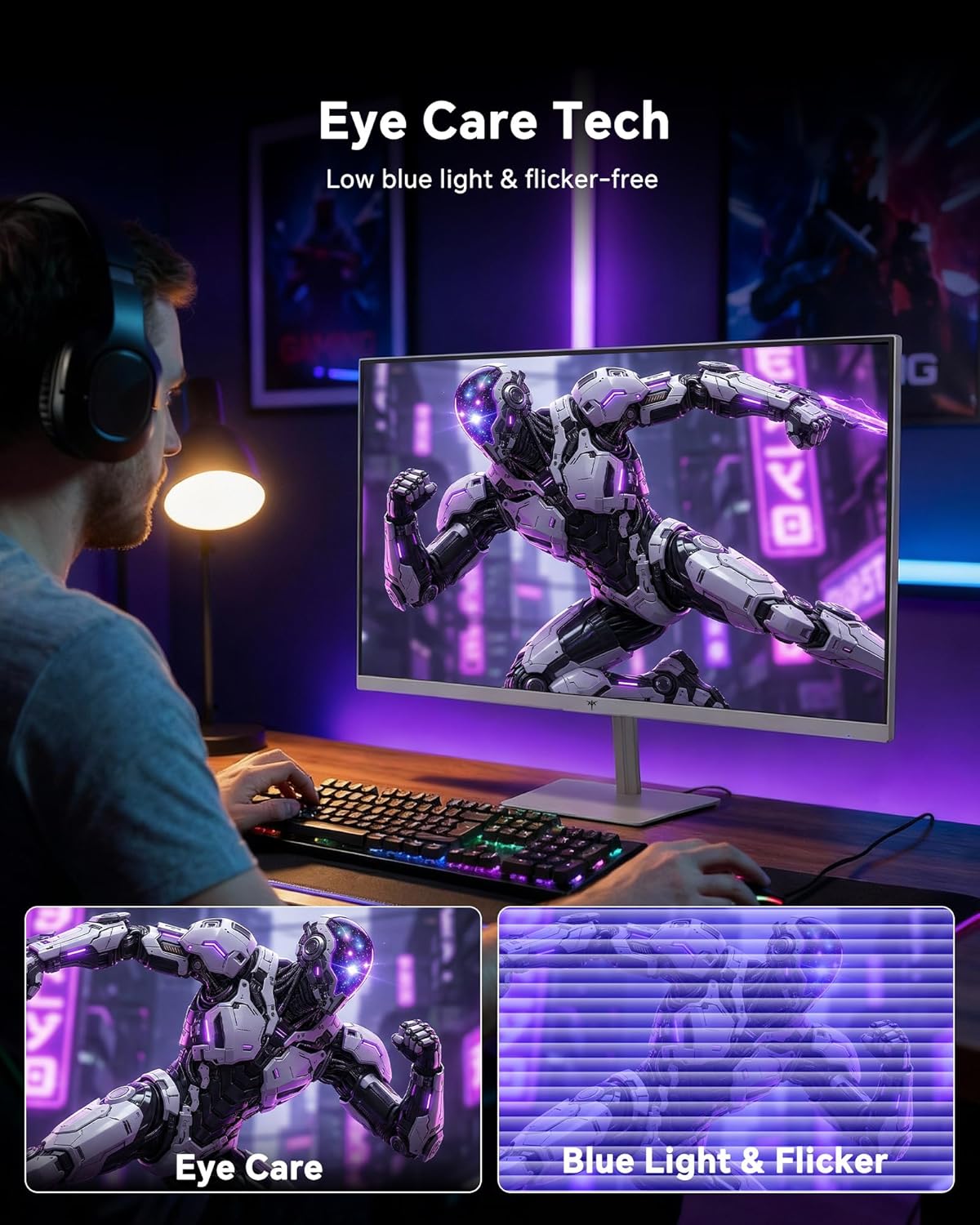
- Akių priežiūros technologija: The monitor features low blue light and flicker-free technology to reduce eye strain during prolonged use. These settings can typically be adjusted or enabled within the OSD menu.
2.4 Monitor Tilt Adjustment
The monitor supports tilt adjustment from -5° to 15° (±3°). Gently adjust the monitor panel to your desired viewing kampas.
3. Priežiūra
3.1 Monitoriaus valymas
Norėdami išvalyti monitoriaus ekraną irasing:
- Prieš valydami visada išjunkite monitorių ir atjunkite maitinimo laidą.
- Šiek tiek naudokite minkštą, be pūkelių šluostę dampnuplaukite vandeniu arba švelniu, neabrazyviniu ekrano valikliu.
- Wipe the screen gently to remove dust and smudges. Avoid applying excessive pressure.
- Dėl casing, use a dry, soft cloth. Do not use alcohol, ammonia, or abrasive cleaners, as these can damage the surface.
3.2 Bendroji priežiūra
- Venkite dėti sunkių daiktų ant monitoriaus ar jo laidų.
- Nelaikykite monitoriaus tiesioginiuose saulės spinduliuose, per dideliame karštyje ar šaltyje.
- Laikykite monitorių atokiau nuo skysčių ir didelės drėgmės.
- Užtikrinkite tinkamą vėdinimą aplink monitorių, kad išvengtumėte perkaitimo.
4. Problemų sprendimas
If you encounter issues with your KTC H24F7 monitor, refer to the following common problems and solutions:
| Problema | Galima priežastis | Sprendimas |
|---|---|---|
| Ekrane nėra vaizdo | Power cable disconnected; Video cable disconnected or loose; Incorrect input source selected; Monitor is off. | Ensure power cable is securely connected and monitor is on. Check video cable connections (HDMI/DisplayPort) at both the monitor and computer. Press the input source button on the monitor to cycle through inputs. |
| Vaizdo mirgėjimas arba plyšimas | Adaptive Sync not enabled; Graphics card driver issues; Faulty video cable. | Enable Adaptive Sync in the OSD menu and your graphics card control panel. Update graphics card drivers. Try a different video cable. If using DisplayPort 1, try DisplayPort 2 or HDMI if available, as some units may experience issues with specific ports. |
| Spalvos atrodo neteisingos arba išblukusios | Color settings incorrect; HDR not properly configured; Faulty video cable. | Adjust color settings (brightness, contrast, color temperature) in the OSD menu. Ensure HDR is enabled in both the OSD and your operating system for HDR content. Try a different video cable. |
| Monitorius nepasiekia 240 Hz | Graphics card limitations; Incorrect display settings in OS; Cable bandwidth limitations. | Ensure your graphics card supports 240Hz at 1080p. Verify display settings in your operating system (e.g., Windows Display Settings or NVIDIA/AMD control panel) are set to 240Hz. Use the provided HDMI cable or a certified DisplayPort 1.4 cable. |
| Stuck or dead pixels | Gamybos brokas. | A small number of stuck or dead pixels (typically 1-3) may be considered normal for LCD panels. If the issue is severe or persistent, contact customer support. |
5. Specifikacijos
| Funkcija | Detalė |
|---|---|
| Prekės ženklas | KTC plėtinys |
| Modelio numeris | H24F7 |
| Ekrano dydis | 24 colių |
| Rezoliucija | FHD 1080p (1920 x 1080 pikselių) |
| Skydelio tipas | Beveik IPS |
| Atnaujinimo dažnis | 240 Hz |
| Reagavimo laikas | 1 Millisecond (MPRT) |
| Krašto santykis | 16:9 |
| Ryškumas | 400 kandelų kvadratiniam metrui |
| Kontrasto santykis | 1000:1 |
| Spalvų gama | 116% sRGB |
| HDR palaikymas | HDR 400 |
| Adaptyvusis sinchronizavimas | FreeSync, G-Sync Compatible |
| Ryšys | 2x HDMI 2.0, 1x DisplayPort 1.4, 1x USB 2.0, 1x Audio Out (3.5mm) |
| Akių priežiūros funkcijos | Low Blue Light, Flicker-Free, Anti-Glare Screen |
| Koregavimai | Pakreipimas (nuo -5° iki 15°) |
| VESA kalnas | 100 mm x 100 mm |
| Matmenys (G x P x A) | 5.39 "D x 21.25" P x 15.74" A |
| Prekės svoris | 3.2 kilogramo |
| Spalva | Baltas |
6. Garantija ir palaikymas
6.1 Informacija apie garantiją
The KTC H24F7 monitor comes with a three-year manufacturer warranty. Ši garantija apima medžiagų ir gamybos defektus normaliai naudojant.
Išsaugokite pirkimo įrodymą, kad galėtumėte kreiptis dėl garantijos.
6.2 Pagalba klientams
For technical assistance, warranty claims, or any questions regarding your KTC H24F7 monitor, please contact KTC customer support. KTC aims to provide responsive customer support and typically responds within 12 hours.
You can usually find contact information on the official KTC website or through the retailer where you purchased the product. When contacting support, please have your monitor model number (H24F7) and purchase details ready.