
1. Įvadas
This manual provides essential information for setting up, operating, maintaining, and troubleshooting your GMKtec K15 AI Mini PC. The K15 is a compact, high-performance barebone mini computer featuring an Intel Ultra 5 125U processor, designed for a wide range of applications from home entertainment to professional workloads.
Please read this manual thoroughly before using the device to ensure proper operation and to maximize its lifespan.
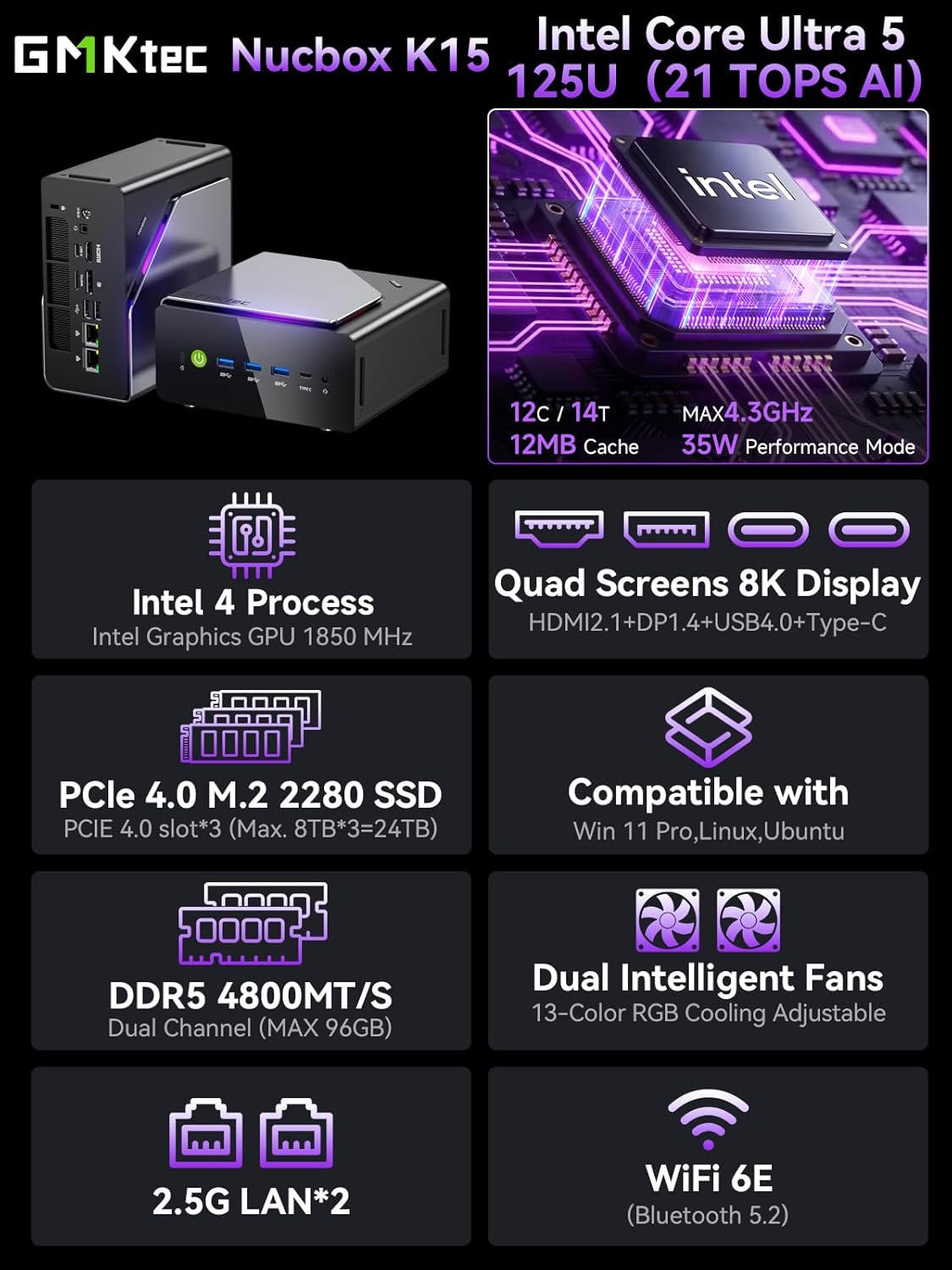
1.1 vaizdas: Baigtaview of GMKtec K15 Mini PC features, including Intel Ultra 5 125U CPU, 8K display support, PCIe 4.0 SSD, DDR5 RAM, dual intelligent fans, 2.5G LAN, and WiFi 6E.
2. Pakuotės turinys
Patikrinkite, ar pakuotėje yra visi reikalingi daiktai:
- 1 x GMKtec Nucbox K15 Mini PC
- 1x maitinimo adapteris
- 1 x VESA laikiklis su varžtais
- 1x HDMI laidas
- 1 x Naudotojo vadovas (šis dokumentas)
3. Fizinis viršusview
Familiarize yourself with the ports and components of your GMKtec K15 Mini PC.

Image 3.1: Detailed diagram showing the front and rear I/O ports of the GMKtec K15 Mini PC.
Priekinis skydelis
- Maitinimo mygtukas: Norėdami įjungti arba išjungti įrenginį.
- USB 3.2 Gen2 prievadai (x3): Skirta didelės spartos USB įrenginiams prijungti.
- Full-Function Type-C Port (USB4): Supports data transfer, video output (DP1.4), and power delivery (PD3.0).
- 3.5 mm garso lizdas: Ausinėms ar garsiakalbiams.
- Atkūrimo mygtukas: For system reset (use a pin).
Galinis skydelis
- DC maitinimo įvestis: Prijunkite pridedamą maitinimo adapterį.
- Kensingtono užrakto lizdas: Dėl apsauginio užrakinimo.
- 3.5 mm garso lizdas: Dėl garso išvesties.
- USB4 prievadas: Supports data transfer and video output.
- HDMI Port (2.1): Skirta prijungti prie ekrano.
- OCuLink Port: High-speed direct connection for external graphics or 10G NICs.
- DisplayPort (1.4): Skirta prijungti prie ekrano.
- USB 2.0 prievadai (x2): Skirta standartiniams USB įrenginiams prijungti.
- 2.5G Ethernet Ports (x2): For high-speed wired network connections.
- Ventiliatoriaus režimo mygtukas: To adjust fan speed/mode.

Image 3.2: The OCuLink port on the GMKtec K15 Mini PC, designed for high-speed external graphics card connections.
4. Sąrankos vadovas
The GMKtec K15 is a barebone system, meaning RAM, SSD, and operating system are not pre-installed. Follow these steps to prepare your Mini PC for first use.
4.1 Installing RAM and SSD
The K15 supports dual-channel DDR5-4800MHz RAM (up to 128GB) and three PCIe 4.0 x4 M.2 2280 SSDs (up to 24TB total storage).
- Išjungti: Ensure the Mini PC is powered off and disconnected from the power adapter.
- Atvira važiuoklė: Carefully open the Mini PC chassis. Refer to the specific instructions provided with your device for opening the case.
- Įdiekite RAM: Locate the DDR5 SO-DIMM slots. Align the RAM module notch with the slot key and insert it firmly at a 45-degree angle. Push down until the clips on both sides lock the module in place.
- SSD diegimas: Locate the M.2 2280 PCIe 4.0 x4 slots. Insert the M.2 SSD into the slot at a slight angle, then gently push it down and secure it with the provided screw.
- Uždaryti važiuoklę: Carefully close the Mini PC chassis, ensuring all connections are secure.

Image 4.1: Internal layout of the GMKtec K15 Mini PC, illustrating the locations for DDR5 RAM and three M.2 2280 PCIe 4.0 x4 SSDs.
4.2 Išorinių įrenginių prijungimas
- Ekranas: Connect your monitor(s) to the HDMI, DisplayPort, or USB4 Type-C ports using appropriate cables. The K15 supports up to four displays simultaneously.
- Klaviatūra ir pelė: Prijunkite USB klaviatūrą ir pelę prie bet kurių laisvų USB prievadų.
- Tinklas: For wired internet, connect an Ethernet cable to one of the 2.5G LAN ports. For wireless, ensure your WiFi 6E router is configured.
- Galia: Connect the power adapter to the DC Power Input port on the rear panel, then plug the adapter into a power outlet.
4.3 Operacinės sistemos diegimas
Since the K15 is a barebone system, an operating system (OS) is not included. You will need to install your preferred OS (e.g., Windows 11 Pro, Linux, Ubuntu) from a bootable USB drive. Refer to the OS manufacturer's instructions for installation.
5. Operacija
5.1 Maitinimo įjungimas/išjungimas
- Maitinimas: Paspauskite maitinimo mygtuką priekiniame skydelyje.
- Išjungti: From within your operating system, select the shutdown option. Alternatively, press and hold the power button for 5 seconds to force a shutdown (use only when necessary).
5.2 Ekrano konfigūracija
The K15 supports up to four simultaneous displays via HDMI 2.1 (8K@60Hz), DisplayPort 1.4 (8K@30Hz), and dual USB4 Type-C ports (DP1.4/PD3.0). Configure your display settings within your operating system to extend, duplicate, or use only one screen.

Image 5.1: A GMKtec K15 Mini PC setup demonstrating connection to multiple 4K/8K displays for enhanced multitasking.
5.3 Tinklo ryšys
- Laidinis: The dual 2.5GbE LAN ports provide high-speed wired network access.
- Belaidis ryšys: Integrated Wi-Fi 6E offers fast and stable wireless connectivity. Configure Wi-Fi settings through your operating system.
- Bluetooth: Bluetooth 5.2 allows connection to wireless peripherals such as keyboards, mice, and audio devices.
5.4 AI Processing with NPU
The Intel Ultra 5 125U processor includes a dedicated Neural Processing Unit (NPU) for accelerating AI tasks. This NPU enhances performance for machine learning applications, real-time analytics, and AI-driven creative workloads, reducing CPU load and improving efficiency.

Image 5.2: Visual representation of the K15's Intel AI Boost with Dedicated NPU, highlighting its benefits for AI-enhanced creativity and efficient computing.
6. Priežiūra
- Valymas: Regularly clean the exterior of the Mini PC with a soft, dry cloth. Use compressed air to clear dust from vents and ports. Ensure the device is powered off before cleaning.
- Programinės įrangos atnaujinimai: Keep your operating system, drivers, and applications updated to ensure optimal performance and security.
- Vėdinimas: Ensure the Mini PC is placed in a well-ventilated area to prevent overheating. Do not block the air vents.
7. Problemų sprendimas
If you encounter issues with your GMKtec K15 Mini PC, refer to the following common solutions:
| Problema | Galimas sprendimas |
|---|---|
| Nėra maitinimo / Įrenginys neįsijungia | Check power adapter connection. Ensure the power outlet is functional. Press the power button firmly. |
| Nėra ekrano išvesties | Verify monitor connection and input source. Try a different HDMI/DP cable or port. Ensure RAM and SSD are correctly installed. |
| Lėtas veikimas | Check for background processes. Ensure sufficient RAM and SSD space. Update drivers. Monitor system temperature. |
| Tinklo ryšio problemos | For wired: Check Ethernet cable and router. For wireless: Verify Wi-Fi password, router status, and signal strength. Update network drivers. |
| Peripheral not recognized | Try a different USB port. Reinstall device drivers. Restart the Mini PC. |
Jei problema išlieka, susisiekite su klientų aptarnavimo tarnyba.
8. Specifikacijos
Detailed technical specifications for the GMKtec K15 AI Mini PC:
| Funkcija | Detalė |
|---|---|
| Prekės ženklas | GMKtec |
| Modelio pavadinimas | K15 |
| CPU modelis | Intel Core Ultra 5 125U (12 Cores/14 Threads) |
| CPU greitis | Iki 4.3 GHz |
| Grafika | Integrated Intel Graphics GPU (Max 1.85GHz) |
| RAM tipas | DDR5 RAM (Dual-channel, 4800 MHz) |
| Maksimali RAM talpa | 128 GB |
| Sandėliavimas | 3x M.2 2280 PCIe 4.0 x4 SSD slots (Max 24TB total) |
| Vaizdo išvestis | HDMI 2.1 (8K@60Hz), DisplayPort 1.4 (8K@30Hz), 2x USB4 Type-C (DP1.4/PD3.0) |
| Tinklas | 2x 2.5GbE LAN, Wi-Fi 6E, Bluetooth 5.2 |
| USB prievadai | 3x USB 3.2 Gen2, 2x USB 2.0, 2x USB4 Type-C |
| Kiti uostai | OCuLink, 2x 3.5mm Audio Jack, Kensington Lock |
| Operacinė sistema | None (Barebone) |
| Spalva | Geležinės pilkos spalvos |
9. Informacija apie garantiją
The GMKtec K15 AI Mini PC comes with a 1 metų garantija from the date of purchase. This warranty covers manufacturing defects and hardware malfunctions under normal use. It does not cover damage caused by misuse, accidents, unauthorized modifications, or improper installation of components.
Išsaugokite pirkimo įrodymą, kad galėtumėte kreiptis dėl garantijos.
10. Pagalba klientams
For technical assistance, warranty claims, or any questions regarding your GMKtec K15 AI Mini PC, please contact our support team:
- Pagalba el. paštu: support@gmktec.com (Available 24/7)
- „Amazon“ palaikymas: For purchases made on Amazon, you can also contact support through your Amazon account. Navigate to "Your Orders" and select "Ask Product Question" for the GMKtec K15.
11. Produkto vaizdo įrašas
Peržiūrėkite šį oficialų vaizdo įrašą, kad pamatytumėte vaizdinę informacijąview of the GMKtec K15 AI Mini PC, highlighting its features and capabilities.
11.1 vaizdo įrašas: Oficialus produkto vaizdo įrašo demonstravimasasing the GMKtec K15 AI Mini PC Intel Ultra 5 125U with Oculink port and other features.