
1. Įvadas
This manual provides detailed instructions for the installation, operation, and maintenance of your Lemorele 4K HDMI Video Capture Card with USB3.0. This device is designed for high-quality video capture and passthrough, supporting resolutions up to 4K@60Hz for passthrough and 1080p for capture. It is compatible with various gaming consoles, cameras, and computers, making it suitable for streaming, recording, and live presentations.
2. Pakuotės turinys
Prašome patikrinti, ar pakuotėje yra visi reikalingi daiktai:
- Lemorele 4K HDMI Video Capture Card (Model: 4K60HZ)
- USB-C į USB-A laidas
- Vartotojo vadovas

Image: The Lemorele 4K HDMI Video Capture Card, USB-C cable, and user manual are shown together, indicating the typical package contents.
3. Produktas baigtasview
The Lemorele 4K HDMI Video Capture Card features a durable aluminum alloy body and multiple ports for versatile connectivity.
3.1. Įrenginio išdėstymas
Vaizdas: Viršus view of the capture card highlighting the HDMI OUT, HDMI IN, and Type-C ports. The HDMI OUT port is for looping out the display, HDMI IN is for the device being captured, and Type-C is for connecting to the acquisition device (computer).

Vaizdas: Šoninė view of the capture card highlighting the MIC IN, LINE IN, and AUDIO OUT ports. These ports are used for connecting external microphones, mixers, and audio output devices respectively.
3.2. Uostų aprašymai
- HDMI OUT: Connects to a display (monitor, TV, projector) for zero-latency passthrough.
- HDMI IN: Connects to the source device (gaming console, camera, laptop) for video input.
- C TIPAS: Connects to your computer (laptop, PC, Mac, iPad Pro) for data transfer and power.
- MIC IN: Connects to an external microphone for audio input.
- EILUTĖ: Connects to an audio mixer or instrument for additional audio input.
- GARSO IŠĖJIMAS: Connects to headphones or speakers for audio monitoring.
4. Sąranka
Follow these steps to set up your Lemorele 4K HDMI Video Capture Card:
- Prijunkite šaltinio įrenginį: Connect your HDMI source device (e.g., Nintendo Switch dock, PS5, Xbox, camera) to the HDMI-IN port on the capture card using an HDMI cable.
- Prijungti ekraną (neprivaloma): If you wish to monitor your gameplay or video feed without latency, connect your display (monitor, TV) to the HDMI OUT port on the capture card using an HDMI cable.
- Prisijunkite prie kompiuterio: Connect the capture card to your computer (laptop, PC, Mac, iPad Pro) using the provided USB-C to USB-A cable. Plug the USB-C end into the TIPAS-C port on the capture card and the USB-A end into an available USB 3.0 port on your computer.
- Prijunkite garsą (pasirinktinai): For external audio input, connect your microphone to the MIC IN port or an audio mixer to the LINE IN port. For audio monitoring, connect headphones or speakers to the GARSO IŠĖJIMAS uostas.
- Programinės įrangos sąranka: Install and open your preferred video capture software (e.g., OBS Studio, Zoom, Twitch, YouTube). The capture card should be recognized as a video input device.
Video: This video demonstrates the connection process for the Lemorele AC09 video capture card, showing how to connect the HDMI IN, HDMI OUT, and Type-C ports to a Nintendo Switch dock, a monitor, and a laptop for capturing game footage using OBS Studio.

Image: A visual diagram illustrating the connection of the capture card to a gaming console (PS5), a monitor, and a laptop for streaming and recording.
5. Naudojimo instrukcijos
Once the capture card is set up, you can begin capturing or streaming your content.
5.1. Using with OBS Studio (Example)
- Open OBS Studio on your computer.
- In the 'Sources' panel, click the '+' icon and select 'Vaizdo įrašymo įrenginys'.
- Create a new source or select an existing one. In the device dropdown, choose your Lemorele capture card (it may appear as 'USB Video' or similar).
- Configure resolution, FPS, and audio input settings as needed. Ensure 'Use custom audio device' is checked and select the capture card's audio input.
- Click 'OK' to add the source. You should now see your video feed in OBS.
- Adjust the video source size and position within the preview langas.
- To start recording or streaming, click the 'Start Recording' or 'Start Streaming' button in OBS Studio.
5.2. Garso valdymas
The capture card features dedicated MIC IN and LINE IN ports for advanced audio integration. Ensure your capture software is configured to use these audio inputs for optimal sound quality.
Vaizdo įrašas: šiame vaizdo įraše pateikiamas išsamusview of the Lemorele 4K HDMI Video Capture Card, showcasing its features and various applications in gaming, streaming, and professional settings.

Image: A user is shown actively streaming a game, with the capture card connected to a console and a laptop running streaming software, demonstrating a typical usage scenario.
6. Savybės
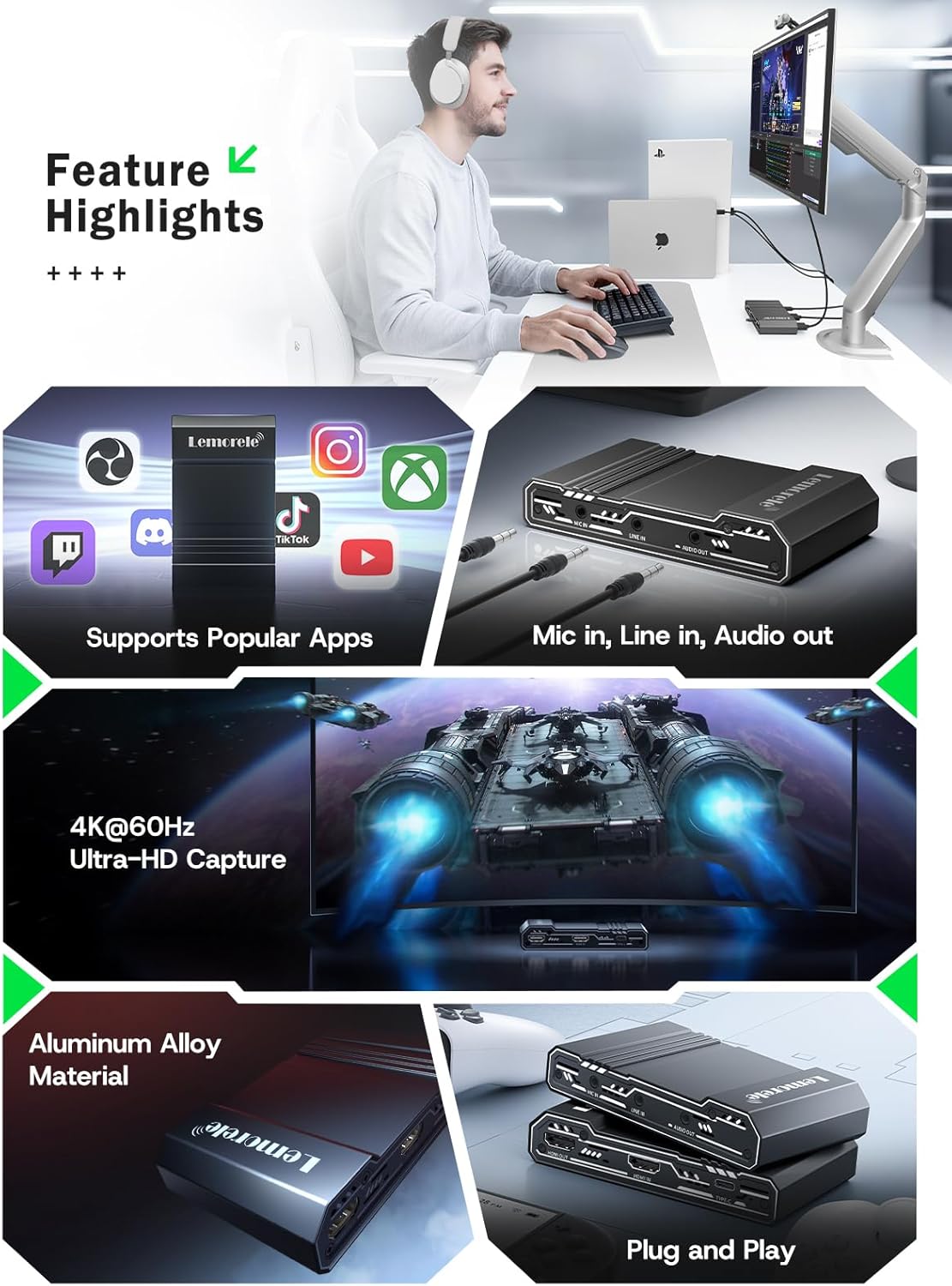
- 4K@60Hz Ultra HD Passthrough: Supports 4K@60Hz zero-lag passthrough to a display while capturing video at 1080p, ensuring a smooth viewing experience for the user and high-quality capture for the audience.
- Advanced Audio Control: Dedicated MIC IN and LINE IN ports allow direct connection to external microphones, mixers, or instruments, facilitating professional audio integration for various content creation needs.
- Comprehensive I/O Connectivity: Equipped with HDMI IN & OUT, USB-C, and AUDIO OUT ports, providing flexible setup options for connecting gaming consoles, cameras, laptops, and monitors.
- Stable & Reliable Performance: The durable aluminum alloy body ensures efficient heat dissipation and anti-interference protection, supporting continuous operation during extended streaming or recording sessions.
- Plug-and-Play Wide Compatibility: Works seamlessly with Windows, macOS, and iPad Pro, and supports popular software such as OBS Studio, Zoom, Twitch, and YouTube. Compatible with PS5, Xbox Series X/S, Nintendo Switch, and DSLR cameras.

Image: This graphic highlights key features of the capture card, including support for popular streaming applications, dedicated audio input/output ports, 4K@60Hz Ultra-HD capture, durable aluminum alloy construction, and plug-and-play functionality.
7. Problemų sprendimas
Jei kyla problemų, žr. toliau pateiktas dažniausiai pasitaikančias problemas ir sprendimus:
- Nėra vaizdo signalo:
- Ensure all HDMI cables are securely connected to the correct ports (HDMI IN from source, HDMI OUT to display).
- Verify the source device is powered on and outputting video.
- Check your capture software settings to ensure the correct video capture device is selected and configured.
- Disable HDCP on your source device (e.g., PS5 settings) if you are experiencing a blank screen.
- Nėra garso:
- Confirm audio cables are correctly connected to MIC IN, LINE IN, or AUDIO OUT ports.
- In your capture software, ensure the audio input device is correctly selected and not muted.
- Patikrinkite garso nustatymus savo šaltinio įrenginyje.
- Lag or Stuttering Video:
- Ensure your computer meets the minimum system requirements for video capture and streaming.
- Use a USB 3.0 port for connecting the capture card to your computer.
- Uždarykite nereikalingas programas, veikiančias fone, kad atlaisvintumėte sistemos išteklius.
- Sumažinkite fiksavimo skiriamąją gebą arba kadrų dažnį programinės įrangos nustatymuose.
- Įrenginys neatpažintas:
- Pabandykite prijungti vaizdo įrašymo kortelę prie kito kompiuterio USB prievado.
- Iš naujo paleiskite kompiuterį.
- Įsitikinkite, kad jūsų operacinė sistema yra atnaujinta.
8. Specifikacijos
| Funkcija | Detalė |
|---|---|
| Prekės ženklas | Lemorele |
| Modelis | 4K60HZ |
| Techninės įrangos sąsaja | 3.5 mm garso jungtis, HDMI, USB 3.0 C tipo |
| Max HDMI Input Resolution | 4K@60Hz |
| Maksimali HDMI pralaidumo skiriamoji geba | 4K@60Hz |
| Maksimali fiksavimo raiška | 1080p |
| Prekės svoris | 9.8 uncijos |
| Pakuotės matmenys | 6.1 x 4.02 x 1.42 colio |
| Medžiaga | Aliuminio lydinys |
| Suderinamumas | Windows, macOS, iPad Pro, OBS Studio, Zoom, Twitch, YouTube, PS5, Xbox Series X/S, Nintendo Switch, DSLR cameras |
9. Priežiūra
To ensure the longevity and optimal performance of your capture card, follow these maintenance guidelines:
- Valymas: Įrenginio išorę valykite minkšta, sausa šluoste. Venkite naudoti skystus valiklius ar abrazyvines medžiagas.
- Saugykla: Laikykite prietaisą vėsioje, sausoje vietoje, apsaugotoje nuo tiesioginių saulės spindulių ir ekstremalių temperatūrų.
- Tvarkymas: Elkitės su įrenginiu atsargiai, kad išvengtumėte fizinės žalos. Venkite jo numesti ir stipriai sutrenkti.
- Vėdinimas: Ensure the device has adequate ventilation during operation to prevent overheating, especially during long streaming sessions. The aluminum alloy body is designed for efficient heat dissipation.
10. Garantija ir palaikymas
Lemorele products are designed for reliability and performance. This product comes with a standard manufacturer's warranty. For specific warranty details, please refer to the warranty card included in your package or visit the official Lemorele websvetainę.
For technical support, troubleshooting assistance, or any inquiries regarding your Lemorele 4K HDMI Video Capture Card, please contact our customer support team:
- El. paštas: support@lemorele.com
- Websvetainė: Visit the Lemorele official webDUK ir papildomų išteklių svetainė.