
Įvadas
This manual provides detailed instructions for the installation, operation, and maintenance of your Surakey Android 15 Double Din Car Stereo. Please read this manual thoroughly before using the product to ensure proper function and safety. This head unit is designed for Pontiac G6 models from 2005 to 2008, featuring an 8-inch touch screen, wireless Apple CarPlay, wireless Android Auto, GPS navigation, Bluetooth, WiFi, FM/RDS radio, DSP, Steering Wheel Control (SWC), and backup camera support.
Saugos informacija
- Profesionalus montavimas rekomenduojamas: Dėl automobilių garso sistemų sudėtingumo labai rekomenduojama, kad jas įrengtų profesionalai, kad būtų išvengta įrenginio ar jūsų transporto priemonės pažeidimų.
- Maitinimas: Ensure the unit is connected to a 12V DC power supply with negative grounding. Incorrect wiring can cause damage.
- Laidai: Do not modify or cut any wires unless specifically instructed. Insulate all exposed wires to prevent short circuits.
- Vairavimo sauga: Nenaudokite įrenginio taip, kad tai atitrauktų jūsų dėmesį nuo vairavimo. Visada teikite pirmenybę eismo saugumui.
- Temperatūra: Venkite ilgą laiką laikyti įrenginį tiesioginiuose saulės spinduliuose arba itin aukštose temperatūrose.
- Drėgmė: Laikykite įrenginį atokiau nuo vandens ir per didelės drėgmės.
Sąranka
1. Pakuotės turinys
Patikrinkite, ar pakuotėje yra visi komponentai:

Image: The Surakey Android 15 Double Din Car Stereo head unit along with its various accessories, including power cables, RCA input/output cables, USB cables, camera input cable, radio adapter, GPS antenna, instruction manual, sound amplifier, and Canbus Box.
2. Laidų jungtys
Carefully connect all necessary cables to the back of the head unit and to your vehicle's wiring harness. Refer to the detailed wiring diagrams below.

Image: A comprehensive wiring diagram illustrating connections for GND, ACC, B+, ILL, KEY1, KEY2, ANT-12V, RL-, RL+, RR-, RR+, FL-, FL+, FR-, FR+, Audio/Video multifunctional plug, Radio antenna, USB1, USB2, and Camera input.

Vaizdas: Galinis view of the car stereo showing various ports and connected cables, including the GPS antenna, RCA cables, and power harness.
Important Note for Bluetooth and WiFi Signals:

Image: A warning sign indicating that the white plug must be connected to the main device to ensure proper Bluetooth and WiFi signals. The image also shows the camera input cable with a white plug highlighted.
The white plug, typically associated with the camera input cable, must be securely connected to the main head unit. Failure to connect this plug will result in no Bluetooth or WiFi signals.
Atbulinės eigos kameros montavimas:

Image: A diagram showing the wiring for the reversing camera. It illustrates connecting the camera's positive and negative power lines to the car's reversing light, and the video signal cable to the head unit. The reversing trigger is controlled by the stereo and does not require a separate connection.
Connect the reversing camera as follows:
- Prijunkite kameros teigiamą maitinimo laidą prie automobilio atbulinės eigos žibinto teigiamo poliaus.
- Prijunkite kameros neigiamą maitinimo laidą prie automobilio atbulinės eigos žibinto neigiamo poliaus.
- Atbulinės eigos paleidiklį valdo stereo sistema; tam nereikia atskiro prijungimo.
Backup Camera Format and Resolution Setup:

Image: A step-by-step guide on setting up the backup camera format and resolution. It shows navigating through settings to Factory Settings (password 8888), then Protocol Parameter Settings, and finally selecting the appropriate Reverse video resolution settings (NTSC/PAL for OEM, AHD/25 for included camera).
To configure the backup camera settings:
- Tap the settings icon to open the settings menu.
- Pasirinkite Gamykliniai nustatymai, then enter the password 8888.
- Eikite į Protocol Parameter Settings.
- Pasirinkite Reverse video resolution settings.
- Choose the correct setting based on your camera type: For OEM cameras, select NTSC/PAL. For the included camera, keep the default AHD/25.
3. Vehicle Compatibility Check

Image: A megaphone icon next to a note emphasizing the importance of checking car model compatibility. The text advises users to verify the year and model number and to send an image of the center console and main unit plugs if unsure.
Before installation, confirm the compatibility of this unit with your specific Pontiac G6 model (2005-2008). If you are unsure, provide a complete image of the plugs on the back of your center console and the on-board main unit to the seller for verification of wiring harness or adapter requirements.
Naudojimo instrukcijos
1. Pagrindinė navigacija ir sąsaja
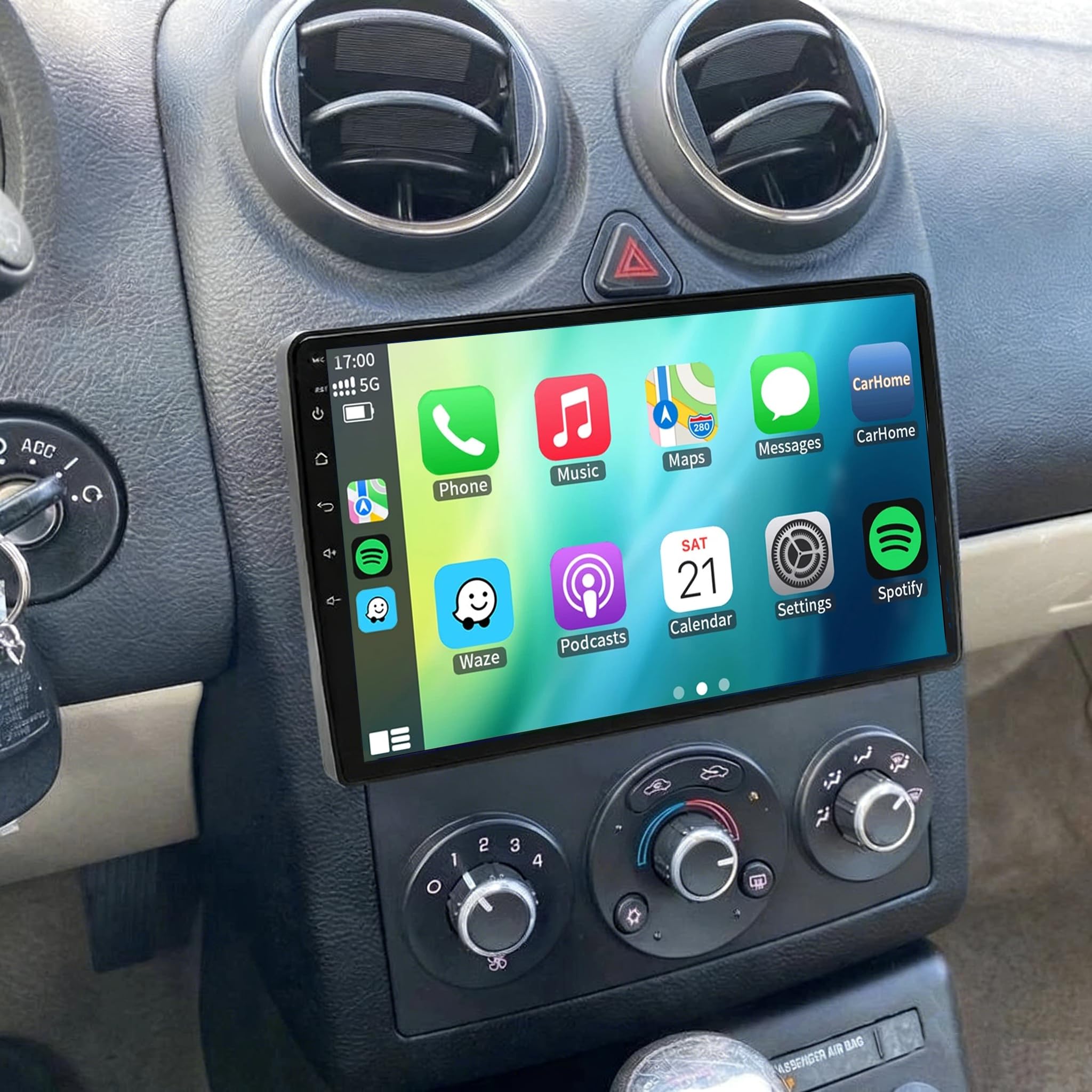
Image: The main screen of the Surakey Android 15 car stereo showing various application icons like YouTube, FM Radio, WhatsApp, Waze, and others, indicating a user-friendly interface.
The unit features an intuitive Android interface. Navigate through applications and settings using the 8-inch touch screen. The home screen provides quick access to frequently used functions such as navigation, music, and radio.
2. „Bluetooth“ ryšys

Image: The Bluetooth interface of the car stereo, displaying a phone dialer and music playback controls. Icons for Music, Address book, Caller ID, and Voice call are visible.
To connect your phone via Bluetooth for hands-free calling and music streaming:
- On the car stereo, tap the 'BT' icon or navigate to Bluetooth settings.
- Įsitikinkite, kad jūsų mobiliajame telefone įjungtas Bluetooth.
- Ieškokite available devices on your phone and select 'CarBT' (or the device name displayed on the stereo).
- Enter the PIN (usually '0000') if prompted.
- Once connected, 'phone audio' and 'music audio' should be displayed, indicating a successful connection. If not, restart the Bluetooth on both devices.
3. Wireless Apple CarPlay and Android Auto

Image: The car stereo displaying both Apple CarPlay and Android Auto interfaces, showing common apps like Phone, Music, Maps, and Messages. A user is shown interacting with voice commands for Siri and Google Assistant.
The unit supports both wireless Apple CarPlay and wireless Android Auto. This allows seamless integration of your smartphone for navigation, calls, messages, and music, with voice control capabilities.
Connection Steps (via ZLINK app):
- Ensure your phone's Bluetooth is connected to the car stereo.
- Open the 'ZLINK' application on the car stereo.
- The system will attempt to connect to your phone. For Apple CarPlay, ensure your iPhone's Wi-Fi is also enabled. For Android Auto, ensure your Android phone has Android Auto installed and is set up for wireless projection.
- If the connection is not successful automatically, you may need to manually connect the car stereo to your phone's WiFi hotspot. After connecting to the hotspot, delete any previous ZLINK history records on the car stereo, then reopen the ZLINK app.
Video: This video demonstrates the process of connecting a smartphone to the car stereo via Bluetooth and ZLINK for Apple CarPlay and Android Auto. It shows how to enable Bluetooth on the phone, pair with the car stereo, and then initiate the ZLINK connection. It also illustrates troubleshooting steps for manual WiFi connection if the automatic connection fails.
4. GPS navigacija

Image: The car stereo displaying a GPS navigation map with a route highlighted, showing both online and offline navigation options.
The unit supports both online and offline navigation. You can use pre-installed offline maps via the included GPS module or download navigation apps from the Play Store when connected to WiFi/WLAN.
5. FM/RDS radijas

Image: The FM radio interface of the car stereo, showing a large frequency display (102.30 MHz) and controls for tuning, station presets, and RDS information.
Access FM and RDS radio channels for news, music, and real-time traffic updates. Use the touch screen to tune frequencies and save your favorite stations.
6. Padalinto ekrano funkcija

Image: The car stereo screen displaying two applications simultaneously in split-screen mode, such as navigation on one side and music playback on the other.
The split-screen feature allows you to display two applications simultaneously, such as navigation and music, enhancing multitasking while driving.
7. Vairo valdymas (SWC)

Image: A hand on a car's steering wheel with control buttons, alongside the car stereo's interface for setting up Steering Wheel Control (SWC) functions like volume, track changes, and call answering.
The SWC function allows you to control various features like answering calls, changing music tracks, and adjusting volume directly from your steering wheel buttons, providing convenience and safety.
8. Veidrodinis saitas

Image: A smartphone screen being mirrored onto the car stereo display, illustrating the Mirror Link function.
The Mirror Link function allows you to mirror your iOS or Android smartphone screen directly onto the car stereo display via WiFi, enabling access to your phone's content on a larger screen.
9. Skaitmeninis garso procesorius (DSP)

Image: The Digital Sound Processor (DSP) interface of the car stereo, showing a graphic equalizer with various frequency bands and preset sound modes like Custom, Classical, Jazz, Pop, Metal, Subwoofer, and Vocal.
The integrated DSP feature provides high-quality audio processing, allowing for personalized audio settings, optimized soundstage, and enhanced in-car audio performance.
Priežiūra
- Ekrano valymas: Use a soft, lint-free cloth to clean the touch screen. For stubborn marks, lightly dampNuvalykite šluostę vandeniu arba ekranui saugiu valikliu. Venkite abrazyvinių medžiagų ar stiprių cheminių medžiagų.
- Bendras valymas: Nuvalykite įrenginio išorę minkšta, sausa šluoste. Nenaudokite per daug drėgmės ir nepurkškite valiklių tiesiai ant įrenginio.
- Programinės įrangos atnaujinimai: Reguliariai tikrinkite, ar yra programinės įrangos atnaujinimų, kad užtikrintumėte optimalų našumą ir prieigą prie naujų funkcijų. Vadovaukitės ekrane pateikiamomis instrukcijomis, kad gautumėte visus galimus atnaujinimus.
- Venkite kliūčių: Ensure that no objects obstruct the ventilation openings of the unit to prevent overheating.
Trikčių šalinimas
| Problema | Galima priežastis | Sprendimas |
|---|---|---|
| Nėra galios | Neteisingas laidų prijungimas, perdegęs saugiklis, transporto priemonės maitinimo problema. | Check power connections (B+, ACC, GND). Verify vehicle fuses. Consult a professional installer. |
| No Bluetooth/WiFi signal | White plug not connected. | Ensure the white plug (camera input cable) is securely connected to the main unit. |
| „CarPlay“ / „Android Auto“ neprisijungia | Bluetooth/WiFi issues, ZLINK app error, phone settings. | Ensure Bluetooth is paired. If wireless connection fails, manually connect car stereo to phone's WiFi hotspot. Delete ZLINK history on stereo and restart ZLINK app. Check phone's CarPlay/Android Auto settings. |
| Galinio vaizdo kamera nerodoma | Incorrect wiring, incompatible camera, incorrect settings. | Verify camera power and video signal connections. Check camera format settings in Factory Settings (NTSC/PAL for OEM, AHD/25 for included camera). This unit only supports OEM CVBS 720P backup cameras; 360-degree panoramic cameras are not supported. If your OEM camera is incompatible, use the included backup camera. |
| Vairo valdikliai neveikia | Incorrect wiring, SWC learning not performed. | Ensure KEY1 and KEY2 wires are correctly connected. Perform the SWC learning procedure in the unit's settings. |
| Nėra garso arba garsas iškraipytas | Speaker wiring issues, volume settings, DSP settings. | Check all speaker wire connections. Adjust volume levels. Verify DSP equalizer settings are not set to extreme values. |
Specifikacijos
- Modelis: JIAQI-QA1153X-A026402-WYQ-2601-29
- Operacinė sistema: Android 15
- RAM: 2 GB
- ROM: 64 GB
- Ekrano dydis: 8 colių
- Ekrano tipas: 2.5D HD Touch Screen
- Suderinamumas: Pontiac G6 2005-2008 m
- Savybės: Wireless Apple CarPlay, Wireless Android Auto, GPS Navigation, Bluetooth, WiFi, FM/RDS, DSP, SWC, Backup Camera Support
- Procesorius: Quad/4 cores high efficiency processor
- Vaizdo įrašo raiška: HD 1024P or IPS 1280P
- Extended Functions Support: TPMS, OBD2, DVR, DAB+
Garantija ir palaikymas
For product support, warranty information, or any inquiries, please contact Surakey customer service. You can typically find contact details on the product packaging or through the seller's platform.

Image: An illustration of a customer service representative with text indicating "24 Hours Customer Support" and an email address: Fuyatongus@outlook.com.
Pagalba el. paštu: Fuyatongus@outlook.com
Kreipdamiesi į palaikymo tarnybą, pateikite savo produkto modelio numerį ir išsamų problemos aprašymą, kad užtikrintumėte greitą ir efektyvų sprendimą.