
Įvadas
Thank you for choosing the CRUA 34-inch Curved Gaming Monitor. This manual provides essential information for setting up, operating, maintaining, and troubleshooting your new monitor. Please read this manual thoroughly before use to ensure optimal performance and to prevent damage.

Vaizdas: priekis view of the CRUA 34-inch Curved Gaming Monitor.
Pakuotės turinys
Patikrinkite, ar jūsų pakuotėje yra visi toliau išvardyti daiktai:
- CRUA 34-inch Curved Gaming Monitor
- Monitoriaus stovas (pagrindas ir kaklelis)
- Maitinimo adapteris ir laidas
- HDMI kabelis
- DisplayPort (DP) kabelis
- Vartotojo vadovas
- Mounting Screws (for stand assembly)
Sąranka
1. Stovo surinkimas
- Atsargiai išimkite monitorių iš pakuotės, apsaugodami jį ant minkšto paviršiaus.
- Pritvirtinkite stovo kaklelį prie monitoriaus skydelio naudodami pateiktus varžtus.
- Pritvirtinkite stovo pagrindą prie stovo kaklelio.
- Surinktą monitorių padėkite ant stabilaus, lygaus paviršiaus.
2. Jungiamieji kabeliai
Prijunkite reikiamus laidus prie monitoriaus galinių prievadų:
- Maitinimo kabelis: Connect the power adapter to the monitor's DC input and then to a power outlet.
- Vaizdo įvestis: Connect either an HDMI cable (HDMI 2.0) or a DisplayPort cable (DP 1.4) from your computer's graphics card to the corresponding port on the monitor.
- Garso išvestis: If using external speakers, connect them to the 3.5mm audio output jack.
3. Tvirtinimas prie sienos (neprivaloma)
The monitor supports VESA 100x100mm wall mounts. Remove the stand before attaching a compatible wall mount bracket (not included).

Vaizdas: Galinis view of the monitor detailing HDMI, DP, Audio, DC ports, and the 100x100mm VESA wall bracket area.
Naudojimo instrukcijos
1. Maitinimo įjungimas/išjungimas
Norėdami įjungti arba išjungti monitorių, paspauskite maitinimo mygtuką, kuris paprastai yra jo apačioje arba gale. Maitinimo indikatoriaus lemputė užsidegs, kai monitorius įjungtas.
2. Ekrano ekrano (OSD) meniu
Use the control buttons (joystick or individual buttons) located on the monitor to navigate the OSD menu. This menu allows you to adjust various display settings.
3. Ekrano nustatymų reguliavimas
Within the OSD menu, you can modify settings such as:
- Ryškumas / kontrastas: Sureguliuokite bendrą šviesumo ir kontrasto lygius.
- Spalvų nustatymai: Tiksliai sureguliuokite spalvų temperatūrą, gamą ir atskiras RGB vertes.
- Įvesties šaltinis: Rankiniu būdu pasirinkite tarp HDMI ir DisplayPort įvesčių.
- Atnaujinimo dažnis: Ensure your system is configured to utilize the monitor's 165Hz refresh rate for smooth visuals.
- AMD FreeSync: Enable or disable FreeSync to synchronize the monitor's refresh rate with your GPU's frame rate, reducing screen tearing and stuttering.
Savybės
The CRUA 34-inch Curved Gaming Monitor is designed to provide an immersive visual experience with high performance and versatile connectivity.
- 34-inch UltraWide WQHD Display: Experience a vast panoramic view with a 3440x1440 resolution and a 21:9 aspect ratio. This provides ample screen space for multitasking, content creation, and immersive gaming.
- 165 Hz atnaujinimo dažnis ir AMD „FreeSync“: Enjoy ultra-smooth gameplay and responsive visuals with a high 165Hz refresh rate. AMD FreeSync technology eliminates screen tearing and motion blur by synchronizing the monitor's refresh rate with your graphics card.
- 3800R Ultra-Curved Immersion: The 3800R curvature wraps the screen around your natural field of view, enhancing immersion and providing a more comfortable viewing experience during extended sessions.
- Ryškių spalvų atkūrimas: The VA panel offers 120% sRGB color gamut coverage, 16.7 million display colors, 355 cd/m² brightness, and a 4000:1 contrast ratio, delivering rich, accurate, and vivid visuals.
- Integrated Speakers & Flexible Connectivity: Built-in speakers provide convenient audio without additional hardware. Multiple connectivity options include HDMI 2.0 and DisplayPort 1.4 inputs, ensuring compatibility with various devices.
- Ergonomiškas dizainas: The stand supports tilt adjustment for comfortable viewing angles. VESA 100x100mm compatibility allows for flexible mounting options in home offices, gaming rooms, or studios.

Image: Visual comparison demonstrating the higher detail of UWQHD (3440x1440) resolution versus FHD (1920x1080).

Image: Depiction of 165Hz refresh rate and the visual difference with AMD FreeSync enabled versus disabled, showing reduced tearing.
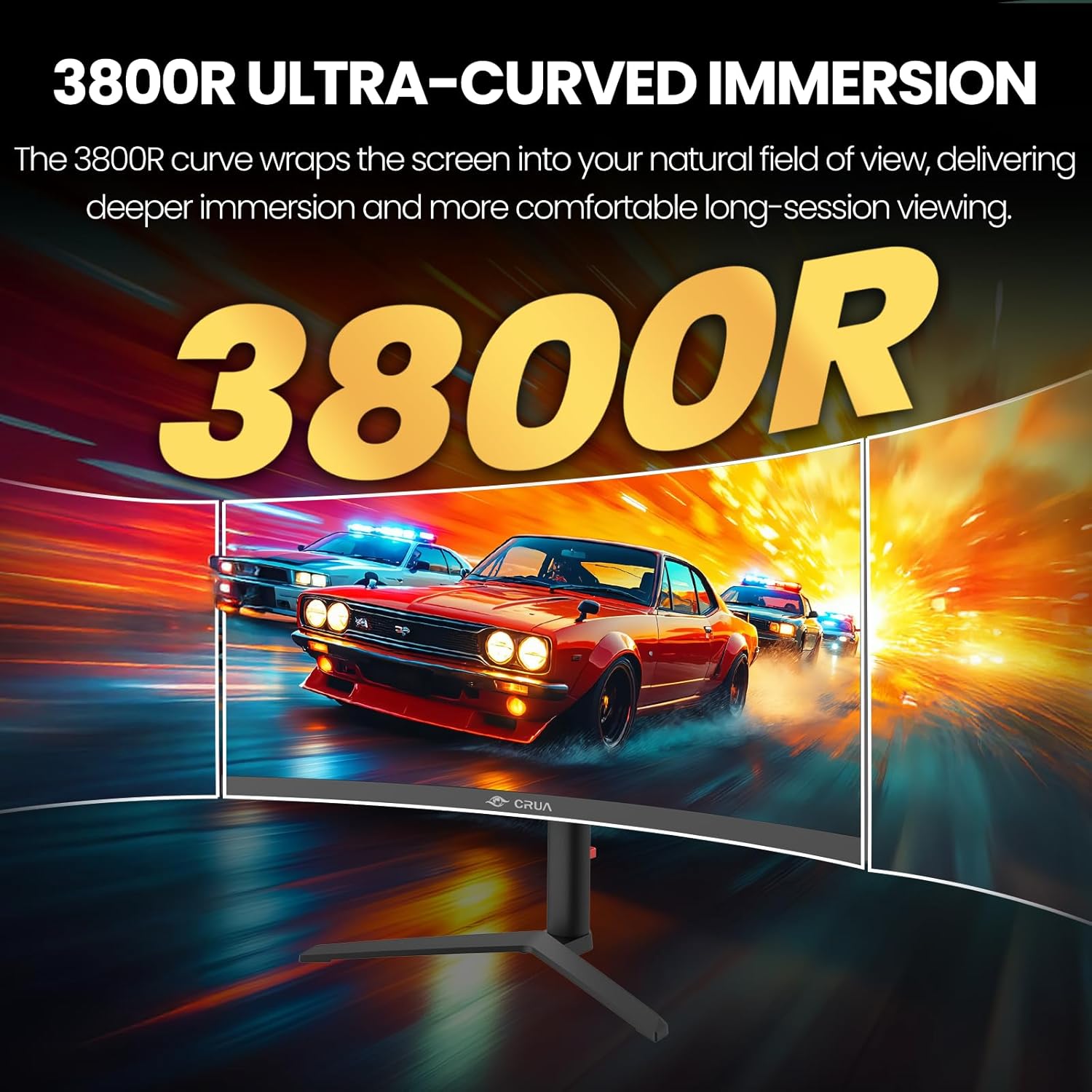
Image: Visual representation of the 3800R ultra-curved screen, demonstrating how it enhances immersion.
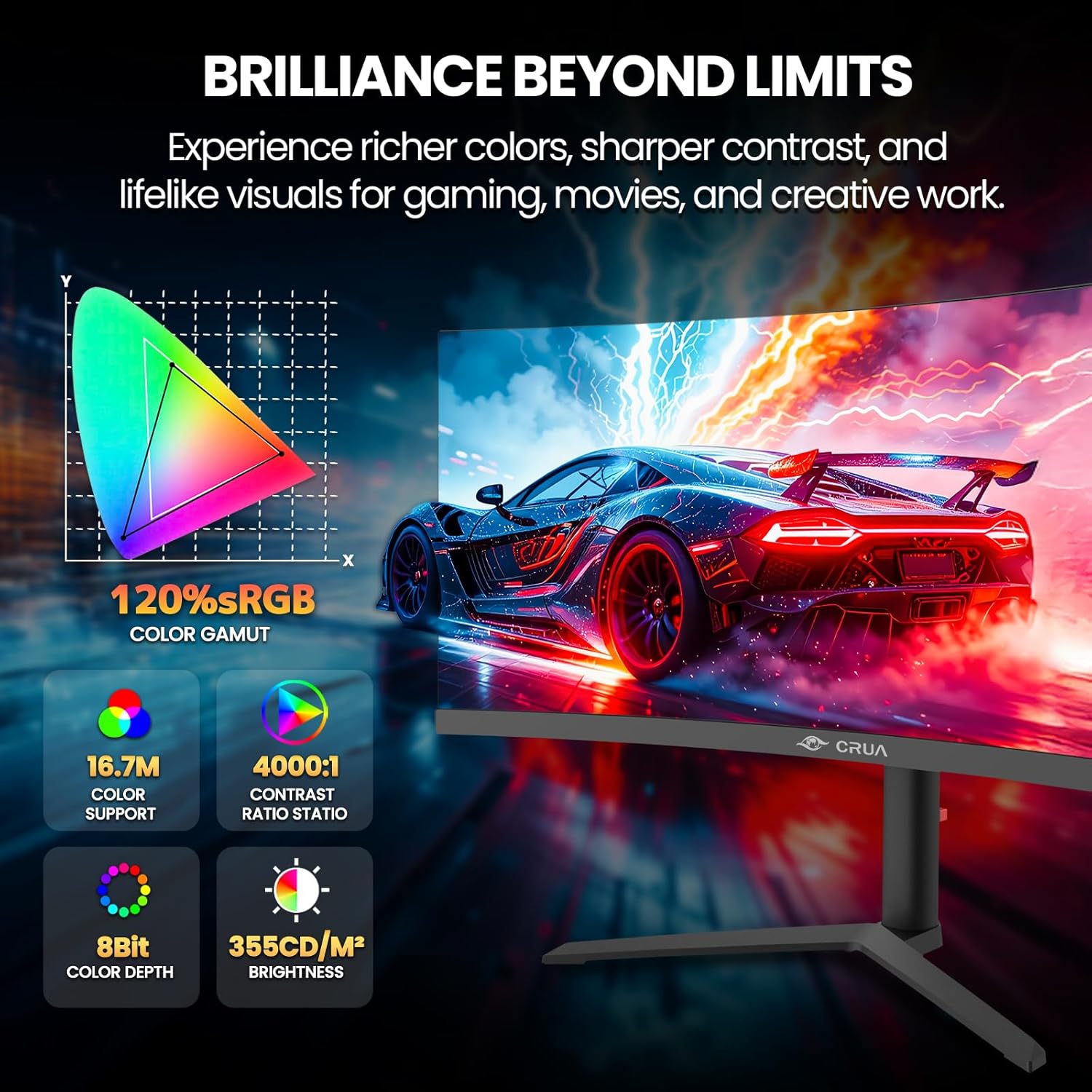
Image: Details on the monitor's color performance, highlighting 120% sRGB, 16.7 million colors, 4000:1 contrast ratio, and 355 cd/m² brightness.
Specifikacijos
| Funkcija | Specifikacija |
|---|---|
| Prekės ženklas | CRUA |
| Modelio numeris | CR340QA |
| Ekrano dydis | 34 colių |
| Rezoliucija | 3440 x 1440 (WQHD Ultra Wide) |
| Krašto santykis | 21:9 |
| Kreivumas | 3800R |
| Skydelio tipas | VA |
| Atnaujinimo dažnis | 165 Hz |
| Reagavimo laikas | 1 ms |
| Ryškumas | 355 cd/m² |
| Kontrasto santykis | 4000:1 |
| Spalvų gama | 120% sRGB |
| Viewing kampas | 178° (H) / 178° (V) |
| Adaptyvaus sinchronizavimo technologija | AMD FreeSync |
| Ryšys | 2x HDMI 2.0, 2x DisplayPort 1.4, 1x 3.5mm Audio Out |
| Integruoti garsiakalbiai | Taip |
| VESA tvirtinimo suderinamumas | 100 x 100 mm |
| Matmenys (G x P x A) | 10.2 x 81.3 x 35.6 cm (apytiksliai) |
| Svoris | 20 svarai (apytiksliai) |
Trikčių šalinimas
Jei kyla problemų dėl monitoriaus, žr. šias dažniausiai pasitaikančias problemas ir sprendimus:
- Nėra galios:
- Įsitikinkite, kad maitinimo laidas yra patikimai prijungtas prie monitoriaus ir veikiančio maitinimo lizdo.
- Patikrinkite, ar maitinimo adapteris veikia tinkamai.
- Nėra signalo:
- Check that the HDMI or DisplayPort cable is firmly connected to both the monitor and your computer.
- Pasirinkite tinkamą įvesties šaltinį per OSD meniu.
- Ensure your computer's graphics card is properly installed and drivers are up to date.
- Mirgantis arba iškreiptas vaizdas:
- Patikrinkite vaizdo kabelį, ar jis nepažeistas arba neatsilaisvinusios jungtys. Jei yra, išbandykite kitą kabelį.
- Koreguokite atnaujinimo dažnio nustatymus savo kompiuteryje.
- Disable or enable AMD FreeSync in the OSD menu to see if it resolves the issue.
- Nėra garso iš integruotų garsiakalbių:
- Įsitikinkite, kad monitoriaus garsumas nėra išjungtas arba nustatytas per mažas OSD meniu.
- Patikrinkite kompiuterio garso išvesties nustatymus ir įsitikinkite, kad monitorius pasirinktas kaip atkūrimo įrenginys.
Priežiūra
Proper maintenance helps prolong the life of your monitor:
- Ekrano valymas: Švelniai nuvalykite ekraną minkštu, nepūkuotu skudurėliu. Įsisenėjusioms dėmėms valyti naudokite monitoriui skirtą valymo tirpalą, užteptą ant šluostės, o ne tiesiai ant ekrano.
- C valymasasing: Monitorių valykite minkšta, sausa šluoste.asing. Venkite abrazyvinių valiklių ar tirpiklių.
- Vėdinimas: Įsitikinkite, kad monitoriaus ventiliacijos angos nėra užblokuotos, kad jis neperkaistų.
- Išjunkite, kai nenaudojate: Turn off the monitor when not in use for extended periods to save energy and extend its lifespan.
Garantija ir palaikymas
CRUA is committed to providing high-quality computer monitors and premium customer service. If you have any questions, concerns, or require assistance with your product, please do not hesitate to contact our support team. We are dedicated to helping our customers and resolving any issues you may encounter.
Please refer to your purchase documentation or the official CRUA websvetainėje rasite konkrečias garantijos sąlygas ir kontaktinę informaciją.