
1. Įvadas
This manual provides detailed instructions for the setup, operation, and maintenance of your Magcubic HY320Pro projector. Please read this manual thoroughly before using the product to ensure proper function and safety.
2. Saugos informacija
Visada laikykitės šių saugos priemonių, kad nesugadintumėte projektoriaus ir užtikrintumėte naudotojo saugumą:
- Neužblokuokite ventiliacijos angų. Užtikrinkite pakankamą oro srautą aplink projektorių.
- Saugokite projektorių nuo lietaus ar drėgmės, kad išvengtumėte gaisro ar elektros smūgio.
- Venkite žiūrėti tiesiai į projektoriaus objektyvą, kai lamp yra įjungtas.
- Naudokite tik prie projektorijaus pridėtą maitinimo adapterį.
- Nebandykite patys ardyti ar taisyti projektoriaus. Kreipkitės į kvalifikuotus techninės priežiūros darbuotojus.
- Projektorių laikykite atokiau nuo šilumos šaltinių ir tiesioginių saulės spindulių.
3. Pakuotės turinys
Patikrinkite, ar pakuotėje yra visi reikalingi daiktai:
- Magcubic HY320Pro Projector
- Maitinimo adapteris
- Nuotolinio valdymo pultas
- Vartotojo vadovas (šis dokumentas)
4. Produktas baigtasview
Familiarize yourself with the components of your Magcubic HY320Pro projector.
4.1 Priekis View
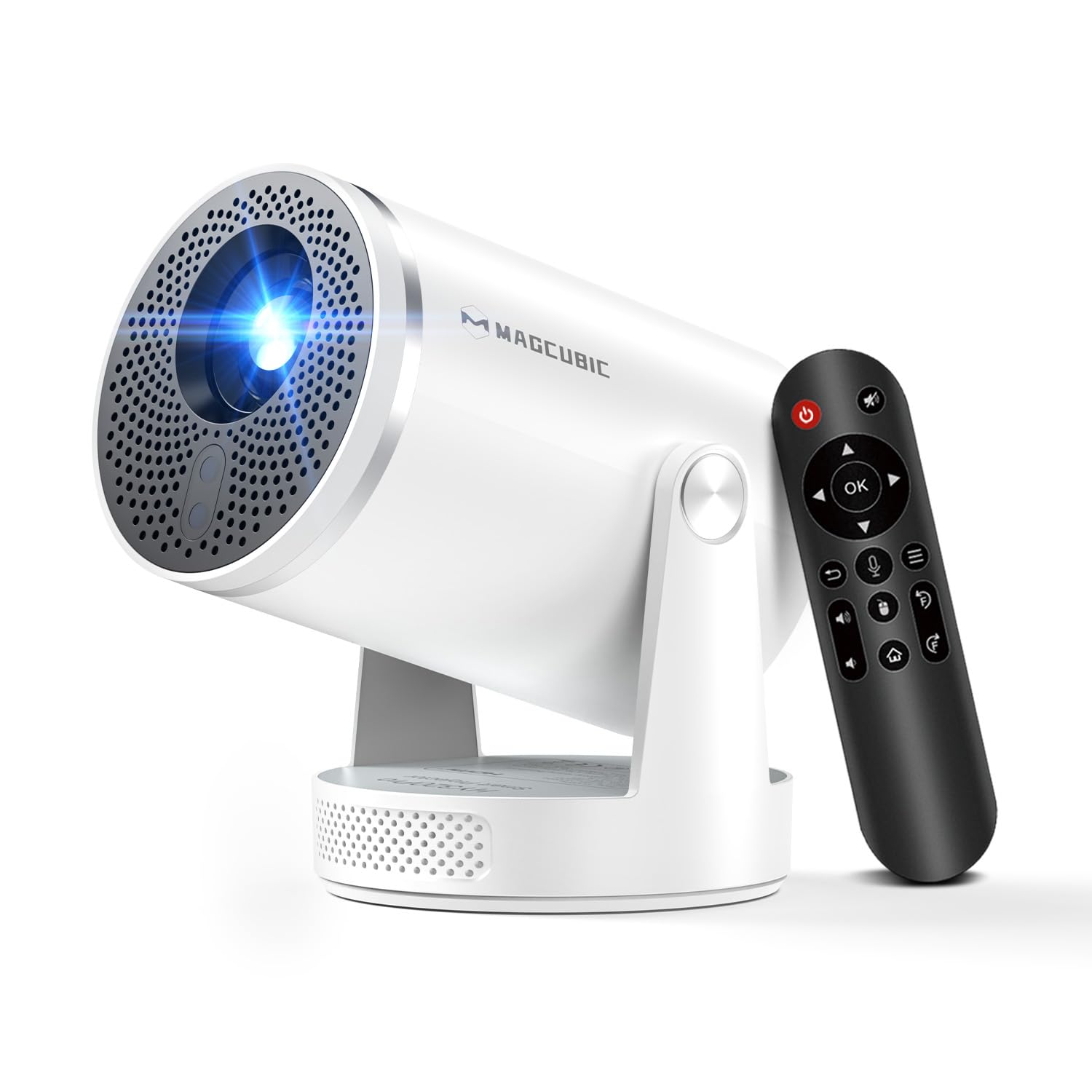
Vaizdas: priekis view of the Magcubic HY320Pro projector, highlighting the projection lens and front ventilation grille.
4.2 Galas ir šonas Views

Vaizdas: Galas ir šonas view of the projector, illustrating the various input ports (HDMI, USB) and power connection.
4.3 Nuotolinis valdymas

Image: The remote control for the Magcubic HY320Pro projector, featuring navigation, volume, and power buttons, along with an Air Mouse function button.
5. Sąranka
5.1 Įdėjimas
Position the projector on a stable, flat surface. The HY320Pro features a 180-degree rotatable projection, allowing it to project onto walls or ceilings.

Image: The projector positioned to project an image onto a ceiling, demonstrating its 180-degree rotation capability.
Refer to the projection distance table for optimal screen sizes:
| Projection Size (inches) | Projekcijos atstumas (pėdomis) |
|---|---|
| 80 colio | 5.2 pėdų |
| 100 colio | 6.5 pėdų |
| 120 colio | 7.5 pėdų |
| 140 colio | 8.5 pėdų |
Table: Recommended projection distances for various screen sizes with the HY320Pro (0.8:1 projection ratio).
5.2 Maitinimo jungtis
Connect the provided power adapter to the projector's power input and then plug it into a wall outlet.
5.3 Pradinis įjungimas ir vaizdo reguliavimas
Press the power button on the projector or remote control to turn it on. The projector features automatic focus and vertical keystone correction. The image will become clear within approximately 3 seconds.

Image: A visual representation of the projector's automatic focus and vertical keystone correction features, showing an image sharpening and aligning on a screen.
Manual horizontal keystone correction is available if needed. The zoom function allows adjustment of image size from 80% to 100%.
6. Naudojimo instrukcijos
6.1 Išorinių įrenginių prijungimas
The projector supports various connectivity options:
- HDMI: Prijunkite žaidimų konsoles, „Blu-ray“ grotuvus ar kitus įrenginius su HDMI jungtimi.
- USB: Prijunkite USB atmintines, kad galėtumėte atkurti medijos failus.
- "Bluetooth 5.4": Pair with external headphones or speakers for enhanced audio.

Image: An illustration of various compatible devices that can be connected to the projector, such as smartphones, TV boxes, USB drives, and gaming consoles.
6.2 „Wi-Fi“ ryšys ir ekrano veidrodinis atspindėjimas
The projector features Wi-Fi 6 and dual-band (2.4 GHz + 5 GHz) network support for stable screen mirroring.
- Navigate to the Wi-Fi settings on the projector's main menu.
- Pasirinkite norimą tinklą ir įveskite slaptažodį.
- For screen mirroring, select the appropriate option (e.g., AirPlay for iOS, Miracast for Android/Windows) from the projector's menu and follow the on-screen instructions to connect your device.

Image: A projector displaying content wirelessly, illustrating Wi-Fi 6 connectivity and compatibility with iOS, Windows, and Android devices for screen mirroring.
6.3 Using the Air Mouse Remote Control
The remote control includes a voice control feature and an Air Mouse function for easier navigation.
- Suaktyvinkite „Bluetooth“: Ensure Bluetooth is enabled on the projector.
- Poravimas: Press and hold the left and right buttons on the remote simultaneously to establish the Bluetooth connection.
- Oro pelės funkcija: Once paired, you can use the remote as an Air Mouse by moving it in the air to control the on-screen cursor.
- Valdymas balsu: Use the voice button on the remote to search for content quickly.

Image: Step-by-step guide on how to activate and use the Air Mouse function of the remote control, including Bluetooth pairing instructions.
6.4 „Android 14“ sistema ir programos
The projector runs on Android 14, providing access to over 6,000 applications for streaming and entertainment.
- From the home screen, navigate to the "Store" or "Apps" section to browse and install applications like YouTube, Spotify, Disney+, Netflix, and more.
- Ensure a stable internet connection for optimal streaming performance.

Image: A projector screen displaying a wide array of streaming applications, demonstrating the Android 14 system's access to various entertainment platforms.
7. Priežiūra
Tinkama priežiūra užtikrina projektoriaus ilgaamžiškumą ir našumą.
- Objektyvo valymas: Naudokite minkštą, nepūkuotą šluostę, specialiai skirtą optiniams lęšiams. Nenaudokite abrazyvinių valiklių.
- Išorės valymas: Projektoriaus išorę nuvalykite minkšta, sausa šluoste. Įsisenėjusiam purvui naudokite šiek tiek drėgną šluostę.amp skudurėliu ir tada gerai išdžiovinkite.
- Vėdinimas: Reguliariai tikrinkite, ar ventiliacijos angos yra švarios nuo dulkių ir šiukšlių, kad išvengtumėte perkaitimo.
- Saugykla: Kai projektorius ilgesnį laiką nenaudojamas, jį laikykite vėsioje, sausoje ir nuo dulkių apsaugotoje vietoje.
8. Problemų sprendimas
Jei kyla problemų dėl projektoriaus, žr. šias dažniausiai pasitaikančias problemas ir sprendimus:
| Problema | Galima priežastis | Sprendimas |
|---|---|---|
| Vaizdas nerodomas | Power cable disconnected, input source incorrect, lens cap on. | Check power connection, select correct input source (HDMI/USB), remove lens cap. |
| Vaizdas neryškus | Out of focus, projector not perpendicular to screen. | Allow auto-focus to complete. Adjust manual keystone correction if needed. Ensure projector is placed squarely. |
| Nėra garso | Volume too low, external audio device not connected, incorrect audio output selected. | Increase volume. Check Bluetooth connection for external speakers/headphones. Verify audio output settings. |
| Nuotolinio valdymo pultas neveikia | Batteries low/dead, remote not paired (for Air Mouse). | Replace batteries. Re-pair the remote control via Bluetooth as described in section 6.3. |
| „Wi-Fi“ ryšys nestabilus | Weak signal, interference, incorrect password. | Move projector closer to router. Ensure no obstructions. Re-enter Wi-Fi password. Try 5GHz band if available. |
9. Specifikacijos
Key technical specifications for the Magcubic HY320Pro projector:
| Funkcija | Specifikacija |
|---|---|
| Prekės ženklas | Magkubinis |
| Modelio numeris | HY320Pro |
| Gimtoji raiška | 1920 x 1080 (1080p) |
| Maksimali ekrano skiriamoji geba | 4096 x 2160 (4K palaikymas) |
| Ryškumas | 400 ANSI liumenai |
| Kontrasto santykis | 10000:1 |
| Ryšio technologija | „Wi-Fi 6“, „Bluetooth 5.4“. |
| Ekrano tipas | LED |
| Formos faktorius | Nešiojami |
| Montavimo tipas | Antžeminis kalnas |
| Rekomenduojami naudojimo būdai | Educational, Home Cinema, Office |
| Ypatinga funkcija | Short Throw, Auto Focus, Auto Vertical Keystone Correction, Manual Horizontal Keystone Correction, 180° Projection |
| Integruotas garsiakalbis | 5W |
| Operacinė sistema | Android 14 |
| Maksimalus projekcijos atstumas | 3.25 metrai |
| Maksimalus vaizdo dydis | 140 colių |
| Min Image Size | 40 colių |
| Techninės įrangos sąsaja | HDMI, USB |
| Prekės svoris | 1.3 svaro (apie 0.59 kg) |
| Matmenys (apytiksliai) | 198.85 x 116 x 110 mm |
10. Garantija ir palaikymas
The product comes with a 1-year warranty. For technical support, warranty claims, or service inquiries, please contact your retailer or the manufacturer directly. Refer to the contact information provided with your purchase documentation.