
1. Įvadas
Thank you for choosing the PYY Cash Register for Small Business. This manual provides essential information for the proper setup, operation, and maintenance of your new electronic cash register. Please read these instructions carefully before using the product to ensure optimal performance and longevity.
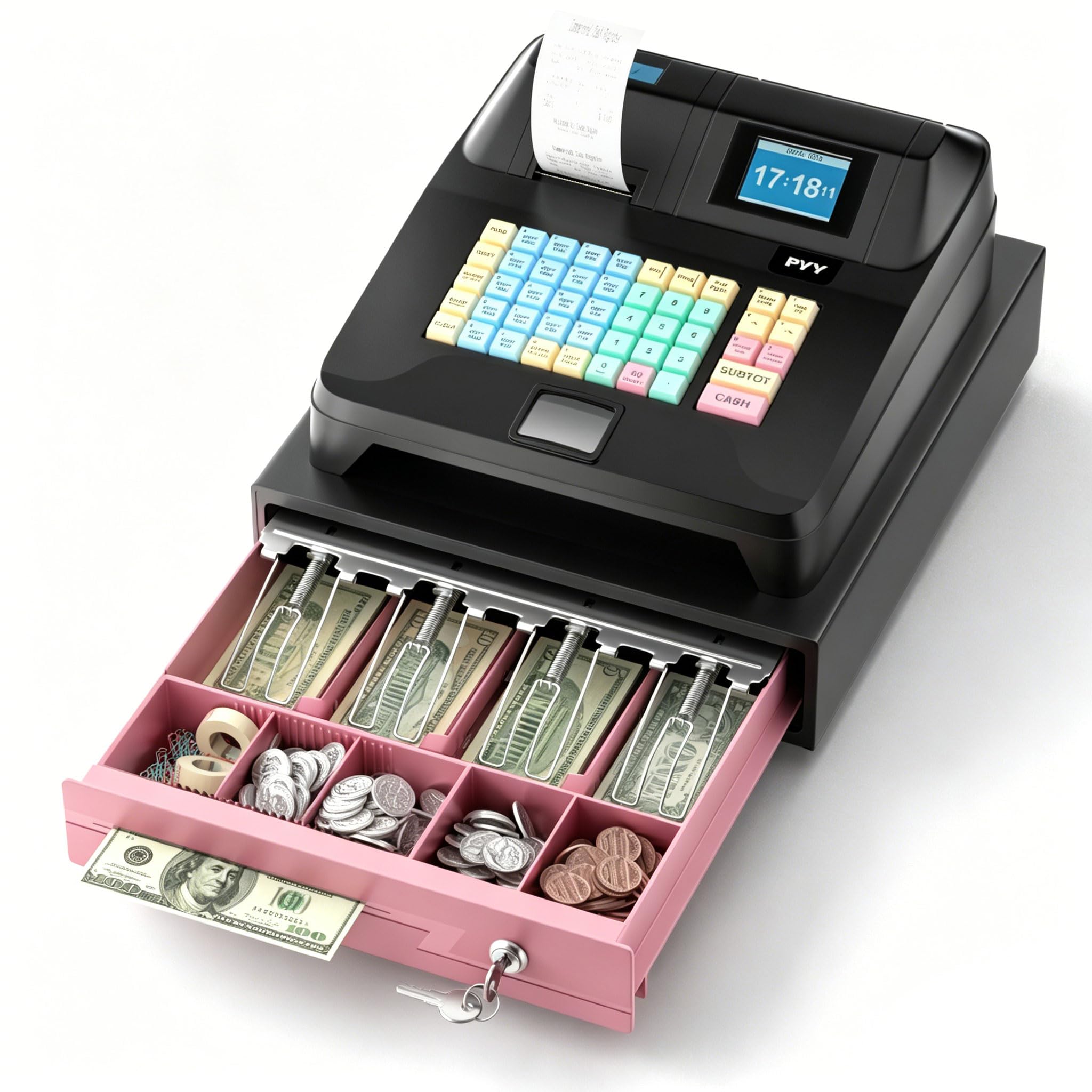
Image 1.1: The PYY Cash Register for Small Business, showcasing its compact design suitable for various retail environments.
2. Kas yra dėžutėje
Carefully unpack your PYY Cash Register and ensure all items listed below are present:
- Elektroninis kasos aparatas
- 2-1/4 Inches Thermal Papers * 10
- Cash Box Keys * 6
- Maitinimo kabelis
- USB kabelis
3. Sąrankos vadovas
3.1. Pradinis įrengimas ir maitinimo prijungimas
- Place the cash register on a stable, flat surface.
- Connect the power cable to the designated port on the back of the cash register and then to a standard electrical outlet.
3.2. Installing the Thermal Paper Roll
Svarbu: Installing the paper roll is a critical first step, as some programming functions may require it to be present. Ensure the paper is installed correctly before proceeding with any programming.
- Atidarykite spausdintuvo dangtį, esantį kasos aparato viršuje.
- Insert a 2-1/4 inch thermal paper roll, ensuring the paper feeds from the bottom and the leading edge is straight.
- Close the printer cover, leaving a small amount of paper extending from the slot.

Image 3.2: The cash register in operation, demonstrating a receipt being printed. This illustrates the correct paper feed direction.
3.3. Customizing Key Labels
The keys on your PYY Cash Register are designed to be removable, allowing you to insert custom labels for departments, items, or functions. Gently pry off the keycaps to place your labels underneath, then reattach them securely.
3.4. Connecting Peripherals (USB)
If you intend to connect the cash register to a computer or other peripheral devices, use the provided USB cable. Connect one end to the USB port on the cash register and the other to your device. Refer to your software's instructions for driver installation and configuration.
4. Naudojimo instrukcijos
4.1. Basic Transaction Process
- Įjunkite kasos aparatą naudodami maitinimo jungiklį.
- Įveskite prekės kainą naudodami skaitmeninę klaviatūrą.
- Press the corresponding department key (if programmed).
- Pakartokite su visais elementais.
- Press the 'Subtotal' key to view the current total.
- Įveskite iš kliento gautą sumą.
- Press the 'Cash' or appropriate payment method key to complete the transaction and print a receipt.
4.2. Programming Departments and Taxes
The PYY Cash Register allows for programming of various departments and tax rates. Detailed programming instructions are typically found in a separate programming guide or within the register's internal menu system. Ensure the paper roll is installed before attempting programming. When assigning taxes, ensure only one tax is assigned per department to avoid calculation errors.
5. Priežiūra
5.1. Valymas
To maintain the appearance and functionality of your cash register, regularly wipe the exterior with a soft, damp cloth. Avoid using abrasive cleaners or solvents. Keep the printer area free of dust and paper debris.
5.2. Thermal Paper Replacement
When the paper roll runs out, replace it promptly following the steps outlined in Section 3.2. Always use 2-1/4 inch thermal paper for optimal printing quality.
6. Problemų sprendimas
This section addresses common issues you might encounter with your PYY Cash Register.
- Issue: Register does not power on.
Sprendimas: Check if the power cable is securely connected to both the register and the electrical outlet. Ensure the outlet is functional. - Issue: Paper is not printing or feeding correctly.
Sprendimas: Verify that the thermal paper roll is installed correctly and not jammed. Ensure the printer cover is fully closed. Replace the paper roll if it is empty or damaged. - Issue: Difficulty with programming functions.
Sprendimas: Ensure a thermal paper roll is installed, as some programming steps require it. Refer to the detailed programming guide (if separate) for specific instructions. Double-check that only one tax is assigned per department. - Issue: Keys are not responding.
Sprendimas: Check if any debris is lodged under the keys. Ensure keycaps are properly seated.
If you encounter issues not listed here or require further assistance, please contact PYY customer support.
7. Specifikacijos
Below are the technical specifications for the PYY Cash Register for Small Business:
| Specifikacija | Vertė |
|---|---|
| Gaminio matmenys | 15 x 13.2 x 8.2 colio |
| Prekės svoris | 13.97 svaro |
| ASIN | B0GMP8D82T |
| Prekės modelio numeris | Cash Register for Small Business |
| Gamintojas | PYY |
8. Atitikties informacija
The PYY Cash Register for Small Business adheres to relevant industry standards and directives.

Image 8.1: Verification of Conformity document, indicating compliance with RoHS Directive 2011/65/EU and other standards for PYY POS products.
9. Garantija ir palaikymas
For warranty information, technical support, or service inquiries, please contact PYY customer service through the retailer where the product was purchased or visit the official PYY website. Please have your model number (Cash Register for Small Business) and ASIN (B0GMP8D82T) ready when contacting support.